Change Download Location in Safari: A Complete Step-by-Step Guide
Master how to change download location in Safari on your Mac, iPhone, and iPad with clear steps and troubleshooting tips.
Have you ever downloaded a file in Safari only to struggle finding where it landed on your device? Maybe your downloads clutter your default folder, or you want to save files directly to a more convenient location. Knowing how to change download location in Safari can save you time and keep your files organized.
This guide walks you through adjusting download locations on your Mac, iPhone, and iPad. Additionally, it covers managing Safari's location services settings, so you understand how to control website permissions related to your device's location. Step-by-step instructions and troubleshooting tips will help ensure you have full control over where your downloads go and how Safari uses your location data.
Key takeaways
- Change the download folder in Safari’s Preferences under the General tab on Mac.
- On iPhone and iPad, customize Safari downloads location via the Settings app under Safari > Downloads.
- Access your downloads directly from Safari’s toolbar or Files app depending on your device.
- Manage website location permissions in Safari’s Settings to allow or restrict location access.
- If changes don’t apply, check for restrictions or reset Safari settings to troubleshoot.
Before you start: What you need to know
To customize where Safari saves your downloads and manage location permissions effectively, you need to ensure your device and Safari version support the relevant settings. Safari’s capabilities vary between macOS and iOS devices, and certain download location options depend on your Safari version. For example, changing the download folder on Mac requires Safari 14 or later, while iPhone and iPad offer limited control over download destinations.
Additionally, managing website location services involves adjusting settings in your device’s system preferences or settings app, not just within Safari itself. This means you’ll need access to your Mac’s System Preferences or your iPhone/iPad’s Settings app to allow or restrict location access for websites.
It’s important to understand the difference between the download location—the folder or app where your files are saved—and location services, which control how websites access your physical location. Confusing these can lead to frustration when adjusting settings, so this guide addresses both topics separately but within one resource.
| Device | Safari Version | Download Location Options |
|---|---|---|
| Mac | Safari 14 and later | Can select custom download folder via Safari Preferences > General |
| iPhone/iPad | iOS 13 and later | Downloads saved to the Files app default folder, customizable via Files app settings |
| Older Safari versions | Various | Limited or no option to change download location |
Change download location in Safari on Mac
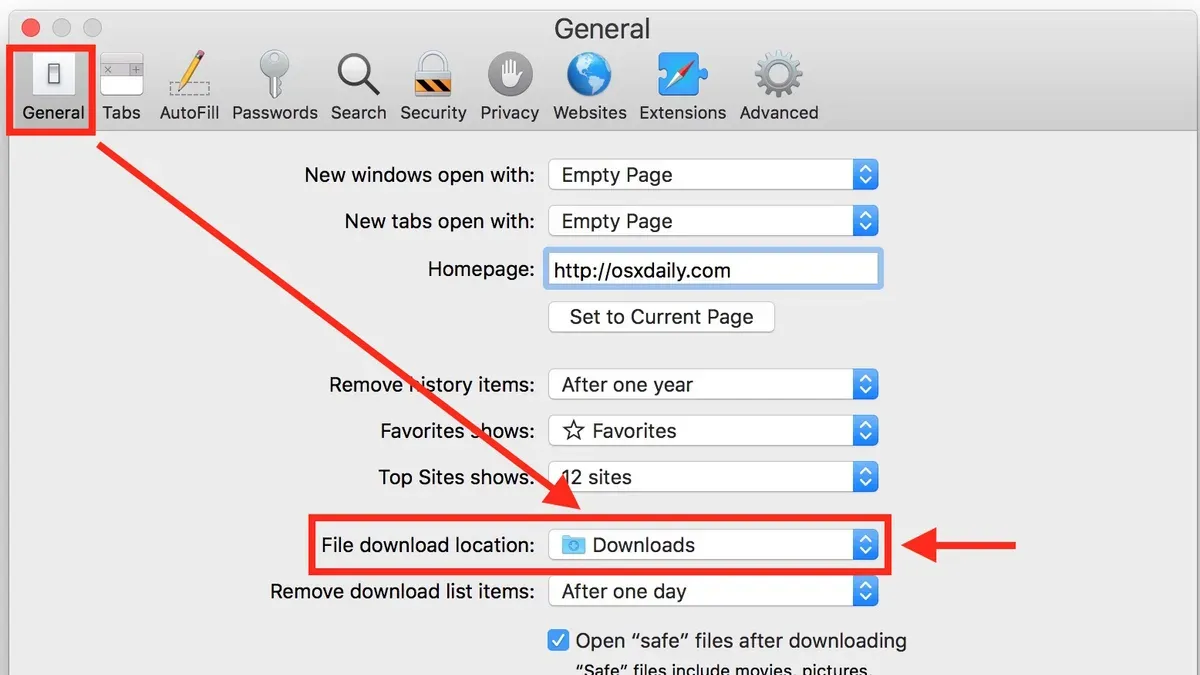
To customize where Safari saves your downloaded files on a Mac, you need to adjust the setting in Safari's preferences. This lets you organize your downloads better and choose locations that suit your workflow, such as your Desktop, Downloads folder, or a specific folder on an external drive or cloud service.
- Open Safari on your Mac.
- Click Safari in the menu bar at the top left of your screen, then select Preferences… from the dropdown menu. A new window will open.
- In the Preferences window, click the General tab if it’s not already selected.
- Locate the File download location dropdown menu, typically near the bottom of the General settings.
- Click the dropdown and choose an existing location like Downloads or Desktop, or select Other… to pick a custom folder.
- If you select Other…, a Finder window will appear. Navigate to or create a new folder where you want your downloads saved, then click Select.
- Close the Preferences window. From now on, Safari will save downloads to your chosen folder.
Choosing a folder on an external drive or a cloud-synced folder (like iCloud Drive or Dropbox) can help manage storage space on your Mac’s internal disk. Before moving large downloads, verify the folder’s available storage to avoid interruptions.
To confirm the change, download a small test file and check the folder size before and after. This simple check ensures Safari is saving files where you expect.
Change download location in Safari on iPhone and iPad
On your iPhone or iPad, Safari downloads files to a default location that you can customize through the Settings app. This helps you control where files are stored, whether locally on your device or in iCloud Drive for syncing across your Apple devices. By adjusting this setting, you can better manage your storage and access your downloads conveniently.
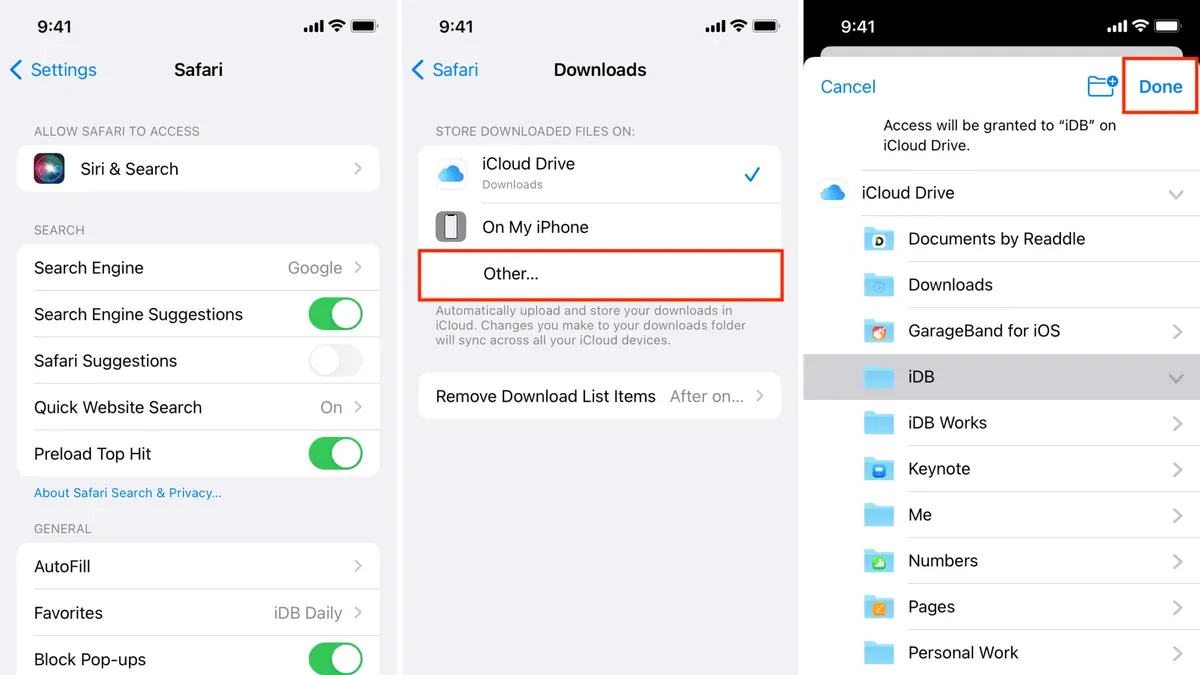
- Open the Settings app on your iPhone or iPad. You should see a list of installed apps and system settings.
- Scroll down and tap Safari. This opens Safari-specific preferences.
- Find and tap Downloads. Here, you see the current download location setting.
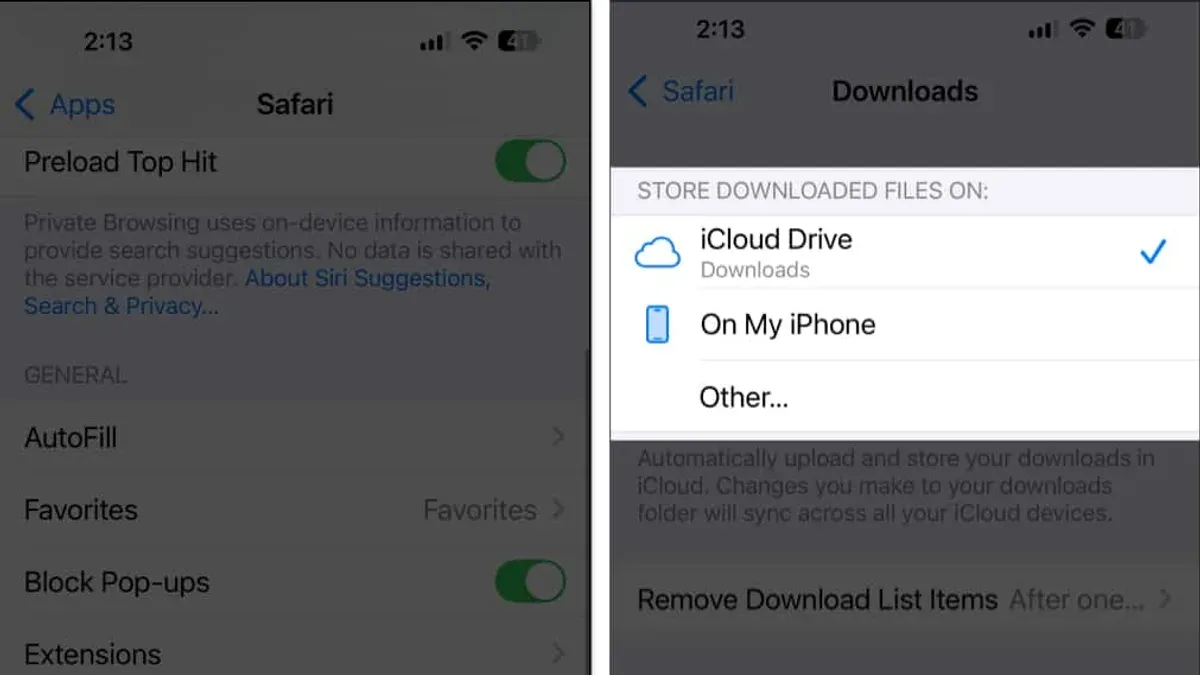
- Tap Download Location. You will see options including iCloud Drive, On My iPhone (or On My iPad), and possibly a Other... option to choose a custom folder.
- Select iCloud Drive if you want your downloads to sync across all your Apple devices using the same Apple ID. This is convenient but uses your iCloud storage quota.
- Choose On My iPhone or On My iPad to save downloads locally on your device. This avoids using iCloud storage but means files won’t automatically sync to your other devices.
- If you tap Other..., you can navigate to a specific folder within the Files app structure. For example, you might create a dedicated Safari Downloads folder inside iCloud Drive or On My iPhone/iPad for better organization.
Remember, local storage options depend on your device’s available space, so saving large files locally can consume significant storage. Using iCloud Drive helps keep files synced and accessible on all your Apple devices but requires sufficient iCloud storage. Consider your storage needs and access preferences when choosing the download location.
How to go to downloads in Safari
Accessing your downloaded files quickly in Safari depends on the device you’re using. On a Mac or iPad, Safari provides a built-in Downloads icon that lets you see recent downloads without leaving the browser. For iPhone and iPad users, the Files app is your go-to place for managing and opening downloaded files. Organizing your downloads into folders within the Files app or Finder on Mac can save you time when retrieving files later.
Access downloads on Mac and iPad
- Look for the Downloads icon in Safari’s toolbar, which looks like a downward arrow inside a circle. When you click or tap it, a list of recent downloads appears.
- Select a file from this list to open it directly or click the folder icon at the bottom of the list to open the folder containing all downloads.
- On Mac, this folder usually opens in Finder, showing your files in the default download location. On iPad, it opens the Files app in the Downloads folder.
Find downloads on iPhone and iPad using the Files app
- Open the Files app on your device.
- Navigate to On My iPhone or iCloud Drive, depending on where you set your downloads to save.
- Open the Downloads folder to see your downloaded files.
Tip: Create subfolders within the Downloads folder to organize files by type or project. This helps with quick retrieval, especially if you download many files regularly.
How to allow and manage location services in Safari
Safari relies on your device's location services to provide websites with access to your geographic location. To enable or disable location access for Safari, you first need to turn on location services system-wide. Then, you can manage permissions for individual websites within Safari’s settings, giving you control over which sites can access your location data.
Enable Location Services for Safari
- On Mac, open System Settings and go to Privacy & Security.
- Select Location Services and ensure the toggle is on.
- Find Safari in the list of apps and check the box to allow location access.
- On iPhone or iPad, open the Settings app and go to Privacy & Security > Location Services.
- Make sure Location Services is enabled, then scroll down to Safari Websites and select the preferred permission: Never, Ask Next Time, or While Using the App.
Manage Website Permissions in Safari
- Open Safari and go to Safari > Settings (Mac) or Settings > Safari (iPhone/iPad).
- Click or tap Privacy & Security and then Website Settings (Mac) or Location (iOS).
- You will see a list of websites requesting location access. Select a website to change its permission to Allow, Deny, or Ask.
- For a website you want to enable, choose Allow. Safari will no longer prompt you for location on that site.
When a website requests your location for the first time, Safari typically shows a prompt asking you to allow or deny access. Choosing "Allow" lets the site receive approximate location data based on your device's location services, which Safari uses for features like local search results or maps. Denying access prevents the site from seeing your location, enhancing privacy but possibly limiting some functionality.
Remember, managing these settings lets you balance convenience and privacy. You can always revisit permissions to revoke or grant location access as your needs change.
How to update and set location in Safari
If Safari is showing an incorrect location or you want to refresh the location data it uses for websites, you can reset location permissions and clear cached location information. This often resolves issues where websites display outdated or wrong location details due to cached data or permission conflicts.
- Open System Settings on your Mac (or Settings on your iPhone/iPad).
- Navigate to Privacy & Security > Location Services.
- Find and select Safari in the list of apps.
- Toggle the location permission off and then on again, or choose Ask Next Time Or When I Share to reset permission prompts.
- On Mac, you can also clear Safari’s website data by going to Safari > Preferences > Privacy > Manage Website Data, then remove data for sites you want to refresh.
- Restart Safari to allow it to request fresh location data from the system and websites.
If you want to manually update your location, you can adjust your Mac’s or iOS device’s location settings by ensuring Wi-Fi is enabled and connected to a known network, as Safari relies on Wi-Fi triangulation and IP address info. For more precise control, third-party apps or VPNs can simulate different locations, but these may affect how websites detect your position.
Common reasons Safari might show an inaccurate location include disabled or restricted location services, VPNs masking your IP, or stale cached location data. To fix these, verify location services are enabled, disable VPNs temporarily, and clear Safari’s cache and website data.
By following these steps, you can ensure Safari uses the most accurate and up-to-date location data, improving your browsing experience and location-based website functionality.
Troubleshooting common issues changing download location and location settings
Sometimes, you may find that the option to change your Safari download location is grayed out or not visible. This often happens if system permissions restrict folder access or if parental controls are enabled. Another common issue is downloads not appearing where you expect, which can result from Safari defaulting back to the original folder or syncing delays with iCloud Drive.
Location services problems can be equally frustrating. Safari might not prompt you to allow location access, or location-based features may fail to work. These issues often stem from global location services being disabled, incorrect website permissions, or cached data conflicts.
| Error Message or Symptom | Likely Cause | Recommended Solution |
|---|---|---|
| Download location option grayed out | Restricted folder permissions or parental controls active | Check System Preferences > Security & Privacy > Privacy for folder permissions; disable parental controls if active |
| Downloaded files not appearing in chosen folder | Safari reverted to default folder or iCloud sync delay | Manually check both default Downloads and iCloud Drive folders; restart Safari to refresh settings |
| Safari not asking for location access | System-wide Location Services disabled or website permissions set to Deny | Enable Location Services in System Preferences > Security & Privacy > Privacy > Location Services; reset website permissions in Safari Preferences > Websites > Location |
| Location-based features not working properly | Cached data conflicts or outdated permissions | Clear Safari cache via Develop menu or Preferences; reset location permissions for the affected sites |
- Open System Preferences and go to Security & Privacy > Privacy > Location Services. Ensure Location Services is enabled and Safari is checked. You should see Safari allowed to use your location.
- If download location options are missing, check Security & Privacy > Files and Folders to confirm Safari has access to your Downloads folder or other designated folders. Add permissions if needed.
- Restart Safari after changing permissions or settings. When it reopens, try changing the download location again. The option should now be active.
- For missing downloads, open both the default Downloads folder and iCloud Drive (if used). Locate your files; if syncing is slow, wait a few moments or reconnect to the internet.
- Clear Safari’s cache by enabling the Develop menu (Safari Preferences > Advanced > Show Develop menu), then choose Develop > Empty Caches. This can resolve location permission glitches.
- If Safari still does not prompt for location access, go to Safari Preferences > Websites > Location and reset all permissions or adjust individual site settings to Ask or Allow.
Frequently asked questions
How to change location in safari?
To change your location settings in Safari, go to System Settings on your Mac or Settings on your iPhone/iPad. For Mac, open System Settings > Privacy & Security > Location Services, then find Safari and adjust permissions for Always, Ask, or Deny. On iOS/iPadOS, go to Settings > Safari > Location and select your preferred option. This controls whether websites can access your geographic location.
How to update location on safari?
Updating your location in Safari is usually automatic if location services are enabled. If you want Safari to use a new or more accurate location, ensure Location Services are turned on in your device’s system settings and that Safari has permission. You can also refresh the webpage to prompt Safari to request your current location again.
How to set location in safari?
Setting location in Safari involves managing permissions for websites. On Mac, open Safari Preferences > Websites > Location and choose Ask, Allow, or Deny for each site. On iPhone or iPad, go to Settings > Safari > Location and choose between Allow, Ask Next Time, or Deny. This lets you control which sites can access your location data.
How to allow location on safari?
To allow location access in Safari, first confirm Location Services is enabled in your device’s settings. On Mac, go to System Settings > Privacy & Security > Location Services, then enable it for Safari. On iPhone or iPad, go to Settings > Safari > Location and select Allow or Ask Next Time. When a website requests location, you will be prompted to permit or deny access.
How to change download location on mac?
In Safari on Mac, open Safari Preferences from the Safari menu, then click the General tab. Look for the File download location setting and choose a folder from the dropdown menu, such as Desktop, Documents, or Other to select a custom folder. This changes where all your Safari downloads are saved by default.
What This Guide Does Not Cover
This guide does not cover third-party download managers or browser extensions that may override Safari’s default download behavior. If you use such tools, you might need to adjust settings within those specific apps or extensions. Additionally, changing download locations on older versions of Safari or iOS may have limited options or require updating your device’s operating system to access the latest features. Location services depend on your device’s GPS, Wi-Fi, and cellular network data, so the accuracy and availability of location information can vary and are outside Safari’s direct control.
For the most seamless experience, ensure your device is running the latest version of its operating system and Safari. The single most useful next step is to review your current download and location settings directly on your device. Doing this will help confirm that your preferences are correctly applied and that Safari behaves exactly as you want, whether saving files or managing location permissions.
See also: How to Use Mac Terminal: A Step-by-Step Guide for Beginners