Mastering File Content Search in Finder on macOS
Discover how to effectively search inside file contents in Finder on macOS using Spotlight indexing and metadata filters.
Searching inside file contents in Finder is a powerful way to locate information buried within documents without third-party software. macOS’s Finder leverages Spotlight indexing to make content search fast and integrated. This article explains how to use Finder’s native content search features effectively, combining them with metadata filters for precise results.
Understanding Finder’s Content Search Capabilities
Finder searches are powered by Spotlight, macOS’s built-in indexing system. Spotlight builds an index of file metadata and content, enabling fast retrieval during searches.
- Spotlight Indexing: Spotlight routinely scans files on your Mac, indexing contents of supported file types to speed up search operations inside Finder. Note that indexing may pause when your Mac is on battery power or performing intensive tasks.
- Supported File Types: Finder can search contents of common text-based files including plain text, rich text, PDFs, Microsoft Office documents (Word, Excel, PowerPoint), and some other formats like HTML and certain code files. However, some proprietary or encrypted formats may not be fully indexed.
- Filename vs Content Search: Filename search matches text in file names only, while content search looks inside the files’ data. Content search requires Spotlight indexing and can find keywords embedded anywhere within supported documents. Be aware that content search may miss recently added files until Spotlight finishes indexing them.
| File Type | Content Search Supported | Indexing Speed |
|---|---|---|
| Plain Text (.txt) | Yes | Very Fast |
| PDF (Text-based) | Yes | Moderate |
| Microsoft Word (.doc,.docx) | Yes | Moderate |
| Excel (.xls,.xlsx) | Partial (limited to cell text) | Moderate |
| Encrypted Files | No | Not indexed |
| Proprietary or Obscure Formats | Varies | Varies |
Step-by-Step Guide to Searching Inside Files Using Finder
Performing a content search inside files using Finder is straightforward but can be enhanced with filters and saved searches.
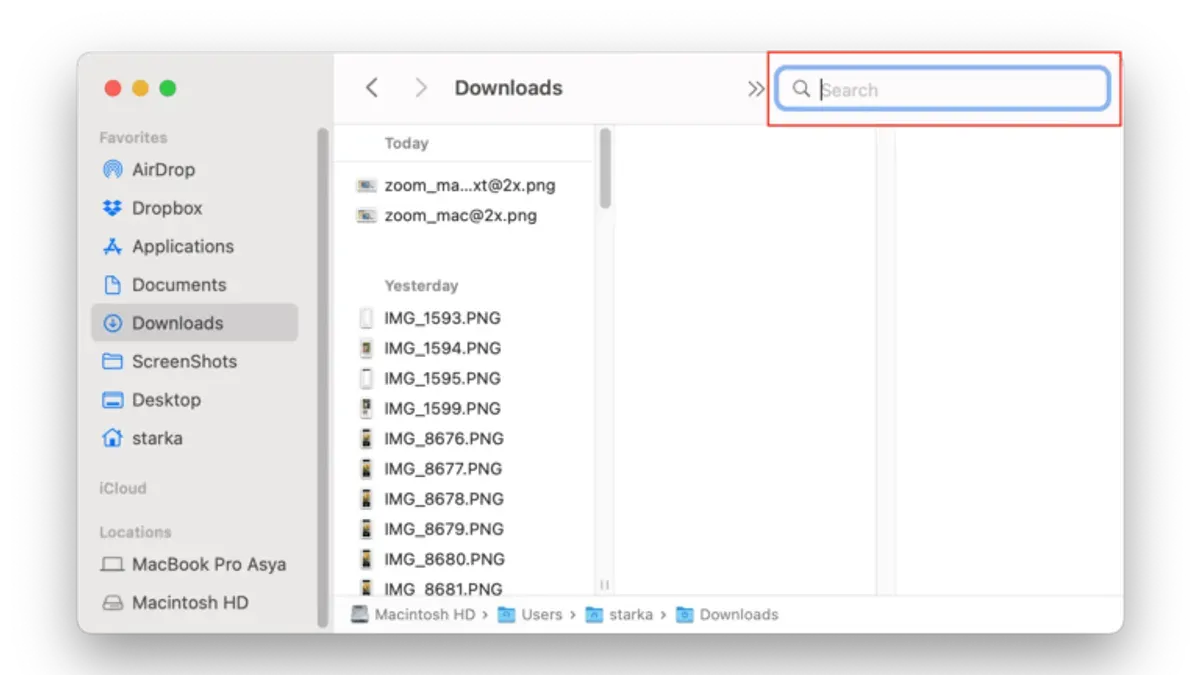
- Open a Finder window and enter your keyword or phrase in the search bar at the top right.
- Immediately after typing, a bar appears below the toolbar. Click on the plus (
+) button to add a search criterion. - Change the first dropdown from Name or Kind to Contents to restrict the search to file contents rather than just filenames. This step is often missed and is essential for content searching.
- Add other criteria as needed, such as Kind (e.g., PDF, Document), Date Modified, or Location (specific folder or drive). Note that the order of criteria affects the search logic, as Finder combines them with AND by default.
- Review the results which show files containing your keyword within their content.
- To reuse this search, click Save below the search bar and create a Smart Folder. Name it descriptively for quick access later. Smart Folders update dynamically as new matching files appear.
Example: Searching for the phrase "annual report" inside PDFs in your Documents folder.
- Type
annual reportin Finder’s search bar. - Click the plus (
+) to add criteria. - Select Contents from the first dropdown.
- Add Kind is PDF.
- Set Location to your
Documentsfolder. - Review the matched PDFs and open the relevant ones directly from Finder.
Combining Content Search with Metadata for Precision Results
Finder’s search bar supports multiple criteria to refine results beyond keywords. Using metadata filters alongside content search improves accuracy and relevance.
- Click the
+button to add filters such as File Size, Tags, Creation Date, or Last Opened. These filters help narrow down results especially in large folders. - Combine filters with content keywords for targeted searches. For example, find Word documents containing "budget" tagged with "Q3" and created after January 2026. Keep in mind that tags and dates must be consistently applied to files for effective filtering.
- Finder supports Boolean logic implicitly: multiple criteria are combined with AND. To perform OR searches, create separate searches or use Spotlight query syntax (e.g., keyword1 OR keyword2). Use a minus sign before a keyword to exclude it (NOT).
Practical scenario: You need to find marketing plans mentioning "launch" but only for files larger than 1 MB and tagged with "priority". Adding these metadata filters narrows down hundreds of documents efficiently.
Troubleshooting Common Issues with Content Search in Finder
Sometimes Finder content search may miss files or return incomplete results. These steps help resolve common problems.
- Known Content Not Found: Confirm Spotlight indexing is active and that the files are in locations included in Spotlight preferences. Files stored in excluded folders or external drives not indexed by Spotlight will not appear in search results.
- Rebuild Spotlight Index: Open System Settings > Siri & Spotlight > Spotlight Privacy. Add the folder or disk, then remove it to force reindexing. Alternatively, run
sudo mdutil -E /in Terminal to erase and rebuild the index system-wide. Indexing can take time depending on data volume. - Limitations: Encrypted files and some proprietary formats are not indexed, so their content won’t be searchable. Large files may be indexed more slowly or partially. Also, Spotlight may not index files immediately after creation or modification.
Index rebuilding progress can be checked using:
mdutil -s /

Typical output example:
"/:
 Indexing enabled."
When to Use Third-Party Tools Instead of Finder for Content Search
Finder content search covers many needs but has limits. For very large datasets or complex search requirements, specialized tools perform better.
- Performance: Finder may slow down or miss results when searching millions of files or very large files. Spotlight indexing itself can consume system resources during initial indexing or reindexing.
- Advanced Features: Finder lacks regex (regular expressions), fuzzy matching, or proximity searches. These features are essential for advanced text analysis or complex queries.
- Recommended Tools: Applications like Alfred, EasyFind, or third-party indexing tools offer more tailored search capabilities and custom workflows. For example, EasyFind performs direct scans without relying on Spotlight, useful when Spotlight indexing is incomplete.
| Feature | Finder | Alfred | EasyFind |
|---|---|---|---|
| Content Search | Yes (Spotlight-based) | Yes (Spotlight + own indices) | Yes (direct scan) |
| Regex Support | No | Partial (with workflows) | Yes |
| Fuzzy Search | No | Yes | No |
| Search Large Datasets | Limited | Better | Good |
| Smart Folders | Yes | Yes | No |
Limits to Finder Content Search
Finder’s search relies on Spotlight indexing and supports common file types only. Encrypted or proprietary files often remain unindexed and unsearchable. Very large files may not be fully indexed or may slow search responsiveness. Additionally, Finder does not support advanced search capabilities like regular expressions or fuzzy logic out of the box.
Frequently Asked Questions
Can Finder search inside PDFs and Word documents by default?
Yes. Finder uses Spotlight to index text-based PDFs and Microsoft Office documents, enabling content search inside these files without extra configuration.
How do I save a content search in Finder for quick access later?
After performing a search, click the Save button below the search bar to create a Smart Folder. Name it and access it anytime from the Finder sidebar.
Why does Finder sometimes fail to find text I know is inside a file?
This usually happens if the file is not indexed by Spotlight, is encrypted, or is in an unsupported format. Rebuilding the Spotlight index or checking Spotlight preferences can help.
Is it possible to search for file content using regular expressions in Finder?
No. Finder’s native search does not support regular expressions. For regex searches, consider third-party tools like EasyFind or Alfred with custom workflows.