
Switching from Canvas to Blackboard: Your Expert Guide
Learn expert strategies to switch from Canvas to Blackboard, ensuring smooth content migration and minimal disruption to teaching and learning.
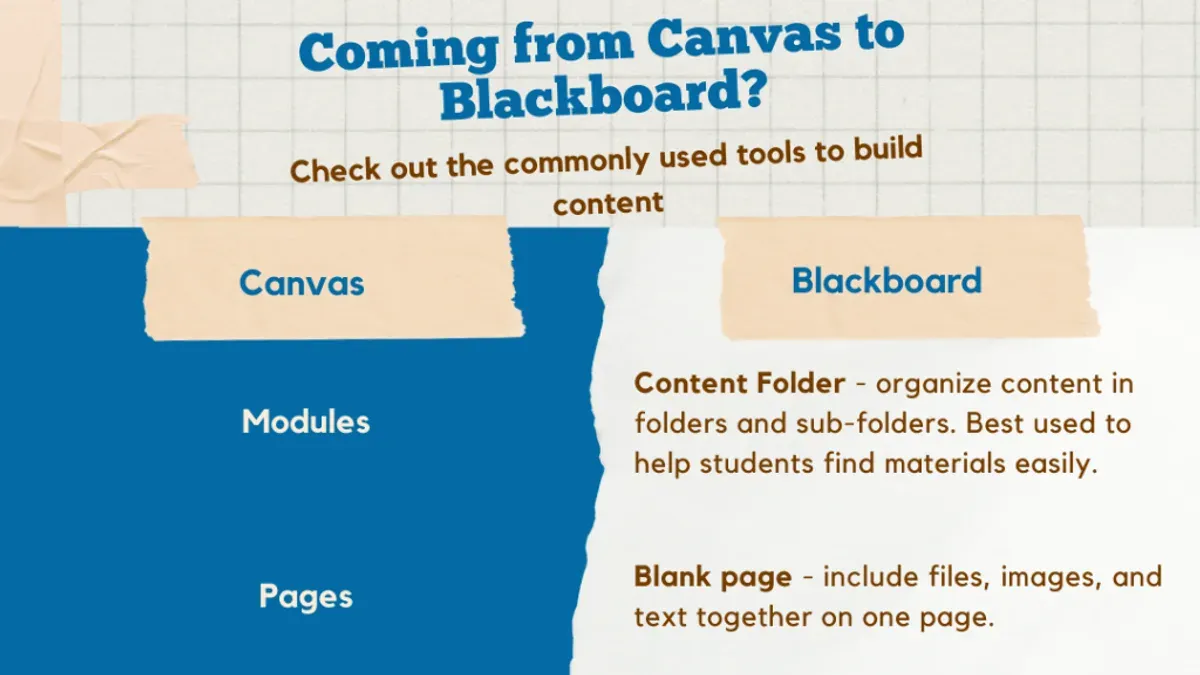
Short answer: Switching from Canvas to Blackboard involves more than just moving your course content; it requires navigating distinct interface designs, content structures, and customization options. Understanding these differences upfront will help you plan a smooth transition without disrupting your institution’s teaching and learning processes.
This guide covers the practical challenges unique to switching from Canvas to Blackboard, focusing on how to tailor Blackboard’s user interface to your needs and manage content migration effectively. You’ll find expert advice on preserving course integrity, handling quizzes and assignments, and avoiding common pitfalls that often complicate LMS transitions. By following this roadmap, you ensure your faculty and students experience minimal disruption while maximizing Blackboard’s capabilities.
Understand what Blackboard and Canvas are
Blackboard and Canvas are two leading learning management systems (LMS) widely used in educational institutions. Both serve as platforms to deliver course content, facilitate communication, and assess student learning, but they differ in design philosophy and user experience.
Blackboard traditionally emphasizes comprehensive feature sets with extensive customization options. It is often found in large universities and higher education institutions with complex administrative needs. Canvas, by contrast, focuses on a streamlined, intuitive interface designed for ease of use and rapid course creation, making it popular in both higher education and K-12 settings.
The choice between these LMS platforms impacts teaching workflows and student engagement. For example, Blackboard's menu system includes a "Control Panel" with deep settings under "Customization" for branding and course navigation, which can require more initial setup. Canvas presents course settings and modules in a simplified left-hand navigation, allowing faster content updates but less granular control.
| Feature | Blackboard | Canvas |
|---|---|---|
| Interface | Feature-rich, traditional layout with multiple tabs and panels | Minimalist, modern interface with streamlined navigation |
| Content Management | Robust folder structures and detailed permission settings | Module-based content organization with drag-and-drop simplicity |
| Assessment Tools | Advanced quiz building with extensive question types | Flexible quizzes with easy preview and question banks |
| Customization | Extensive branding and tool integration options | Limited branding, focused on speed and usability |
Imagine you are preparing a course on environmental science. In Blackboard, you might spend time configuring the course menu to include distinct sections for lectures, assignments, and discussion boards, each with custom access settings. In Canvas, you would build modules sequentially, adding content and assignments in a linear, student-friendly flow that requires less upfront configuration.
Is Canvas the same as Blackboard?
Canvas and Blackboard are often mentioned together, but they are distinct platforms with different architectures and user experiences. Canvas operates on a modern, cloud-native architecture designed for intuitive navigation, while Blackboard’s architecture reflects its legacy as a long-standing, feature-rich platform with a more complex interface.
In terms of course management, Canvas uses a simple left-hand menu with clearly labeled sections like "Modules," "Assignments," and "Grades," making it straightforward for instructors to organize content and track student progress. Blackboard, by contrast, offers more granular control with tabs such as "Course Content," "Grade Center," and "Control Panel," allowing deep customization but requiring a steeper learning curve.
Grading in Canvas emphasizes speed and clarity, featuring a streamlined Gradebook and SpeedGrader tool accessible directly from the course dashboard. Blackboard’s Grade Center is powerful and flexible, supporting complex grading schemas and extensive reporting options, but can feel overwhelming initially.
When it comes to integrations, Canvas supports a broad range of LTI tools with easy setup via the "Settings" > "Apps" menu, while Blackboard provides extensive integration options through the "Building Blocks" system, which may require administrative support.
User customization differs notably: Canvas allows users to personalize the Dashboard with "Courses" and "To Do" lists, while Blackboard’s Ultra interface offers theme and layout choices but less flexibility in overall navigation customization.
For example, an instructor moving a course from Canvas to Blackboard might find that while Canvas’s "Modules" provide a linear content flow, Blackboard’s "Content Areas" require manual structuring to replicate this experience, highlighting the need to rethink course organization rather than expecting a one-to-one transfer.
| Feature | Canvas | Blackboard |
|---|---|---|
| Architecture | Cloud-native, modern UI | Legacy-based, feature-rich |
| Course Management | Modules, Assignments, Grades | Course Content, Grade Center, Control Panel |
| Grading | SpeedGrader, streamlined Gradebook | Flexible Grade Center, advanced reporting |
| Integrations | Easy LTI apps via Settings > Apps | Building Blocks, requires admin support |
| Customization | Dashboard personalization | Theme and Ultra interface layout options |
"Canvas's straightforward layout helped me set up courses quickly, but Blackboard’s Grade Center gave me more detailed grading options once I learned the system." — Educator feedback
How to customize Blackboard to fit your needs
Blackboard offers several customization options to tailor the interface and enhance your teaching workflow. Start by navigating to the Personalize Your Blackboard section found under the Settings menu. Here, you can change your course color themes by selecting from predefined palettes or creating a custom color scheme that matches your institution's branding or personal preference.
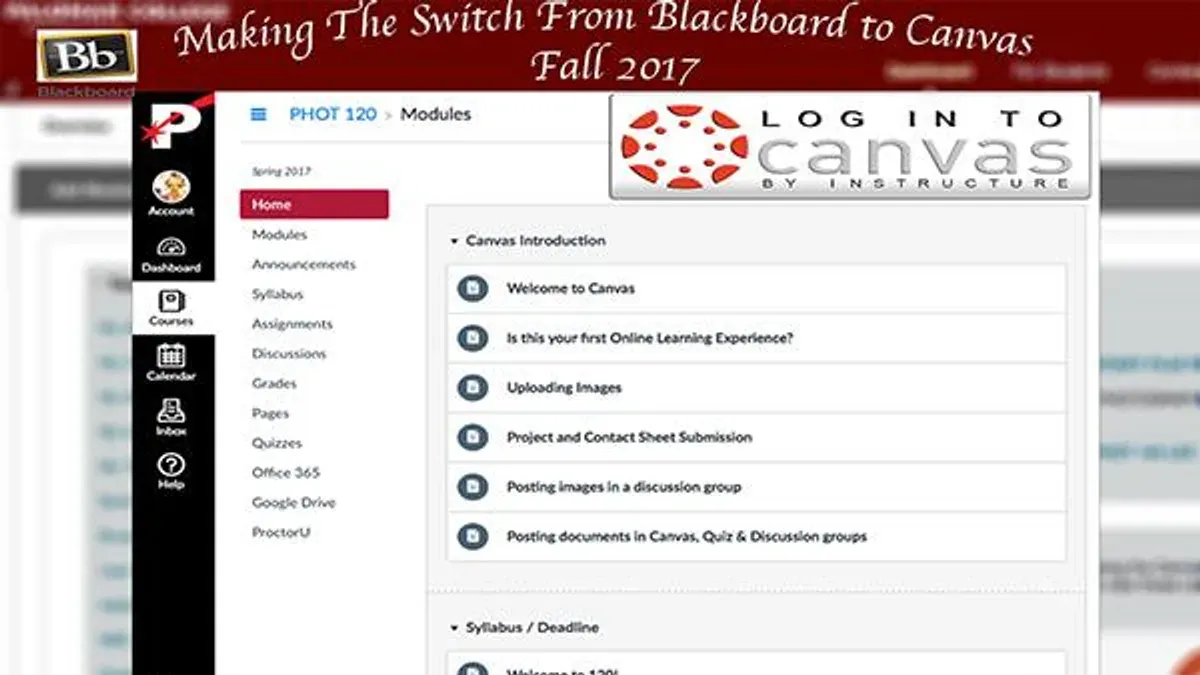
To adjust the interface background, go to Settings > Appearance > Background Color. While Blackboard’s default is a clean white or light gray, switching to a darker background can reduce eye strain during long sessions. For example, selecting a soft charcoal gray background with contrasting text colors improves readability and reduces fatigue.
Blackboard also supports extensions and plugins that add functionality. Access the Building Blocks page through the Administrator panel to browse and enable tools like the Blackboard Collaborate Scheduler or Grade Center Enhancers. These add-ons can automate routine tasks or provide more intuitive grading interfaces.
For a practical example, an instructor customized their course by applying a dark blue theme with white text for clarity, enabled a calendar plugin for better scheduling, and set up a custom banner with their department logo. This combination improved student engagement and streamlined course navigation.
- Open Settings > Personalize Your Blackboard to select or create themes
- Adjust background colors under Settings > Appearance > Background Color
- Enable useful plugins via Administrator > Building Blocks
- Test customizations in a pilot course before applying institution-wide
How to change background on Canva whiteboard and make canvas black
First, it’s crucial to distinguish between Canva Whiteboard and Canvas LMS: Canva Whiteboard is a graphic collaboration tool focused on visual projects, while Canvas LMS is a learning management system for course delivery. Their similar names often cause confusion but their interfaces and customization options differ significantly.
Changing Background Color in Canva Whiteboard
To change the background color in Canva Whiteboard, open your whiteboard project and click on the blank space outside any objects. This action reveals the background settings toolbar. Select the color tile labeled “Background” or click the color picker icon. You can then choose a preset color or enter a custom hex code for precise color matching. For example, setting a dark gray background (#2E2E2E) can reduce eye strain during long collaboration sessions. Note that the background applies to the entire whiteboard canvas and helps visually separate your work from the interface frame.
Making Canvas LMS Dark Mode or Black-Themed
Canvas LMS does not provide a built-in dark mode by default. To achieve a black or dark-themed interface, you can use browser extensions like “Dark Reader,” which invert colors and allow custom brightness and contrast adjustments for Canvas pages. After installing Dark Reader, toggle it on when accessing Canvas to shift menus, dashboards, and course content to a dark palette.
Alternatively, some institutions may enable accessibility themes within Canvas that offer higher contrast or darker backgrounds. Check the user settings by clicking your profile icon, then navigating to Settings > Accessibility Options to see if any dark themes are enabled.
For instance, a user might activate Dark Reader in Chrome, adjust brightness to 90%, and contrast to 110%, creating a comfortable black-themed interface for grading and content review.
- In Canva Whiteboard, click outside objects to reveal background options
- Select a color from presets or enter a hex code to change the background
- Use browser extensions like Dark Reader to enable dark mode in Canvas LMS
- Check Canvas accessibility settings for any available high contrast or dark themes
- Adjust extension settings to optimize brightness and contrast for your comfort
How to import Blackboard quizzes into Canvas
Blackboard quizzes can be exported in QTI (Quiz and Test Interoperability) format, which is compatible with Canvas. Begin by navigating to the Blackboard course Control Panel, then select Tests, Surveys, and Pools, and choose Tests. Locate the quiz to export, click the dropdown arrow next to it, and select Export to Local Computer. This downloads a.zip file containing the quiz data.
Next, log into Canvas and open the target course. In the course navigation menu, select Settings and then the Import Course Content button on the right. Choose QTI.zip file as the content type and upload the Blackboard-exported zip file. Canvas will process the file and import the quiz into the course’s Quizzes area.
Common pitfalls include Blackboard quizzes using question types not fully supported by Canvas, such as calculated formula questions. These may require manual adjustment after import. Also, ensure the zip file remains unaltered during transfer to avoid corruption errors. If the import fails, re-export the quiz from Blackboard and verify the file size and format.
For example, exporting a midterm quiz from Blackboard results in a file named MidtermQuiz.zip. Uploading this file in Canvas via Import Course Content creates a new quiz named "MidtermQuiz" under Canvas Quizzes, ready for review and adjustment.
- Export quiz from Blackboard as QTI.zip via Tests menu
- In Canvas, go to Settings > Import Course Content
- Select QTI.zip file and upload the Blackboard export
- Review imported quiz for unsupported question types
- Adjust quiz settings and publish in Canvas
Compare Canvas, Blackboard Ultra, and Brightspace for your institution
When choosing among Canvas, Blackboard Ultra, and Brightspace, understanding their unique strengths and limitations in interface design, scalability, and support is crucial. Blackboard Ultra represents a modern reimagining of the traditional Blackboard platform, offering a cleaner, more intuitive user interface focused on streamlining course creation and student engagement. It moves away from the older, module-heavy layout to a card-based design, making navigation simpler for both instructors and learners.
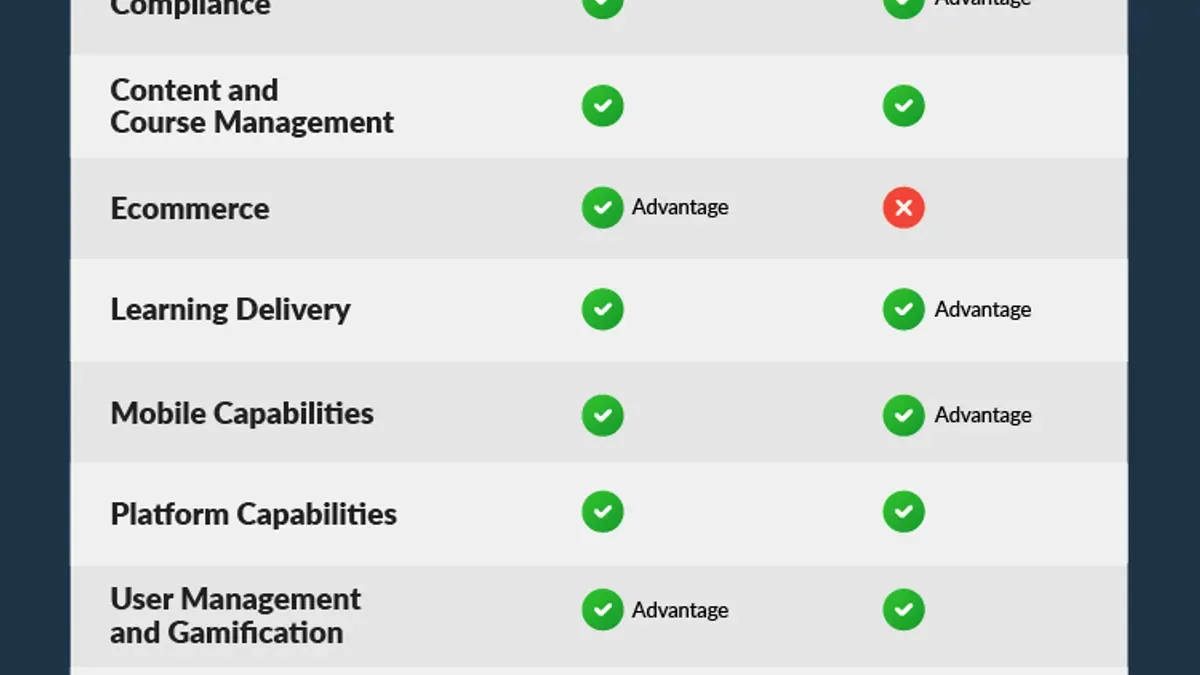
Canvas is known for its straightforward, minimalistic interface and extensive third-party integrations, which provide high adaptability for diverse institutional needs. Its open API ecosystem allows instructional designers to customize workflows extensively. Brightspace, by D2L, excels in adaptive learning and competency-based education, offering built-in analytics and personalized learning paths that can support institutions with complex academic models.
From a scalability perspective, Blackboard Ultra handles large enrollments effectively but can require more administrative training due to its evolving interface. Canvas scales well across institution sizes with a focus on usability, while Brightspace supports intricate program structures and detailed learner tracking, benefiting institutions prioritizing data-driven outcomes.
| Platform | Interface | Scalability | Support | Strengths | Weaknesses |
|---|---|---|---|---|---|
| Blackboard Ultra | Modern, card-based, intuitive | Strong for large institutions | Comprehensive but evolving | Streamlined course creation, improved engagement | Learning curve for administrators |
| Canvas | Minimalistic, API-rich | Flexible for all sizes | Robust community and vendor support | Integration-friendly, adaptable workflows | Some advanced features require add-ons |
| Brightspace | Feature-rich, analytics-driven | Supports complex program models | Strong technical and training resources | Adaptive learning, competency tracking | Interface can be overwhelming initially |
For example, if your institution prioritizes a seamless, easy-to-navigate interface for faculty and students with plenty of third-party tool integration, Canvas might serve best. Conversely, if detailed learner analytics and adaptive learning paths are essential, Brightspace offers features geared to that need. Blackboard Ultra fits institutions seeking a balance between a refreshed user experience and maintaining legacy system familiarity, especially where large-scale course delivery is involved.
- Evaluate user interface preferences among faculty and students by conducting demos.
- Assess institutional needs for scalability and support responsiveness.
- Consider the importance of adaptive learning and analytics in your academic model.
- Review integration capabilities with existing tools and workflows.
- Factor in administrator training and change management requirements.
Avoid common mistakes when switching from Canvas to Blackboard
Many institutions underestimate the scope of customization and user training required when transitioning to Blackboard. For example, a mid-sized university that switched without dedicated Blackboard orientation sessions found instructors struggling with the Grade Center’s layout and tool availability, leading to frustration and delayed grading.
Data migration is another frequent stumbling block. Transferring course content, user data, and grade histories from Canvas to Blackboard involves complex exports and imports, often with formatting losses or unsupported content types. One college experienced significant delays because it overlooked the need to verify QTI quiz compatibility and had to manually recreate several assessments.
Integration and compatibility checks with existing campus tools are also critical. Overlooking this can disrupt workflows; a technical school discovered after launch that its library resource links and plagiarism detection software did not function seamlessly within Blackboard due to missing API configurations.
To avoid these issues, proactively plan for comprehensive training covering Blackboard’s interface, allocate time for data validation during migration, and conduct thorough testing of all third-party integrations before going live.
- Schedule instructor and staff Blackboard training sessions before launch
- Verify quiz and content compatibility during migration using Blackboard’s Course Copy and Import tools
- Test all integrations such as library links and plagiarism checkers in a sandbox environment
- Assign a transition team to monitor and address issues promptly post-migration
Read next
- Moving from Blackboard to Canvas: Your Essential Checklist
- Moving from Blackboard to Schoology: Your Step-by-Step Checklist
- Moving from Blackboard to Moodle: Your Complete Migration Checklist
- Moving from Blackboard to Google Classroom: Your Complete Checklist
Frequently asked questions
Does better canvas work for blackboard?
"Better Canvas" is a browser extension designed to enhance the Canvas user experience and does not integrate with Blackboard. Since Blackboard and Canvas are separate learning management systems with different architectures, tools built specifically for Canvas typically won't function within Blackboard.
What is blackboard and canvas?
Blackboard and Canvas are both learning management systems (LMS) used by educational institutions to deliver courses online. Blackboard offers a feature-rich, customizable platform with tools for course management, assessments, and collaboration, while Canvas is known for its user-friendly interface and streamlined course creation tools.
How to change the color of blackboard?
To customize Blackboard's interface colors, navigate to the "Personalize My Settings" section under your user profile. From there, select "Theme Settings" where you can choose from preset color schemes or create a custom color palette for course and dashboard elements. Note that institutional restrictions may limit color customization options.
How to make canvas black?
Canvas does not offer a built-in dark mode or black theme in its settings. However, you can use browser-based dark mode extensions or enable system-level dark mode, which may apply a darker color scheme to Canvas pages. Keep in mind that these workarounds might affect readability or interface elements unpredictably.
How to change class colors on blackboard?
Changing class colors in Blackboard is done through the "Course Theme" settings accessible within each course's Control Panel under "Customization". You can select a color theme that applies to the course menu and banner, helping distinguish classes visually. Custom themes may require administrator permissions depending on your institution's setup.
What this advice does not cover
This guide does not cover transitioning from Blackboard to Canvas or other LMS platforms. If your institution is moving in the opposite direction or considering alternatives like Brightspace or Moodle exclusively, consult resources tailored for those specific migrations. Additionally, this article does not address detailed technical support for server-level integrations or third-party tool compatibility beyond the scope of Canvas-to-Blackboard migration.
Quick checklist
- Review your current Canvas course content structure before export.
- Map Canvas course elements to Blackboard equivalents to avoid content loss.
- Use Blackboard's Course Cartridge or IMS Common Cartridge import tools for migration.
- Customize the Blackboard Ultra interface via the Admin Panel: adjust themes under "Branding" and configure course entry points.
- Test migrated quizzes thoroughly to ensure question types and grading rules are intact.
- Train faculty on Blackboard-specific workflows and UI differences.
- Set up user roles and permissions carefully to reflect your institution's needs.
- Plan a phased rollout with pilot groups to identify issues early.
Start by exporting a representative Canvas course to practice the import process using Blackboard's Course Cartridge option in the Control Panel under "Packages and Utilities." This hands-on step reveals migration nuances and helps you prepare for a smoother, more predictable transition.



