
Switching from Google Classroom to Blackboard: Your Expert Guide
Discover expert guidance on switching from Google Classroom to Blackboard to ensure smooth course management and minimal disruption.
Short answer: Switching from Google Classroom to Blackboard requires careful planning to maintain workflow continuity and manage user roles effectively. It’s not just a technical migration but a shift between two distinct LMS ecosystems with different structures and capabilities.
This article covers the practical realities you will face during the transition. You’ll learn how to understand the key differences between the platforms, prepare your Google Classroom account, add students and set up courses in Blackboard, connect Blackboard to Google Calendar, utilize Blackboard’s tools for online classes, and avoid common pitfalls. Each step is designed to help you minimize disruption for both teachers and students while ensuring a smoother switch.
Understand the key differences between Google Classroom and Blackboard
Switching from Google Classroom to Blackboard means adapting to distinct course management and grading workflows that affect daily teaching and learning. Google Classroom offers a streamlined interface focused on simplicity, with straightforward assignment creation and grading through the "Classwork" tab and easy synchronization with Google Drive. However, it lacks advanced customization, often limiting teachers to linear workflows.
Blackboard, by contrast, supports complex institutional needs with extensive features such as customizable grade centers, detailed rubrics, adaptive release of content, and multi-layered user roles. Its interface requires a steeper learning curve but empowers administrators and educators to tailor courses to varied pedagogical strategies.
| Feature | Google Classroom | Blackboard |
|---|---|---|
| Course Setup | Simple, quick setup via "Create Class" with minimal options | Comprehensive setup with options for course shells, multiple instructors, and cross-listing |
| Grading Workflow | Basic gradebook linked to assignments, limited bulk editing | Robust Grade Center with weighting, grading schemas, and manual overrides |
| Integrations | Strong Google Workspace integration, limited third-party LMS tools | Wide integration ecosystem including SIS, plagiarism checkers, and external tools (LTI) |
| User Roles | Teacher, student, guardian roles with fixed permissions | Flexible roles with granular permission controls for admins, TAs, and observers |
For example, a high school teacher used to Google Classroom’s straightforward workflow must anticipate Blackboard’s multi-step grading process in the Grade Center, where assignments can be weighted differently and feedback can be more detailed but requires navigation through several menus. Students will notice richer communication tools but may need guidance to navigate announcements, discussion boards, and content release schedules.
User satisfaction surveys commonly point to Google Classroom’s ease of use as its strength, while Blackboard’s power and customization come with occasional frustration over complexity and setup time. Understanding these differences helps set realistic expectations and prepares you to support both educators and students through the transition.
How to switch accounts on Google Classroom before transitioning
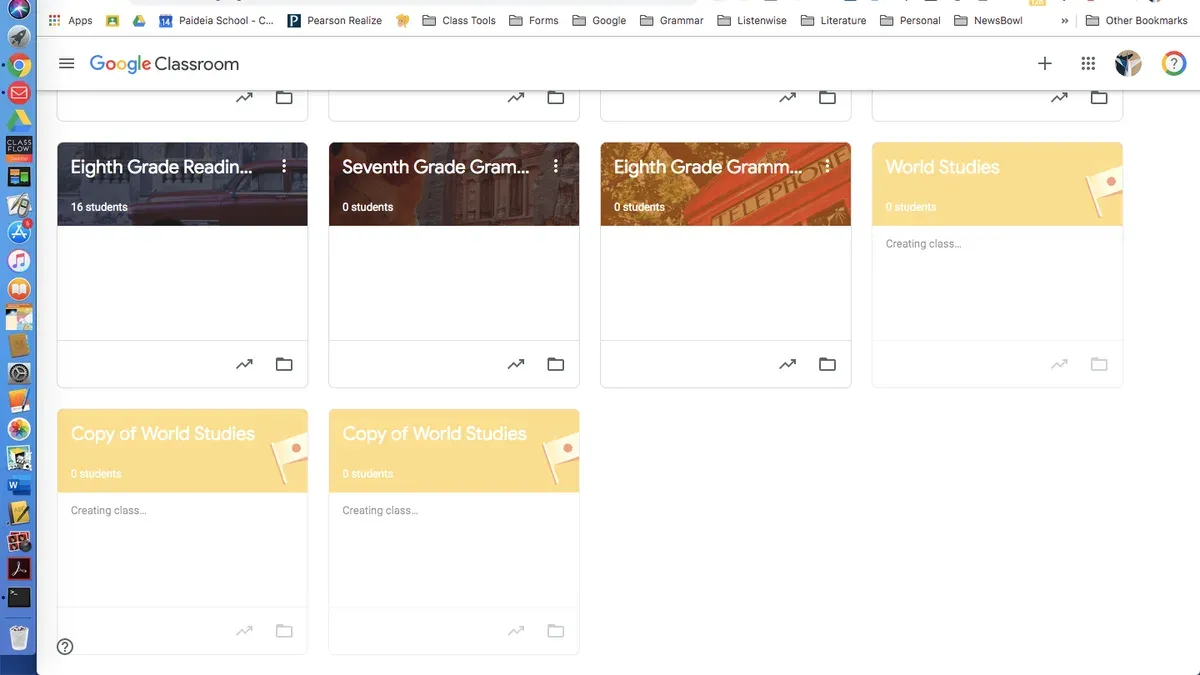
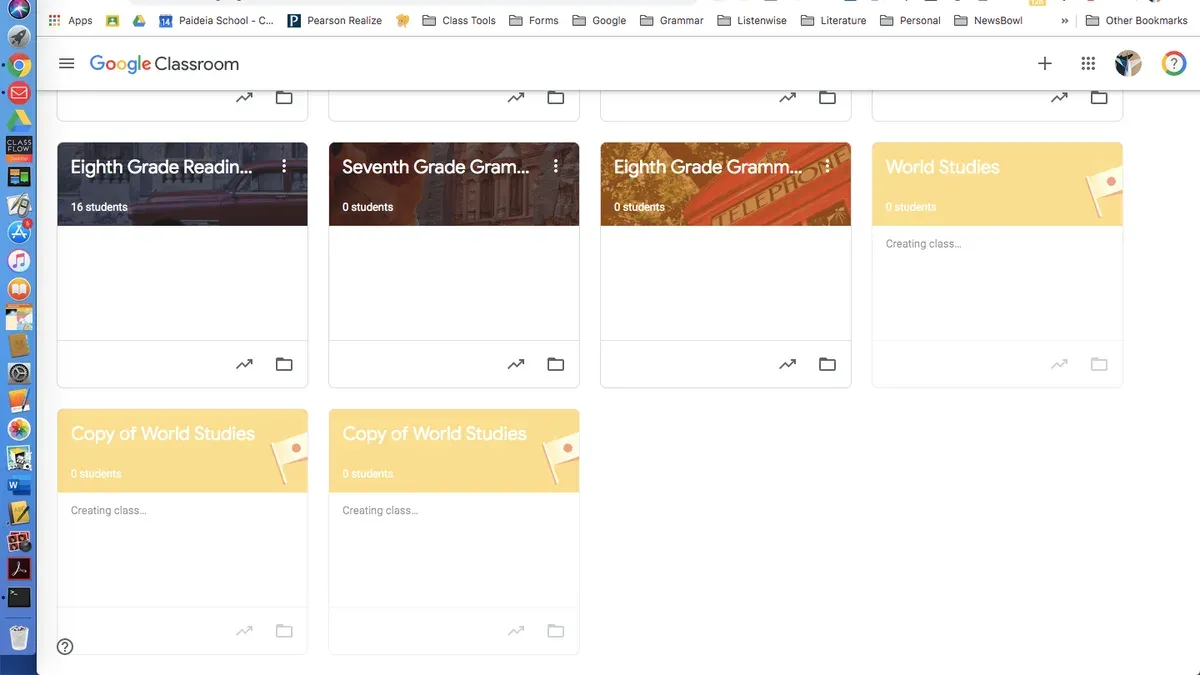
Managing your Google Classroom accounts carefully is essential to prevent data loss or confusion during your LMS migration. To switch accounts, click on your profile icon in the top-right corner of Google Classroom, then select the desired account from the dropdown menu. If the account you need isn't listed, choose Add another account and sign in.
Before switching, export all relevant data such as class materials, student submissions, and announcements. Use Google Takeout or download files manually from each class's Classwork tab. Notify students about the upcoming platform change to set expectations and reduce confusion.
Roles within Google Classroom may affect your migration. For example, if a student is transitioning to a teacher role on Blackboard, update their role to Teacher in Google Classroom before exporting data. This ensures proper access rights and continuity when you recreate courses in Blackboard.
Imagine you oversee two Google Classroom accounts: one for your current classes and another for archived courses. Switching accounts lets you gather all necessary data systematically before moving it to Blackboard, avoiding missed files or role mismatches.
- Click profile icon → select or add Google account
- Export all class data via Google Takeout or manual download
- Notify students of the transition timeline
- Adjust roles in Google Classroom before export (e.g., student to teacher)
- Verify all necessary data is collected before switching to Blackboard
How to add a student to Blackboard and set up courses
Enrolling students and structuring courses in Blackboard requires careful attention to both user roles and course organization. To add students manually, navigate to Users and Groups > Users, then select Create User. Fill in the required information, ensuring you assign the role of Student to grant appropriate permissions. For bulk enrollment, use the Batch Upload feature under Users and Groups > Users > Upload Users, uploading a properly formatted CSV file with student details and role assignments.
Manual enrollment is straightforward for small classes but becomes time-consuming at scale. Batch upload minimizes errors and saves time but requires precise formatting, including columns for usernames, emails, and role codes (e.g., 'Student').
After enrolling students, set up your course by going to Courses > Create Course. Organize content using Content Areas and Learning Modules to break material into manageable sections, helping students navigate topics efficiently. For example, a course on Biology might have modules for "Cell Structure," "Genetics," and "Ecology," each containing readings, assignments, and quizzes.
Remember to configure course availability dates and check that all students have access. Assigning roles correctly ensures students can submit assignments but not modify course settings.
- Manually add students via Users and Groups > Users > Create User, assigning the Student role
- Use Batch Upload with a CSV file for large enrollments
- Create courses under Courses > Create Course
- Organize with Content Areas and Learning Modules for clear navigation
- Set course availability and verify student access
How to connect Blackboard to Google Calendar for streamlined scheduling
Integrating Blackboard Learn with Google Calendar helps maintain consistent scheduling and enhances student engagement by keeping all deadlines and events visible in one place. To start, navigate in Blackboard to Tools > Calendar and locate the option to Subscribe to Calendar. Here, you can copy the iCal URL generated for your courses.
Next, open Google Calendar, select Other calendars > Add by URL, and paste the copied iCal link. This sync allows Google Calendar to display assignments, tests, and announcements from Blackboard automatically, updating as you modify course schedules.
For example, when you set a new assignment due date in Blackboard, students see it reflected promptly in their Google Calendar, reducing missed deadlines and improving time management. Teachers report clearer visibility of overlapping commitments, facilitating better planning.
Common issues include delays in sync, typically up to 24 hours due to calendar refresh intervals, and ensuring the iCal URL remains accessible and unchanged. If events fail to appear, verify the URL's accuracy and that your Blackboard permissions allow calendar export.
- Access Blackboard Calendar and copy the iCal subscription URL
- In Google Calendar, use "Add by URL" to subscribe
- Verify events appear and update after schedule changes
- Check URL permissions and refresh times if sync delays occur
How to use Blackboard for teachers and students in online classes
Once inside Blackboard Learn, teachers find the Course Content area essential for organizing assignments, assessments, and discussion boards. Navigate there via the course menu to create folders and modules that structure material clearly—this helps students stay on track. For example, setting up weekly modules labeled by date keeps content timely and accessible.
Use the Announcements tool to post regular updates. These appear prominently on the course homepage, ensuring students don’t miss key information. For live sessions, the Virtual Classroom feature integrates video conferencing directly within Blackboard, allowing real-time interaction without switching platforms.
Engagement thrives when teachers use discussion boards with clear prompts and deadlines, encouraging participation that is easy to monitor through the Grade Center. This tool tracks submissions and grades in one place, providing a transparent overview of student progress.
For instance, a teacher might set up a weekly discussion question due Friday, graded on participation, which shows immediately in the Grade Center. Students appreciate the clarity of expectations and timely feedback.
- Organize course content into dated modules under Course Content
- Post updates using Announcements for visibility
- Schedule and hold live classes with Virtual Classroom
- Use discussion boards with guided prompts and deadlines
- Track all student work and grades in the Grade Center
Common mistakes to avoid when switching from Google Classroom to Blackboard
One school district’s rushed transition led to widespread confusion: students missed assignments, and parents were unaware of the platform change because communication was last-minute and unclear. This illustrates the critical need to inform all stakeholders well in advance about the switch and what to expect.
Another frequent pitfall is neglecting thorough teacher training. Blackboard’s advanced grading schemes and customizable workflows require hands-on practice; skipping training leaves educators underprepared, frustrating both teachers and students.
Data backup and migration also pose risks. Failure to export important Google Classroom content, like assignment submissions and grade records, can mean permanent loss. A systematic backup plan ensures no critical data is left behind.
Finally, ignoring integration features such as calendar syncing can fragment schedules. Overlooking the Tools & Utilities menu to set up Google Calendar integration disrupts coordination and engagement.
- Communicate platform changes clearly and early to students and parents
- Schedule comprehensive training sessions for teachers on Blackboard’s tools
- Perform complete backups of Google Classroom data before migration
- Configure calendar syncing through Blackboard’s Tools & Utilities to maintain schedule continuity
Read next
- Blackboard Implementation Timeline: Your Step-by-Step Guide
- Blackboard Rollout Plan for Small Rural Schools: A Practical Guide
- Moving from Blackboard to Google Classroom: Your Complete Checklist
- Google Classroom Rollout Plan for Elementary Teachers: Your Step-by-Step Guide
Frequently asked questions
How to link blackboard to google calendar?
To link Blackboard to Google Calendar, go to your Blackboard course, find the Calendar tool in the course menu, and access the calendar settings. Look for the option to subscribe or export the calendar via iCal URL. Copy this URL and open Google Calendar, click the “+” next to Other calendars, select “From URL,” then paste the iCal link. This syncs Blackboard events with your Google Calendar, updating automatically.
How to use blackboard for students?
Students use Blackboard by logging in through their institution’s portal and accessing their enrolled courses. They can view course content, submit assignments, participate in discussions, and check grades via the My Grades tool. Navigating through the course menu and announcements ensures they stay updated on deadlines and materials.
How to use blackboard for online classes?
For online classes, Blackboard offers tools like virtual classrooms via Blackboard Collaborate, assignment submissions, and discussion boards. Teachers schedule live sessions using Collaborate and upload lecture materials. Students join live sessions, engage in forums, and submit work digitally, enabling a seamless remote learning experience.
How do I link Blackboard to Google Calendar?
The process is the same as linking Blackboard to Google Calendar: locate the iCal feed in your Blackboard course calendar settings, copy the provided URL, then add it to Google Calendar by choosing “From URL” under the “Add other calendars” option. This ensures your Blackboard deadlines and events appear alongside your Google Calendar schedule.
Can I switch a student to teacher role in Google Classroom before moving?
Google Classroom does not allow switching a student’s role to teacher within the same class. To grant teaching permissions, you must add the individual as a teacher from the class settings menu. Before moving, ensure roles are assigned correctly, as role changes won’t migrate automatically to Blackboard.
What this advice does not cover
This guide does not cover custom institutional configurations or third-party tool integrations beyond Google Calendar; readers should consult their LMS administrators for specific policies and advanced setups. If your institution uses specialized plugins, single sign-on systems beyond standard OAuth, or needs bulk user provisioning at scale, those require dedicated technical support and planning outside this roadmap.
Quick checklist
- Review account roles and permissions in Google Classroom before export
- Manually add students and instructors in Blackboard via the Admin Panel
- Create courses in Blackboard matching your existing Google Classroom structure
- Connect Blackboard to Google Calendar using the Calendar Integration settings under Tools
- Train teachers and students on Blackboard’s interface focusing on assignment submissions and gradebook access
- Avoid assuming direct data migration; export/import steps often require manual adjustment
The single most useful next step is to schedule a pilot course on Blackboard with a small group of users. This allows you to identify workflow gaps, confirm role assignments, and test calendar syncing before a full institutional rollout, minimizing disruption and ensuring a smoother transition for everyone involved.



