
Switching from Remind to ParentSquare: A Clear Guide for Schools
Switching from Remind to ParentSquare involves key steps to enhance parent communication with richer tools and better user management.
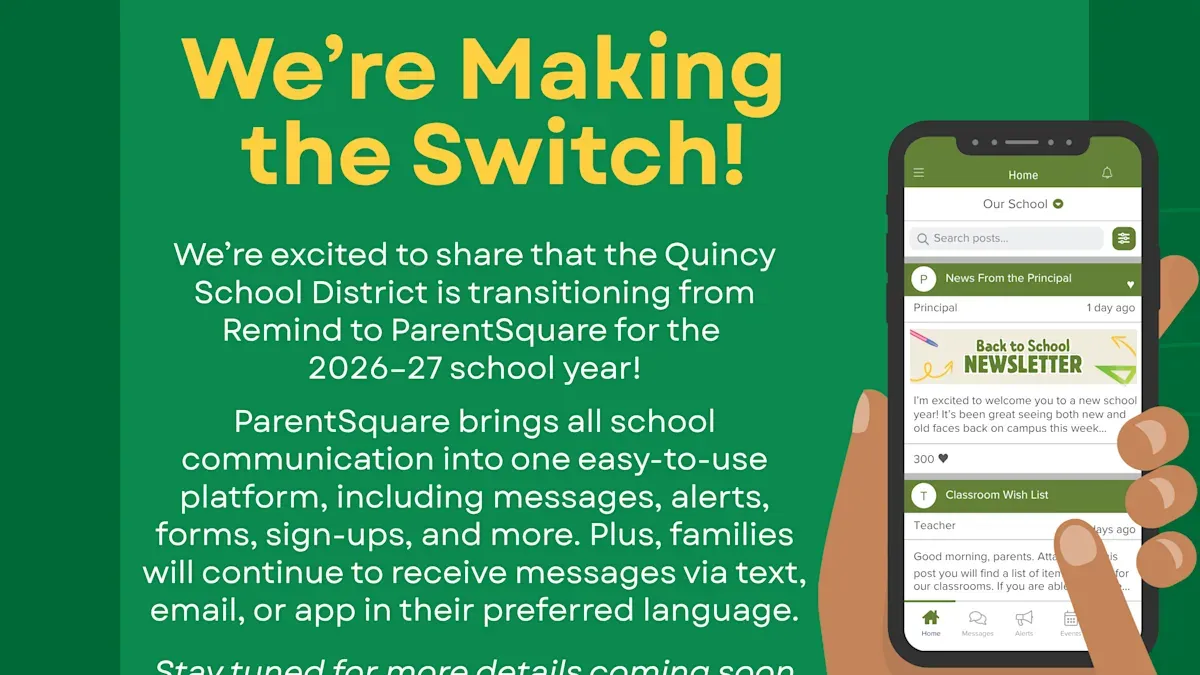
Short answer: Switching from Remind to ParentSquare involves setting up your ParentSquare account, migrating contact lists, and managing user roles carefully to maintain seamless communication with parents. ParentSquare offers richer engagement tools and more granular user permissions than Remind, making the transition valuable but requiring deliberate steps.
This article guides you through the essential differences between the two platforms, how to establish your ParentSquare presence, and how to handle typical challenges like removing parents from Remind and adding students in ParentSquare. You will find clear instructions and practical tips tailored for school administrators and educators who want to optimize parent communication during the switch.
Understand the Key Differences Between Remind and ParentSquare
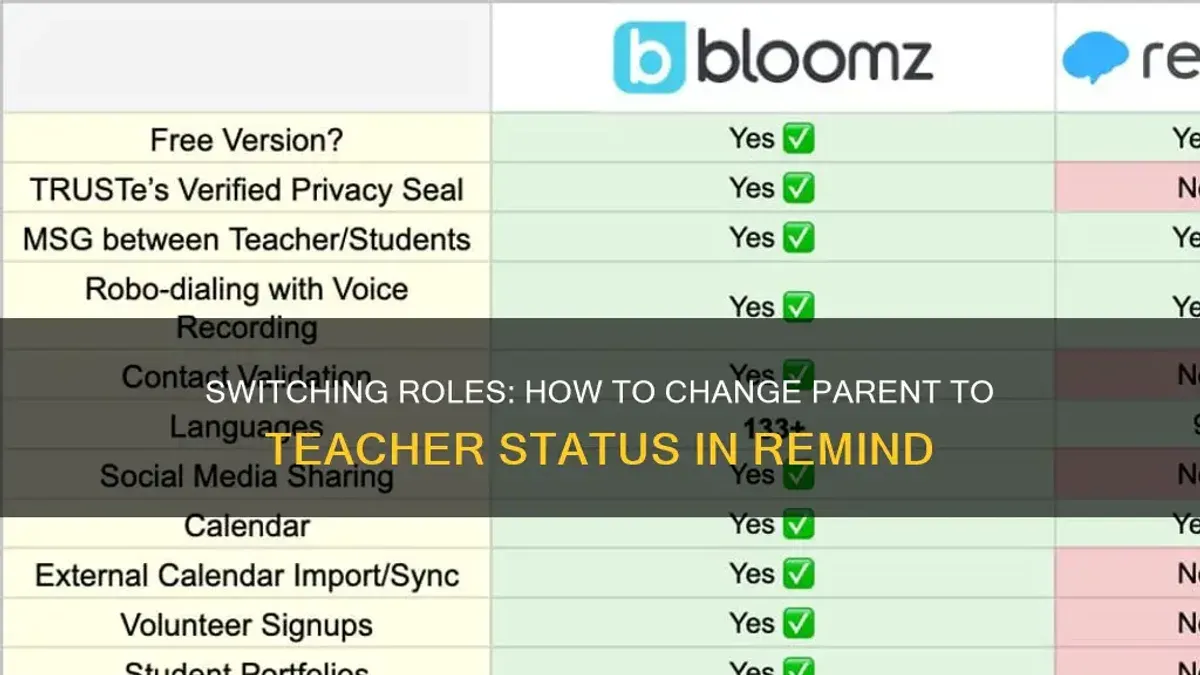
When comparing Remind and ParentSquare, the distinction lies primarily in communication breadth and user management depth. Remind focuses on straightforward, one-way or two-way messaging via app notifications and texts, mainly connecting teachers to parents or students. ParentSquare expands this by integrating multi-channel communication options including email, SMS, app notifications, and automated voice calls, ensuring messages reach all users effectively regardless of their preferred platform.
User management is another key difference. Remind allows simple group messaging but lacks robust linking of parents to students. ParentSquare enables administrators to connect each parent account to multiple students, streamlining targeted communication and reducing message duplication. For example, a parent with children in different grades receives consolidated updates relevant to each child’s classroom and activities.
ParentSquare also offers unique engagement tools like event RSVPs and volunteer sign-ups directly within the platform, features absent in Remind. Schools that switched noted improved participation in school events and easier volunteer coordination through these tools, which are accessible under the “Activities” tab.
| Feature | Remind | ParentSquare |
|---|---|---|
| Message Types | App notifications, SMS | Email, SMS, App, Voice calls |
| User Linking | Basic group messaging | Parents linked to multiple students |
| Engagement Tools | None | Event RSVPs, Volunteer Sign-ups |
Example: A school principal used ParentSquare’s RSVP feature to confirm attendance for parent-teacher conferences, resulting in a 25% increase in participation compared to previous years using Remind.
How to Sign Up for ParentSquare and Set Up Your Account
Begin by navigating to the ParentSquare sign-in page at parentsquare.com and selecting the "Sign Up" option. Enter your school email address to receive a verification code, which you must input to proceed. Once verified, create a secure password following the platform’s guidelines.
Next, complete your school profile by entering essential information such as school name, address, and contact details. This step ensures your communications are properly branded and identifiable by parents. Afterward, add staff members by navigating to the "Manage Users" section under the Admin menu; here, upload staff emails or import a CSV file to assign roles like teacher, administrator, or counselor.
Configure communication preferences by selecting "Settings" then "Communication Preferences." Here, you can set default notification methods (email, SMS, app notifications) and enable privacy settings such as message approval requirements or restrictions on who can post. For example, enabling message approval helps maintain appropriate communication tone and compliance.
Remember to save your settings at each step to avoid losing changes. A common oversight is skipping the role assignment for staff, which can limit their access to features.
- Go to parentsquare.com, click "Sign Up," and verify your email
- Complete school profile with accurate contact and branding info
- Add staff members via "Manage Users" and assign roles
- Set communication and privacy preferences under "Settings"
- Save all changes before exiting each section
How to Use ParentSquare for Parents: A Guide to Engagement
Parents access ParentSquare by logging in at www.parentsquare.com or through the ParentSquare mobile app, available on both iOS and Android. Once logged in, parents can add their children by navigating to the "My Children" section under their profile settings and linking to their student’s school account using a provided code or invitation.
Notification settings are customizable via the "Settings" menu, allowing parents to choose how and when they receive updates—whether by email, SMS, or app push notifications. For example, a parent can opt to receive calendar event reminders only via push notifications but get message alerts through email.
ParentSquare’s interface includes a clear dashboard showing upcoming calendar events, new messages, and action items like permission forms. Messaging works like a threaded conversation, enabling parents to reply directly to teachers or administrators. Forms and surveys appear under the "Forms" tab, streamlining permission slips and sign-ups.
Consider a parent who appreciates receiving both a calendar reminder for an upcoming school play and a direct message from the teacher about costume requirements. This integration reduces missed communications and improves engagement, addressing common concerns about scattered information.
- Log in via website or mobile app
- Add children under "My Children" using school code
- Customize notification preferences in "Settings"
- Use dashboard to track events, messages, and forms
- Reply to messages directly and complete forms online
How to Remove a Parent from Remind When Transitioning
When switching from Remind to ParentSquare, removing parents from Remind prevents duplicate messages and confusion. Start by logging into the Remind admin console and navigating to the “Users” tab. Locate the specific parent account either by name or phone number. Click on the user profile, then select “Deactivate User” or “Remove from Class” depending on your permissions and account settings.
Since Remind does not allow bulk deletions easily, you may need to repeat this for each parent. Confirm that the user status changes to “Deactivated” or “Removed” in the console, which indicates they will no longer receive messages.
Communicate the transition clearly: send a final Remind message informing parents of the switch to ParentSquare, including login instructions and support contacts. For example, "To avoid duplicate notifications, please check your ParentSquare app for future messages. Remind notifications will stop after [date]." This helps parents anticipate the change and reduces confusion.
Ensure compliance with data privacy by not exporting or retaining unnecessary parent data in Remind after removal. Follow your district’s data retention policies and Remind’s guidelines for user data deletion.
- Log in to Remind admin console and go to “Users”
- Search and select parent accounts to deactivate or remove
- Confirm status changes to prevent further messages
- Send a clear final notification about the transition
- Follow data privacy policies to delete or archive removed user data
How to Add Students and Manage User Roles in ParentSquare
To link students to parent accounts in ParentSquare, you can add students either manually or via bulk upload. Navigate to Admin Settings > Student Management. For manual addition, select Add Student, enter the student's full name, grade, and school ID, then assign the student to a parent by searching their email or name in the Linked Parents field.
Alternatively, use the Bulk Upload feature by preparing a CSV file with columns for student details and parent emails. Uploading this file automatically creates student profiles linked to their respective parents.
Understanding user roles is key: Administrators have full access to settings and data, Teachers can communicate with linked parents and manage classroom groups, and Parents see only their children’s information. Assign roles under Admin Settings > User Roles to ensure appropriate access.
For example, adding a student named "Emma Johnson" manually involves entering her data, then linking her mother’s account by typing the mother's registered email. Assign the mother the parent role, which restricts her access to Emma’s information only.
| Role | Permissions |
|---|---|
| Administrator | Full system access, user management |
| Teacher | Classroom communication, parent contacts |
| Parent | View own child's information, receive communications |
- Access Admin Settings > Student Management
- Add students manually or prepare a CSV for bulk upload
- Link students to parent accounts via email or name
- Assign user roles to control access and permissions
- Confirm links by verifying parent access to student profiles
Common Mistakes to Avoid When Switching From Remind to ParentSquare
One frequent mistake is failing to notify parents early and clearly about the switch. Without upfront communication, parents may remain confused about which platform to use, causing engagement drops. For example, a district that sent a switch announcement only one week before transition saw many parents still using Remind weeks after the cutoff, leading to missed messages.
Another pitfall is not properly deactivating Remind accounts. Overlapping messages from both platforms create confusion and undermine your communication strategy. To prevent this, ensure you follow Remind’s deactivation process carefully under Account Settings > Delete Account or deactivate parent contacts manually before going live with ParentSquare.
Underestimating training needs for staff and parents is a common barrier. ParentSquare offers more features than Remind, so without thorough training sessions or step-by-step guides, users may struggle to adapt. A school that scheduled multiple short training webinars and shared video tutorials saw smoother adoption and fewer support requests.
- Notify parents at least a month in advance with clear instructions.
- Deactivate Remind accounts fully before ParentSquare launch.
- Provide targeted training and resources for both staff and parents.
Read next
- Switching from Remind to ClassDojo: A Practical Guide for Educators
- Switching from ParentSquare to Seesaw: A Practical How-To Guide
- Moving from ParentSquare to Remind: Your Complete Checklist
- Switching from ParentSquare to ClassDojo: A Practical Guide for Parents and Schools
Frequently asked questions
How do I remove a parent from Remind?
To remove a parent from Remind, go to your class roster, locate the parent’s contact, and select the option to remove or delete their account from the class. If you are an admin, you can also bulk remove users by exporting the roster and managing contacts outside the platform. Remember that removing a parent will immediately revoke their access to class messages.
How do I sign up for ParentSquare?
Visit the ParentSquare website and click on the “Sign Up” button, then choose your role as a school staff member or administrator. You will need to enter your school email address to receive a verification link. After verifying, follow the prompts to complete your profile and set up your account preferences.
How do I add a student in ParentSquare?
Adding a student is typically done through your school’s administrative portal integrated with ParentSquare or manually via the “Manage Students” section. Enter the student’s name, grade, and associated parent or guardian contacts to link accounts correctly. This ensures parents receive relevant communications and access to student-specific information.
Where is the ParentSquare sign in page?
The ParentSquare sign-in page is located at https://www.parentsquare.com/sign-in. You can also access it via your school’s dedicated ParentSquare portal link or mobile app. Use your registered email and password to log in, and if you forget your credentials, the page provides a password reset option.
Quick checklist
- Compare Remind and ParentSquare features focusing on messaging, file sharing, and event management.
- Sign up for ParentSquare via the official website and verify your school’s account setup under Settings > School Profile.
- Invite parents using ParentSquare’s Bulk Upload feature and encourage them to download the app for enhanced interaction.
- Remove parents from Remind by accessing the Groups tab, selecting members, and choosing Remove to prevent duplicate communications.
- Assign roles in ParentSquare through the User Management panel to ensure proper access levels for staff and parents.
- Avoid overlapping messages by setting clear cut-off dates for Remind usage and communicating the transition timeline to families.
What this advice does not cover
This guide does not cover detailed troubleshooting for technical issues with either platform; consult official support for those cases. ParentSquare’s advanced features such as custom workflows, analytics, or multi-school district management may require additional training or subscription levels not covered here. For complex integrations with student information systems, working with your IT department or ParentSquare’s technical team is recommended.
To move forward effectively, begin by setting a clear timeline and communication plan for your transition. Notify your school community about the switch, outline key dates for stopping Remind messages, and start training your staff on ParentSquare’s core tools to ensure a smooth adoption process.



