
Switching from Schoology to Blackboard: Your Complete Expert Guide
This guide offers expert advice to smoothly switch from Schoology to Blackboard, covering login, account management, and grade synchronization.
Short answer: Switching from Schoology to Blackboard requires careful coordination of user login credentials and account management to maintain seamless access and data integrity. This process involves verifying user accounts, managing parent and student access, and synchronizing grades and submissions to prevent disruptions.
This guide covers the critical steps for educators, IT coordinators, and administrators to ensure a smooth transition. You will learn how to navigate the differences between the platforms, manage login procedures for all user roles, handle account settings such as passwords and profile details, and troubleshoot common issues that arise during the switch. Practical checklists and expert advice will help you maintain continuity of service and avoid typical pitfalls during the LMS migration.
Understanding the Key Differences Between Schoology and Blackboard
Switching from Schoology to Blackboard requires a clear grasp of how these platforms differ in core features and user experience. Schoology offers a streamlined, modern interface focused on ease of navigation through its left-hand menu, while Blackboard presents a more traditional dashboard with tabs for Content, Grade Center, and Tools, which can feel denser but offers deep customization.
In grading and submissions, Schoology uses a straightforward Gradebook integrated with assignment submissions under the "Grades" tab, allowing easy access for students and parents. Blackboard’s Grade Center provides advanced options, such as weighted grading and complex rubric setups, accessible through Control Panel > Grade Center. This flexibility can benefit institutions needing granular grade management but may require more training.
Parent access is another point of difference. Schoology allows parents to create linked observer accounts with direct visibility into their child’s coursework and grades. Blackboard requires administrators to set up specific parent roles with permissions, making the process less intuitive but more customizable for privacy controls.
| Feature | Schoology | Blackboard |
|---|---|---|
| User Interface | Left-side menu, minimal clicks | Tabbed dashboard, more options per page |
| Grading | Integrated Gradebook, simple rubrics | Advanced Grade Center, weighting, detailed rubrics |
| Parent Access | Observer accounts with instant access | Role-based access, admin setup needed |
Consider a student submitting a science project: in Schoology, they upload directly under the assignment with a visible submission receipt. In Blackboard, they navigate to the assignment link within the Content area and see submission details in the Grade Center later. During transition, students and parents may notice differences in navigation and access points, so preparing users with these distinctions minimizes confusion.
Ultimately, understanding these differences helps you anticipate challenges and tailor training to your institution’s needs, ensuring a smoother transition.
How to Log in to Schoology and Blackboard: A User-Centric Approach
Logging into both Schoology and Blackboard requires understanding the distinct processes each platform employs, especially during a transition. For Schoology, students, parents, and teachers often use direct Schoology credentials or authenticate via Microsoft or Google accounts. To log in, users navigate to the Schoology login page and select the appropriate method: enter a Schoology username and password, or click the Microsoft or Google sign-in buttons. A common pitfall is mistaking the login portal URL or using outdated credentials from a previous school year, which leads to access errors.
Blackboard offers multiple login options, including traditional username/password entry, single sign-on (SSO) through institutional portals, and syncing accounts linked to Microsoft or Google identities. For example, a teacher in a district using Microsoft Azure AD can log in seamlessly via SSO without entering a separate password. One frequent issue arises when users try to log in with credentials not yet activated on Blackboard or when account syncing is incomplete during migration.
Consider a parent who previously accessed Schoology via Google login but now must switch to Blackboard’s portal. They should verify their institutional email is linked to Blackboard and use the SSO option provided by their school district, avoiding manual password input that may cause lockouts.
To reduce login issues during the switch, ensure users confirm their login URLs, reset passwords if needed, and consult IT for account syncing status. Clear communication about login methods and troubleshooting steps prevents frustration.
- Identify correct login URL for Schoology and Blackboard
- Choose appropriate login method: direct, Microsoft, Google, or SSO
- Verify account activation and syncing status before first login
- Reset passwords promptly if login fails
- Coordinate with IT for access issues or account linking
Setting Up and Managing Accounts: From Schoology Parent Accounts to Blackboard
In Schoology, parents create accounts by linking to their child’s unique access code provided by the school, then manage notifications and view grades through a straightforward dashboard under Parent Access. Before migrating, parents should update their profile pictures and passwords via Account Settings > Profile and Account Settings > Password to ensure smooth recognition after the switch. For example, a parent updating their password in Schoology avoids login confusion when Blackboard requests a reset.
Blackboard’s parent accounts operate differently; they typically require school administrators to preconfigure access or send enrollment invitations, meaning parents often cannot self-register as in Schoology. Account interfaces in Blackboard emphasize secure access with institution-controlled credentials.
When syncing accounts and grades, the process usually depends on the school’s LMS integration tools. For instance, a district using an SIS (Student Information System) should verify that parent account links and grade data are mapped correctly between Schoology and Blackboard. A missed step—such as failing to sync user IDs—can cause parents to lose access or see incomplete grade reports.
To manage this transition effectively, coordinate with your IT team to confirm that parent account credentials and profile data from Schoology are either migrated or re-established in Blackboard. Clear communication with parents about when and how to update passwords or expect new login instructions will minimize access issues.
- Advise parents to update passwords and profile pictures in Schoology before migration
- Confirm with IT how parent accounts will be created or migrated in Blackboard
- Ensure SIS or integration tools correctly sync user IDs and grade data
- Provide parents with detailed login instructions post-switch
Changing Schools and Accessing Content in Schoology Before Switching
If you are moving to a new school but still need to access your current Schoology content, you must initiate a school change within Schoology to maintain uninterrupted access. Navigate to Account Settings > Schools & Organizations, then select Request School Change. Enter the new school's information and submit the request. You will receive a confirmation message once the change is approved, such as “Your school change request has been processed.” This step ensures your account reflects your new affiliation while preserving your content access.
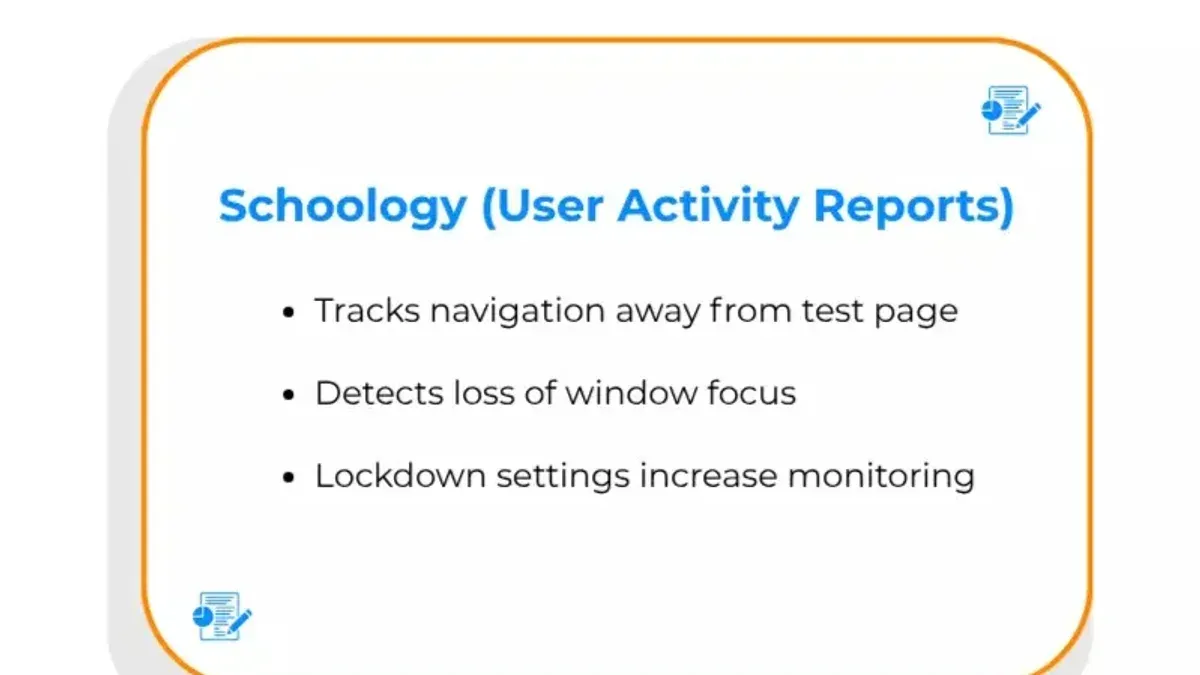
Before completing the transition to Blackboard, downloading your learning materials for offline access is crucial. Within each course, go to the Materials tab, select the files or folders you want, and click Download. For multiple files, use the bulk download option if available, which packages content into a ZIP file. Save these files on your laptop in an organized folder structure to replicate your course setup. This prepares you for any temporary access gaps during the LMS switch.
Common login issues during school changes often stem from outdated credentials or account syncing delays. If students face login errors, advise them to clear their browser cache, reset their password via the Forgot Password link, or verify their email address matches the one registered with the new school. In some cases, contacting the school’s IT coordinator to confirm account status helps resolve access problems.
For example, a student transferring mid-semester to a new school can request the school change, download all critical assignments and notes from Schoology, and verify login credentials. This approach prevents losing access to important materials while the backend updates take effect.
- Go to Account Settings > Schools & Organizations > Request School Change
- Wait for confirmation of school change approval
- Download course materials via the Materials tab, using bulk download options if possible
- Clear browser cache or reset password if login issues arise
- Contact IT coordinator to verify account status if problems persist
Enabling and Managing Submission Settings in Schoology
In Schoology, submission settings control how students submit assignments and how educators receive and grade those submissions. To enable these settings, navigate to the assignment’s Edit page, then select the "Submissions" tab. Here, you can toggle options such as "Allow Submission," "Allow Late Submission," and "Resubmission." You can also set a due date and specify file types accepted, like PDFs or images, ensuring only compatible files are submitted.
Before migrating to Blackboard, review these settings carefully. Blackboard handles submissions differently—while it supports similar options, some, like resubmission limits, may require manual reconfiguration. For example, if you allowed unlimited resubmissions in Schoology, Blackboard defaults to a single submission unless changed.
To avoid data loss, export all assignment submissions from Schoology using the Gradebook export or individual assignment download options. Blackboard cannot automatically import submission history, so keeping a local backup ensures you retain student work and grading records.
Picture an assignment where you allowed late submissions in Schoology with a two-day grace period. When moving to Blackboard, you must manually set the "Late Submission" policy in the assignment settings to match, or students might lose the ability to submit late, causing confusion.
- Go to the assignment’s Edit > Submissions to enable or adjust submission options.
- Export all submissions and grades from Schoology before migrating.
- Manually configure submission and late policies in Blackboard to mirror Schoology’s settings.
- Confirm accepted file types are set appropriately to avoid compatibility issues.
- Communicate submission policy changes clearly to students during the transition.
Customizing Your Schoology Experience Before Transition: Passwords, Pictures, and Dark Mode
Personalizing your Schoology environment before switching to Blackboard can enhance comfort and continuity during the transition. Start by securing your account with a strong password change. Navigate to the upper-right corner and click your profile icon, then select Settings. Under Account, choose Change Password. Enter your current password, then create a new one that includes a mix of uppercase letters, numbers, and symbols. This step prevents access issues during account syncing.
Next, update your profile picture for easy identification by peers and administrators. In Settings, locate the Profile tab and click Edit Picture. Upload a clear, professional photo or avatar. This image will follow you into Blackboard if synced properly, helping maintain recognition across platforms.
For improved accessibility and reduced eye strain, activate Dark Mode. From the main dashboard, click your profile icon and select Display Settings. Toggle the Dark Mode switch to enable a darker interface. This setting applies immediately, offering a comfortable viewing experience especially during late hours or extended use.
Consider this scenario: an educator changes their password to a complex one, updates their profile picture to a school logo, and switches to Dark Mode for evening grading sessions. These straightforward steps provide a familiar and secure Schoology experience, easing the shift to Blackboard.
- Go to profile icon > Settings > Account > Change Password
- Enter current and new secure password, then save changes
- In Settings > Profile, click Edit Picture and upload a clear image
- From profile icon, select Display Settings > toggle Dark Mode on
Syncing Grades and Data Between Schoology and Blackboard
Maintaining accurate gradebooks and data continuity during your LMS transition is essential. Schoology allows exporting grades in CSV format via Gradebook > Export, which you can then import into Blackboard's Grade Center using Grade Center > Upload Grades. The key is matching column headers and data types to avoid import errors.
For example, Schoology exports columns like "Student Name," "Student ID," "Assignment Name," and "Score." Blackboard requires these fields but may label them differently or expect numeric scores without percentage signs. Adjust your CSV to align with Blackboard's template before import.
One limitation is that complex grading schemes, such as weighted categories or custom scales, often do not transfer directly. You must recreate these settings manually in Blackboard after import. Additionally, some metadata, like assignment comments or late submission flags, do not migrate and require separate handling.
After syncing, verify grade accuracy by spot-checking several students' scores and ensuring assignment totals match. Confirm that grade visibility settings in Blackboard reflect your institution's policies to prevent premature access. Running a parallel grade report comparison between platforms helps catch discrepancies early.
- Export Schoology gradebook CSV via Gradebook > Export
- Adjust CSV columns to match Blackboard's Grade Center requirements
- Import CSV into Blackboard using Grade Center > Upload Grades
- Manually recreate weighted categories or custom grading schemes in Blackboard
- Verify imported grades and settings by cross-checking sample student records
Troubleshooting Common Login and Access Issues During the Switch
Login failures frequently arise when users attempt to access Blackboard through Microsoft or Google single sign-on (SSO) integrations. For example, students accustomed to Schoology’s login process may encounter authentication errors if their linked Google accounts are not properly authorized within Blackboard’s system. A common mistake is neglecting to clear browser cache or failing to update saved passwords, which can cause repeated login prompts or access denial.
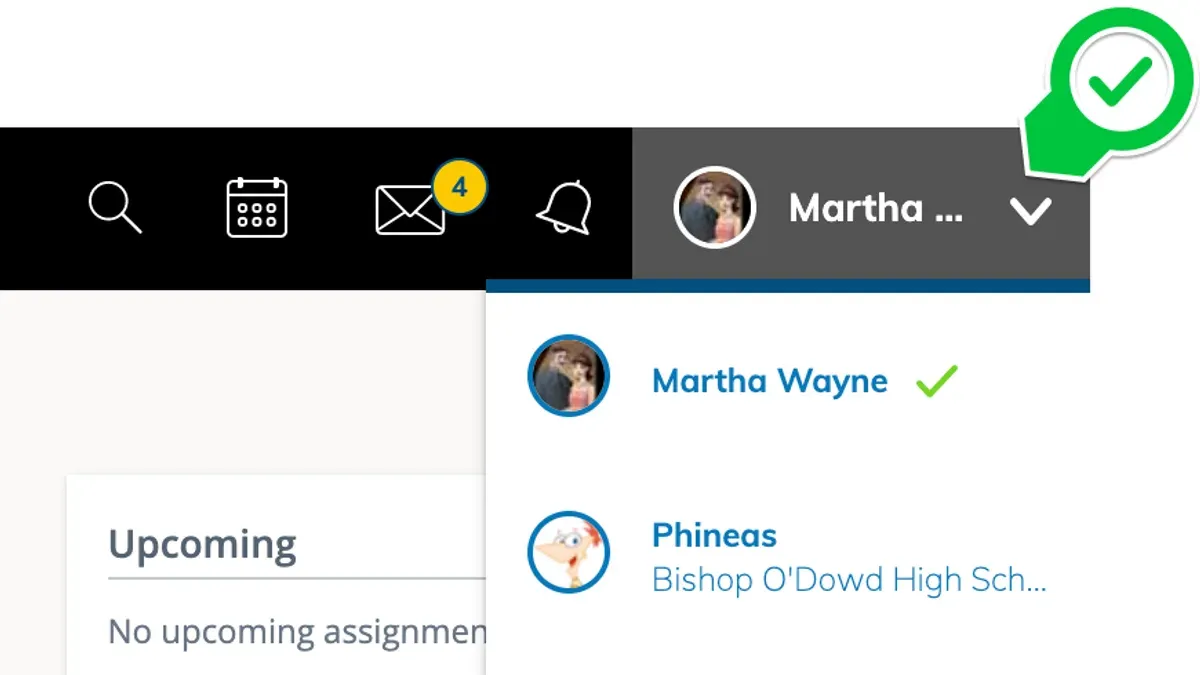
During the transition, support portals such as Blackboard Help and institution-specific IT service desks provide vital resources. Users should utilize the dedicated login troubleshooting guides found under Blackboard’s support menu, which include step-by-step instructions for resetting passwords and reauthorizing third-party accounts. Real user reports frequently highlight the value of contacting IT help desks early when issues persist beyond standard fixes.
Preventative steps to minimize day-one disruptions include conducting pre-launch account verifications, communicating clear login procedures to all users, and recommending the use of supported browsers like Chrome or Firefox with updated versions. Encouraging users to test their login at least 48 hours before the switch reduces last-minute access failures.
Consider a scenario where a student cannot access a critical assignment on Blackboard due to an OAuth token expiration with their Google account. In this case, instructing them to navigate to their browser settings, clear cookies for the Blackboard domain, and then log in again with Google resolves the issue swiftly.
- Advise users to clear browser cache and cookies related to Blackboard.
- Ensure Google or Microsoft accounts are reauthorized in Blackboard’s SSO settings.
- Provide clear login instructions and test access before the official switch date.
- Direct users to Blackboard’s online help resources and institution IT support.
Read next
- Blackboard Implementation Timeline: Your Step-by-Step Guide
- Blackboard Rollout Plan for Small Rural Schools: A Practical Guide
- Moving from Blackboard to Schoology: Your Step-by-Step Checklist
- Schoology Implementation Timeline: Your Step-by-Step Guide
Frequently asked questions
How to log into schoology for students?
Students log into Schoology by visiting the official Schoology website or their institution’s custom URL. Use your school-provided email address or username along with your password. If your school uses Single Sign-On (SSO), select that option and enter your school credentials accordingly. Remember to check with your IT department if you encounter login problems or need your password reset.
How to use schoology for parents?
Parents access Schoology by creating a parent account with a unique access code provided by the school, which links their account to their student's profile. Once registered, parents can view grades, attendance, and course materials. Navigation is simplified to focus on student progress and teacher communications, making it easier to stay informed without managing coursework directly.
How to change schools in schoology?
To change schools in Schoology, you must first leave your current school by going to Account Settings > Schools & Organizations and selecting “Leave” next to your current school. Then, join the new school by entering the school's unique access code or requesting an invitation from the new school’s administrator. Note that content and courses from the previous school will not transfer automatically.
How to access schoology?
You can access Schoology through its web platform by visiting schoology.com or your institution’s specific URL. Additionally, Schoology offers mobile apps available in the Apple App Store and Google Play Store for on-the-go access. Logging in requires valid credentials provided by your school or organization.
How to download schoology on laptop?
Schoology does not offer a dedicated desktop application for laptops; instead, you use it through a web browser such as Chrome, Firefox, or Edge. To ensure the best experience, keep your browser up to date and clear cache regularly. For offline access, some schools may suggest syncing materials via integrated tools, but this depends on your institution’s setup.
Quick checklist
- Verify all user accounts have been created or migrated in Blackboard before deactivating Schoology access.
- Confirm that login credentials are synchronized or updated according to your institution’s identity management system.
- Export and archive critical content and grades from Schoology, ensuring data integrity during transfer.
- Communicate clearly with all users about the switch date and provide updated login instructions.
- Test submission settings and grade synchronization on Blackboard before full rollout.
- Prepare support resources and FAQs addressing common login and access issues.
- Schedule training sessions focused on Blackboard’s account management and submission tools.
This guide’s limits and when to seek specialized help
This guide does not cover the detailed backend IT migration process, which requires coordination with LMS administrators and possibly vendor support. Some features and syncing options depend on institution-specific configurations and may vary, especially regarding single sign-on (SSO) and data integration. For large-scale data migrations or custom integrations, involving your IT department or Blackboard’s technical team is essential.
For issues beyond user-facing login and account management, such as system downtime, server configurations, or API-based data exchanges, rely on your institution’s LMS support staff or professional services.
The single most practical next step is to conduct a small pilot migration with a representative user group. This lets you identify and resolve login, account, and data continuity challenges on Blackboard before the full institutional rollout, minimizing disruption and ensuring confidence in the transition.



