How to Turn On Low Power Mode on Mac: A Clear Step-by-Step Guide
Discover how to enable Low Power Mode on your Mac to conserve battery life with clear, step-by-step guidance for various Mac models and macOS versions.
You're working on your MacBook when you notice the battery percentage dropping faster than usual. You want to extend your Mac's battery life without compromising essential performance. This guide explains how to turn on Low Power Mode on Mac, detailing the steps for different MacBook models and macOS versions.
You'll learn the necessary requirements before enabling the mode, how it differs from the iPhone's Low Power Mode, and practical tips to manage your battery settings effectively. Whether you have a recent MacBook Air or an older model, this article provides clear, step-by-step instructions to help you make the most of Low Power Mode.
Key takeaways
- Low Power Mode reduces energy usage by adjusting system performance and screen brightness.
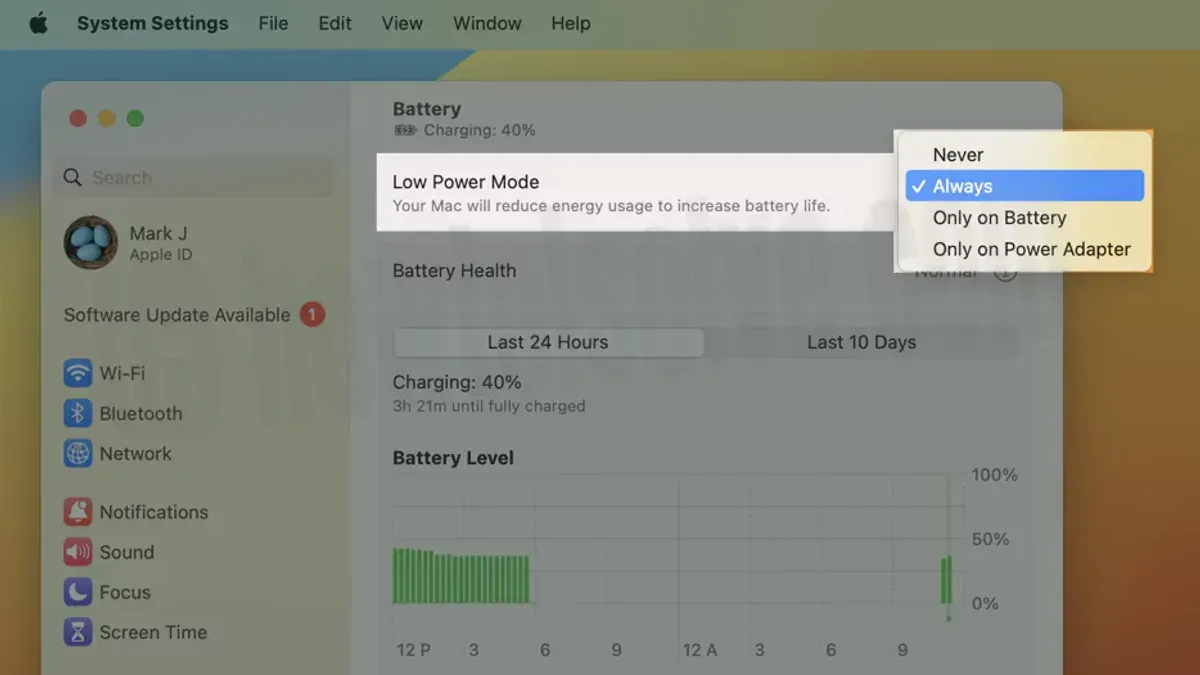
- On recent MacBook Air and Pro models with macOS Ventura or later, enable Low Power Mode via System Settings > Battery.
- Older MacBook Air models (2015, 2017) require alternative battery-saving settings as Low Power Mode is unavailable.
- Low Power Mode on Mac is distinct from iPhone's, focusing more on system-level adjustments.
- Turning off Low Power Mode restores normal performance and battery usage immediately.
Before you start: What you need to enable Low Power Mode on Mac
Low Power Mode is available on certain Mac models running macOS Monterey or later. To use this feature, first confirm that your MacBook Air or MacBook Pro supports it. Generally, MacBook Air models from 2018 onward and MacBook Pro models from 2016 onward include Low Power Mode support when updated to a compatible macOS version.
Check your macOS version by clicking the Apple menu > About This Mac. Low Power Mode requires macOS Monterey or a later release. If your Mac uses an older version, you will need to update the system software before proceeding.
Note that Low Power Mode on Mac differs from the iPhone’s Low Power Mode. On Mac, it reduces processor speed and display brightness to conserve battery, while on iPhone, it also limits background activity and network usage more aggressively.
| Feature | Mac Low Power Mode | iPhone Low Power Mode |
|---|---|---|
| Processor speed reduction | Yes | Yes |
| Display brightness reduction | Yes | Yes |
| Background activity limits | Limited | Extensive |
| Network usage limits | No | Yes |
Before testing Low Power Mode, ensure your Mac is either running on battery or plugged in, as the feature can be toggled in both states but may behave differently when charging.
- Open the Apple menu and select About This Mac. You should see your Mac model and macOS version listed.
- Confirm that your Mac model is a MacBook Air (2018 or later) or MacBook Pro (2016 or later) and that the macOS version is Monterey or newer. If so, the Low Power Mode option will be available in Battery settings.
- Navigate to System Settings (or System Preferences) > Battery > Battery Health & Charging. Here, you should see the option to enable Low Power Mode if your Mac supports it.
- Have your Mac either connected to power or running on battery to enable and test Low Power Mode.
How to turn on Low Power Mode on MacBook Air and MacBook Pro
Enabling Low Power Mode on your MacBook Air or MacBook Pro helps extend battery life by reducing energy use. The process is straightforward and similar on both models, but the exact interface depends on your macOS version.
- Click the Apple menu in the top-left corner of your screen and select System Settings (called System Preferences in earlier macOS versions).
- In System Settings, scroll down and select Battery. In System Preferences, look for the Battery icon and open it.
- Within the Battery section, find the Low Power Mode option. This setting may be under a tab labeled Battery or Energy, depending on your macOS version.
- Check the box or toggle the switch next to Low Power Mode to enable it. Once enabled, you should see a confirmation message or indicator showing that Low Power Mode is active.
- On MacBook Air and MacBook Pro, the steps and names of options are nearly identical, so the procedure applies equally to both models.
- To confirm Low Power Mode is active, look for a battery icon with a small green leaf or a similar indicator in the menu bar or within the Battery settings page.
Enabling Low Power Mode reduces system performance and background activity to save energy, which may affect some tasks but increases battery runtime.
How to turn on Low Power Mode on older MacBook Air models (2015 and 2017)
Low Power Mode is not available on MacBook Air models from 2015 and 2017. These devices do not support this feature because their hardware and macOS versions lack the necessary integration introduced in later models. macOS updates improve battery management but do not add Low Power Mode to these older Macs.
Instead, you can use alternative methods to extend battery life. Adjusting Energy Saver settings and reducing display brightness are effective steps. You can also close unused apps and disable unnecessary background processes.
| Model | Supports Low Power Mode |
|---|---|
| MacBook Air (Early 2015) | No |
| MacBook Air (2017) | No |
To optimize battery life on these older models, follow these steps:
- Open System Preferences and select Energy Saver. You should see sliders for display sleep and computer sleep.
- Set shorter times for both display and computer sleep to reduce power use. This will make your Mac sleep faster when idle.
- Go to Battery in System Preferences and enable Optimize video streaming while on battery if available. This helps reduce energy consumption during video playback.
- Reduce screen brightness manually from the menu bar or Displays preferences to the lowest comfortable level.
- Close unnecessary applications and browser tabs to minimize CPU load, which preserves battery life.
While these steps do not replicate Low Power Mode, they are practical ways to conserve battery on older MacBook Airs that do not support the feature.
How to turn on Low Power Mode on macOS Monterey
On macOS Monterey, Low Power Mode is designed to extend your MacBook's battery life by reducing system performance and energy consumption. Unlike later macOS versions where Low Power Mode integrates more seamlessly into the Battery settings, Monterey requires a slightly different approach.
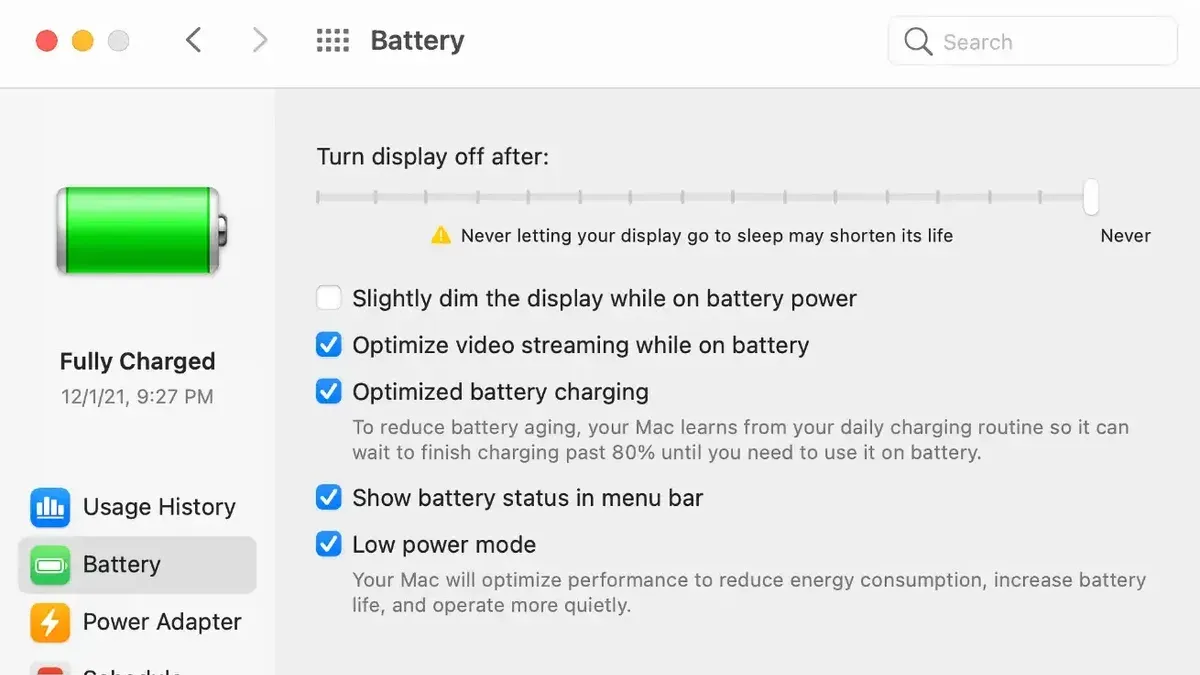
- Click the Apple menu and select System Preferences. You should see the main preferences window open.
- Choose Battery from the available options. This opens the battery settings panel.
- In the sidebar, select Battery again to view detailed battery settings.
- Check the box labeled Low Power Mode. When enabled, the checkbox will be marked, indicating Low Power Mode is active.
Under macOS Monterey, enabling Low Power Mode decreases the clock speed of the CPU and reduces background activity to save power. Users may notice slower performance, particularly during processor-intensive tasks, but benefit from longer battery runtime, often gaining an additional hour or more depending on workload.
One notable difference from later macOS releases is that Monterey does not automatically switch Low Power Mode on when the battery reaches a certain percentage; you must enable it manually. This manual control lets you decide when to prioritize battery life over performance.
Battery settings that matter when using Low Power Mode on Mac
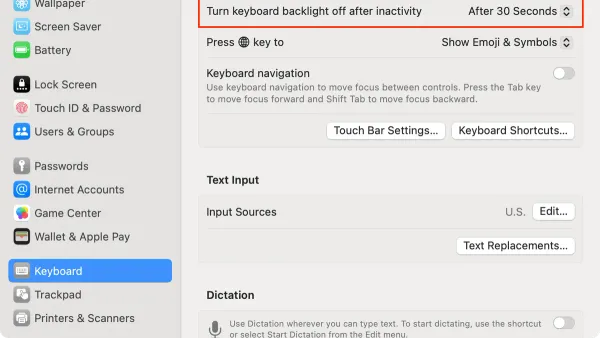
Low Power Mode works best when combined with other battery-saving settings. Adjusting your screen brightness and keyboard backlight can significantly extend battery life. Lower brightness reduces power consumption directly, while dimming or turning off the keyboard backlight when not needed avoids unnecessary drain.
Power Nap is a feature that allows your Mac to perform certain tasks like fetching mail or updating iCloud while sleeping. Disabling Power Nap can save battery, especially when Low Power Mode is active, since the Mac minimizes background activity during this state.
Automatic graphics switching helps balance performance and battery life by switching between integrated and discrete graphics. Enabling this setting complements Low Power Mode by preventing high-energy graphics from running unnecessarily.
- Open System Settings or System Preferences and go to Displays. Adjust the Brightness slider to a lower level; the screen should dim accordingly.
- Navigate to Keyboard settings and reduce the Keyboard Brightness or enable Adjust keyboard brightness in low light. Confirm the keyboard backlight dims or turns off.
- Go to Battery settings and click on Battery in the sidebar. Ensure Enable Power Nap while on battery power is unchecked to prevent background tasks.
- In the Battery section under Battery Health, verify that Automatic graphics switching is enabled to optimize energy use.
Combining these settings with Low Power Mode can extend your Mac's battery life noticeably. For example, reducing screen brightness by a quarter and disabling Power Nap can add multiple hours of usage, while automatic graphics switching prevents unnecessary power-heavy GPU use. However, these settings may slightly reduce performance or convenience, such as delayed notifications or dimmer keyboards.
How Low Power Mode on Mac compares to Low Power Mode on iPhone
Low Power Mode on Mac and iPhone both aim to extend battery life by reducing system activity, but they adjust different features tailored to each device's typical usage and capabilities.
| Feature | Low Power Mode on Mac | Low Power Mode on iPhone |
|---|---|---|
| CPU and GPU performance | Reduces processor speed and graphics switching to conserve power | Limits CPU performance but less emphasis on graphics |
| Screen brightness | Does not automatically reduce brightness; user adjustment recommended | Automatically dims screen brightness |
| Background activities | Reduces background app refresh and Power Nap | Disables background app refresh and mail fetch |
| Network activity | Limits some network processes but maintains connectivity | Reduces network usage aggressively, postpones some updates |
| Automatic enabling | Must be enabled manually in Battery settings | Automatically prompts to enable at 20% battery and can be scheduled |
Mac Low Power Mode is most beneficial when you need to extend battery life during light tasks such as web browsing, document editing, or streaming, where reduced performance is acceptable. In contrast, iPhone Low Power Mode is designed to stretch remaining battery during all-day use by aggressively limiting background processes and visual effects.
Battery life extension varies depending on workload but enabling Low Power Mode on Mac can modestly increase battery endurance, typically less dramatically than on iPhone, which can extend usage by several hours under low battery conditions.
Troubleshooting common issues when turning on Low Power Mode on Mac
If you cannot find the Low Power Mode option in Battery settings, first check your macOS version and Mac model compatibility, as this feature is unavailable on some older devices. If the option is missing despite meeting requirements, restarting your Mac or updating to the latest macOS version often resolves the issue.
Low Power Mode may turn off automatically if your Mac’s battery health is low or if system settings interfere. In such cases, you might see messages like "Low Power Mode disabled due to battery health." Checking Battery Health Management under System Settings > Battery can help identify these issues.
To fix common problems, try these steps:
- Update macOS: Go to System Settings > General > Software Update, and install any available updates. After updating, check if Low Power Mode appears and stays enabled.
- Reset System Settings: Navigate to System Settings > Privacy & Security > Reset Settings, and select relevant options to reset battery or system preferences. This can clear conflicts preventing Low Power Mode activation.
- Restart your Mac: A simple restart can refresh system processes and make Low Power Mode toggle visible.
- Check Battery Health: In System Settings > Battery > Battery Health, ensure the battery is in good condition. If health is degraded, Low Power Mode may be restricted.
If these steps do not resolve the issue, consult Apple’s official support page on Low Power Mode activation or contact Apple Support directly for personalized assistance. Many users find these solutions effective for resolving typical activation problems.
How to turn off Low Power Mode on Mac when you no longer need it
Disabling Low Power Mode restores your Mac’s full performance by allowing the processor and background activities to operate without the energy-saving restrictions. This typically improves responsiveness and processing speed but will increase battery consumption.
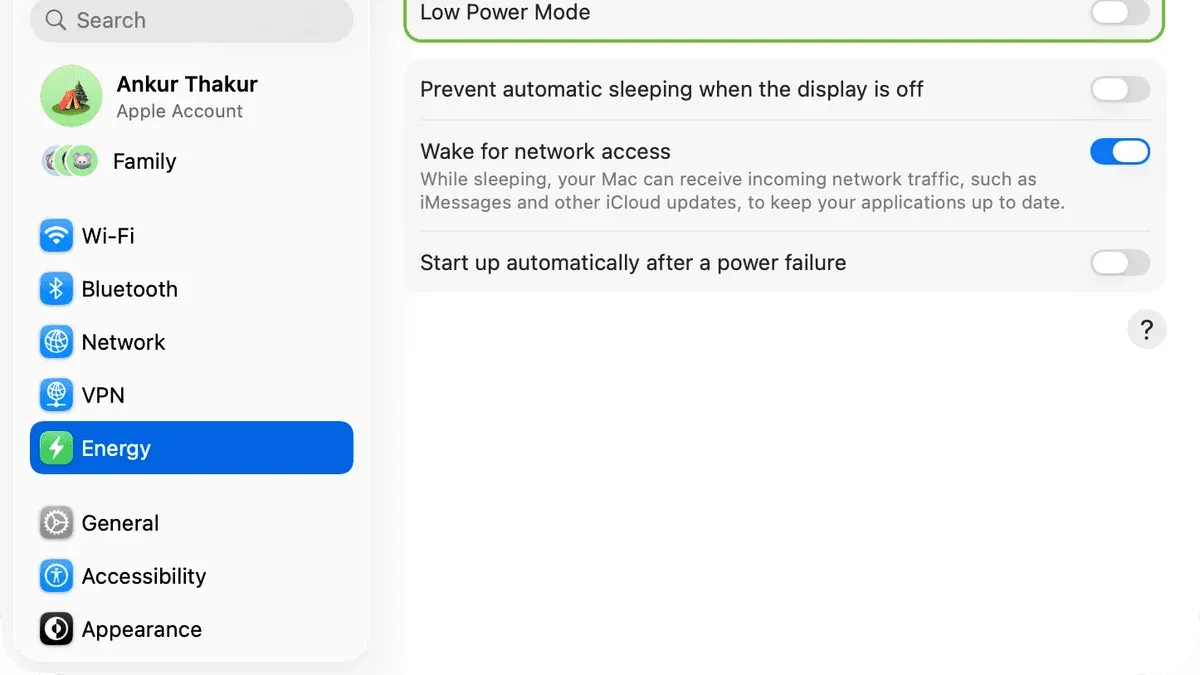
- Open System Settings (or System Preferences) from the Apple menu. You should see the main settings window.
- Navigate to the Battery section. Here, you will find battery-related options and usage statistics.
- Locate the Low Power Mode toggle within the Battery settings. It should be active if Low Power Mode is currently on.
- Click the toggle to turn off Low Power Mode. The toggle will switch from green (enabled) to gray (disabled), indicating Low Power Mode is off.
- Close System Settings. Your Mac will now run at normal performance levels without the power-saving limitations.
Consider turning off Low Power Mode when you need maximum processing power for demanding tasks like video editing, gaming, or multitasking. After disabling, you may notice smoother animations, faster app launches, and improved overall speed. However, expect higher battery drain compared to when Low Power Mode was on.
Frequently asked questions
How to put on low power mode?
To enable Low Power Mode on your Mac, open System Settings and go to Battery. From there, select Battery Health & Charging and toggle on Low Power Mode. This reduces energy usage by limiting background activity and performance.
How to enable low power mode iphone?
On your iPhone, open Settings and tap Battery. Then toggle on Low Power Mode. This temporarily reduces background activity, automatic downloads, and visual effects to extend battery life.
How to put on Low Power Mode on MacBook Air?
For MacBook Air models with macOS Ventura or later, open System Settings, click Battery, then Battery Health & Charging, and enable Low Power Mode. On some older MacBook Airs, this option may not be available or requires a different macOS version.
How to enable Low Power Mode on iPhone?
Go to Settings > Battery, then switch on Low Power Mode. Alternatively, you can add Low Power Mode to Control Center for quick access. This feature reduces power consumption by pausing background app refresh and mail fetch.
How to turn on Low Power Mode on MacBook Pro?
On MacBook Pro models running macOS Ventura or newer, access System Settings, select Battery, and under Battery Health & Charging, toggle on Low Power Mode. This mode helps extend battery life by reducing system performance and background tasks.
What Low Power Mode on Mac Does Not Cover
Low Power Mode on Mac is designed to extend battery life by reducing system performance and limiting background activity, but it does not replace essential battery maintenance practices such as avoiding extreme temperatures, managing charge cycles properly, and keeping software up to date. Performance reductions may affect demanding tasks like video editing or gaming, so it is not recommended when you need full power. Users with older Macs or models that do not support Low Power Mode should explore alternative battery-saving methods such as adjusting screen brightness, disabling unused apps, or optimizing Energy Saver preferences.
The best next step is to familiarize yourself with the battery preferences pane in System Settings. Regularly monitor your battery health and customize settings like "Optimize battery charging" and "Battery status menu" alongside Low Power Mode to maximize overall battery longevity and performance balance.