How to Use Amphetamine to Keep Your Mac Awake Easily
Discover how to use Amphetamine to keep your Mac awake with customizable sessions, triggers, and battery management for seamless productivity.
Your Mac starts to dim and sleep right when you need it awake, interrupting downloads or presentations. You want a reliable way to prevent this without constantly adjusting settings manually.
This article explains how to use Amphetamine to keep Mac awake on Mac, focusing on its advanced session controls and triggers. You will learn how to install the app, start simple sessions, and customize automation to fit your workflow precisely. It also covers managing battery settings in tandem with Amphetamine and troubleshooting common issues.
Key takeaways
- Install Amphetamine from the Mac App Store and allow necessary permissions in System Preferences > Security & Privacy.
- Start a session via the menu bar icon with options like "Indefinitely" or custom durations.
- Use triggers such as connecting to a specific Wi-Fi network or launching an app to automate awake sessions.
- Adjust Energy Saver settings to optimize battery usage when using Amphetamine.
- Restart Amphetamine or check permissions if sessions fail to start or end unexpectedly.
Before you start: What you need to use Amphetamine
To use Amphetamine effectively, you need a Mac running macOS with access to the Mac App Store. Familiarity with system preferences, especially those under System Settings > Battery > Battery and System Settings > Displays > Sleep, will help you understand how Amphetamine interacts with built-in sleep controls.
Amphetamine must be downloaded and installed from the Mac App Store. Once installed, it offers more granular control over your Mac’s awake state compared to the default system settings.
Below is a comparison table outlining key differences between Amphetamine and macOS built-in sleep options:
| Feature | Amphetamine | macOS Built-in Sleep Controls |
|---|---|---|
| Session customization | Highly customizable sessions with triggers and automation | Limited to fixed sleep timers and manual overrides |
| Trigger options | Start sessions based on app usage, network activity, or external devices | None |
| Battery awareness | Options to keep Mac awake only when plugged in or on battery | Sleep settings apply universally |
| Notifications | Session start and stop alerts | None |
| User interface | Menu bar icon with quick access to session controls | Sleep settings buried in System Settings |
Before installation, ensure you have a reliable internet connection and sufficient permissions to install apps from the Mac App Store. Amphetamine requires macOS permission to control system sleep behavior, so be prepared to grant these if prompted.
- Open the App Store on your Mac. You should see a search bar at the top left.
- Type Amphetamine into the search bar and press Enter. The app listing should appear.
- Click the Get button, then Install. Once the button changes to Open, installation is complete.
- Launch Amphetamine from the Applications folder or Launchpad. The Amphetamine icon (a pill) should appear in the menu bar.
- Grant any system permissions requested, such as Accessibility or Notifications, to enable full functionality.
How to install and launch Amphetamine on your Mac
- Open the App Store on your Mac by clicking its icon in the Dock or searching for it using Spotlight. You should see the App Store window appear.
- Use the search bar in the top-left corner and type Amphetamine. The search results will update as you type.
- Locate Amphetamine by Samsao in the search results. It will be marked as a free app with a blue capsule icon. Click the Get button, then Install. If prompted, enter your Apple ID password or use Touch ID to confirm.
- Once installed, click Open from the App Store or find Amphetamine in your Applications folder. Launching it will place a new pill-shaped icon in your Mac’s menu bar near the clock.
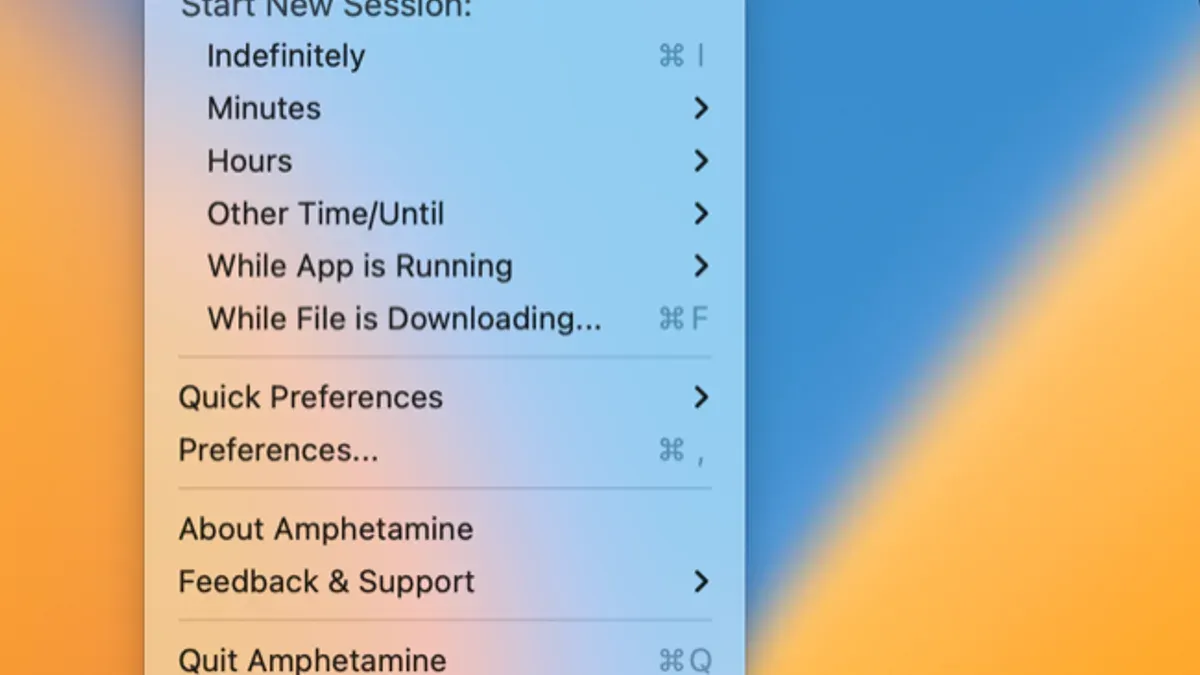
- Click the Amphetamine menu bar icon to reveal session controls. You will see options such as Start New Session, Indefinitely, Time-Based, and While Using Specific Apps. This interface lets you begin keeping your Mac awake with simple presets.
- Explore the Preferences by right-clicking the menu bar icon and selecting Preferences. Here you can adjust session parameters, notifications, and triggers to customize how Amphetamine behaves.
Clear visual cues such as the blue pill icon in the menu bar and straightforward session options make Amphetamine easy to start using immediately after installation.
Starting a simple session to keep your Mac awake
The quickest way to prevent your Mac from sleeping using Amphetamine is to start a session directly from its menu bar icon. This method lets you activate an indefinite awake period with a single click and easily stop it when no longer needed.
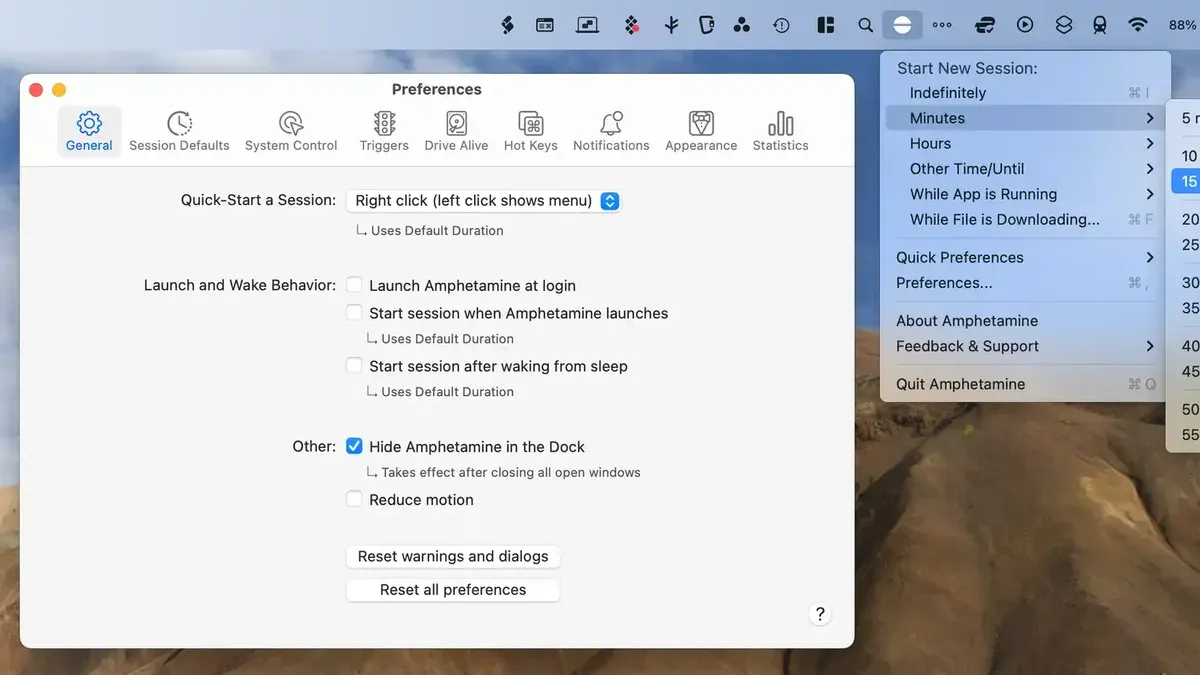
- Click the Amphetamine pill icon in the menu bar. A dropdown menu appears, showing session options.
- Select "Indefinitely" to start a session that keeps your Mac awake without a set end time. You’ll see the pill icon fill, indicating the session is active.
- To stop the session, click the menu bar icon again and choose "End Session." The icon returns to its empty state, and normal sleep behavior resumes.
- To adjust default session durations, open Amphetamine preferences from the menu bar icon by selecting "Preferences" > "Session." You can set default lengths such as 1 hour, 5 hours, or indefinite, which will apply when starting new sessions.
- Under "Triggers," you can set conditions like when a specific app is running or your Mac is connected to certain Wi-Fi networks to start sessions automatically, optimizing your Mac’s awake state based on your workflow.
For example, setting a default session duration to 2 hours means your Mac will stay awake for that period whenever you start a session without specifying a length. This balances preventing unwanted sleep and conserving battery if you forget to end sessions manually.
Using advanced session triggers and automation features
Amphetamine lets you tailor awake sessions with specific triggers, ideal for optimizing your workflow. You can create sessions that start automatically when connecting certain devices, like external drives or displays, ensuring your Mac stays awake only when needed.
App-based triggers keep your Mac awake only while particular applications are running, preventing unnecessary power use. For example, to set a session that activates when you open a video editing app and ends automatically when you close it, follow these steps:
- Open Amphetamine's preferences and navigate to the "Triggers" tab. You should see the trigger management interface.
- Click the "+" button to add a new trigger. A dialog will appear for configuration.
- Choose "App Launch" as the trigger type, then select the specific app you want to monitor (e.g., Final Cut Pro). The app should now be listed as a trigger condition.
- Set the session to start when the app launches and to end when the app quits by enabling the respective options. This ensures the Mac stays awake only during active use.
- Optionally, enable notifications to alert you when the session starts and stops. This lets you track session activity without opening Amphetamine.
- Save the trigger. Upon launching the selected app, Amphetamine will automatically initiate the awake session and end it when you close the app.
These automation features reduce manual interaction and fine-tune your Mac’s awake behavior to your workflow, balancing convenience and battery management effectively.
Managing battery and power settings alongside Amphetamine
Amphetamine overrides your Mac’s default sleep settings during active sessions, preventing your Mac from sleeping regardless of the battery or power adapter state. This means that when Amphetamine is active, the system’s usual energy-saving behaviors are temporarily suspended.
Using Amphetamine on battery power can significantly increase battery drain since the screen and system components stay awake continuously. For example, a MacBook that typically lasts 8–10 hours on battery without Amphetamine might see this drop to roughly 4–5 hours during an indefinite active session.
To avoid unintentional battery depletion, consider limiting Amphetamine sessions when running on battery or use triggers to start sessions only when plugged in. You can check battery status in the top-right menu bar or System Settings > Battery.
- Open Amphetamine’s preferences and navigate to the Triggers tab.
Here, you can configure triggers to activate sessions only when the Mac is connected to power. - Start an Amphetamine session while on battery and monitor battery percentage for a few minutes.
You should notice a faster decrease compared to normal sleep-enabled usage. - When plugged in, start an Amphetamine session to keep your Mac awake during tasks like downloads or presentations.
Battery drain is not a concern, and performance is optimized. - Stop the session when extended awake time is no longer needed.
Your Mac will return to normal sleep behavior and conserve energy.
Balancing Amphetamine’s awake sessions with mindful power management ensures your Mac stays responsive when needed without compromising battery longevity.
Troubleshooting common issues with Amphetamine sessions
If your Mac still sleeps despite active Amphetamine sessions, first check for conflicting system settings. Navigate to System Preferences > Battery > Battery and ensure Turn display off after is set to a reasonable time or to Never during sessions. Also, review System Preferences > Security & Privacy > Privacy > Accessibility to confirm Amphetamine has permission.
Conflicts can arise if other apps or settings override sleep behavior. Quit other utilities that manage power or sleep, such as third-party battery savers or screen dimming tools, to isolate the issue.
If issues persist, resetting Amphetamine preferences can help. Use the following steps:
- Quit Amphetamine completely by right-clicking its menu bar icon and selecting Quit Amphetamine. After quitting, the menu bar icon disappears.
- Open Finder, press Command + Shift + G, and enter
~/Library/Preferences/. Locate the file namedcom.if.Amphetamine.plistand move it to the Trash. - Restart Amphetamine from the Applications folder or Launchpad. The app will create fresh preferences, and the menu bar icon should reappear.
If resetting preferences doesn't resolve the problem, uninstall Amphetamine by dragging it from Applications to Trash, restart your Mac, then reinstall from the App Store. This clears potential corrupted files.
Common error symptoms include Amphetamine sessions ending prematurely, the Mac sleeping despite sessions, and triggers not activating. These are often linked to permission issues or conflicting apps.
- How to Schedule Sleep and Wake Times on Your Mac in 2026
- How to Add Widgets to Your Mac Desktop: A Step-by-Step Guide
Frequently asked questions
Can Amphetamine keep my Mac awake indefinitely without draining battery?
Amphetamine can keep your Mac awake indefinitely using session settings, but it does not prevent battery drain. When your Mac is awake, it continues to use power, especially if the display is on or intensive processes run. To minimize battery use, configure Amphetamine to keep the display off or run sessions only while plugged into power.
Does Amphetamine work on all Mac models and macOS versions?
Amphetamine supports most Mac models running macOS 10.11 (El Capitan) and later. However, specific features like advanced triggers may require newer macOS versions. Compatibility can vary with Macs using Apple silicon or older hardware, so check the App Store requirements and update macOS if needed.
How is Amphetamine different from the built-in 'Prevent Sleep' options?
Unlike macOS’s built-in Energy Saver or Battery settings that offer basic sleep prevention, Amphetamine provides customizable session controls and triggers. You can set conditions based on app usage, network status, or external devices, automating awake behavior precisely. Amphetamine also offers menu bar access for quick manual control, which the basic system settings lack.
What are the risks of using Amphetamine for long periods?
Keeping your Mac awake for extended times can lead to increased power consumption and potential overheating if ventilation is restricted. Continuous use may reduce battery lifespan over time if not plugged in. Also, prolonged sessions without breaks can cause screen burn-in on some displays if the screen remains on without movement.
What Amphetamine cannot do and who should look elsewhere
Amphetamine cannot override hardware-level sleep triggers such as the lid closing on MacBooks or system shutdowns initiated by critical alerts, macOS updates, or low battery protections. It also does not prevent your Mac from entering sleep if the system enforces these states for security or maintenance reasons. If you need guaranteed uninterrupted uptime for critical server tasks or remote access, consider dedicated hardware solutions or enterprise management tools designed for those environments.
For most users, Amphetamine effectively manages sleep behavior during active workflows, but it is not a substitute for adjusting system-wide energy saver preferences or handling macOS system updates and alerts.
The single most useful next step is to explore Amphetamine's advanced triggers under Preferences > Triggers, where you can automate awake sessions based on specific apps launching, external displays connecting, or network conditions. This level of customization ensures your Mac stays awake precisely when you need it, without manual intervention.