How to View Page Source in Safari on Mac and iPhone
This guide explains how to view page source in Safari on Mac and iPhone to troubleshoot issues and verify webpage content.
Viewing the page source in Safari helps Mac and iPhone users troubleshoot website issues, learn HTML basics, and verify webpage authenticity. This guide explains how to access page source on both devices and what to expect.
Why View Page Source in Safari? Understanding the Benefits
Viewing page source offers practical benefits:
- Troubleshooting website display issues: Inspecting source code can reveal missing tags or scripts causing problems when a page doesn’t load correctly.
- Learning HTML and web development basics: Beginners can identify common elements like headings, links, and images.
- Verifying authenticity and security of webpage content: Checking for suspicious or unauthorized embedded scripts can highlight potential risks.
- Checking embedded scripts or metadata: Metadata such as page descriptions or tracking codes are visible in the source, useful for validation.
For example, slow-loading pages may have missing references to stylesheets or scripts. Unexpected <script> tags referencing unknown domains can indicate security concerns.
How to Enable and Use the Develop Menu on Safari for Viewing Page Source (Mac)
Safari hides developer options by default on Mac. To enable the Develop menu:
- Open Safari.
- Go to Safari > Settings (or Preferences in older versions).
- Click the Advanced tab.
- Check the box labeled “Show Develop menu in menu bar.” This setting is often missed by users new to Safari developer tools.
After enabling, view page source by:
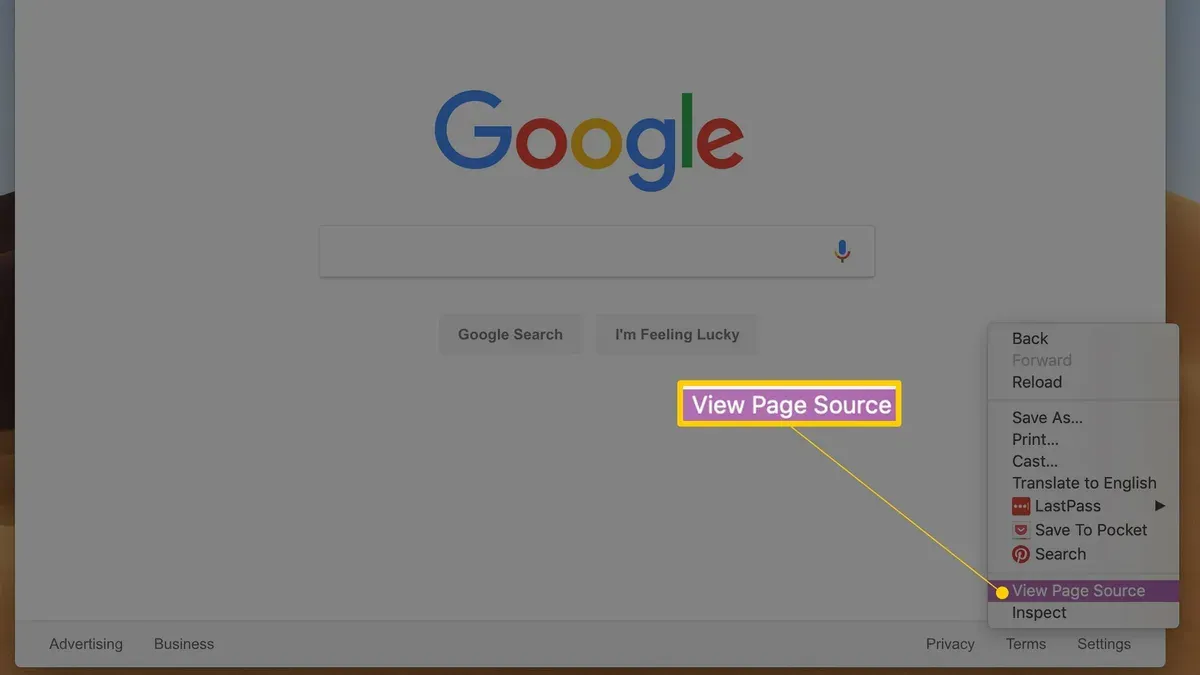
- Selecting Develop > Show Page Source from the menu bar.
- Right-clicking on the page and choosing Show Page Source (available once Develop menu is enabled).
- Using the keyboard shortcut
Option + Command + Uto open source directly.
For pages with frames, right-click inside a frame and select Show Frame Source from the Develop menu to view its specific code.
The source opens in a pane within Safari that supports scrolling, searching, and copying code snippets.
Viewing Page Source on iPhone Safari: What’s Possible and How
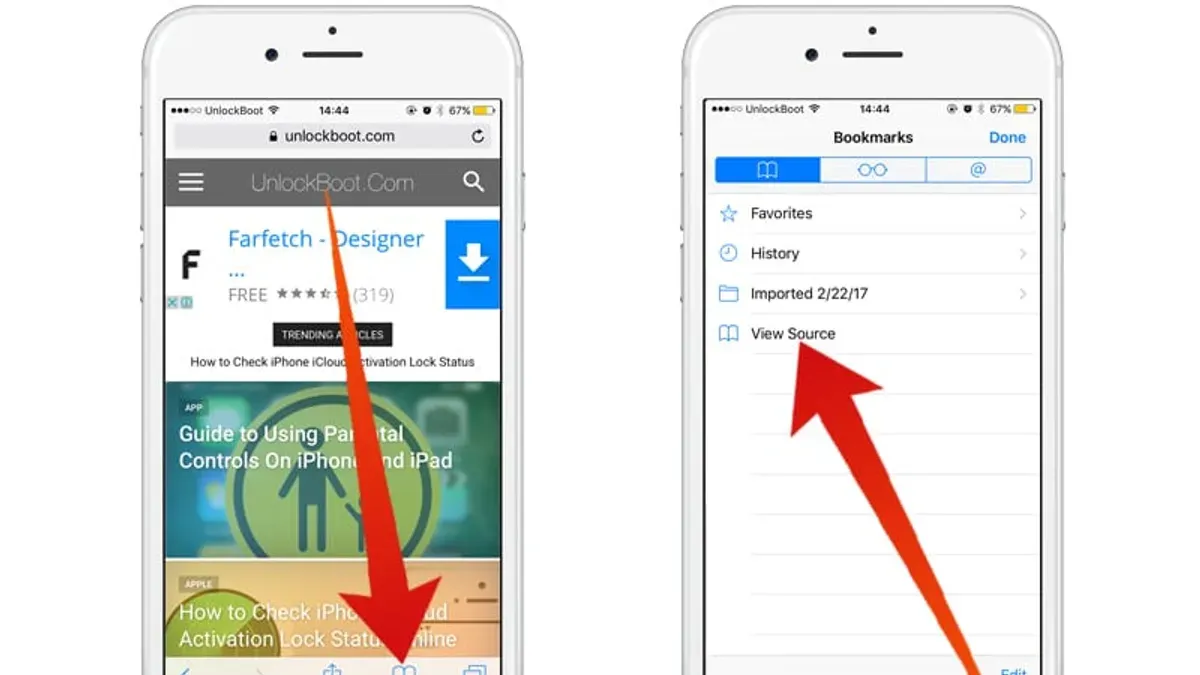
Safari on iPhone does not include a built-in option to view page source. Available workarounds include:
| Method | Description | Pros | Cons |
|---|---|---|---|
| Third-party apps | Apps from the App Store display HTML source for a page. | Dedicated interface and ease of use. | Requires installation; some apps may have ads or privacy considerations. |
| Bookmarklets | JavaScript snippets saved as bookmarks that display source when tapped. | No installation needed; quick deployment. | Limited formatting; may not work on all websites. |
| Request Desktop Site + Mac Safari | Request desktop version on iPhone, then inspect remotely using Mac Safari’s developer tools. | Access to full developer tools. | Requires Mac and network setup. |
An example bookmarklet is:
javascript:(function(){var source="";var nodes=document.getElementsByTagName('*');for(var i=0;i<nodes.length;i++){source+=nodes[i].outerHTML+"\n";}var w=window.open();w.document.open();w.document.write('<pre>'+source.replace(/</g,'<').replace(/>/g,'>')+'</pre>');w.document.close();})();Create a new bookmark in Safari, replace its URL with this code, then tap the bookmark on any page to view its source.
Understanding the Source Code: Basic Tips for Beginners
Viewing page source shows raw HTML. Key elements include:
- <head>: Contains metadata, page title, stylesheet links, and scripts.
- <body>: Visible content including text, images, and interactive elements.
- <script> tags: Contain or reference JavaScript that adds behavior.
- <style> or linked CSS: Controls visual appearance.
- Comments: Enclosed in
<!-- -->, ignored by browsers. - Metadata: Tags like
<meta>define character sets, descriptions, and SEO information.
Example snippet:
<!DOCTYPE html>
<html lang="en">
<head>
  <meta charset="UTF-8">
  <title>Sample Page</title>
  <link rel="stylesheet" href="styles.css">
</head>
<body>
  <h1>Welcome</h1>
  <script>console.log('Hello');</script>
</body>
</html>
Page source shows static markup. To inspect dynamic changes, use Safari’s developer tools on Mac.
When Viewing Page Source Won’t Help: Knowing the Limits
Page source has limitations:
- Dynamic content generated by JavaScript may not appear: Source shows original HTML from the server, not content added or changed after loading.
- Server-side code is not visible: Languages like PHP or Python run on servers and are not sent to browsers.
- Private data remains secure: Passwords, tokens, or sensitive info are not exposed in the source.
- For deeper debugging, use full developer tools: Inspect Element and Console provide live DOM and script debugging.
For example, comments or hidden fields generated dynamically might not appear in page source but will show in Inspect Element.
Frequently asked questions
Can I view the page source on Safari for iPhone without any apps?
Not directly. Safari on iPhone lacks a built-in view source option. Bookmarklets or third-party apps are needed.
What is the keyboard shortcut to view page source on Safari for Mac?
Press Option + Command + U to open the page source pane quickly.
Why can’t I see JavaScript-generated content in the page source?
Because page source shows the original HTML delivered by the server, not content added or modified by scripts after loading.
Is viewing page source safe and legal?
Yes. Viewing page source is a standard browser feature and does not violate laws or privacy as it only shows publicly sent code.
Caveats and Limits
This article does not cover advanced web development inspection tools or server-side code analysis. It is not intended as a tutorial for hacking or unauthorized access.