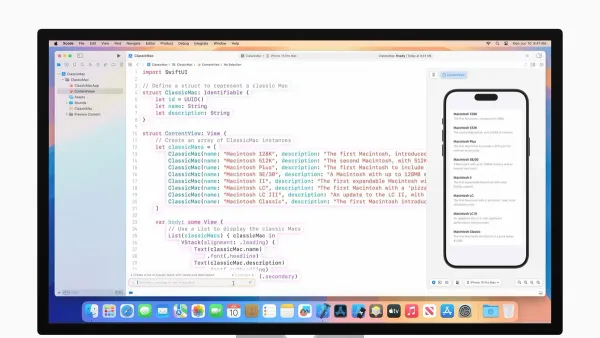
What OS Does Mac Use? A Clear Guide to macOS and Its Features
Discover the operating system Mac uses and explore macOS features that optimize your MacBook's performance and usability.
You just got a new Mac and are wondering about its operating system. Maybe you've heard terms like macOS or macOS Ventura but aren't quite sure what they mean or how they impact your daily use.
This article answers the question "what os does mac use" and walks you through the basics of macOS. You'll learn what operating system your MacBook runs, how macOS manages printing, and how to handle user accounts and settings. We'll also touch on the specific fonts used by macOS to help you understand the system's look and feel.
Key takeaways
- Mac computers use macOS, Apple's proprietary operating system designed specifically for Mac hardware.
- macOS supports multiple printing protocols, including AirPrint and IPP, for versatile printer compatibility.
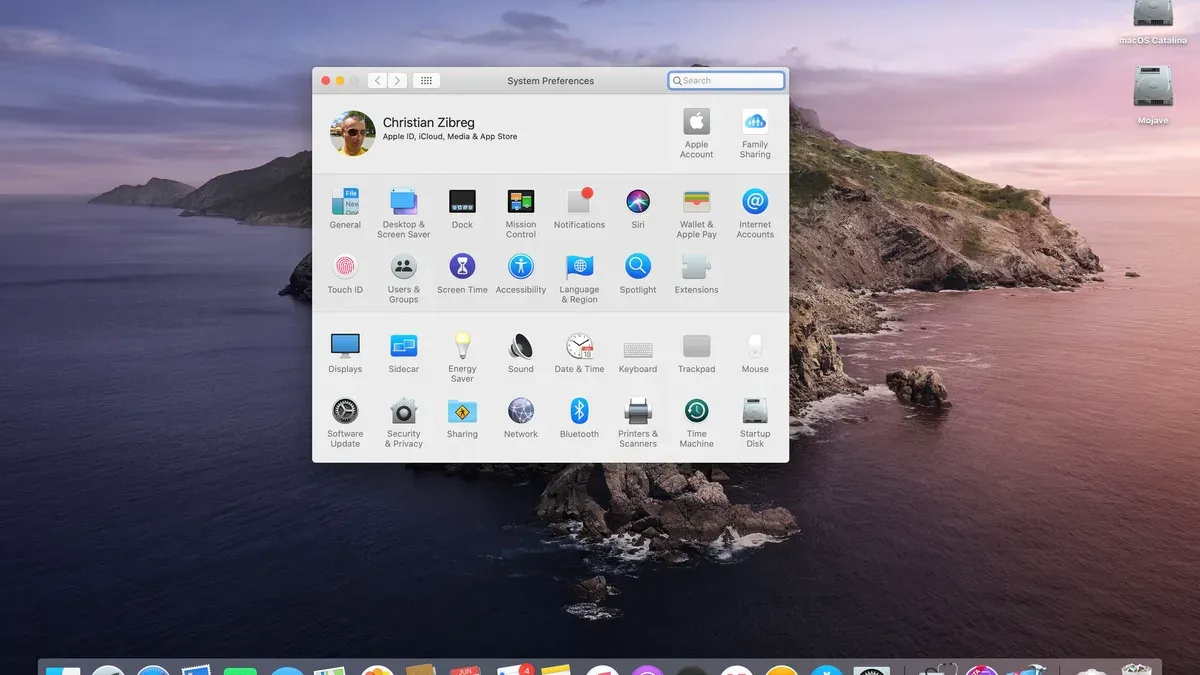
- You can manage user accounts via System Preferences under Users & Groups to customize access and security.
- Different Mac devices may run slightly varied macOS versions tailored to their hardware capabilities.
- The default system font in macOS is San Francisco, optimized for readability on Retina displays.
What OS Does Mac Use?
Mac computers run macOS, Apple’s proprietary operating system designed exclusively for Mac hardware. This integration ensures smooth performance and access to features that are fine-tuned for Mac devices, such as Continuity, Handoff, and optimized energy management.
macOS evolved from earlier Apple operating systems, starting with the classic Mac OS in the 1980s, transitioning to Mac OS X in the early 2000s, and finally becoming macOS to align with the naming of other Apple platforms. Key milestones include Mac OS X 10.0, which introduced a Unix-based foundation, and subsequent versions like macOS 10.12 Sierra, which added Siri integration, and macOS 11 Big Sur, which marked a major redesign and support for Apple’s own silicon chips.
Compared to other operating systems like Windows or Linux, macOS offers tighter hardware-software integration, leading to greater system stability, enhanced security features, and a user interface consistent across Apple devices. This cohesion helps you experience fewer compatibility issues and enjoy features specifically created for your Mac's architecture.
What Operating System Does MacBook Use?
All MacBook models run macOS, the same operating system designed for Apple's entire Mac lineup. This means whether you have a MacBook Air, MacBook Pro, or the MacBook Neo, the core system software is macOS, tailored to work smoothly with the portable hardware's specifications.
The MacBook Neo uses a specialized version of macOS optimized for its unique hardware configuration, such as its advanced ARM-based processor and enhanced graphics capabilities. Despite these hardware-specific tweaks, it maintains full compatibility with the standard macOS features you find on other MacBooks, including the familiar user interface, app ecosystem, and security updates.
Differences between MacBook models mainly come from their hardware capabilities like processor speed, memory, and display quality rather than the operating system itself. For example, a MacBook Air may have a lower power processor compared to a MacBook Pro, but both run the same macOS version and support the same software features. This consistency ensures that you can expect a similar user experience across MacBook devices, regardless of their model.
What Protocol Does Mac OS Use for Printing?
macOS primarily uses the Internet Printing Protocol (IPP) for network printing. IPP allows your Mac to communicate with printers over a network, providing robust and standardized printing services. This protocol supports features like print job management and secure transmissions, helping ensure reliable printing across various printer models.
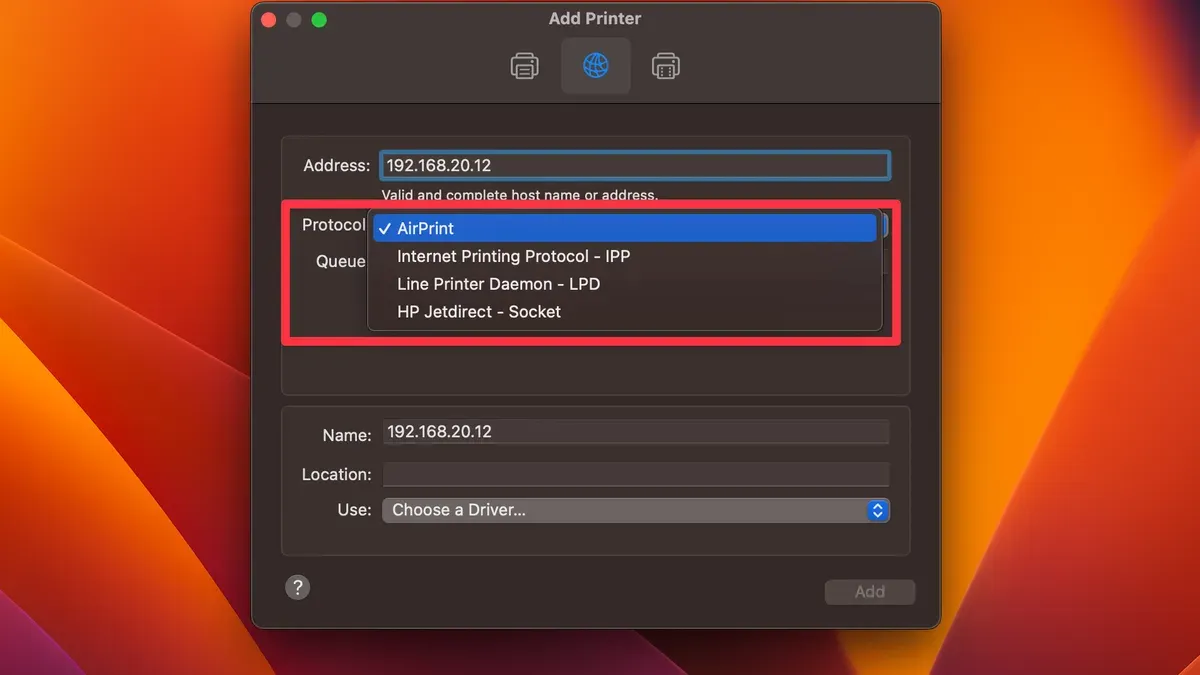
In addition to IPP, macOS supports AirPrint, a wireless printing protocol designed for seamless printing with compatible printers. AirPrint is often easier to set up, requiring no additional drivers, but it may offer fewer customization options compared to IPP. Understanding these differences helps you decide which to use based on your printer and printing needs.
To set up a network printer using IPP, go to System Preferences > Printers & Scanners, click the plus (+) button, then select IP from the toolbar. Enter the printer's IP address or hostname, choose the Internet Printing Protocol from the Protocol dropdown, and provide a queue name if necessary (often "ipp/print" or left blank). Finally, select the appropriate printer driver and click Add. This step-by-step approach ensures your Mac communicates correctly with the printer.
Comparing protocols, AirPrint is ideal for quick wireless printing without configuration, while IPP provides more control and wider compatibility, especially in complex network environments. Knowing which protocol your printer uses and how to set it up helps you troubleshoot issues like print jobs not starting or printers not appearing in your list.
How to Manage User Accounts and Settings on Mac OS
You manage user accounts on your Mac through System Settings under the section labeled Users & Groups. Here, you can add new users, view the list of existing accounts, and adjust permissions or account types. Understanding who has access to your Mac and their permission levels is crucial for both security and usability.
To add a user, open System Settings > Users & Groups, then click the add (+) button below the user list. You will be prompted to choose the account type—Administrator, Standard, or Sharing Only—and enter the new user's details. This process securely creates a new account with appropriate permissions.
Listing users in Users & Groups shows all accounts, including guest accounts and sharing-only users, helping you confirm who can log in or access your Mac remotely. For a command-line view, the command dscl. list /Users in Terminal lists user accounts, but the graphical panel is usually clearer for most users.
Changing a username or account type requires administrator access. To do this safely, first create a backup of the user’s data. Then, in Users & Groups, right-click the user and select Advanced Options. You can change the account name or home directory path here, but be cautious—incorrect changes can lead to data loss or login issues. After changes, restart your Mac to apply them properly.
What Font Does Mac OS Use?
macOS primarily uses the San Francisco font family as its default system font. This font was designed by Apple to enhance readability and create a consistent visual experience across all Apple devices, including Macs, iPhones, and iPads. San Francisco replaced previous system fonts like Helvetica Neue, offering improved clarity especially on Retina and other high-resolution displays.
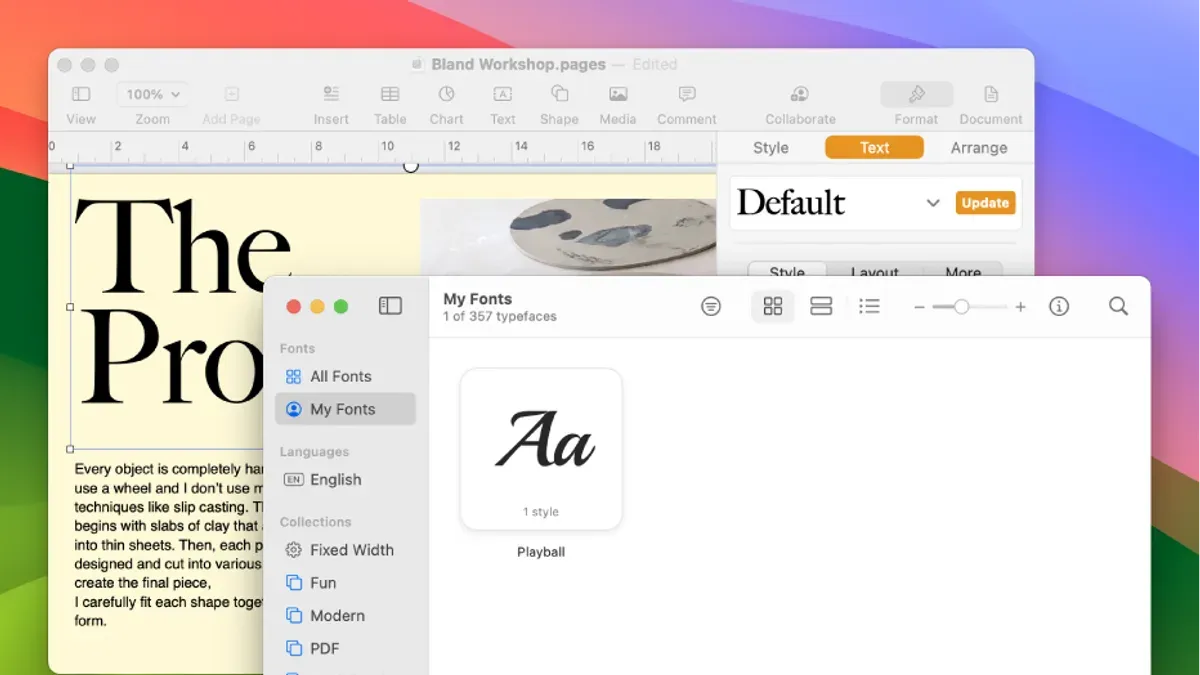
The design of San Francisco focuses on legibility at various sizes, which helps you comfortably read menus, dialogs, and app interfaces regardless of your Mac model. Compared to earlier fonts used in macOS, San Francisco appears more modern and balanced, reducing eye strain during prolonged use. If you customize your Mac, knowing the default font can guide you in selecting complementary fonts for documents and presentations.
Visual comparisons often show San Francisco’s smooth curves and clear letterforms standing out on both small MacBook screens and large external monitors. Understanding this system font helps you appreciate Apple’s design choices and better tailor your Mac environment to your preferences.
Frequently asked questions
What os does macbook use?
MacBook models use macOS, Apple's dedicated operating system designed specifically for Mac hardware. The latest MacBooks typically run the newest version of macOS, which includes features tailored for Apple Silicon and Intel processors. You can check your MacBook's macOS version by clicking the Apple menu and selecting "About This Mac."
What os does macbook neo use?
The MacBook Neo, a specific variant in the MacBook lineup, runs macOS optimized for its hardware. This version supports all standard macOS features while possibly including updates or drivers unique to the MacBook Neo's components. You can confirm the exact macOS version by opening "System Preferences" and selecting "Software Update."
What os does my mac support?
Your Mac supports the macOS versions compatible with its hardware capabilities, which you can verify by checking Apple's official compatibility list or your Mac’s model identifier. Generally, newer Macs support the latest macOS releases, while older models may be limited to earlier versions. To find out, click the Apple menu, choose "About This Mac," then visit the Apple support website for compatibility details.
What os is mac on?
Your Mac runs macOS, the operating system developed by Apple specifically for Mac computers. This OS provides a seamless interface and integrates well with Apple’s ecosystem, including iCloud, iMessage, and the App Store. The version can be found under the Apple menu by selecting "About This Mac."
What os does macbook neo run?
The MacBook Neo runs macOS tailored to its hardware configuration, supporting features compatible with its processor and system design. Like other Macs, it receives regular macOS updates to improve security and functionality. Check "System Preferences" under "Software Update" to see the current macOS version on your MacBook Neo.
What This Advice Does Not Cover
This article does not cover in-depth technical troubleshooting or developer-level customization of macOS, which often requires specialized knowledge of system internals, Terminal commands, or Xcode tools. If you encounter persistent software errors, hardware compatibility issues, or need to configure advanced security settings, consulting Apple Support or a certified Mac technician is recommended. Additionally, this guide does not address cross-platform networking setups or detailed printer driver installations beyond standard macOS protocols.
The single most useful next step is to explore the System Settings app on your Mac. Navigate to System Settings > Users & Groups to manage accounts, or System Settings > Printers & Scanners to add and configure printers. This hands-on approach will help you familiarize yourself with macOS basics and the specific settings that matter most for your daily tasks.
See also: Mastering Mac Users and Groups: A Clear Guide to Managing Accounts · How to Sync Messages on Mac: A Step-by-Step Guide for Apple Users · Can Mac Use NTFS? Clear Answers and Practical Solutions · How to Fix Safari Can't Establish a Secure Connection on Mac