
How to Fix AirPods That Keep Disconnecting on Mac
Resolve AirPods disconnecting on Mac by reducing interference, updating settings, and checking battery levels for a stable connection.
Mac users experiencing frequent AirPods disconnections face interruptions that disrupt streaming audio and workflow.
For those searching for an AirPods keep disconnecting on Mac fix, the first step is to understand the user’s device setup and connection patterns.
Effective fixes include resetting the AirPods by holding the setup button on the charging case until the status light flashes white, which solves persistent connection problems. Additionally, keeping macOS and AirPods firmware updated addresses compatibility and Bluetooth issues that impact connectivity.
Last verified November 2026 against Apple Support, Engadget, iMyMac (full list at the end).
Which Fixes Fit Different Users’ Setups
Identifying the right fix depends on the devices involved and usage patterns. For Mac-only users, addressing Bluetooth interference around the Mac and ensuring macOS is updated often resolves disconnection issues. Bluetooth interference can come from USB 3 devices or other wireless equipment; isolating the Mac from these sources can stabilize connections.
Users who frequently switch AirPods between multiple Apple devices should adjust the automatic device switching settings. Since AirPods can switch automatically between devices signed in to the same Apple ID, setting “Connect to This Device” to “When Last Connected to This Device” on less frequently used devices reduces unexpected disconnects.
Additionally, all users should check AirPods and charging case battery levels first, as low battery is a common cause of frequent disconnections.
- Identify if AirPods disconnect only on Mac or multiple devices; if multiple, consider hardware issues.
- For Mac-only users, reduce Bluetooth interference and update macOS; connection should become stable.
- For users with multiple Apple devices, adjust “Connect to This Device” to “When Last Connected to This Device” on less used devices; expect fewer automatic switching disconnects.
- For PC or laptop users, focus on Bluetooth interference and forget then re-pair AirPods; connectivity should improve.
- Check AirPods and charging case battery levels to avoid power-related disconnects.
Reduce Bluetooth Interference Around the Mac
Bluetooth signals are vulnerable to interference from various electronic devices commonly found near a Mac. USB 3 devices, external displays, routers, and other wireless equipment emit signals that overlap with the Bluetooth frequency bands used by AirPods. This interference can cause AirPods to disconnect unexpectedly, especially when streaming audio, which demands a stable connection more than playing locally stored files.
To identify if interference is the cause of disconnections, temporarily disconnect or move away from these devices. Doing so often stabilizes the AirPods connection. This step helps confirm whether electromagnetic noise from nearby electronics is disrupting Bluetooth communication.
Audio streaming is more sensitive to interference because it requires continuous data transfer over the network, while local playback relies on files already stored on the device, making it less prone to connection drops. If disconnections only occur during streaming, checking the wireless environment is crucial.
- Identify USB 3 devices, external monitors, routers, and other wireless equipment near the Mac.
- Temporarily disconnect or move these devices away from the Mac.
- Test AirPods connection stability during streaming audio.
- If connection improves, adjust device placement to minimize interference consistently.
Turn Off Automatic Device Switching to Prevent Unexpected Disconnects
AirPods are designed to switch automatically between Apple devices signed in to the same Apple ID. This feature can cause frequent disconnections when AirPods switch from a Mac to another device that starts playing audio. Completely disabling this automatic switching feature is not possible; it can only be managed individually on each device.
To reduce these unexpected disconnects on a Mac, adjust the connection preference to limit automatic switching. Navigate to System Settings → Bluetooth, then click the Info button next to the AirPods. Under Connect to This Mac, select When Last Connected to This Mac. This setting ensures AirPods connect to the Mac only when it was the last device in use, preventing automatic switching from interrupting the connection.
Similarly, on an iPhone or iPad, go to Settings → AirPods → Audio & Routing. Tap Connect to This iPhone/iPad and choose When Last Connected to This iPhone/iPad. This adjustment limits automatic switching on these devices, helping maintain a stable connection with the Mac.
For users who frequently switch AirPods among multiple Apple devices, set the Connect to This Device option to When Last Connected to This Device on devices used less often. This targeted management reduces disconnections caused by automatic switching.
- Open System Settings on the Mac and access Bluetooth settings
- Click the Info button next to AirPods and set Connect to This Mac to When Last Connected to This Mac
- On iPhone or iPad, open Settings, go to AirPods, then Audio & Routing, and set Connect to This Device to When Last Connected to This Device
Reset AirPods to Fix Persistent Connection Problems
This process clears existing pairing data, requiring the AirPods to be paired again with each device afterward.
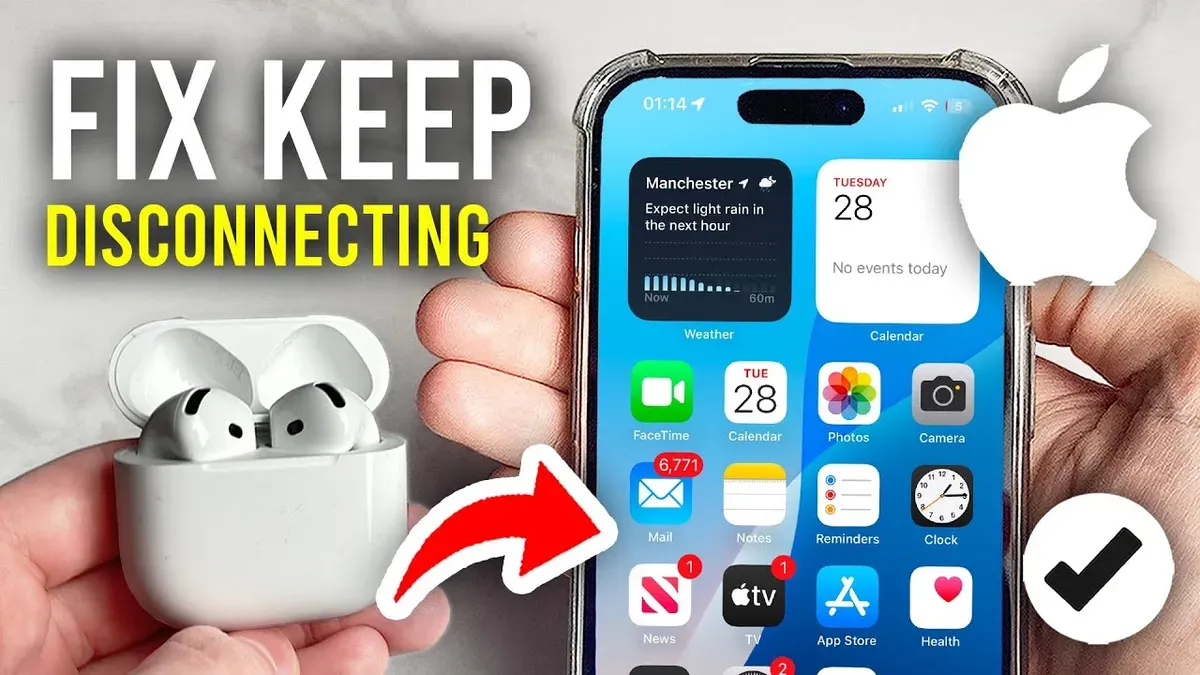
- Place both AirPods inside their charging case and close the lid.
- Wait for at least 30 seconds, then open the charging case lid.
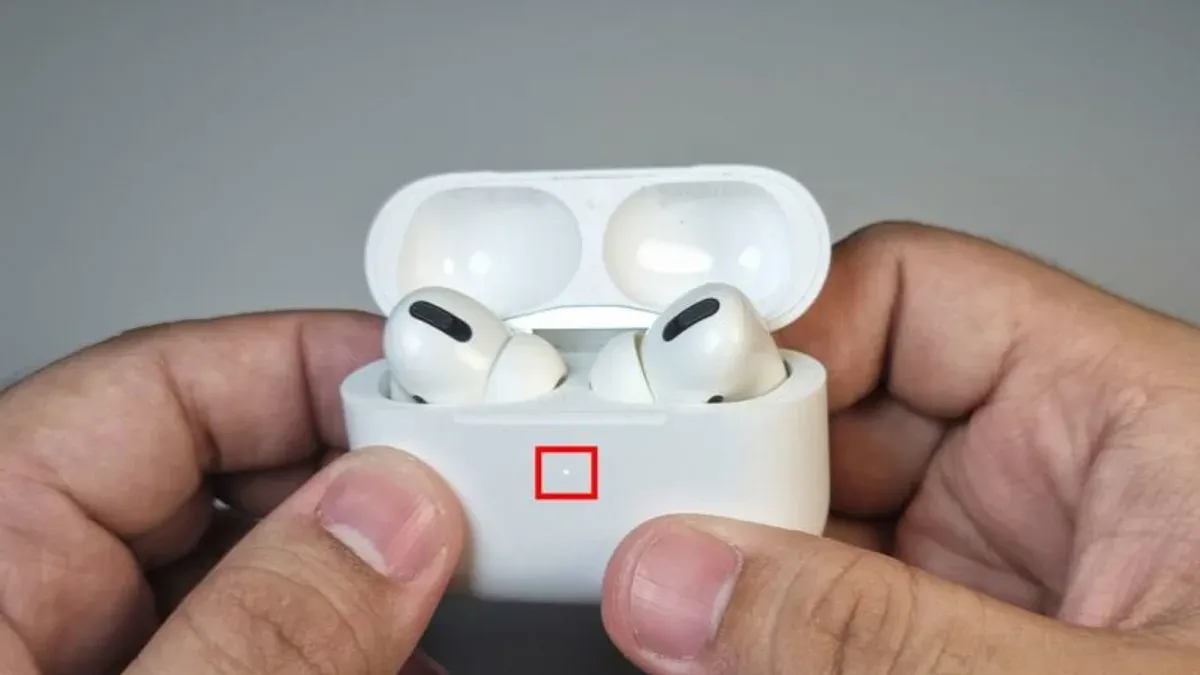
- Press and hold the setup button located on the back of the charging case.
- Continue holding the button until the status light on the front of the case flashes white.
- Release the button once the white flashing light appears; the AirPods have been reset.
After resetting, the AirPods will no longer be recognized by any previously paired device until re-paired. Users must forget the AirPods on each device before pairing again to ensure a clean connection setup. This reset often resolves persistent disconnects caused by corrupted pairing data or conflicting connections.
Forget and Re-Pair AirPods on Mac or PC
On a Mac running macOS before Ventura, open System Preferences, go to Bluetooth, select the AirPods, and click the X button to forget the device. For macOS Ventura and later, use Control Center in the menu bar: open Bluetooth, select the AirPods, and choose Disconnect. After forgetting, place the AirPods near the Mac, open the charging case lid, and follow the on-screen prompts to reconnect. A successful pairing will show the AirPods in the Bluetooth device list marked as connected.
For PC or laptop users, access the Bluetooth settings through the system's device manager or settings app. Locate the AirPods in the paired devices list, remove or forget them, and then put the AirPods in pairing mode by pressing the setup button on the case until the status light flashes white. Next, add the AirPods again via Bluetooth settings, confirming the connection once the device appears as connected.
- On Mac (before Ventura), open System Preferences > Bluetooth, select AirPods, click the X button, and confirm to forget; on Ventura or later, open Control Center > Bluetooth, select AirPods, and disconnect.
- Place AirPods in pairing mode by opening the case near the Mac or pressing the setup button until the status light flashes white.
- On Mac, follow the on-screen prompt to connect; on PC, open Bluetooth settings, scan for devices, select AirPods, and connect.
- Confirm AirPods show as connected in Bluetooth device list.
- Forget AirPods on Mac or PC via Bluetooth settings.
- Put AirPods into pairing mode by using the charging case button.
- Reconnect AirPods and verify connection status.
Disable Automatic Ear Detection to Avoid Playback Interruptions
Automatic Ear Detection senses when AirPods are in the ears and pauses playback when removed. However, faulty sensors can mistakenly detect removal, causing unexpected disconnections or playback interruptions. Disabling this feature can prevent such issues by keeping the AirPods actively connected regardless of sensor input.
To turn off Automatic Ear Detection on a Mac, open System Settings and go to Bluetooth. Find the AirPods in the device list and click the Info button next to them. In the AirPods settings, toggle off the Automatic Ear Detection option. This stops the AirPods from pausing audio when the sensors misinterpret their status.
- Open System Settings on the Mac and select Bluetooth.
- Locate the AirPods in the device list and click the Info button next to them.
- Find the Automatic Ear Detection option and toggle it off. The change takes effect immediately.
Keep macOS and AirPods Firmware Updated
Keeping macOS updated is essential for maintaining a stable connection between AirPods and a Mac. Updates often include fixes that enhance Bluetooth and audio device compatibility, directly addressing issues that cause frequent disconnections. Without these updates, unresolved bugs may persist, leading to unstable AirPods connections.
To check for macOS updates, open the Apple menu, then navigate to General > Software Update. If updates are available, select Install to begin the process. Once completed, the system will show that software is up to date, indicating improved support for Bluetooth devices like AirPods.
AirPods firmware updates happen automatically when the AirPods connect to an Apple device. These updates improve performance and fix known connectivity issues. Ensuring both macOS and AirPods firmware are current is a key step in preventing disconnections and maintaining consistent audio quality.
- Check for macOS updates via Apple menu → General → Software Update
- Install all available macOS updates promptly
- Keep AirPods connected to Apple devices regularly to receive firmware updates
Check and Charge AirPods and Charging Case to Avoid Low Battery Disconnects
Low battery levels in AirPods or their charging case can cause frequent disconnections by interrupting Bluetooth communication. Connection stability declines significantly when the AirPods’ battery runs low, making it essential to monitor battery status regularly.
- Check the battery level on Mac by opening System Settings, selecting Bluetooth, and viewing the battery percentage next to the AirPods. A low or flashing battery icon indicates a need to recharge.
- On iPhone or iPad, open Settings, tap AirPods, then Audio & Routing to view battery levels for each AirPod and the charging case. Alternatively, placing AirPods near the device with the lid open triggers a battery status popup.
- Charge both the AirPods and their case promptly when battery levels approach low to maintain stable connections. Ensure the charging case has sufficient power, as an empty case cannot recharge the AirPods, leading to unexpected disconnections.
- Check AirPods battery level on Mac through System Settings → Bluetooth.
- Verify battery status on iPhone/iPad via Settings → AirPods → Audio & Routing.
- Charge AirPods and charging case before battery levels become low.
Common Mistakes That Cause AirPods to Disconnect on Mac
Leaving Automatic Device Switching enabled on multiple Apple devices often leads to AirPods disconnecting from the Mac when another device starts playing audio. This happens because AirPods attempt to switch automatically to the device that most recently played sound, causing unexpected disconnections.
USB 3 devices, external monitors, and wireless equipment emit signals in the same frequency bands used by Bluetooth, disrupting the AirPods’ link with the Mac. Reducing or relocating these devices can markedly improve connection stability.
Failing to keep macOS and AirPods firmware updated also contributes to connection problems. Updates frequently contain fixes for Bluetooth and audio device compatibility issues that can resolve bugs causing disconnections. Regularly installing these updates ensures the latest improvements are applied.
Ignoring battery levels in both AirPods and their charging case is a common oversight. Low power often triggers frequent disconnections, as AirPods cannot maintain stable Bluetooth connections when the battery is nearly drained. Monitoring and charging batteries regularly avoids this issue.
- Manage Automatic Device Switching by adjusting 'Connect to This Device' settings on each Apple device; successful management keeps AirPods connected without unexpected switches.
- Minimize Bluetooth interference by moving USB 3 devices and wireless equipment away from the Mac; a stable connection should follow.
- Keep macOS and AirPods firmware updated to benefit from fixes that improve Bluetooth stability; connection problems should reduce.
- Charge AirPods and the charging case regularly to maintain sufficient battery levels; disconnections due to low power should cease.
What This Guide Does Not Cover and When to Contact Apple Support
It does not address hardware defects in the AirPods or their charging case. When AirPods disconnect from multiple devices, not just the Mac, this often signals a hardware issue. Such problems require professional diagnosis and repair.
If this occurs, resetting, re-pairing, or managing settings will not resolve the issue.
- Confirm that AirPods disconnect from all devices they are paired with, not only the Mac. This confirms the problem is not device-specific.
- Ensure all software fixes, including resetting and re-pairing, are attempted without success.
- Contact Apple Support for a hardware evaluation and possible repair or replacement.
Frequently asked questions
How to fix airpods that keep disconnecting?
Fixing AirPods that keep disconnecting involves a sequence of steps tailored to the user’s setup and device environment. These include reducing Bluetooth interference near the Mac, managing automatic device switching settings via System Settings → Bluetooth → Info button, resetting the AirPods using the setup button on the charging case until the status light flashes white, and ensuring macOS and AirPods firmware are up to date. If problems persist, forgetting and re-pairing the AirPods on the Mac or PC can help. Disabling automatic ear detection may also prevent unexpected playback interruptions linked to disconnections.
How come my airpods keep disconnecting?
AirPods may keep disconnecting due to Bluetooth interference from other devices, low battery levels in the AirPods or charging case, or conflicts arising from automatic device switching within the Apple ecosystem. Additionally, outdated firmware or macOS versions can cause stability issues. The unique behavior that automatic device switching cannot be fully disabled means the AirPods might switch connections unexpectedly if multiple Apple devices are in use, leading to disconnections on the Mac.
How to fix airpods disconnecting from pc?
To fix AirPods disconnecting from a PC, it is essential to forget and then re-pair the AirPods through the PC’s Bluetooth settings. Unlike Apple devices, PCs do not support automatic device switching, so ensuring no other nearby devices are trying to connect simultaneously can reduce conflicts. Charging both the AirPods and their case fully helps avoid low battery-related disconnects. Additionally, keeping the PC’s Bluetooth drivers updated promotes a stable connection.
Common Mistakes That Cause AirPods to Disconnect on Mac
- Ignoring Bluetooth interference: Keeping multiple wireless devices near the Mac without managing their placement can cause signal drops. Move other Bluetooth or Wi-Fi devices away from the Mac to reduce interference.
- Assuming Automatic Device Switching is fully disableable: Automatic Device Switching can only be managed per device via System Settings → Bluetooth → Info button, not entirely turned off. Misunderstanding this leads to unexpected disconnects when switching devices.
- Not resetting AirPods before re-pairing: Skipping the reset step can leave persistent connection glitches unresolved. Use the setup button on the charging case until the status light flashes white before pairing again.
- Forgetting to check AirPods and charging case battery levels: Low battery in either component often causes drops. Regularly charge both to maintain a stable connection.
- Overlooking macOS or AirPods firmware updates: Outdated software can create compatibility issues leading to disconnects. Keep both macOS and AirPods firmware current through their respective update processes.
Essential Steps to Resolve AirPods Disconnecting on Mac
References
- If the sound from your wireless headphones cuts out or is distorted - Apple Support — Apple Support
- Why your AirPods keep disconnecting without warning: These settings can fix it - Engadget — Engadget
- Airpods Keep Disconnecting from Mac - Fixed with Simple Ways — iMyMac
- How to Fix AirPods That Keep Disconnecting from a Mac — 4macos
- AirPods Keep Disconnecting, Fix • macReports — macReports
See also: How to Fix Wi-Fi That Keeps Disconnecting on Mac: Step-by-Step Guide · How to Fix VPN Won't Connect on Mac: A Clear Troubleshooting Guide · How to Fix Bluetooth Mouse Lagging on Mac: Step-by-Step Solutions · How to Fix iPhone Not Showing in Finder on Mac


