
How to Fix iPhone Not Showing in Finder on Mac
Discover effective steps to fix iPhone not showing in Finder on Mac and ensure your device appears reliably every time.
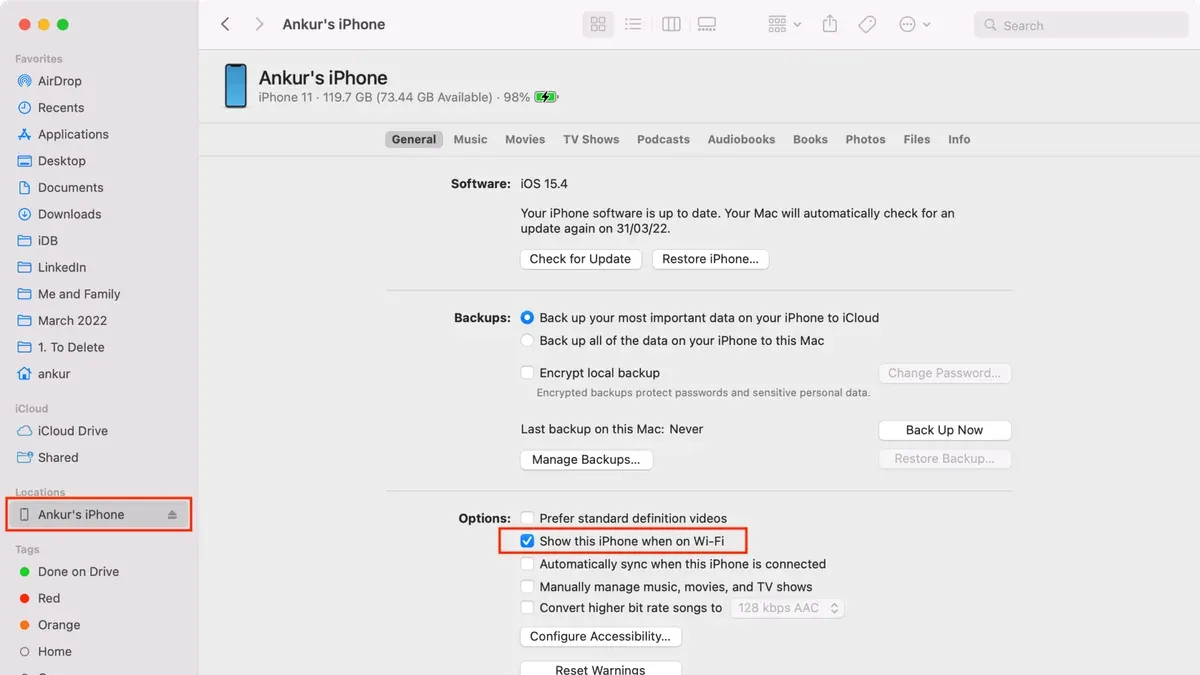
Check Basic Connection and Trust Settings
Begin by connecting the iPhone or iPad to the Mac using the Apple-certified cable. Confirm that the cable is securely plugged into both devices. The iOS device must be unlocked and awake; a locked or sleeping device often will not prompt the trust dialogue needed for Finder visibility.
Also, testing with a different Apple-certified cable can help isolate whether the cable itself is faulty.
- Connect the iPhone or iPad to the Mac using an Apple-certified USB cable. The device should be unlocked and awake.
- Watch for the "Trust This Computer" prompt on the iOS device; tap "Trust" and enter the device passcode if requested.
- Observe Finder to see if the device icon appears in the sidebar under Locations.
- If the device does not appear, try a different USB port on the Mac and repeat the trust confirmation process.
- If the problem persists, use another Apple-certified cable to test the connection.
Enable Finder Device Visibility and Reset Related Settings
Finder must be set to display connected iOS devices to show an iPhone or iPad in its sidebar. This setting is found in Finder preferences under the Sidebar tab. Ensuring the checkbox labeled CDs, DVDs and iOS Devices is selected allows connected devices to appear. If this option is unchecked, devices will not be visible regardless of connection or trust settings.
After verifying this preference, restarting the Finder app can refresh its state and fix temporary glitches that cause devices to not appear. Restarting Finder involves closing all Finder windows, then holding the Option key while clicking the Finder icon and selecting “Relaunch.” This process reloads Finder without rebooting the entire Mac, which can speed up troubleshooting.
On the iPhone or iPad side, resetting Location & Privacy settings forces the device to prompt again to trust the connected Mac. This reset removes previous trust decisions, clearing any corrupted or blocked trust records that prevent Finder from recognizing the device. To reset these settings, open the device’s Settings app, navigate to General > Transfer or Reset iPhone/iPad > Reset, and select Reset Location & Privacy. After the reset, reconnecting the device to the Mac triggers the trust prompt anew.
Both the Mac and the iPhone or iPad should be restarted after resetting Location & Privacy. This ensures all changes fully apply and clears temporary caches or states that might interfere with device detection. Following these steps in sequence optimizes the chance that Finder will detect the connected device and show it properly.
- Open Finder, choose Finder > Preferences, then click the Sidebar tab. Verify that CDs, DVDs and iOS Devices is checked. When enabled, connected iOS devices appear in the sidebar.
- Restart Finder by holding the Option key, clicking the Finder icon in the Dock, and selecting Relaunch. This refreshes Finder’s device list.
- On the iPhone or iPad, open Settings > General > Transfer or Reset iPhone/iPad > Reset > Reset Location & Privacy. This removes saved trust settings, forcing the trust prompt to appear at next connection.
- After resetting, restart both the Mac and the iOS device to apply all changes and clear temporary states.
Update Software and Check Compatibility Differences
For Finder to display an iPhone or iPad, the Mac must run macOS Catalina or a later version. Earlier macOS releases do not support device management via Finder, relying instead on iTunes. Ensuring both the Mac and iOS device are updated to compatible versions minimizes detection issues caused by software incompatibility or bugs.
On the iPhone or iPad, using iOS or iPadOS versions that support device syncing with Finder is essential. Updating to the latest iOS or iPadOS release often resolves known connectivity problems and improves overall stability. Similarly, macOS updates can include critical fixes for USB and device recognition components.
Device recognition behavior also varies between Mac architectures. Apple silicon Macs tend to have more streamlined integration with iOS devices, whereas Intel-based Macs may occasionally experience additional steps or restrictions due to hardware differences. Users should be aware of these distinctions when troubleshooting.
| Platform | Minimum OS Version for Finder Device Support | Notes |
|---|---|---|
| Intel Mac | macOS Catalina (10.15) | Requires iTunes on earlier macOS versions |
| Apple silicon Mac | macOS Catalina (10.15) | Enhanced device integration and fewer connection issues |
| iPhone/iPad | iOS/iPadOS 13 or later | Supports Finder syncing and trust prompts |
- Check the Mac’s software version by selecting About This Mac from the Apple menu; confirm it is Catalina or newer.
- On the iPhone or iPad, open Settings > General > Software Update to check for and install any available updates.
- Update macOS through System Settings by selecting Software Update and applying any offered upgrades.
Use the Failure Map to Identify Specific Issues and Fixes
When an iPhone or iPad does not appear in Finder on Mac, or Finder exhibits unusual behavior, identifying the exact symptom helps target the underlying cause efficiently. Common symptoms include the device not appearing in Finder’s sidebar, Finder freezing or crashing when connecting the device, and the Find My iPhone app not showing the connected device. Each symptom correlates with specific causes such as USB driver conflicts, corrupted Apple Mobile Device Support, or Apple ID and security settings interfering with device recognition.
The failure map below lists common symptoms with their associated causes and recommended fixes. For example, a missing device in Finder often results from outdated or corrupted drivers; reinstalling Apple Mobile Device Support and resetting USB connections usually resolves this. Finder freezing may indicate a software bug or resource conflict, which can be addressed by updating macOS and iOS, then relaunching Finder. If the Find My iPhone app fails to show the device, checking that the Apple ID is signed in correctly and that Find My iPhone is enabled on the device is necessary.
| Symptom | Likely Cause | Recommended Fix |
|---|---|---|
| Device not showing in Finder sidebar | Corrupted or missing Apple Mobile Device Support, USB driver issues | Reinstall Apple Mobile Device Support; reset USB connections; restart both devices |
| Finder freezes or crashes upon device connection | Software bugs, resource conflicts, outdated macOS or iOS | Update macOS and iOS; relaunch Finder; disconnect other USB devices |
| Find My iPhone app does not display device | Apple ID not signed in correctly; Find My iPhone disabled on device | Sign into Apple ID; enable Find My iPhone in device settings |
If the fixes listed do not restore device visibility or functionality, contacting Apple Support is advised to explore hardware diagnostics or account-specific issues. This systematic approach helps isolate the problem quickly and apply the precise remedy, saving time and avoiding unnecessary steps.
- Identify the exact symptom encountered, such as missing device or Finder freezing.
- Consult the failure map to determine the likely cause and corresponding fix.
- Apply the recommended fix, then verify if the device appears correctly in Finder.
- If unresolved, repeat with alternative fixes or proceed to contact Apple Support.
Ensuring the iPhone appears in Finder requires attention to connection order and trust prompts, software compatibility, and device settings. When the device remains unseen, the failure map guides targeted fixes based on exact symptoms. This structured approach avoids unnecessary resets or updates.
Choosing the right fix depends on the situation: if the device never prompts for trust, start with the basic connection and trust settings steps. If Finder does not show the device despite trusted connection, check Finder visibility settings and consider resetting Location & Privacy on the iPhone. When software versions differ or are outdated, updating macOS and iOS to compatible versions often resolves detection issues. Use the failure map when symptoms persist for precise troubleshooting.
See also: How to Fix SD Card Not Showing on Mac: Step-by-Step Guide · How to Fix a Corrupted exFAT Drive on Mac: Step-by-Step Solutions · Finder Not Responding on Mac: How to Fix It Step-by-Step · How to Fix AirPlay to TV Not Showing on Mac


