
How to Fix SD Card Not Showing on Mac: Step-by-Step Guide
This guide helps you fix SD card not showing on Mac by addressing common issues like write-protect switches and file system incompatibilities.
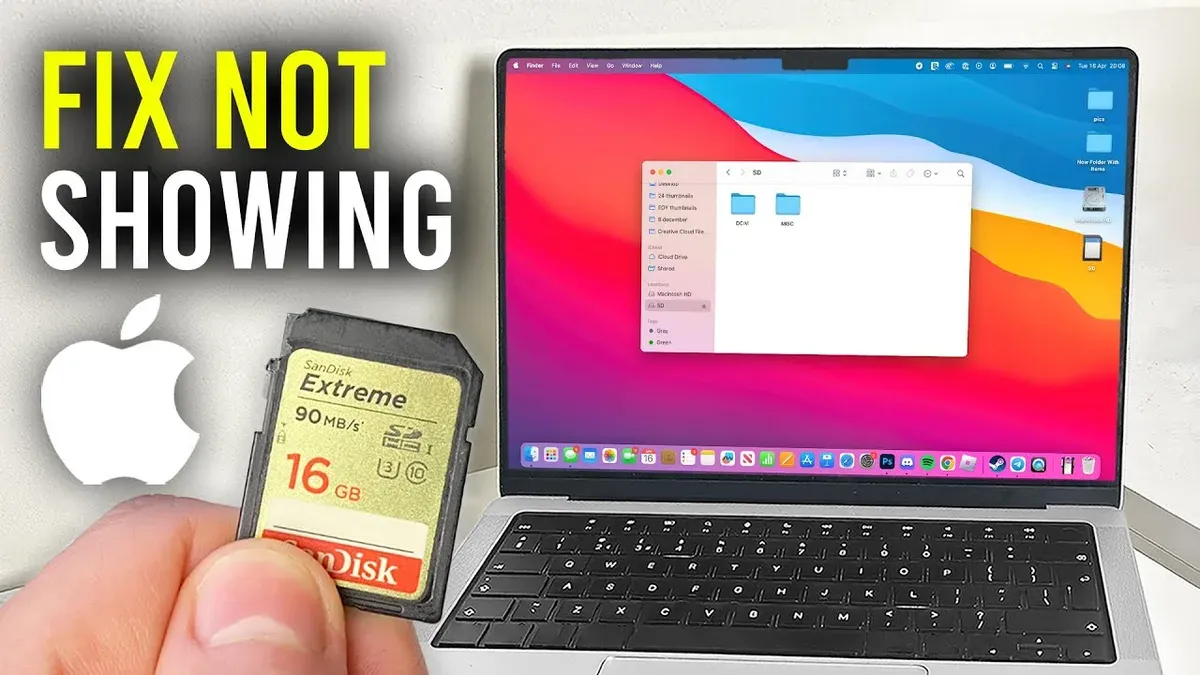
This SD card not showing on Mac fix addresses common pitfalls such as mechanical write-protect switches and file system incompatibilities that often cause detection failures. However, if the card uses an older or incompatible file system, macOS may not recognize it without reformatting.
Using Disk Utility, found under Applications → Utilities, allows viewing, mounting, unmounting, and reformatting the card.
Checked in November 2026 against Wikipedia; details like these change, so the date matters.
Prepare to Fix the SD Card Not Showing on Mac
Before starting troubleshooting, gather all necessary components to avoid interruptions. Have the SD card ready along with any adapters if using a microSD card. MicroSD cards require a passive adapter to fit into a standard SD card slot, ensuring compatibility without affecting functionality.
Next, confirm that the Mac provides access to Disk Utility. This utility is located in Applications → Utilities → Disk Utility and is essential for viewing, mounting, or formatting the SD card. Without it, diagnosing the issue accurately is difficult.
Inspect the physical condition of both the SD card and the card reader slot. Look for visible damage, dirt, or debris that might prevent proper connection. A clean, undamaged card and slot are prerequisites for successful detection.
If this small sliding switch is in the locked position, it can not only prevent writing but also sometimes cause the Mac to fail to detect the card properly. Slide the switch to the unlocked position before inserting the card into the Mac. This step often resolves detection issues that are overlooked.
- Prepare the SD card and any required microSD to SD adapter. After this, the card and adapter should fit securely into the Mac’s card slot.
- Open Disk Utility from Applications → Utilities to confirm the tool is accessible and ready for use.
- Examine the SD card and slot for damage or debris; both should be clean and intact to ensure proper connection.
- Locate the mechanical write-protect switch on the SD card and slide it to the unlocked position.
- Insert the SD card into the Mac’s card slot; the Mac should now have the best chance of detecting it correctly.
More about SD card adapters and write-protect switches
Check if the SD Card Is Recognized but Not Mounted Using Disk Utility
Start by opening Disk Utility, found in Applications → Utilities → Disk Utility. This tool shows all storage devices connected to the Mac, including SD cards. Look for the SD card in the sidebar. If the card appears as a grayed-out item, it means the Mac recognizes the card but has not mounted it for use.
To mount the card, select it and click the Mount button in the toolbar. When mounting succeeds, the SD card's name will no longer be grayed out and will become accessible in Finder. This confirms the Mac sees the card and can read its file system.
If the SD card does not appear at all in Disk Utility's sidebar, the Mac is not detecting it. In this case, further troubleshooting is needed, such as checking the card reader hardware or trying another device. This absence indicates a connection or hardware recognition problem rather than a simple mounting issue.
Here is a concise failure map: if the SD card shows in Disk Utility but is unmounted (grayed out), the cause is usually the card not mounting automatically, fixed by manually clicking Mount. If the card is missing entirely, the cause is a detection failure requiring hardware or adapter checks.
Following this step prevents unnecessary attempts to reformat or repair a card that the Mac has not actually identified. Proper use of Disk Utility is the key first action to distinguish between detection and mounting problems.[source]
Reformat the SD Card to a macOS-Compatible File System If Needed
SD cards use various file systems depending on their type and capacity. The most common current format for SDXC cards, which support up to 2 TB, is exFAT. Older or less common formats may not be recognized by macOS, causing the SD card not to show. If the card uses a file system unsupported by macOS, such as certain Windows-only formats, it will not mount or appear in Finder.
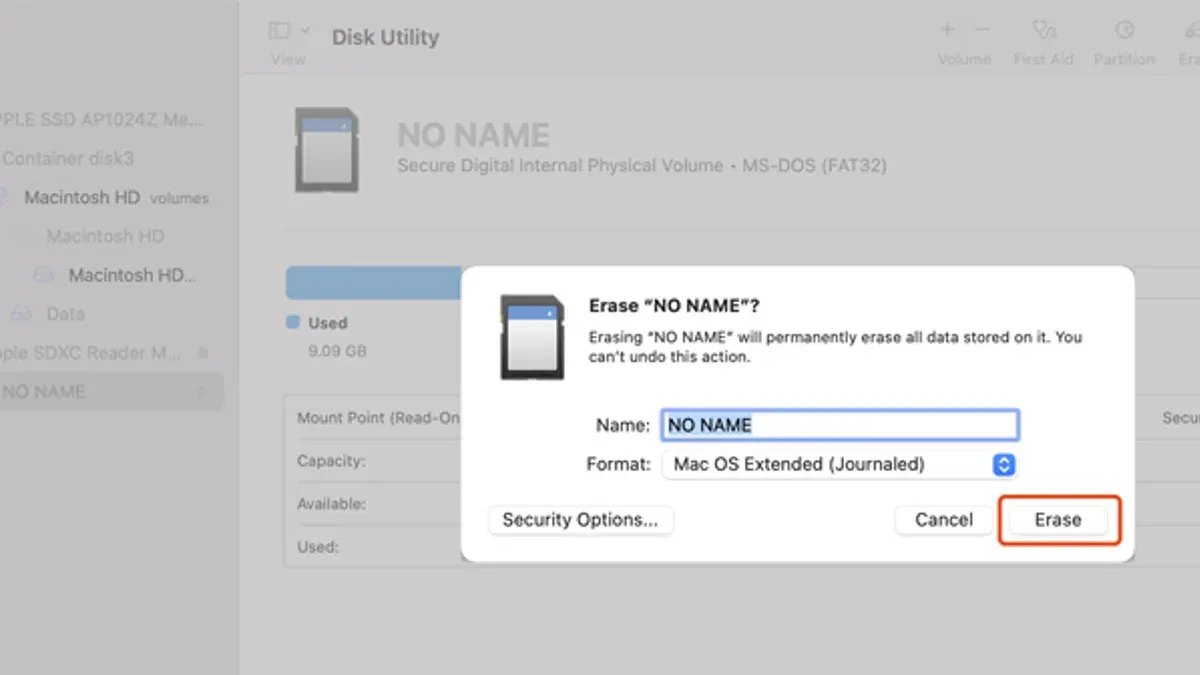
Before reformatting, back up all important data on the SD card. Reformatting erases all contents and cannot be undone. Use Disk Utility to confirm the current file system and proceed only after securing any files that need to be preserved.
To reformat the SD card, open Disk Utility from Applications → Utilities. Select the SD card from the sidebar, then click the Erase button. Choose exFAT or FAT32 as the format to maximize compatibility across macOS and other platforms. Name the volume as desired and confirm the erase operation. Once complete, the SD card will be formatted with a macOS-compatible file system and should mount automatically.
| File System | macOS Support | Typical SD Card Type | Max Capacity |
|---|---|---|---|
| exFAT | Supported | SDXC | Up to 2 TB |
| FAT32 | Supported | SDHC and older | Up to 32 GB |
| NTFS | Read-only by default, no write support without extra software | Windows PC default | Varies |
| Others (e.g., some Windows-only formats) | Not supported | Various | Varies |
- Open Disk Utility via Applications → Utilities and select the SD card in the sidebar.
- Click the Erase button at the top of the window.
- Set the format to exFAT for cards larger than 32 GB or FAT32 for smaller cards.
- Enter a name for the SD card volume.
- Click Erase to reformat. Wait until the process finishes and the card appears mounted.
Reformatting restores compatibility but deletes all data on the SD card. Always confirm backup before proceeding.
Inspect and Adjust the SD Card’s Mechanical Write-Protect Switch
Regardless of the card’s format or the Mac model in use, this physical switch must be set correctly to ensure the card functions as expected.
This state may cause the Mac to fail to recognize the card or prevent mounting it for access.
- Locate the write-protect switch on the side of the SD card. It is a small tab that slides up or down.
- If the switch is in the locked (down) position, slide it gently to the unlocked (up) position.
- Insert the SD card into the Mac’s card reader or adapter.
- Observe if the card mounts automatically or appears in Disk Utility. Successful mounting indicates the switch was correctly set.
Verifying and adjusting this switch is often overlooked but is a vital step before proceeding with software-based troubleshooting. Confirming the switch’s position can prevent wasted time diagnosing phantom issues caused by hardware write protection.[Mechanical write-protect switch]
Follow the Correct Order of Troubleshooting Steps to Avoid Common Failures
Begin with physical checks before any software actions. Confirm the SD card’s mechanical write-protect switch is in the unlocked position. Verify the adapter and card slot are clean and functioning correctly. Skipping these can cause the Mac to fail recognizing the card altogether, leading to unnecessary troubleshooting.
Next, check if the SD card appears in Disk Utility. If the card is not detected here, mounting or reformatting attempts will fail. Mounting is only possible if the system recognizes the card first. Attempting to reformat an undetected card risks data loss and does not resolve recognition issues.
Only after confirming detection should mounting be attempted. If the card is recognized but unmounted, manually mounting it often restores access. If mounting fails due to file system incompatibility, back up any data from another device and proceed to reformat the card using Disk Utility to macOS-compatible formats like exFAT or FAT32.
- Check the mechanical write-protect switch is unlocked and reinsert the card; success means the card is physically ready.
- Open Disk Utility via Applications → Utilities and look for the SD card; presence here confirms system detection.
- If detected but unmounted, select the card and click Mount; successful mounting grants access.
- If mounting fails due to unsupported file system, back up and reformat the card to exFAT or FAT32 with Disk Utility.
- If the card is not detected at all, inspect the adapter and card slot for faults before further steps.
This sequence avoids common failures such as trying to mount or reformat a card the Mac does not detect or missing the write-protect switch problem, which blocks recognition and write operations. Follow this order strictly to minimize wasted effort and data risk.[source]
Adjustments for Different Mac Models and SD Card Types
Mac models vary in their hardware setups, which can affect how SD cards are detected and accessed. Some MacBooks do not include built-in SD card slots, requiring external card readers. These readers can introduce additional points of failure, such as connection issues or incompatibility with certain SD card types.
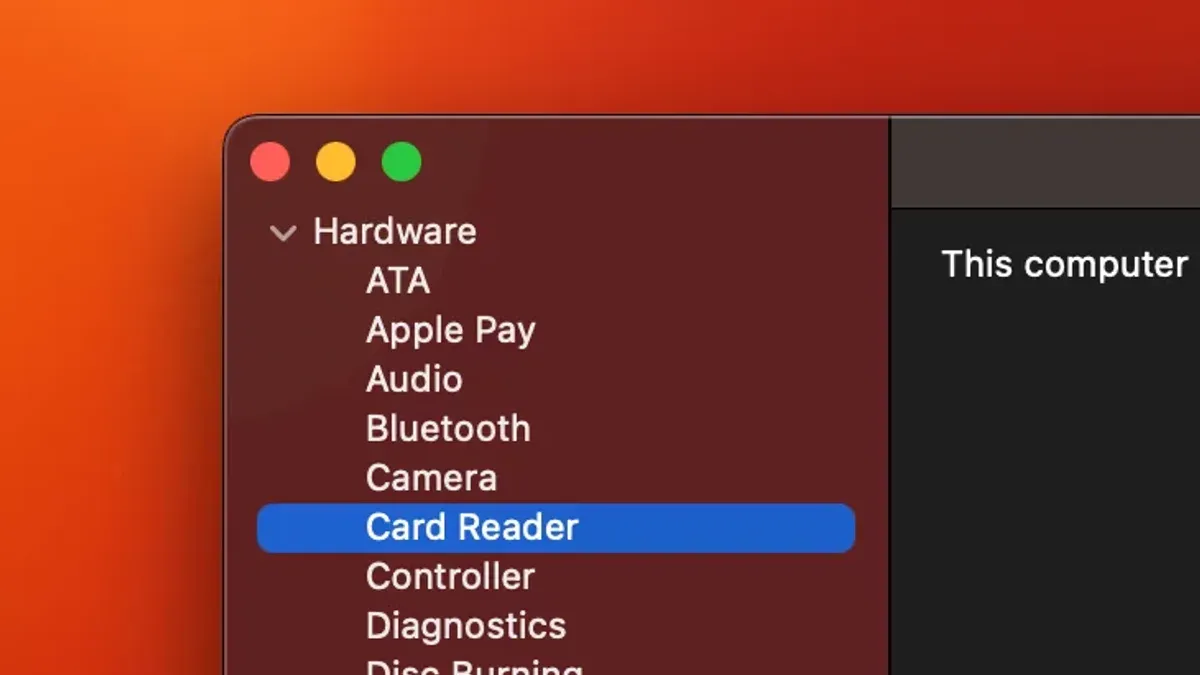
They require passive adapters that simply change the card’s physical shape without altering its electrical signals. It is important to use a quality adapter to avoid connection failures.
However, hardware access can vary by Mac model, especially when external readers or adapters are involved.
| Mac Model | Built-in SD Slot | MicroSD Support | Adapter Requirement | Notes |
|---|---|---|---|---|
| MacBook Pro (with SD slot) | Yes | Via adapter | Passive microSD-to-SD adapter required | Reliable detection via Disk Utility |
| MacBook Air (no SD slot) | No | Via adapter and external reader | Passive adapter + external USB-C reader needed | External reader may affect detection stability |
| Mac mini (varies by generation) | Usually no | Via adapter and external reader | Passive adapter + external reader | Depends on external reader compatibility |
| Older MacBook models with SD slot | Yes | Via adapter | Passive adapter | Generally straightforward compatibility |
When troubleshooting, confirm the Mac model’s hardware capabilities and the type of SD card used. Using Disk Utility can help verify if the card is recognized regardless of adapter or reader. If the SD card is not detected, testing with another reader or adapter can isolate the problem. These adjustments are crucial to ensure proper SD card detection and access across different Mac environments.[source]
Documentation used
- SD card - Wikipedia — Wikipedia
See also: Fix NTFS Drive Write Issues on Mac: Step-by-Step Solutions · How to Fix Time Machine Backup Failed on Mac: Step-by-Step Guide


