
How to Fix Bluetooth Mouse Lagging on Mac: Step-by-Step Solutions
Learn effective steps to fix Bluetooth mouse lagging on Mac and restore smooth, responsive cursor movement.
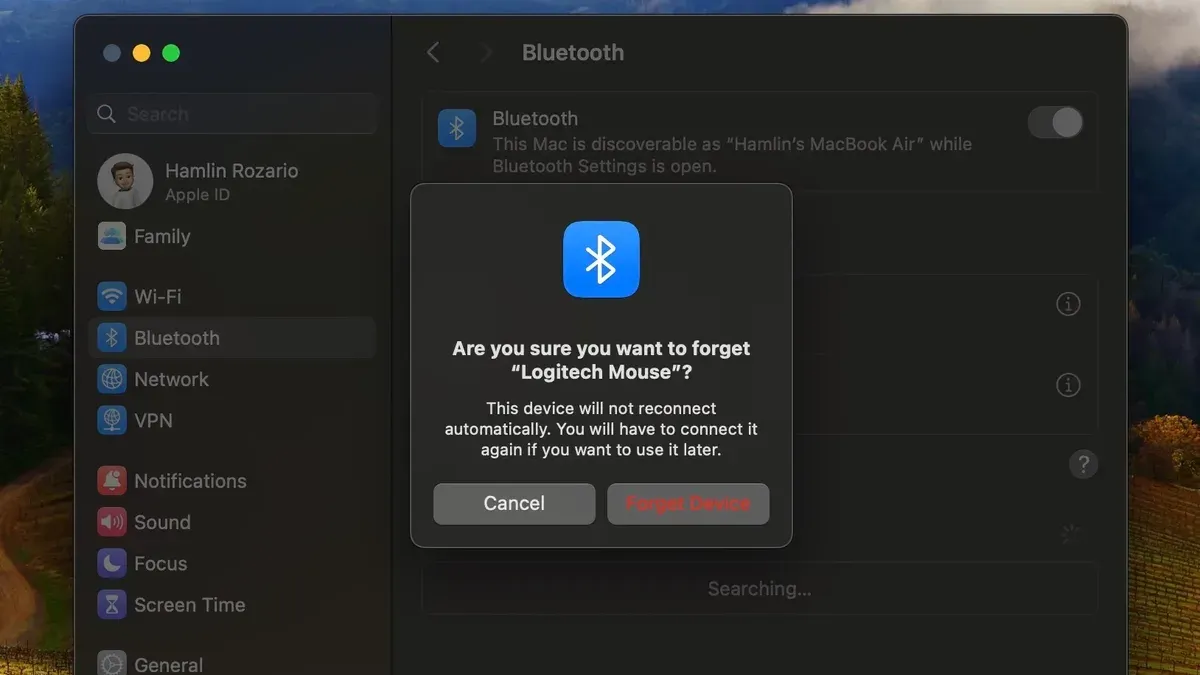
Bluetooth mouse lagging on Mac fix starts with understanding what causes the delay. Low battery charge is a frequent culprit, especially when the mouse drops below roughly 20% power, which can severely slow tracking response. Interference from USB 3 devices is another common factor, as they emit broadband noise near 2.4 GHz that disrupts Bluetooth signals. Adjusting the mouse tracking speed within macOS settings can also enhance cursor responsiveness when the pointer feels sluggish.
Bluetooth signals weaken when obstructed by metal desks, monitor stands, or when the Mac sits behind other displays. Resetting the Bluetooth module can clear hidden connection issues, but it removes all paired devices and resets the Bluetooth hardware configuration. Turning off Handoff in System Settings reduces interference from other Apple devices on the same network. Cleaning the mouse sensor and restarting the Mac refresh the entire Bluetooth stack, fixing many temporary glitches. Each step here builds on the last to restore smooth, lag-free mouse performance.
At a glance: Fix Bluetooth mouse lagging on Mac
Before you run this: sudo runs the command with administrator rights and asks for your login password (nothing appears as you type). With those rights a wrong path changes the wrong files, so check the command before pressing Return.
- Replace mouse batteries below 20% charge to prevent slow tracking.
- Move USB 3 hubs and external drives away to reduce 2.4 GHz noise interference.
- Adjust tracking speed in System Settings → Mouse for better cursor responsiveness.
- Reset Bluetooth module with
sudo pkill bluetoothdand restart to fix connection glitches.
Facts and figures here were checked against Mainspring, Apple Support, SoftwareHow (full list at the end) in November 2026.
Which fixes suit your situation: Mac model, mouse type, and usage
Identify the best fix by matching the Mac model, mouse type, and usage scenario. Using a USB dongle supplied by the mouse vendor bypasses the Mac’s shared Bluetooth radio, eliminating congestion and lag. This applies mainly to brands like Logitech or Razer that offer such dongles.
If multiple Bluetooth devices connect simultaneously, interference often causes lag during activities like audio streaming. Disconnecting other Bluetooth devices or pausing audio temporarily reduces congestion and improves responsiveness.
Environmental factors such as desk materials and nearby USB 3 ports, hubs, or external SSDs emit broadband noise near 2.4 GHz, which disrupts Bluetooth signals for all users. Repositioning these devices or cables can mitigate interference.
Software and macOS versions also affect which fixes are available. Running an outdated macOS version may cause bugs impacting mouse performance, so updating macOS is essential before other troubleshooting.
- Check if the mouse vendor provides a USB dongle. If yes and lag occurs only via Bluetooth, switch to the dongle to avoid shared radio congestion.
- Assess if multiple Bluetooth devices are active. If lag appears during audio streaming or heavy use, disconnect or pause some devices to reduce congestion.
- Inspect the workspace for USB 3 devices or hubs near the Mac or mouse. Moving or unplugging these can reduce broadband noise interference.
- Verify macOS is up to date. An outdated system should be updated to unlock fixes for Bluetooth and mouse performance issues.
This decision matrix guides which actions apply based on hardware and usage, focusing efforts on the most relevant fixes for each user’s setup. USB 3 interference and dongle use are key factors.
Remove USB 3 interference by repositioning or disconnecting devices
USB 3 ports, hubs, and external SSDs emit broadband noise near the 2.4 GHz frequency, the same band Bluetooth uses for communication. This interference can degrade Bluetooth mouse performance, causing lag or stuttering. Identifying and addressing this interference is essential for restoring smooth mouse operation on Mac.
- Locate any USB 3 devices connected near the Mac or Bluetooth mouse receiver, including external drives, hubs, or peripherals. These devices often cause radio frequency noise disrupting Bluetooth signals.
- Temporarily disconnect or move these USB 3 devices away from both the Mac and the Bluetooth mouse receiver. When the interference is reduced, mouse lag should noticeably improve or disappear.
- If disconnecting is not practical, use USB extension cables to increase physical distance between USB 3 devices and the Bluetooth receiver. Alternatively, reposition the Mac or mouse receiver to minimize overlapping signal paths.
By reducing or eliminating 2.4 GHz noise from USB 3 sources, Bluetooth mouse responsiveness on Mac can be significantly enhanced without changing hardware or software settings. This step is critical before pursuing more complex fixes.
Adjust mouse tracking speed in macOS to improve responsiveness
When the cursor feels slow or laggy, adjusting the mouse tracking speed can make a noticeable difference. This setting controls how far the cursor moves on screen relative to physical mouse movement, affecting perceived responsiveness. Too slow a speed can feel like lag, while too fast may cause overshooting.
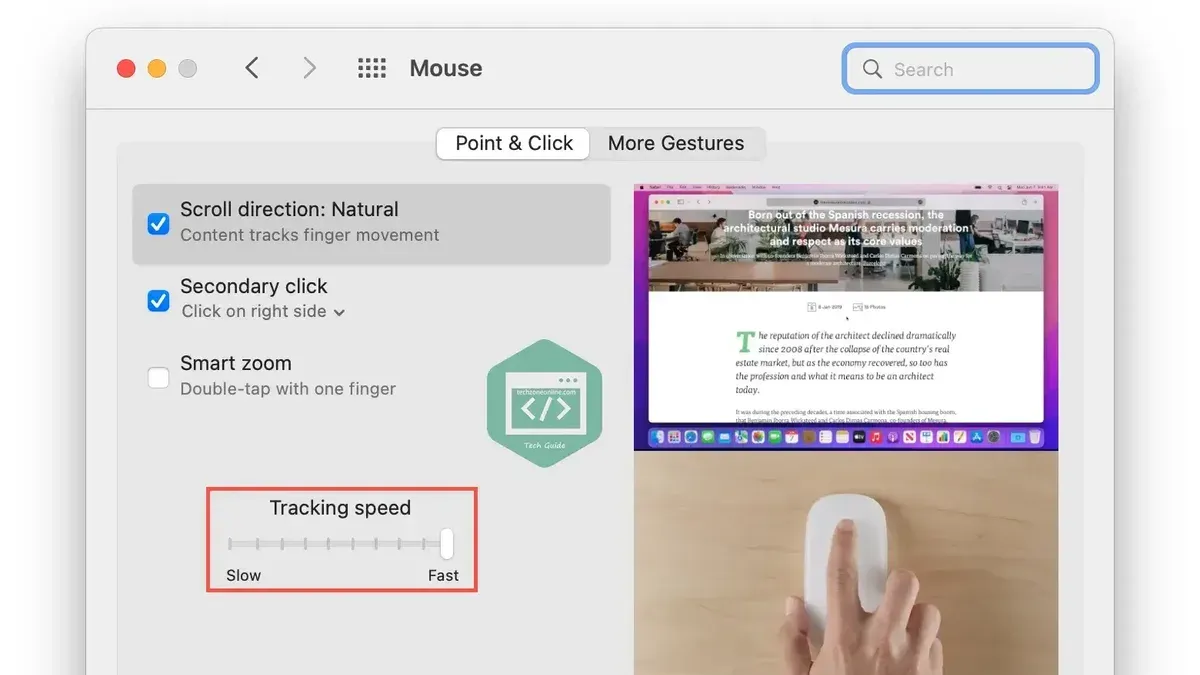
To adjust tracking speed, open the Apple menu and select System Settings. Then navigate to Mouse where the Tracking Speed slider is located. Moving this slider right increases cursor speed, while moving it left slows it down.
Test different slider positions to find the best balance between speed and precision. The goal is to have the cursor move responsively without skipping or overshooting target points. This adjustment impacts how smoothly the cursor tracks mouse movements and can alleviate lag perception caused by slow cursor response.
- Click the Apple menu and select System Settings. The settings window appears.
- Choose Mouse from the sidebar. The mouse options display.
- Locate the Tracking Speed slider and move it incrementally. Observe the cursor movement on screen.
- Stop adjusting when the cursor feels responsive but not overly sensitive. Close System Settings to save.
This adjustment applies across macOS and helps improve the interaction with Bluetooth mice. It is a straightforward way to reduce lag-like symptoms related to cursor movement speed.[source]
Reset the Bluetooth module to clear connection issues causing lag
Resetting the Bluetooth module on a Mac removes all paired Bluetooth devices and refreshes the Bluetooth hardware and configuration. This action can resolve connection issues that cause mouse lag but requires re-pairing every Bluetooth device afterward. Planning for this inconvenience is essential to avoid confusion and downtime.
To reset the Bluetooth module, follow these steps:
- Open Launchpad and select Terminal.
- Enter the command
sudo pkill bluetoothdand press Enter. This command stops the Bluetooth daemon, effectively resetting the Bluetooth system. - Restart the Mac promptly after the command executes. The restart completes the reset process and reloads the Bluetooth services.
- Once the Mac restarts, return to Control Center (top right), click the Bluetooth icon, and open Bluetooth Settings.
- For each required device, click the ⓘ next to its name and select Forget This Device if it remains paired, then proceed to re-pair it.
Avoid running this command unless prepared to re-pair all devices, as it removes all existing Bluetooth pairings and settings.
For more details, visit this guide.
Turn off Handoff to reduce Bluetooth interference from other Apple devices
Bluetooth mouse lag on Mac can result from radio congestion caused by continuous device handoff signals when multiple Apple devices share the same iCloud account. Disabling Handoff cuts down this interference, potentially improving mouse responsiveness. This option applies only to users signed into iCloud on more than one Apple device.
- Click the Apple menu and select System Settings.
- Go to General, then choose AirDrop & Handoff.
- Locate the toggle labeled Allow Handoff between this Mac and your iCloud devices and switch it off.
- Confirm the toggle is off; this stops your Mac from exchanging handoff signals with other Apple devices, reducing Bluetooth traffic.
If multiple devices are not part of the setup, this setting has no effect on mouse lag.
Clean the mouse sensor and surface to eliminate tracking-related lag
Dirt or debris on the sensor at the bottom of a Magic Mouse can cause erratic cursor movements that feel like lag. Using compressed air or a dry cloth to clean this sensor regularly removes particles that interfere with accurate tracking. It is important to avoid glass or glossy surfaces for the mouse’s movement because optical sensors struggle to read reflections or transparency, producing tracking issues that mimic lag.
If tracking improves on these surfaces, the cause is the reflective desk rather than the mouse or Mac itself.
- Turn the mouse over and locate the sensor window on its underside.
- Use compressed air or a dry, lint-free cloth to gently remove dust and debris from the sensor area. After cleaning, the cursor should move smoothly without stutter.
- Place the mouse on a matte or fabric mouse pad and check for consistent tracking and responsiveness.
Reduce Bluetooth congestion by disconnecting other devices during use
Multiple Bluetooth devices connected to a Mac share the same radio frequency, which can cause interference and lead to mouse lag. This congestion becomes especially noticeable when audio streaming or data transfer is active on other devices, as they demand more bandwidth from the Bluetooth radio. Temporarily disconnecting or pausing these devices frees up radio resources, improving the Bluetooth mouse’s responsiveness.
To identify active Bluetooth devices, open System Settings, navigate to Bluetooth, and review the list of connected devices. Devices such as wireless headphones, speakers, keyboards, or other mice may be using the same radio channel simultaneously. Disconnecting unnecessary devices during critical mouse use can significantly reduce lag.
For example, if a user experiences lag while streaming music to Bluetooth headphones and using a mouse simultaneously, pausing or disconnecting the audio device often restores smooth mouse tracking. This approach is effective because it reduces the radio congestion that causes signal delays.
- Open System Settings and select Bluetooth; the list of currently connected devices appears, confirming active connections.
- Identify devices not needed during mouse use, such as wireless headphones or secondary input devices.
- Click the device’s options or right-click to select “Disconnect” or temporarily turn off the device; the list updates to show the device as disconnected.
- Test mouse responsiveness to verify lag reduction; a smoother cursor indicates successful congestion relief.
- Reconnect devices after mouse use as needed, ensuring only essential devices are active simultaneously to maintain optimal performance.
Test hardware and environment to isolate persistent lag causes
When Bluetooth mouse lag continues despite standard fixes, testing hardware and environment is essential to identify the root cause. Begin by trying the mouse on a different Mac. If the lag disappears, the issue likely lies with the original Mac’s software or Bluetooth environment. Next, test a different Bluetooth mouse on the original Mac. If lag persists, environmental factors or Mac hardware may be responsible.
Environmental interference includes Bluetooth congestion, physical obstructions, or radio noise. If the mouse vendor provides a USB dongle, switching to it can bypass Bluetooth radio sharing and reduce lag caused by congestion. This alternative connection often improves responsiveness in crowded wireless environments.
After completing these tests, observe mouse performance over time. Persistent lag on multiple Macs or mice points to environmental interference that may require relocation of devices or removal of nearby sources of signal noise. If lag is isolated to one mouse or Mac, consider hardware repair or replacement options.
- Connect the Bluetooth mouse to a different Mac and check for lag; no lag indicates the original Mac or environment is the issue.
- Connect a different Bluetooth mouse to the original Mac; lag here suggests environment or Mac hardware problems.
- If available, use the mouse vendor’s USB dongle instead of Bluetooth; improved performance confirms Bluetooth congestion as the lag cause.
- Monitor mouse responsiveness for a day or more after testing to confirm stability and isolate intermittent interference.
Frequently asked questions
How to fix bluetooth mouse lag?
Fixing Bluetooth mouse lag on a Mac involves several targeted steps depending on the cause. Start by checking the mouse battery and replacing it if low. Next, remove USB 3.0 interference by repositioning or disconnecting nearby devices. Adjust tracking speed in System Settings → Mouse to improve responsiveness. If lag persists, reset the Bluetooth module using the Terminal command sudo pkill bluetoothd followed by a restart, which clears connection issues. Turning off Handoff in System Settings → General → AirDrop & Handoff can also reduce interference from other Apple devices.
How to make bluetooth mouse less laggy?
Improving Bluetooth mouse responsiveness may require reducing Bluetooth congestion by disconnecting unnecessary devices during use. Ensuring the mouse sensor and the surface it operates on are clean helps eliminate tracking lag. Adjusting the mouse tracking speed in System Settings → Mouse can fine-tune cursor movement to match user preferences and reduce perceived lag. Additionally, turning off Handoff minimizes Bluetooth interference unique to Apple ecosystems.
Why does my bluetooth mouse lag?
Software glitches in macOS or Bluetooth module connection problems may also contribute. Environmental factors like dirty mouse sensors or unsuitable surfaces can further degrade performance. Some Mac-specific settings, such as Handoff, may introduce Bluetooth interference affecting mouse responsiveness.
How to fix lagging mouse?
To address general mouse lag on a Mac, ensure the battery is fresh and the sensor and surface are clean. Adjust tracking speed in System Settings → Mouse for smoother control. Removing nearby USB 3 devices or turning off Handoff reduces wireless interference. Resetting the Bluetooth module via Terminal and restarting the Mac clears deeper connection issues. Updating macOS last resolves known software bugs affecting input devices.
Why is bluetooth mouse lagging?
Unique to Macs, Handoff can add Bluetooth traffic causing lag. Inadequate tracking speed settings or dirty sensors also contribute. Identifying the exact cause determines whether to adjust settings, clean hardware, or reset Bluetooth connectivity.
Key Steps to Resolve Bluetooth Mouse Lag on Mac
If lag persists despite these steps, further investigation into hardware faults or environmental Bluetooth interference is necessary. Repeating tests a day or a week later helps determine if changes are consistent or temporary. Undoing any temporary adjustments, such as reconnecting devices or re-enabling Handoff, can identify specific causes. Ongoing maintenance includes keeping mouse batteries fresh, regularly cleaning sensors, and updating macOS to avoid software-related lag reappearing.
References
- How to Fix Bluetooth Mouse Lag on Mac — Mainspring
- How to keep your Magic Mouse tracking smoothly - Apple Support — Apple Support
- Why is My Mouse Lagging on Mac? (14 Fixes That Work) — SoftwareHow
- Apple mouse lagging? 12 solutions revealed — MacPaw
- Fix: Slow And Lagging Mouse on Mac — Techbout
See also: How to Fix Slow Internet Only on Mac: Step-by-Step Solutions · How to Fix Wi-Fi That Keeps Disconnecting on Mac: Step-by-Step Guide · How to Fix Keyboard Repeating Keys on Mac: Step-by-Step Solutions · How to Fix Speakers Crackling on Mac: Step-by-Step Guide


