
How to Fix Wi-Fi That Keeps Disconnecting on Mac: Step-by-Step Guide
Learn how to fix Wi-Fi that keeps disconnecting on Mac with effective troubleshooting steps to maintain a stable connection.
One frequent misstep is overlooking built-in tools like Wireless Diagnostics, accessed by holding the Option key and clicking the Wi-Fi icon in the menu bar. This tool helps diagnose connection problems on networks already set up, but it is essential to run it in the right order for effective troubleshooting.
This step-by-step guide prioritizes the most impactful actions, clarifies common pitfalls such as Private Wi-Fi Address settings and network filters, and shows how to maintain stable Wi-Fi after applying fixes.
Facts and figures here were checked against Apple Support, Guiding Tech, HeatWare.net (full list at the end) in November 2026.
Restart the Mac and Router to Quickly Fix Temporary Wi-Fi Drops
Restarting both the Mac and the router clears these glitches by refreshing network connections and device states. This simple step frequently restores stable Wi-Fi without needing deeper troubleshooting.
This approach saves time and effort.
- Shut down the Mac by clicking the Apple menu, selecting "Shut Down…", and waiting until the screen goes completely dark. This ensures all network processes stop.
- Turn off the router by pressing its power button or unplugging it from the power source. This resets the router’s network hardware and connections.
- Wait at least 30 seconds to allow the router to fully power down and clear temporary errors.
- Turn the router back on and wait until all indicator lights show a normal connection status, confirming the router is online.
- Turn on the Mac and wait for it to boot completely. After startup, check the Wi-Fi status to see if the connection is stable.
How to Fix Wi-Fi That Keeps Disconnecting by Renewing DHCP Lease and Adjusting Private Wi-Fi Address
Frequent Wi-Fi disconnections on a Mac can stem from network settings like outdated IP assignments or the way the Mac handles its network identity. Renewing the DHCP lease refreshes the Mac's IP address, resolving connectivity drops caused by stale assignments. Adjusting the Private Wi-Fi Address setting helps prevent DHCP lease exhaustion, which often occurs when the Mac rotates its MAC address frequently. These two steps target common but overlooked causes of unstable Wi-Fi.
- Open Apple menu, then select System Settings.
- Navigate to Wi-Fi and click Details next to the connected network.
- Go to the TCP/IP tab and click Renew DHCP Lease. This action requests a fresh IP address from the router, eliminating stale lease problems. A successful renewal will typically restore a steady connection.
- Return to the network Details page and locate Private Wi-Fi Address.
- If Wi-Fi disconnects happen only on this network, set Private Wi-Fi Address to Fixed or Off instead of the default rotating mode. This prevents the Mac from exhausting DHCP leases by changing its MAC address repeatedly, a frequent cause of drops on some networks.
Adjusting the Private Wi-Fi Address should be done selectively per network because disabling it reduces privacy benefits. Renewing the DHCP lease works generally and is safe across all networks. These steps are accessible on macOS 15 and later through System Settings → Wi-Fi → Details → TCP/IP for DHCP and System Settings → Wi-Fi → Details → Private Wi-Fi Address for MAC address settings. Applying these fixes often stabilizes Wi-Fi without deeper intervention. More details on renewing DHCP lease.
How to Troubleshoot Wi-Fi on Mac Using Wireless Diagnostics and Wi-Fi Recommendations
Macs include built-in tools to systematically identify and resolve Wi-Fi issues. Wireless Diagnostics is a key utility designed for networks already set up, not for enterprise environments or Personal Hotspots. It helps diagnose connectivity problems by gathering detailed logs and running tests on the current Wi-Fi connection.
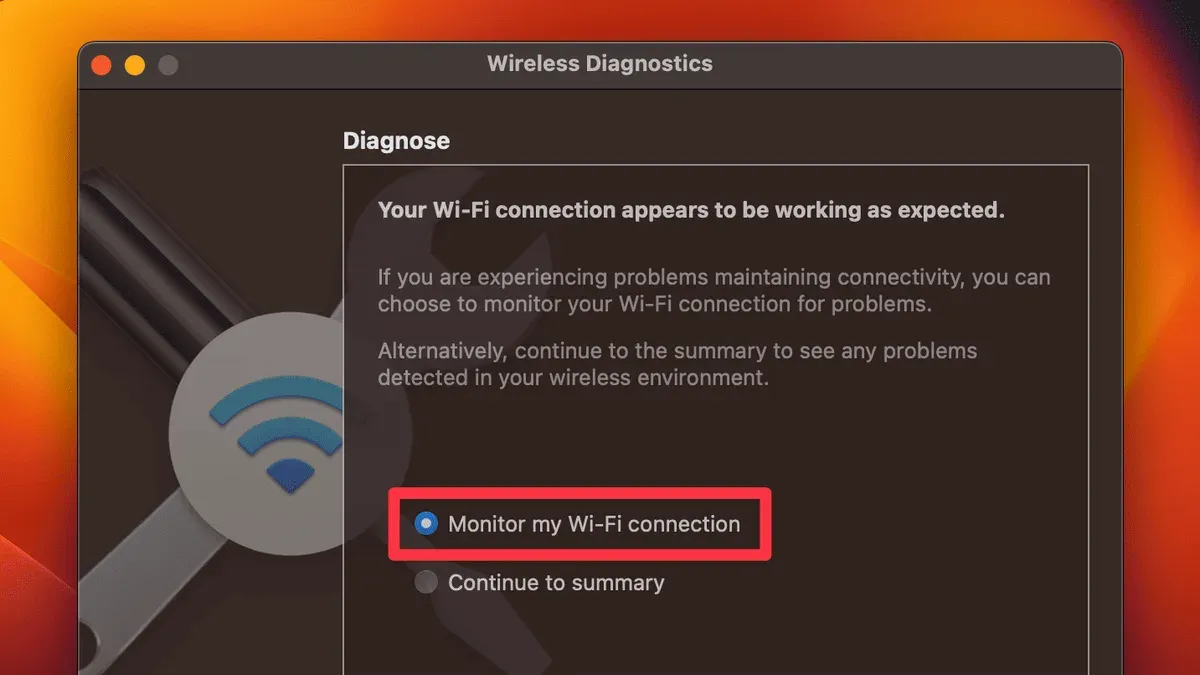
- Hold the Option key and click the Wi-Fi icon in the menu bar. This reveals additional network details and advanced options.
- From the dropdown menu, select Open Wireless Diagnostics. This launches the tool, which begins analyzing the Wi-Fi connection automatically.
- Follow the on-screen prompts to complete the diagnostic process. Successful completion shows a summary of issues and potential fixes.
Wireless Diagnostics focuses on local network problems and cannot manage complex enterprise configurations or diagnose issues with Personal Hotspots. It is essential to run this tool early to identify common causes of disconnects before deeper troubleshooting.
Wi-Fi Recommendations appear in the same menu accessed by Option-clicking the Wi-Fi icon. This feature scans the current network environment and suggests actionable fixes based on detected problems. However, it does not function on enterprise networks or Personal Hotspots, limiting its usefulness in those contexts.
Running Wi-Fi Recommendations before Wireless Diagnostics is advisable because the Recommendations provide quick, user-friendly guidance for straightforward issues. If those suggestions do not resolve the problem, Wireless Diagnostics offers a more thorough analysis. Reversing this order may lead to unnecessary complexity and missed simple solutions.
Using these tools in the correct order helps isolate and resolve Wi-Fi disconnections effectively, saving time and avoiding common troubleshooting pitfalls.
Remove Old Wi-Fi Networks and Add Reliable DNS Servers to Improve Connection Stability
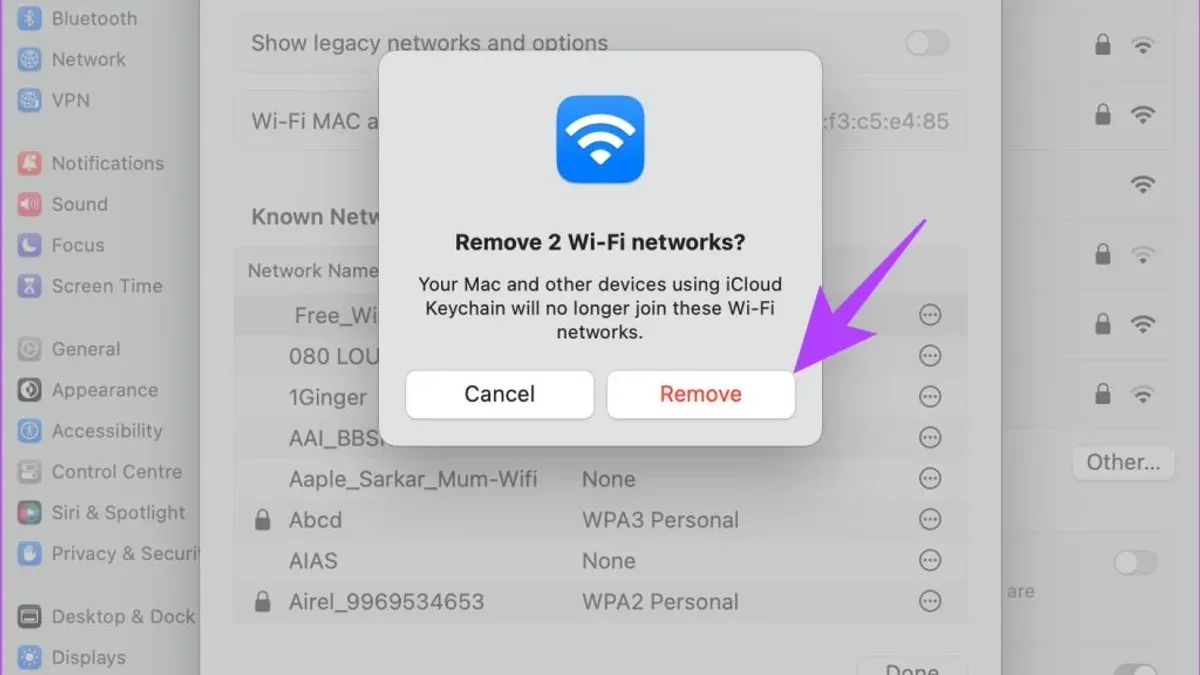
Clearing out old or unnecessary Wi-Fi networks prevents the Mac from automatically switching to less reliable connections. This reduces interruptions caused by jumping between networks with weaker signals or no internet access. Removing these networks streamlines the Mac’s known list, ensuring it connects only to trusted and stable Wi-Fi.
- Go to System Settings → Wi-Fi → Advanced → More Options.
- Select the networks that are outdated or unused.
- Click Remove From List. The network disappears from the known list, stopping automatic connections to it.
Adding reliable public DNS servers can resolve issues where the Mac shows it is connected to Wi-Fi but cannot access the internet. Using well-maintained DNS servers such as Cloudflare’s (1.1.1.1, 1.0.0.1) or Google’s (8.8.8.8, 8.8.4.4) improves domain name resolution and overall browsing stability.
- Open System Settings → Wi-Fi → Details for the active network.
- Navigate to the DNS section.
- Click to add new DNS servers and enter the addresses:
1.1.1.1,1.0.0.1,8.8.8.8, and8.8.4.4. - Save the changes and reconnect to the Wi-Fi network.
These steps stop the Mac from switching to unreliable networks and fix DNS-related connectivity problems, leading to a more stable Wi-Fi experience. This approach is particularly effective for users encountering frequent disconnects or “connected but no internet” errors. More details on managing Wi-Fi networks are available online.
Fix Wi-Fi Disconnects After Sleep by Rebuilding Network Configuration and Disabling Wake for Network Access
Wi-Fi that drops immediately after the Mac wakes from sleep often results from corrupted network configuration files and settings that interfere with smooth reconnection. The SystemConfiguration plist files store essential network data, but when these files become damaged, they can cause repeated disconnections. Removing these files forces macOS to rebuild the network configuration from scratch, which often resolves this edge case.
Another common factor is the "Wake for network access" feature. When enabled, it keeps network interfaces active during sleep to allow certain background network activity. However, this can cause instability with Wi-Fi connections on wake. Disabling this feature prevents unnecessary network wake attempts that sometimes lead to disconnections.
- Close all open apps to avoid losing unsaved work.
- Open Finder and navigate to
/Library/Preferences/SystemConfiguration/. - Delete the following plist files by moving them to the Trash:
com.apple.airport.preferences.plistcom.apple.network.identification.plistcom.apple.wifi.message-tracer.plistNetworkInterfaces.plistpreferences.plist
- Restart the Mac. On reboot, macOS will recreate fresh versions of these files, clearing corrupted network data.
- Open Apple menu → System Settings → Battery. Select “Options” or the relevant pane and toggle off “Wake for network access.” This stops the Mac from trying to maintain network connections during sleep.
- Test Wi-Fi connectivity by putting the Mac to sleep and waking it again. Stable Wi-Fi after wake confirms the fix.
They avoid more drastic resets and target a common cause of Wi-Fi drops after sleep.
More details on fixing Wi-Fi drops after sleep
Disable Leftover VPN and Security Network Filters That Block Internet Despite Wi-Fi Connection
VPN and security network filter extensions often remain active after uninstalling their main apps. These filters can block internet traffic while still showing the Mac as connected to Wi-Fi. This situation causes confusion because the Wi-Fi icon indicates a connection, but browsing or other internet activities fail.
To resolve this, check for any active VPN or network filters in System Settings. On macOS 15 and later, navigate to Apple menu → System Settings → Network → Filters (sometimes labeled as VPN & Filters). Here, any leftover filters will be listed. Disabling or removing these filters restores normal internet access by allowing traffic to flow again.
It is critical to perform this check especially if the Mac shows as connected to Wi-Fi but internet access is missing. Ignoring leftover network filters leaves the connection blocked despite apparent Wi-Fi stability.
- Open the Apple menu and select System Settings.
- Go to Network and then choose Filters or VPN & Filters.
- Review the list of filters and identify any that are no longer needed or might cause blockage.
- Disable each suspicious filter by toggling it off or remove it completely.
- Confirm that internet access is restored while Wi-Fi remains connected.
This process directly addresses the failure where Wi-Fi appears connected but the internet is inaccessible. Removing these filters removes the invisible roadblocks that prevent data from reaching its destination.
For more details, see this guide.
Reset the System Management Controller (SMC) on Intel Macs to Fix Hardware-Related Wi-Fi Problems
The System Management Controller (SMC) governs low-level functions on Intel-based Macs, including power management and hardware communication. Resetting the SMC can resolve persistent Wi-Fi issues caused by hardware glitches that software troubleshooting does not fix.
To reset the SMC on an Intel Mac, follow these precise steps carefully. This procedure stops all power to internal components momentarily, clearing hardware-level faults that may interfere with Wi-Fi connectivity.
- Shut down the Mac completely.
- Press and hold the Right Shift key, the Option (Alt) key, the Control key on the right side of the keyboard, and the Power button simultaneously.
- Keep holding all four keys for 7 seconds. If the Mac is on, it will turn off during this time.
- Release all keys at the same time.
- Wait a few seconds, then press the Power button to turn the Mac back on.
| Platform | SMC Reset Required | Reset Procedure |
|---|---|---|
| Intel Macs | Yes | Hold Right Shift + Option + Control + Power button for 7 seconds |
| Apple silicon Macs | No | Automatic reset on reboot; no manual action needed |
Improve Wi-Fi Stability by Reducing Interference and Optimizing Router Settings
Common sources of interference include microwaves, power cables, metal objects, concrete walls, fluorescent lights, wireless video cameras, cordless phones, and USB 3 or Thunderbolt 3 devices. Keeping the Mac and router away from these is critical to maintaining a strong and stable connection.

If the router supports dual or tri-band networks, switching the Mac to the 5 GHz or 6 GHz band instead of 2.4 GHz improves stability by avoiding the congested and interference-prone 2.4 GHz spectrum.
Placing the router in a central, open location away from walls and electronic devices enhances signal strength and consistency. The router's settings also matter greatly for reliability.
Recommended router settings for best Wi-Fi reliability include:
| Setting | Recommended Value |
|---|---|
| Security | WPA3 Personal or WPA2/WPA3 Transitional |
| Network Name | One unique SSID for all bands |
| Channel | Auto |
| Channel Width (2.4 GHz) | 20 MHz |
| DHCP Lease Time | 8 hours |
| WMM (Wireless Multimedia) | Enabled |
| Hidden Network | Off |
| MAC Filtering | Off |
| Firmware | Up to date |
Ensuring these settings and reducing interference sources significantly improves Wi-Fi stability on Mac. These adjustments address common environmental and configuration causes of disconnections and help maintain a reliable wireless connection. Learn more about recommended router settings.
Decide Next Steps Based on Specific Wi-Fi Disconnection Patterns and Symptoms
Identifying the exact pattern of Wi-Fi disconnections on a Mac is crucial to applying the right fix efficiently. Different symptoms point to distinct causes and solutions. The following decision matrix matches common disconnection scenarios with their recommended actions and the key factors that determine each choice.
| Symptom | Recommended Fix | Key Reason |
|---|---|---|
| Wi-Fi disconnects only on one specific network | Set Private Wi-Fi Address to Fixed or Off for that network, or forget and rejoin it | MAC address rotation or IP assignment causing instability on that network |
| Wi-Fi disconnects after waking from sleep | Rebuild SystemConfiguration plist files and disable Wake for network access | Corrupted network configuration and wake-related network drops |
| Wi-Fi disconnects on all networks and hardware fault is suspected | Run Apple Diagnostics to check Wi-Fi hardware | Potential hardware malfunction affecting all connections |
| Wi-Fi disconnects when Mac lid is closed | Use a third-party app like Amphetamine to prevent Mac from sleeping | Sleep mode disables Wi-Fi during lid closure causing disconnects |
| Wi-Fi connection is unstable with suspected DNS issues | Add reliable public DNS servers such as Cloudflare or Google DNS | DNS resolution problems causing intermittent internet access |
- Identify the disconnection pattern carefully and match it to the symptoms listed in the table. When the pattern matches, proceed with the corresponding fix.
- For network-specific issues, adjust the Private Wi-Fi Address settings by going to System Settings > Wi-Fi > select the network > toggle Private Wi-Fi Address to Fixed or Off. Alternatively, forget the network and reconnect.
- If disconnections occur after sleep, delete SystemConfiguration plist files located in
/Library/Preferences/SystemConfiguration/and disable Wake for network access in System Settings > Battery > Options. - When hardware faults are suspected due to disconnects on all networks, restart the Mac and immediately run Apple Diagnostics by holding the D key at startup. Follow on-screen instructions for hardware checks.
- For disconnects on lid closure, install and configure a reputable third-party app such as Amphetamine to keep the Mac awake, preventing Wi-Fi from dropping.
- If DNS issues are suspected, add public DNS servers by navigating to System Settings > Network > Wi-Fi > Advanced > DNS and adding addresses like 1.1.1.1 (Cloudflare) or 8.8.8.8 (Google DNS).
- Confirm the fix by observing stable Wi-Fi without drops under the previously problematic conditions.
This targeted approach avoids unnecessary steps and focuses on the root cause indicated by the disconnection pattern. It helps prioritize fixes that directly address the underlying issue, improving the chances of restoring consistent Wi-Fi connectivity.
Frequently asked questions
How to troubleshoot wifi on mac?
Follow the order: first gather diagnostics, then apply Wi-Fi recommendations; reversing this can miss critical issues. Review the report for network quality and interference, then adjust settings accordingly.
How to fix wifi that keeps disconnecting?
Refer to those parts for step-by-step instructions targeting persistent disconnects.
Sources
- Solve internet connection problems on Mac — Apple Support
- 6 Ways to Fix Mac Wi-Fi Keeps Disconnecting — Guiding Tech
- MacBook WiFi Keeps Disconnecting: Causes and Fixes — HeatWare.net
- Mac Wi-Fi Keeps Dropping or Disconnecting After Sleep? 7 Verified SystemConfiguration, Private Address, AWDL & DNS Fixes — GadgetsFocus.com
- MacBook keeps disconnecting from Wi-Fi? Here's how to fix it — CleanMyMac by MacPaw
See also: How to Fix Java Not Found Error on Mac: A Clear Troubleshooting Guide · How to Fix SSL Certificate Errors in Python on Mac · How to Fix a Mac That’s Running Hot and Slow · Fix MagSafe Light Not Turning On on Mac: Step-by-Step Guide


