
Fix MagSafe Light Not Turning On on Mac: Step-by-Step Guide
Discover how to fix the MagSafe light not turning on on your Mac by checking connector types, compatibility, and cleaning ports effectively.
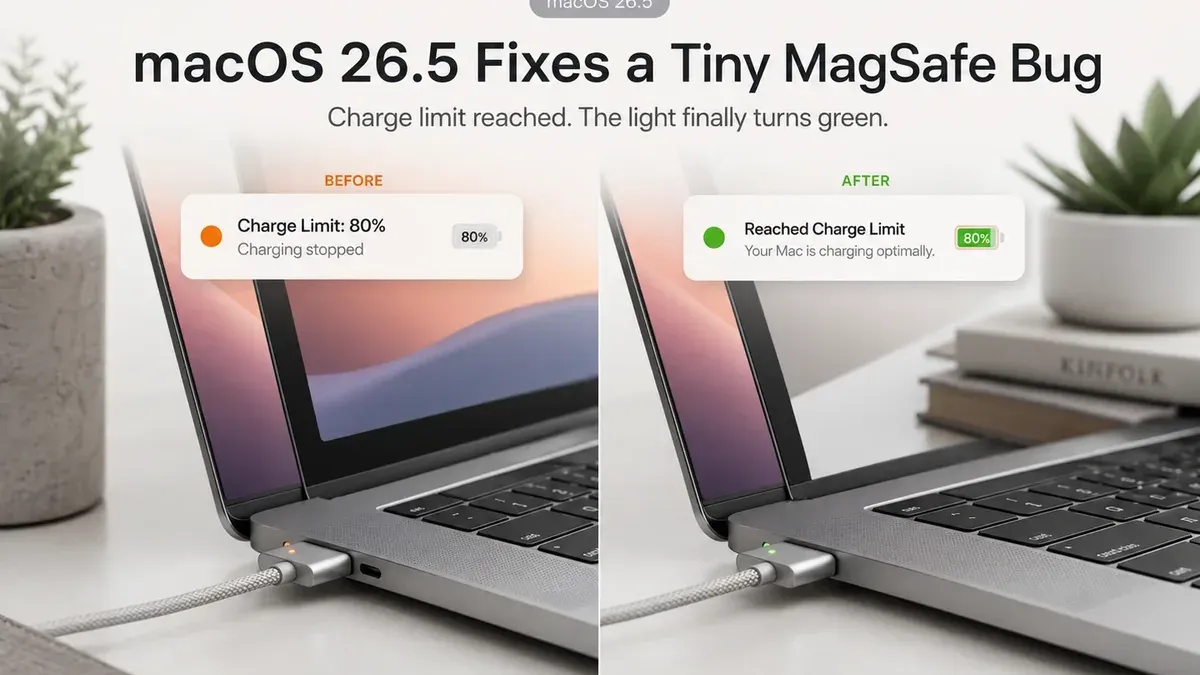
This issue often arises because Mac laptops use different MagSafe connector types—MagSafe 3, MagSafe 2, or the older T-style and L-style connectors—that are not compatible with each other. Understanding which connector your Mac requires is essential for a proper MagSafe light not turning on on Mac fix.
Start by confirming your Mac’s MagSafe connector type and compatibility. MagSafe 3 needs a USB-C to MagSafe 3 Cable paired with a USB-C power adapter, while MagSafe 2 uses a MagSafe 2 power adapter or a MagSafe adapter with a MagSafe to MagSafe 2 converter. Using the wrong combination prevents the charger from working and the light from illuminating.
Once you establish compatibility, proceed to check the physical condition of the connectors and ports. Dirt or debris can block the magnetic connection and stop the indicator light from turning on. Cleaning these parts carefully restores proper contact and can resolve the issue without replacement.
Every limit and setting name below comes from Apple Support, iFixit, as of November 2026.
Start by checking your MagSafe connector type and compatibility
Before troubleshooting, identify which connector your Mac requires to ensure proper charging.
- Locate your Mac’s charging port and identify the connector type: MagSafe 3, MagSafe 2, or T/L-style MagSafe.
- Confirm your charger matches the connector type. MagSafe 3 requires a USB-C to MagSafe 3 cable paired with a USB-C power adapter.
- Avoid using MagSafe 2 or earlier adapters with MagSafe 3 ports, as these combinations prevent the charger light from turning on and stop charging.
- If you have a MagSafe 2 Mac, use a MagSafe 2 power adapter or a MagSafe adapter combined with a MagSafe to MagSafe 2 converter.
| MagSafe Type | Required Cable/Adapter | Compatibility Notes |
|---|---|---|
| MagSafe 3 | USB-C to MagSafe 3 Cable + USB-C Power Adapter | Not compatible with MagSafe 2 or earlier adapters |
| MagSafe 2 | MagSafe 2 Power Adapter or MagSafe Adapter + MagSafe to MagSafe 2 Converter | Not compatible with MagSafe 3 adapters |
| T/L-style MagSafe | Original MagSafe Power Adapter | Legacy connector, incompatible with MagSafe 2 and 3 |
Confirming connector compatibility is the first critical step to resolving a MagSafe light not turning on. For more details on connector types, see Apple’s MagSafe support.
Clean MagSafe connectors and ports to restore proper charging connection
Debris or moisture on the MagSafe connector or your Mac's charging port can block the magnetic connection needed for charging. This often causes the charger light not to turn on. Cleaning these parts can resolve the issue quickly.
- Unplug all cables from your Mac and charger. This prevents electrical damage while cleaning.
- Use a dry, soft brush or compressed air to remove dust and debris from both the MagSafe connector and the Mac’s charging port. You should see visible particles come loose and the surfaces appear cleaner.
- Gently wipe the MagSafe connector and port with a lint-free cloth to remove any remaining residue. After this, the surfaces should look free of grease or grime.
- Inspect both the connector and port for visible damage such as bent pins or corrosion. Damage here can prevent the charger light from illuminating and may require professional repair.
Cleaning removes obstacles that prevent the magnets from securing the connection properly, which often restores the charger light. If the light still does not come on, further troubleshooting is needed.
More details on charger light issues and cleaning steps
Reset the power adapter and check for power source issues
- Unplug your MagSafe power adapter from both the Mac and the wall outlet. Wait for 60 seconds to let the adapter reset. When reset, the charger light should respond properly when plugged back in.
- Plug the power adapter back into the wall outlet first, then connect it to your Mac. This order ensures the adapter initializes correctly and avoids connection errors.
- Make sure the adapter is placed in a well-ventilated area. Overheating can cause the adapter to shut off and prevent the charger light from turning on.
- If the charger light still does not turn on, try connecting the power adapter to a different power outlet or circuit. Line noise or electrical interference in the original circuit may cause the adapter to shut down unexpectedly.
- Inspect the AC plug and cable for any damage or loosening. If you suspect a faulty plug or cable, replace it or use an Apple Power Adapter Extension Cable to restore proper power delivery and charger light function.
Following this exact reset order and checking ventilation and power source quality address common causes of the MagSafe light not turning on. Skipping the 60-second unplug step or ignoring power source issues often leaves the adapter in a shutdown state. Proper reset and stable power conditions are essential for the charger light to illuminate and indicate charging.
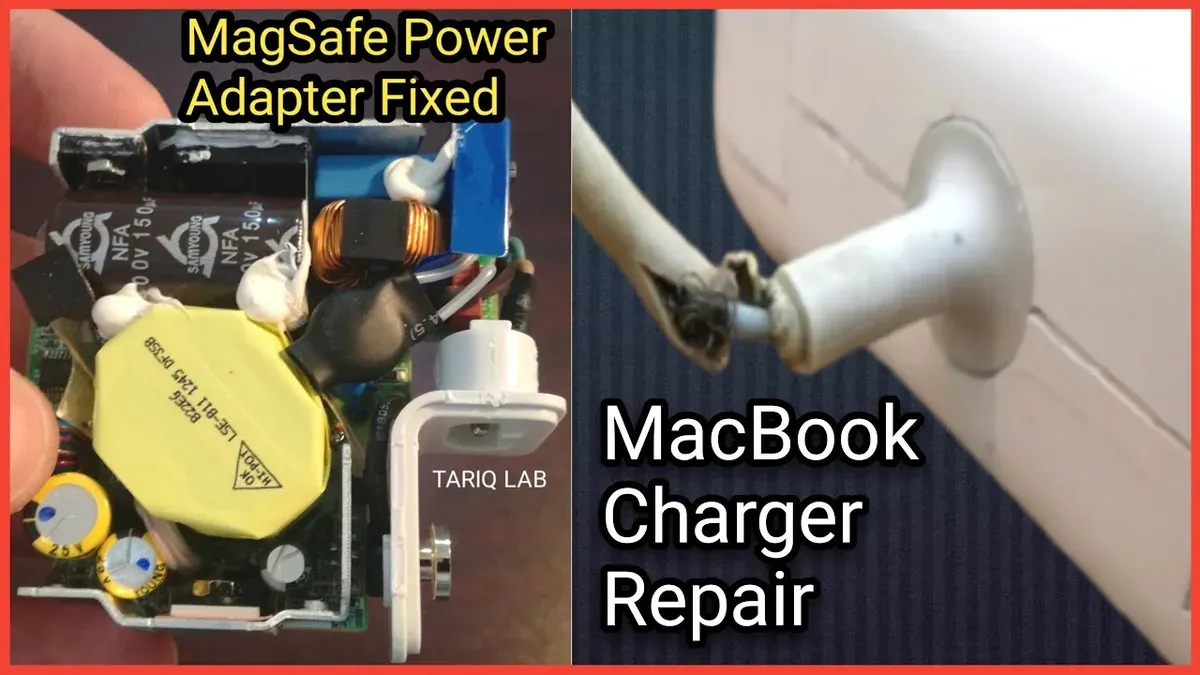
More details on power adapter resets and issues
Reset the System Management Controller (SMC) on Intel-based Macs
If your Mac uses an Intel processor and the MagSafe light is not turning on, resetting the System Management Controller (SMC) can often resolve charging and power issues. This reset restores low-level power management functions that affect charging behavior.
Note that Macs with Apple Silicon (M1 or later) do not have an SMC reset option, so this procedure only applies to Intel-based models.
- Shut down your Mac completely.
- Press and hold the left Shift + Control + Option keys on the built-in keyboard along with the power button simultaneously for 10 seconds.
- Release all keys and the power button at the same time.
- Press the power button again to turn on your Mac. The MagSafe light should respond if the reset was successful.
This reset addresses issues where the power management system does not properly recognize the charger or control the MagSafe connector light. It often fixes charging problems that prevent the light from illuminating.
For detailed instructions specific to your Intel-based Mac model, follow the official procedure to ensure success.
Learn more about SMC resetting on Intel Macs.
Update macOS to improve charger communication and firmware
Your Mac’s software includes essential updates that can fix issues with the MagSafe charger light not turning on. Outdated macOS versions may have bugs or lack the necessary firmware improvements for smooth communication between your Mac and the charger.
- Open the Apple menu and select System Settings.
- Click on Software Update. Your Mac will scan for available updates.
- If updates appear, click Install Now to apply them. This process may take several minutes and could require a restart.
Installing these updates ensures your Mac has the latest fixes that improve power management and charger compatibility. This can resolve subtle errors that prevent the MagSafe light from illuminating or cause it to flash unexpectedly. Keeping macOS current is a straightforward way to address charger communication problems without hardware changes.
For official guidance on software updates and charging fixes, see this page.
Recognize when hardware repair or replacement is needed
If your MagSafe charger light remains off despite thorough cleaning and resets, the issue often lies with the MagSafe connector or the DC-in board. These components can fail internally, preventing power transfer even if the adapter itself functions properly.
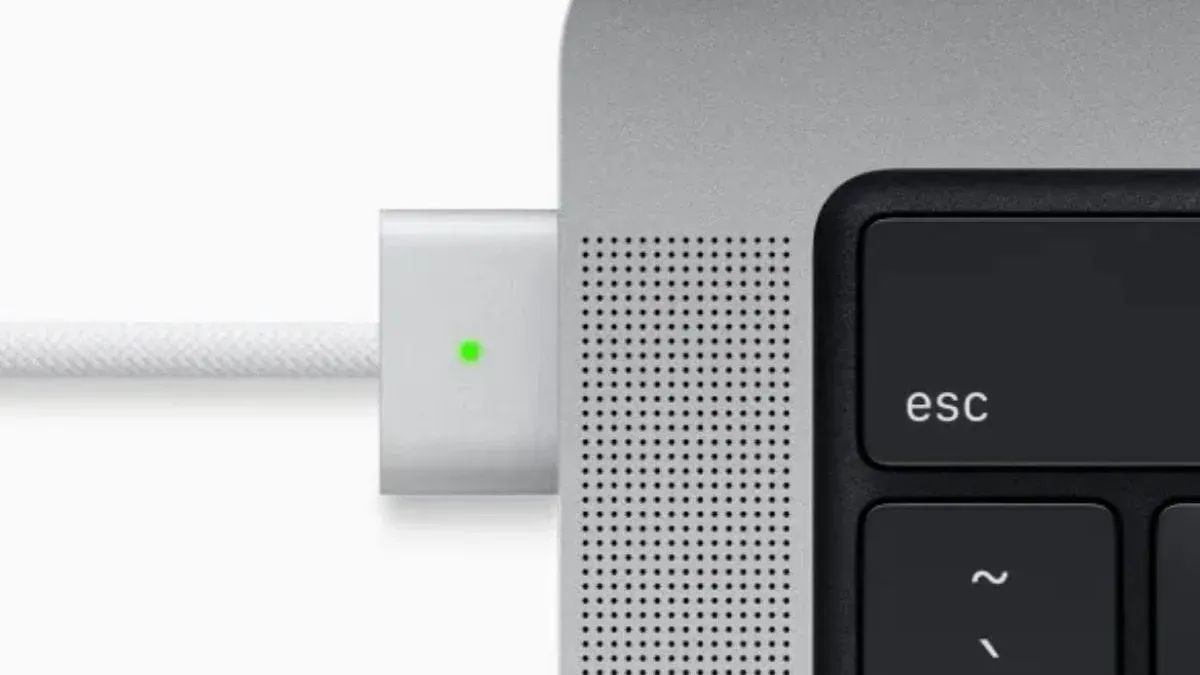
A flashing amber light on a MagSafe 3 connector after you have completed all troubleshooting steps signals a hardware or software incompatibility that requires professional service intervention.
Battery health also influences charging behavior. Service warnings or significant battery wear can cause charging faults and prevent the MagSafe light from illuminating.
Follow these steps to decide if repair or replacement is necessary:
- If the MagSafe charger light does not turn on after cleaning the connector and port, inspect the connector and DC-in board for damage or debris. If none is visible but the light stays off, replacement or professional evaluation is warranted.
- If the MagSafe 3 charger flashes amber repeatedly after you have cleaned connectors and restarted your Mac, arrange service support from an Apple Authorized Service Provider.
- If your Mac displays battery service warnings combined with charging issues, consider battery replacement but be aware improper battery swaps can cause further hardware problems like keyboard or touchpad faults.
- Consult an Apple Authorized Service Provider to diagnose the exact cause and perform repairs or replacements safely.
Professional diagnosis ensures the right part is repaired or replaced to restore charging functionality reliably.
Common mistakes that prevent MagSafe charger light from turning on
- Using incompatible MagSafe adapters or cables. MagSafe 2 adapters do not fit MagSafe 3 ports and will prevent the charger light from illuminating. Always verify your Mac’s MagSafe version before connecting any charger.
- Neglecting to clean debris or moisture from the MagSafe connector and port. Dirt or liquid can block the magnetic connection, stopping the charger light from turning on. Regularly inspect and wipe the connectors to ensure a clear contact.
- Ignoring line noise or issues from the power source. Electrical interference can cause the power adapter to shut off, cutting power and turning off the charger light. Reset the adapter by unplugging it for 60 seconds or try a different, stable power outlet.
- Using the power adapter in poorly ventilated spaces. Insufficient airflow leads to adapter overheating and automatic shutdown, interrupting charging and lighting. Place your adapter in open, cool areas to avoid heat buildup.
- Replacing the battery without proper care. Incorrect battery installation can cause keyboard, trackpad, or charging problems, including failure of the MagSafe light to activate. Ensure battery replacement is done correctly to maintain all hardware connections.
Addressing these common errors will help you avoid prolonged MagSafe charging issues and ensure the charger light functions as expected. Check compatibility first, keep connectors clean, use stable power sources with good ventilation, and handle battery replacements carefully for best results. More details on compatibility and maintenance.
Essential steps to fix your MagSafe light issue
Choose to clean connectors and reset hardware first if your Mac's MagSafe light is unresponsive but no physical damage is apparent. When you have an Intel-based Mac, resetting the SMC can often resolve charging recognition problems. If the issue persists after these steps and macOS updates, consult the failure map to determine if a hardware fault is causing the problem, which would require repair or replacement.
Sources
- If your MagSafe cable or power adapter isn't working - Apple Support (AE) — Apple Support
- SOLVED: MacBook doesn't turn on, no light on magsafe 2 charger - MacBook Pro 15" Retina Display Mid 2012 — iFixit
- If your MagSafe cable or power adapter isn't working — Apple Support


