
How to Fix Battery Not Charging on Hold on Mac
Discover how to fix the battery not charging on hold issue on Mac by understanding battery management and troubleshooting steps.
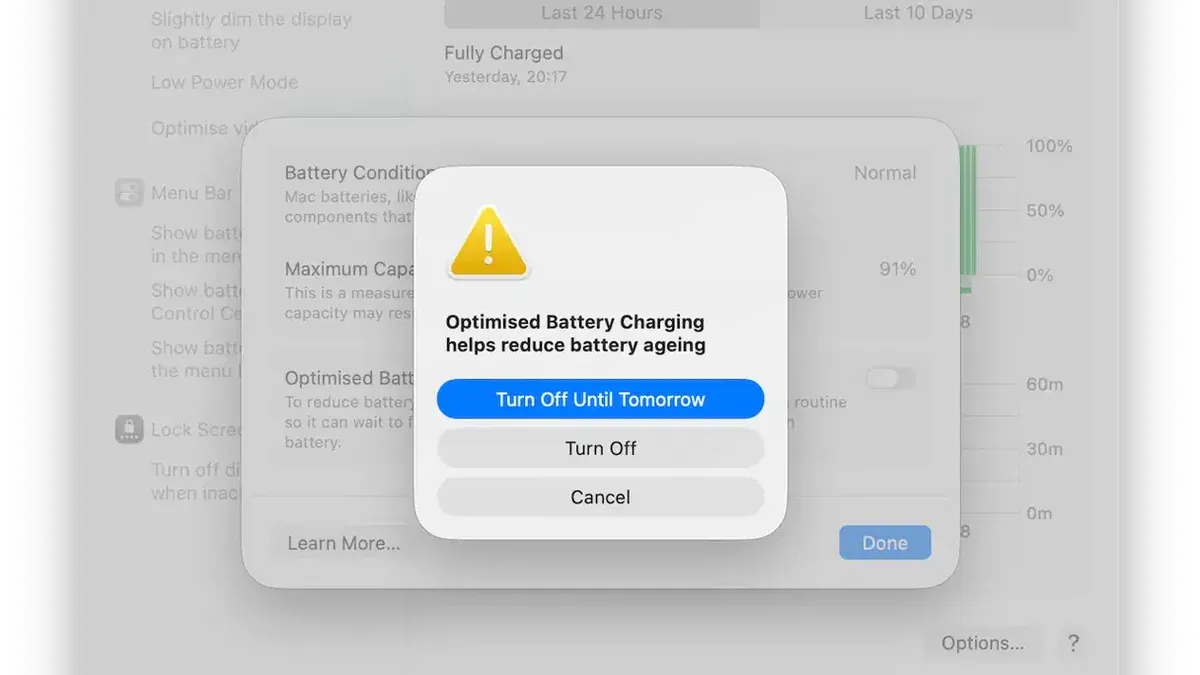
This means your Mac might not charge immediately even when plugged in, to extend long-term battery lifespan. If you are searching for a battery not charging on hold on Mac fix, understanding this system is crucial before trying quick resets or hardware checks that often miss the real cause.
Knowing how this works can prevent unnecessary troubleshooting and help you manage your Mac’s battery more effectively.
Checked in November 2026 against Battery Health Checker, AccuBattery; details like these change, so the date matters.
Why is my Mac battery not charging
Your Mac’s battery is managed by a dedicated battery management chip that controls charging based on factors like battery health and temperature. When the system detects conditions that could degrade battery lifespan—such as high temperatures or full charge—it may pause charging, showing a "charging on hold" status to protect the battery.
Issues in these areas can interfere with normal charging, leading to symptoms like the battery not charging despite being plugged in. Additionally, faulty or damaged charging cables, adapters, or USB-C ports can prevent proper power delivery.
These signs reflect either intentional battery management or hardware and software problems.
Tip: Avoid charging your battery to 100% constantly, as it increases wear. Using tools to set charge alarms can help extend battery lifespan.
Why is my Macbook battery not charging
Look for indicators like cycle count and condition; a battery reporting "Service Recommended" or a very high cycle count may need replacement.
Use Apple-certified or original accessories, as non-certified ones may prevent charging or cause erratic behavior.
This controls battery and power management functions and can fix glitches affecting charging.
- Shut down your MacBook completely.
- Press and hold Shift + Control + Option keys on the left side and the power button simultaneously for 10 seconds.
- Release all keys and power on the MacBook normally.
After the SMC reset, plug your charger back in and observe if the charging status changes.
A working charger on another outlet but not on yours suggests a power supply problem rather than the MacBook.
Tip: Using apps like Battery Health Checker on Windows can provide detailed battery management chip data, which can be helpful if you access your Mac’s battery via Boot Camp or a secondary Windows device.Learn more about battery data.
Why is my Mac not charging when plugged in
Start by confirming the power source and cable are functional; a faulty charger or cable will prevent charging regardless of software settings.
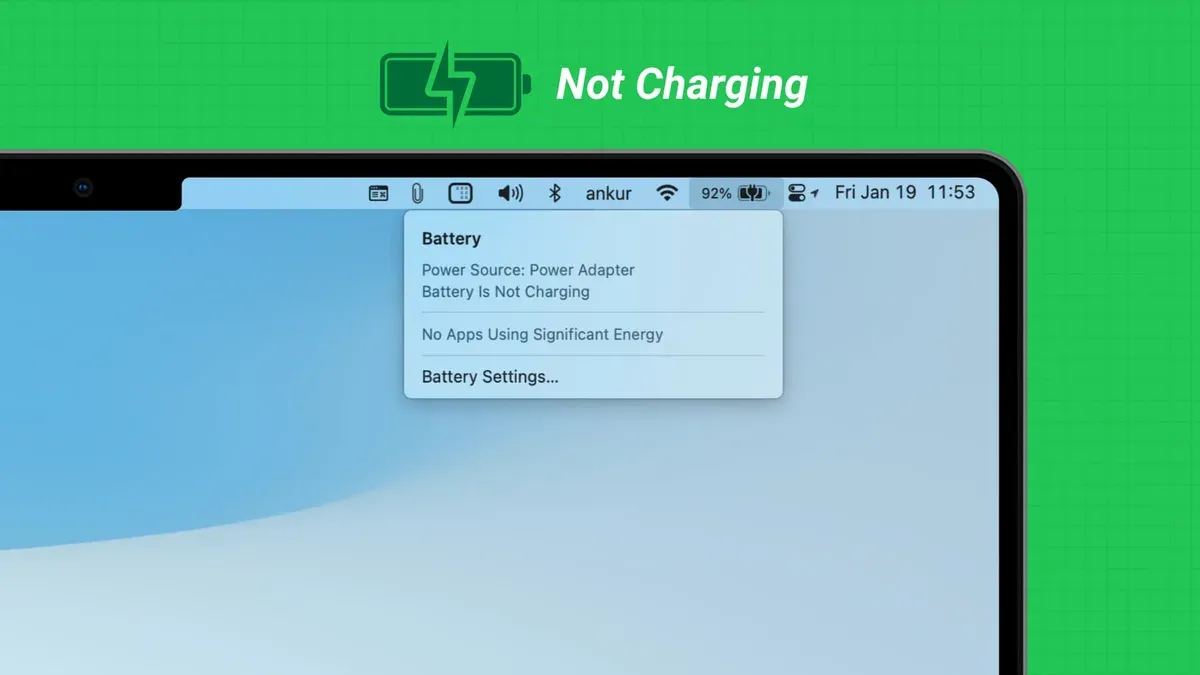
Next, verify system settings that may limit charging. Battery health management features can pause charging at high battery levels to extend battery lifespan. This "charging on hold" status is intentional and designed to reduce wear by avoiding constant 100% charge cycles.
After confirming hardware and settings, perform resets in the proper order. First, reset the System Management Controller (SMC) to clear hardware-level charging control issues. Then, reset NVRAM/PRAM to refresh system settings related to power management.
Likewise, ignoring battery management settings can lead to unnecessary troubleshooting of normal charging behavior.
- Check the power adapter and cable with another compatible device or charger; you should see charging status change on the Mac if they work correctly.
- Open System Preferences > Battery > Battery Health and confirm if "Manage battery longevity" or similar settings are enabled, which may cause charging to pause at high levels.
- If hardware and settings are correct, reset the SMC following Apple’s official procedure; after this, your Mac should respond properly to charging commands.
- Reset NVRAM/PRAM to clear system-level power management data that could interfere with charging.
- Reconnect the charger and observe if the Mac resumes charging normally.
Tip: Using charge alarms on companion devices, such as AccuBattery on Android, can help you maintain optimal charge thresholds and extend battery life.
Battery settings that matter for charging on hold
This strategy pauses charging when the battery reaches a high charge threshold or when temperature and health conditions risk damaging battery chemistry.
Instead, it relies on internal algorithms based on data from the battery’s own management chip to decide when to pause charging.
Both tools demonstrate the value of managing charge levels to protect battery health, a concept mirrored by macOS’s automatic charging pauses.
| Platform | Battery Management Feature | User Control | Charge Threshold Example |
|---|---|---|---|
| macOS | Battery Health Management (auto pause charging) | No direct disable option | Automatically pauses near 80-90% |
| Windows (Battery Health Checker) | Battery data reporting and smart alerts | Custom low/high charge notifications | Typical alert at 20% and 80% |
| Android (AccuBattery) | Charge alarms to minimize wear | Set custom charge limits | User-defined max charge (e.g., 80%) |
Monitoring your battery’s health status can help you understand when charging on hold occurs. While you cannot turn off this feature on a Mac, keeping battery health optimized reduces the frequency of charging pauses.
What to do after fixing Mac battery charging issues
Once you have resolved your Mac's charging problems, maintaining your battery health is crucial to avoid recurring issues. Begin by monitoring your battery's health and capacity regularly rather than relying on a single reading. Battery management chips provide estimates that can fluctuate, so tracking this data over weeks offers a clearer picture of true battery condition.
To extend battery lifespan, avoid charging your Mac to 100% constantly. Frequent full charges increase battery wear. Instead, keep your charge level within recommended thresholds, typically between 20% and 80%. Using charge alarm tools like AccuBattery on other platforms can help you set upper charge limits and notify you when to unplug, applying similar principles on your Mac.
Periodically check your Mac's charging behavior to catch new problems early. Look for signs such as unexpected charging pauses or rapid battery drain. Early detection allows for prompt action before the battery deteriorates further.
- Set up a schedule to check your battery health every few days using the built-in battery report or third-party tools. You should see consistent capacity trends rather than abrupt changes.
- Use charge alarm apps on other devices to learn when to unplug your Mac to avoid full charges. When the alarm notifies you, disconnect the charger to minimize wear.
- Inspect your charging habits weekly by noting if your Mac frequently shows “charging on hold” or unusual battery percentage drops. If these appear, review your charging environment and settings again.
Tip: Avoid leaving your Mac plugged in overnight regularly, as it encourages charging to full capacity and accelerates battery wear.
- Monitor battery health trends over time
- Limit charging to below 100% using alarms
- Review charging behavior weekly for anomalies
Issues outside this guide and when to consult Apple support
If you have followed all recommended software resets, battery management checks, and hardware inspections without success, your Mac may require professional diagnosis and repair.
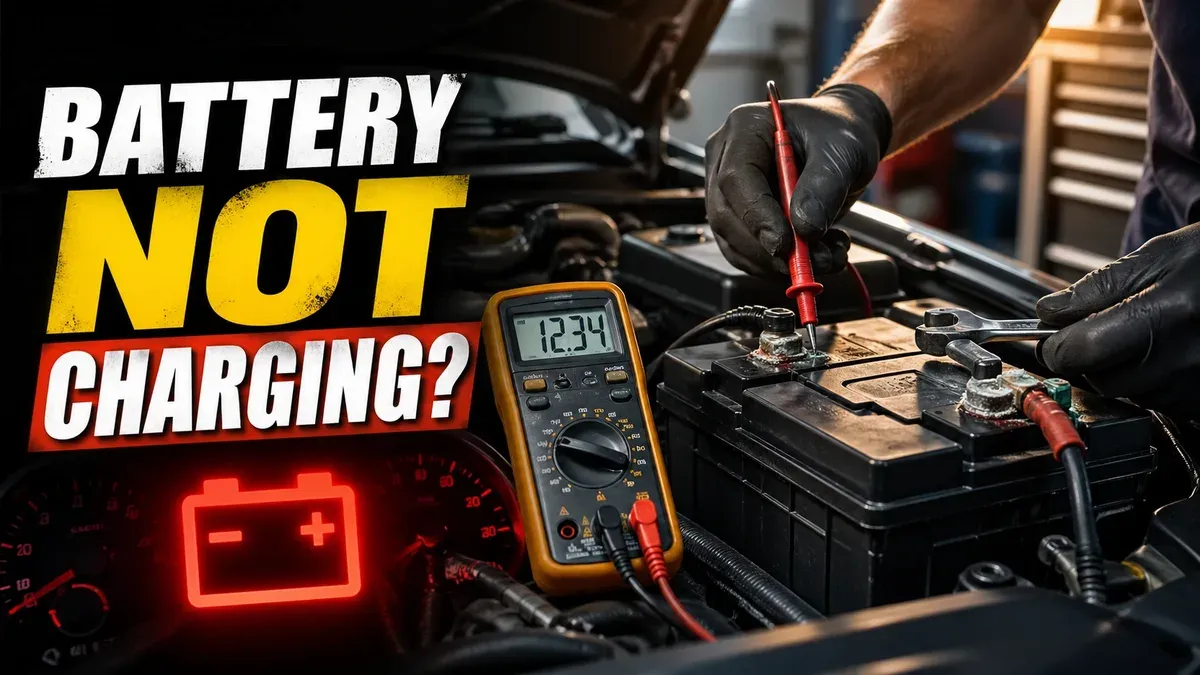
Persistent charging problems that do not resolve after verifying power sources and system settings often indicate internal hardware faults beyond user repair. Similarly, if your setup includes complex power management hardware or custom configurations, expert assistance will ensure proper evaluation and avoid unintended damage.
Software-based fixes are limited to managing charging behaviors and resetting system controls. They cannot repair physical defects or battery wear that requires component replacement. For detailed battery health diagnostics on Windows devices, tools like Battery Health Checker provide comprehensive reports and smart alerts, but such diagnostics are not directly accessible on Mac.
When to seek professional help:
- Complete all basic troubleshooting steps including system resets and setting reviews. Success is indicated by normal charging behavior and no “charging on hold” status.
- If issues persist, schedule an appointment with an authorized service provider to diagnose potential battery or logic board faults.
- Consult experts before attempting any hardware modifications, especially with non-standard or custom power setups to prevent further damage.
Tip: Using charge alarm tools on compatible devices can extend battery lifespan by preventing constant charging to 100%, but hardware repairs require professional intervention.
- How to Fix the Spinning Beach Ball on Mac: Clear Steps to Stop It
- How to Fix Blurry Text on a Second Monitor with Your Mac
Frequently asked questions
Why is my macbook not charging?
Your MacBook may not charge if the battery health management system is pausing charging to extend battery lifespan, especially when the battery level is high. It can also occur due to power adapter issues, faulty cables, or dirt in the charging port. Checking the battery status in System Settings and ensuring the charger is functioning properly are initial steps to identify the cause.
Why is my Mac battery not charging when plugged in?
This situation often results from the charging on hold status linked to battery health management, which pauses charging above certain battery levels to reduce wear. The correct order of troubleshooting is to first verify battery settings and health, then inspect the charger and cable, followed by resetting the System Management Controller (SMC) if needed. Skipping or reversing this order can lead to misdiagnosis or ineffective fixes.
Why is my Macbook plugged in but battery not charging?
This is typically due to the battery health management feature intentionally pausing the charge to protect battery longevity when the battery is near full. It may also happen if the power source provides insufficient power or if the charging cable is damaged. Refer to the section on battery settings and the proper order of operations to address this issue.
When to seek professional help beyond these steps
This article does not cover hardware replacements or advanced repairs that require professional tools or expertise. If your Mac shows persistent battery failures, swelling, or physical damage, or if charging issues continue despite following all software and settings adjustments, consult an authorized service provider. Attempting internal repairs without proper training risks further damage and voids warranties.
For ongoing battery health concerns, using Battery Health Checker software can provide detailed diagnostics from the battery’s management chip that standard Mac tools don’t access. This data can guide repair technicians in identifying hardware faults that software fixes cannot address.
After troubleshooting your Mac’s battery charging status, the most useful next step is to monitor the battery behavior over several days. Check if charging on hold activates at high charge levels as expected, and review the Battery Health section in System Settings to confirm the battery’s maximum capacity and cycle count remain stable. Adjust any custom charging schedules or power plans back to default if issues persist, since changes there can override the built-in battery management strategies designed to extend lifespan.
Sources checked
- Battery Health Checker — Free Battery Health Test Tool — Battery Health Checker
- AccuBattery App — AccuBattery



