
Fix USB-C Port Not Charging on Mac: Step-by-Step Solutions
Learn how to fix the USB-C port not charging on Mac with simple steps including cable checks, port cleaning, and software resets.
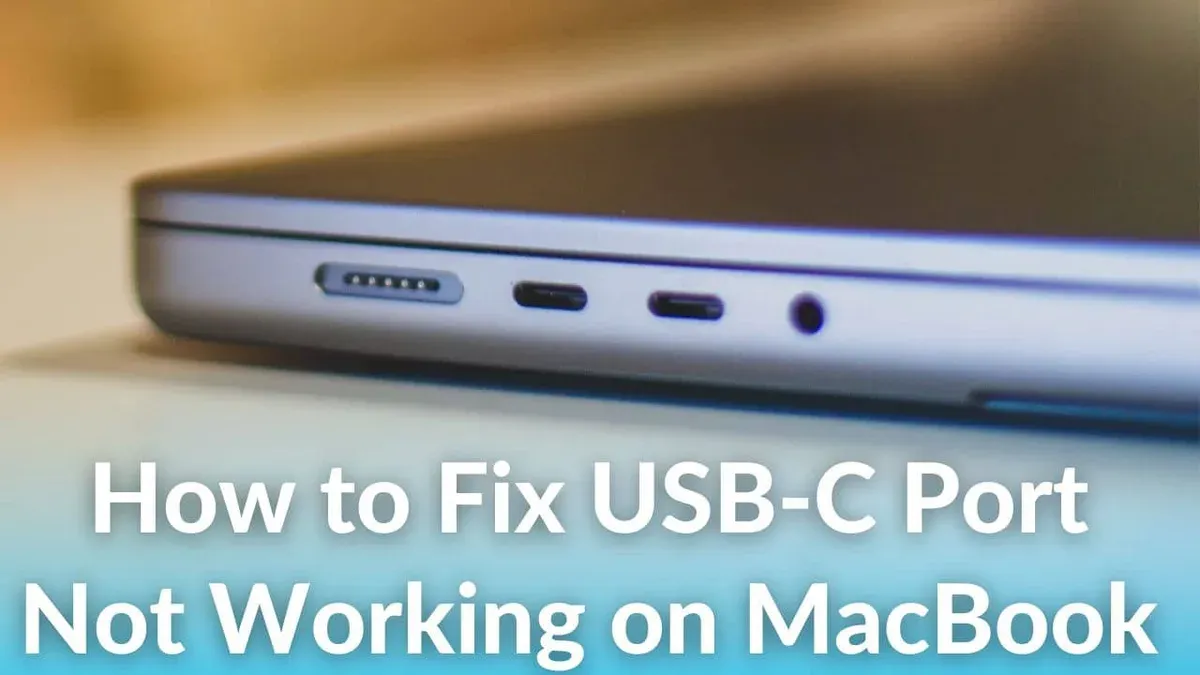
The USB-C port not charging on Mac fix often starts with verifying your charger and cable compatibility, since some USB-C cables only transfer data and lack charging capability.
Debris inside the USB-C port can block the connection and prevent charging. Additionally, temporary software glitches often disrupt charging and can be resolved by restarting your Mac in the correct sequence. If these steps don’t help, resetting the System Management Controller (SMC) on Intel Macs might restore power management functions.
Physical damage such as bent pins, loose ports, or internal logic board failures require professional repair to restore charging functionality.
Last verified November 2026 against Apple Support, WarriorMac, Asurion (full list at the end).
Check your USB-C charger and cable compatibility
Next, verify your USB-C cable supports charging. Some cables transfer data only and won’t power your Mac.
Stay away from uncertified or inexpensive third-party chargers and cables. They risk unstable power delivery and can damage your Mac’s USB-C controller, leading to charging problems or port failure.
- Locate the wattage rating on your Mac’s original power adapter and check your current adapter’s rating. You should see equal or higher wattage on your replacement.
- Inspect your USB-C cable specifications to confirm charging support, not just data transfer.
- Use only Apple-certified or high-quality third-party adapters and cables to ensure stable power delivery.
Inspect and clean the USB-C port on your Mac
Debris and lint inside your Mac’s USB-C port can block the connection, preventing charging. Before proceeding, visually inspect the port with a bright light to spot any buildup. If you see lint or dust, do not insert metal objects like pins or paper clips to remove it, as this can damage the delicate connectors.
Use compressed air to safely blow out debris. Hold the can upright and apply short bursts into the port. After cleaning, check if the port looks clear and the charging cable fits snugly without resistance. Forcing a cable into a clogged port can worsen damage and lead to permanent failure.
If compressed air does not clear the obstruction, professional service may be necessary. Avoid trying to clean deeper with sharp tools to protect the USB-C port’s integrity.
Restart your Mac to clear temporary glitches
This is often the simplest way to fix issues caused by transient system errors.
For Apple silicon Macs, a full shutdown followed by a restart resets power management systems without the need for an SMC reset. This means simply choosing Shut Down from the Apple menu, waiting for the Mac to power off completely, and then turning it on again effectively clears USB-C charging issues caused by temporary glitches.
On Intel-based Macs, restarting also helps, but some charging problems may require an additional System Management Controller (SMC) reset, which addresses deeper hardware-level controls. That reset process is detailed in the next section.
To restart your Mac correctly and maximize the chance of resolving USB-C charging problems, follow this order:
- Click the Apple menu and select Shut Down. Wait until the screen goes completely black and all lights are off.
- After the Mac has shut down fully, press the power button to turn it back on. A complete power cycle ensures power management resets properly.
- Once the Mac boots up, test charging through the USB-C port again to see if the issue is resolved.
If you only select Restart without fully shutting down first on Apple silicon Macs, power management reset may not occur properly, and charging issues might persist.
- Shut down your Mac completely before restarting
- Wait for the screen and lights to turn off fully
- Turn your Mac back on and test USB-C charging
Reset the System Management Controller (SMC) on Intel Macs
Resetting the SMC can resolve charging and USB-C port issues caused by power management glitches on Intel-based Macs. This step is not applicable to Apple silicon Macs, which rely on a full shutdown and restart instead.
For Intel MacBooks without the T2 Security Chip
- Shut down your Mac completely.
- Press and hold the Shift + Control + Option keys on the left side of the keyboard and the Power button simultaneously for 10 seconds.
- Release all keys and the Power button at the same time.
- Turn on your Mac normally. The SMC reset is complete when your Mac boots up.
For Intel MacBooks with the T2 Security Chip
- Shut down your Mac fully.
- Hold the Control + Option (Alt) + Shift keys on the left side and the Power button simultaneously for 7 seconds.
- Release all keys and the Power button.
- Wait a few seconds, then press the Power button to turn on your Mac.
For Intel Desktop Macs (iMac, Mac mini, Mac Pro)
- Shut down your Mac and unplug the power cord.
- Wait for 15 seconds.
- Plug the power cord back in and wait 5 seconds.
- Press the Power button to turn on your Mac. The SMC reset is complete.
Resetting it restores hardware control settings related to the USB-C ports and power delivery, which can fix issues like failure to charge or recognize power adapters.
- Shut down your Intel Mac completely before starting.
- Use the correct key combination based on your Mac model and T2 chip presence.
- Power on your Mac after releasing the keys to complete the reset.
Check macOS USB security and accessory permissions
If these permissions are blocked, your USB-C port might seem unresponsive or fail to charge your device properly.
To verify your settings, open System Settings and navigate to Privacy & Security. Look for the option labeled Allow accessories to connect. If this is turned off or restricted, your Mac will wait for your permission before establishing a connection, causing charging delays or failures.
Additionally, ensure your macOS is current by going to Apple menu > System Settings > General > Software Update. Updates often fix bugs that interfere with USB device handling and charging.
- Open System Settings on your Mac.
- Click Privacy & Security.
- Find and enable Allow accessories to connect. You should no longer see prompts requesting permission for USB devices when plugging in.
- Open System Settings and go to Privacy & Security.
- Enable Allow accessories to connect.
- Check for and install any macOS software updates.
Diagnose hardware issues with Apple Diagnostics and USB-C power meter
Apple Diagnostics can detect hardware faults affecting your Mac’s USB-C port. The method to start diagnostics depends on your Mac type.
- For Apple silicon Macs: Shut down your Mac. Power it on while holding the power button until startup options appear. Then press Command-D. You should see the diagnostics screen load, indicating the test is running.
- For Intel Macs: Power on your Mac and immediately hold the D key. Wait until a progress bar or language selection screen appears. This confirms diagnostics is active.
During the test, note any error codes or messages related to USB-C or power delivery components. These indicate hardware or logic board faults requiring repair.
Using a USB-C power meter provides insight into power delivery negotiation stability. Connect the meter between your charger and Mac. Watch the wattage readings for fluctuations or drops.
Stable wattage means power negotiation is working correctly. Fluctuating or inconsistent readings suggest hardware issues with the USB-C port or power circuitry.
Combining Apple Diagnostics results with power meter data helps pinpoint whether charging failures are due to hardware faults or external factors. Persistent diagnostic errors or unstable power readings mean professional hardware repair is needed.
- Run Apple Diagnostics following your Mac model’s procedure
- Observe and record any error messages related to USB-C
- Use a USB-C power meter to check for stable wattage during charging
Recognize signs of physical damage or liquid corrosion
These issues cause intermittent or complete charging failure. Forcing a cable into a damaged port risks worsening the damage and can lead to permanent failure.
Visible indicators include green or white crusty deposits inside the port. Such corrosion leads to unreliable charging and progressive hardware deterioration.
If you notice symptoms like inconsistent charging, visible deformation of pins, or crust formations inside the port, stop using the affected port immediately. Continuing to charge with liquid damage can cause irreversible harm to your Mac’s internal components.
Attempting to fix physical or liquid damage yourself risks further damage and voiding warranties.
- Examine the USB-C port under good lighting for bent pins or loose connectors. If found, charging issues are likely due to physical damage.
- Look inside the port for green or white crust deposits indicating corrosion from liquid exposure.
- If corrosion is present or physical damage is visible, cease charging your Mac via that port immediately to prevent further damage.
Decide when to replace cables, use different ports, or seek repair
If charging only works with certain cables or when the cable is moved, replace the cable immediately and avoid using any that show signs of damage. Consistently unstable charging indicates the cable is faulty.
If one port charges normally while another fails, use the working port for now. The non-functional port or its controller likely needs professional repair.
The USB-C controller on the logic board may be damaged and will require a technician’s intervention to fix.
When using a USB-C dock or hub, connect your charger directly to the Mac instead. Charging issues caused by docks indicate the accessory is interfering with power delivery rather than the Mac itself.
- Try charging with multiple USB-C cables; if only some cables work or moving the cable helps, replace the cable.
- Test each USB-C port on your Mac individually; if one port works, use it and plan to repair the faulty port.
- If all ports fail with good cables and chargers, seek professional repair for the logic board’s USB-C controller.
- Disconnect any USB-C docks or hubs and connect the charger directly to isolate the problem.
Common pitfalls that worsen USB-C charging problems
Always verify your cable supports power delivery to avoid this issue.
Continuing to use a damaged or loose port can worsen the hardware damage, potentially leading to permanent failure.
- How to Fix Mac Not Charging with a 70W Adapter
- How to Fix a Self Assigned IP Address on Mac: Step-by-Step Solutions
- How to Fix Battery Not Charging on Hold on Mac
- Fix MagSafe Light Not Turning On on Mac: Step-by-Step Guide
Frequently asked questions
Why is my mac not charging?
Several factors can cause your Mac not to charge, including incompatible chargers or cables, dirty or damaged USB-C ports, or software glitches affecting power management. Checking cable compatibility and inspecting the port are good first steps before considering hardware faults.
Why isn't my mac charging?
This question is similar to the previous one; see the section about USB-C charger and cable compatibility and port inspection for detailed troubleshooting steps.
Why is my mac laptop not charging?
Mac laptops may fail to charge due to temporary system glitches, which can be resolved by shutting down and restarting the device in the correct sequence. Additionally, resetting the System Management Controller (SMC) on Intel Macs can resolve power management issues specific to those models.
Why is my Mac not charging when plugged in?
If your Mac shows it is plugged in but not charging, it could indicate a hardware issue such as physical damage or liquid corrosion in the USB-C port, or the charger might not be delivering sufficient power. Using Apple Diagnostics or a USB-C power meter can help identify the root cause.
Essential steps to identify and fix USB-C charging problems on your Mac
Starting with a thorough compatibility check and cleaning of your USB-C port provides a reliable foundation for solving most charging issues. If problems persist after restarting and resetting power management, consulting Apple Diagnostics and inspecting for physical damage will clarify whether repair or replacement is necessary. Carefully following these steps in order will help you efficiently restore charging functionality or determine when professional service is required.
Sources
- If your USB-C power adapter isn't charging your Mac laptop - Apple Support — Apple Support
- MacBook USB-C Port Not Working or Not Charging: Fixes — WarriorMac
- MacBook USB-C port not working? Here's what to do | Asurion — Asurion
- MacBook USB-C Port Not Charging: Diagnose vs Replace | Fix My PC Store — Fix My PC Store
- USB-C ports not working on Mac: 6 proven fixes [2026] — MacPaw


