
How to Fix Mac Not Charging with a 70W Adapter
Discover how to fix Mac not charging with a 70W adapter by checking wattage compatibility, USB-C cable, and resetting your Mac’s power management.
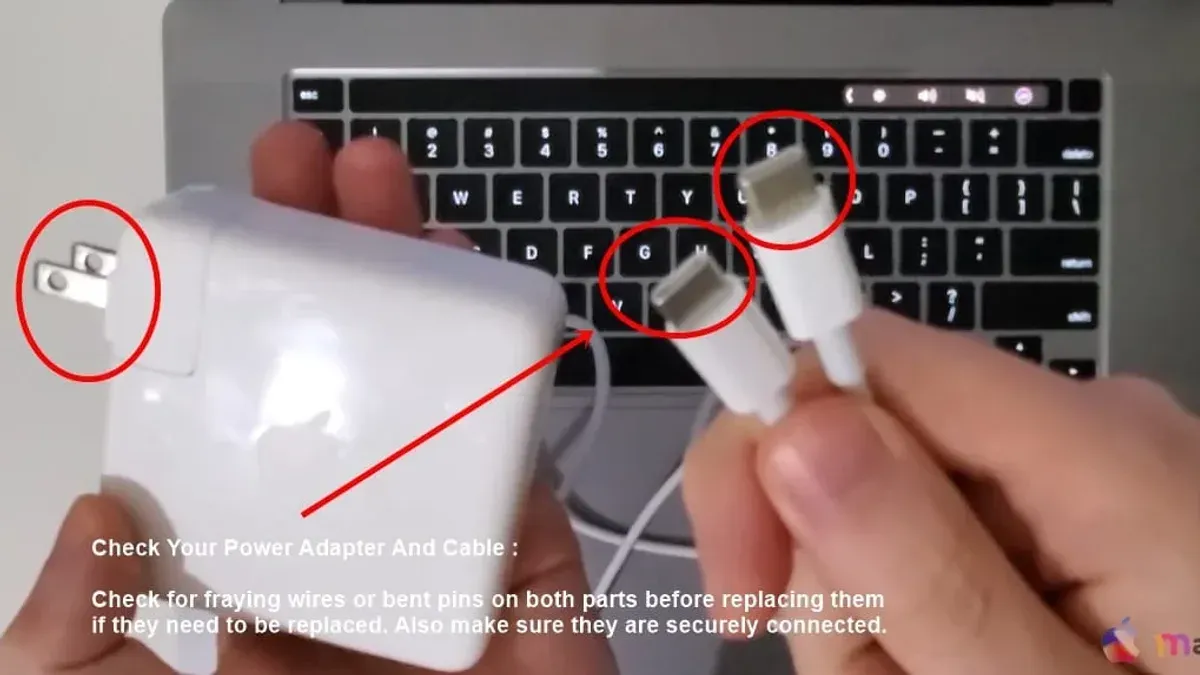
The core issue often lies in whether your adapter meets your Mac’s minimum wattage needs or if other technical factors interfere.
You’ll learn how to verify wattage compatibility, check your USB-C cable’s charging capability, reset your Mac’s power management, and troubleshoot common issues.
Quick overview of fixing Mac not charging with 70W adapter
- Use a USB-C cable that supports charging, not just data transfer.
- Reset the System Management Controller (SMC) to fix charging errors.
- Disable Optimized Battery Charging to prevent charging pauses at 80%.
Checked in November 2026 against MacsWire, Apple Support, FixingHacks; details like these change, so the date matters.
Check your Mac and adapter wattage requirements
| Mac Model | Minimum Adapter Wattage |
|---|---|
| MacBook Air | 30W |
| MacBook Pro 14-inch | 67W |
| MacBook Pro 16-inch | 96W or higher |
Charging issues are common if your adapter’s wattage is below the minimum requirement of your Mac model.
Verify your USB-C cable supports charging
Some cables only transfer data and do not deliver power, causing your Mac not to charge even when plugged into a power source.
Follow these steps to confirm your USB-C cable supports charging:
- Check the cable specifications or packaging to ensure it is rated for power delivery and charging. When confirmed, your Mac should begin charging immediately upon connection.
- Inspect the cable for any visible damage such as fraying or bent connectors, which can interrupt power delivery.
- If you suspect the cable is incompatible or damaged, replace it with a certified charging-capable USB-C cable to restore charging functionality.
Visually identical USB-C cables may vary significantly in capability. Using a cable that only supports data transfer will prevent charging even if the Mac recognizes the connection. Always use cables explicitly designed for charging to avoid this issue.
- Confirm your USB-C cable is rated for charging and power delivery.
- Inspect the cable for damage and replace if necessary.
- Use certified charging-capable USB-C cables to ensure proper charging.
Reset the System Management Controller (SMC) to fix charging errors
The System Management Controller (SMC) manages power functions on Intel-based Macs, including charging acceptance. If the SMC encounters an error, it can block your Mac from charging even when the hardware and cables are functioning correctly. Resetting the SMC often resolves such charging issues.
Follow these steps to reset the SMC on Intel-based MacBooks:
- Shut down your Mac completely.
- Press and hold the left-side Shift + Control + Option keys together, then press and hold the power button simultaneously.
- Keep all keys and the power button held for 10 seconds, then release them all at the same time.
- Wait a few seconds, then press the power button to turn your Mac back on.
This reset clears any power management glitches that interfere with charging. Performing the steps in this exact order is crucial because pressing the power button before the key combination or releasing keys prematurely can prevent the reset from completing successfully.
If your Mac continues to have charging issues after the reset, investigate other hardware or software causes.
More details on this procedure are available here.
Understand why charging may pause at 80% and how to disable it
Your Mac includes a feature called Optimized Battery Charging that intentionally pauses charging near 80%. This behavior helps slow battery aging by reducing the time the battery spends at a full charge.
To confirm if Optimized Battery Charging is active, click the battery icon in the macOS menu bar. You might see a status such as “Optimized Battery Charging” indicating the pause is intentional, not a fault.
If you need your Mac to charge fully without pausing, you can temporarily disable this feature in System Settings. Here’s how:
- Open System Settings and select Battery.
- Click on Optimized Battery Charging.
- Toggle off Optimized Battery Charging. Your Mac will then charge past 80% without pausing.
Disabling this feature is useful for diagnostics or when a full charge is required, but keep in mind it increases battery wear if used regularly.
Clean USB-C ports and check for overheating or power source issues
Debris or lint inside USB-C ports can block power pins and prevent your Mac from charging properly. Use compressed air or a plastic tool to carefully remove any buildup from the ports. Avoid metal objects that can damage contacts.
Your power adapter may become warm during use. It should be placed in a well-ventilated area to prevent overheating, which causes automatic shutdown. If the adapter shuts off, allow it to cool before trying again.
Electrical line noise can cause your adapter to turn off unexpectedly. Try plugging the adapter into a different outlet or use an uninterruptible power supply (UPS) to reduce interference.
- Inspect the USB-C port for debris and use compressed air or a plastic tool to clean it; charging should resume if the port is clear.
- Ensure the power adapter is in a well-ventilated space and feels cool to the touch; if it overheats and shuts off, wait for it to cool down before reconnecting.
- Plug the adapter into a different power outlet or connect through a UPS to minimize line noise; charging should stabilize with a clean power source.
- Clean USB-C ports with compressed air or a plastic tool
- Keep the power adapter cool and ventilated
- Use a different power outlet or UPS to avoid line noise
What to do if only one USB-C port does not charge despite troubleshooting
If you find that only one USB-C port on your Mac fails to charge while others work normally, you need to isolate the problem to confirm it is the port hardware causing the issue.
- Test the problematic port with multiple USB-C cables known to support charging. If none of these cables charge the Mac through that port, proceed to the next step.
- Try charging the Mac using the 70W adapter and other compatible adapters on the same port. A consistent failure across different adapters confirms the port is faulty.
- Compare the charging behavior on other USB-C ports using the same cables and adapters to ensure the accessories function correctly.
Common pitfalls that prevent charging with a 70W adapter
Charging issues often stem from mismatches between your Mac’s power needs and the adapter or cable used. Using an adapter below your Mac’s minimum wattage prevents charging or causes slow charging, especially on 14-inch and 16-inch MacBook Pros that require at least 67W and 96W respectively. A 70W adapter may be insufficient for these models.
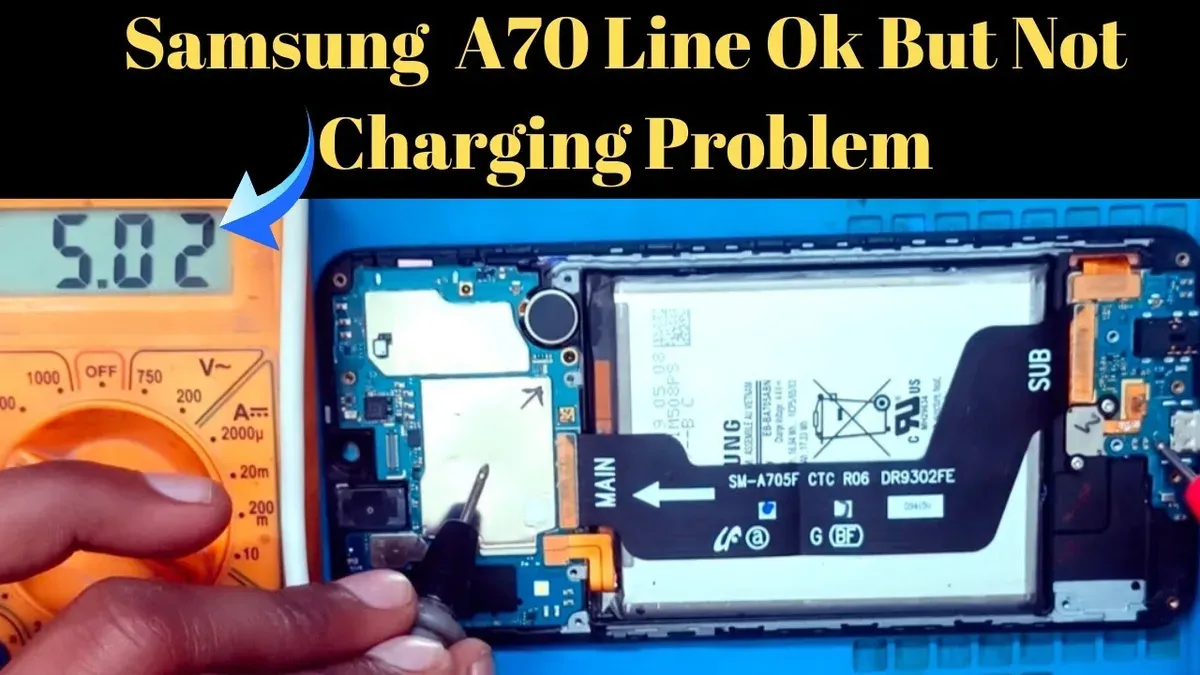
USB-C cables that do not support charging, or are damaged, can transfer data but fail to deliver power. This results in your Mac not charging despite appearing connected. Avoid cables not rated for power delivery.
This is Optimized Battery Charging, designed to extend battery lifespan. It is not a hardware or adapter issue.
Attempting to charge high-wattage MacBook Pros using USB-A phone chargers with USB-C adapters or low-power travel bricks will not work. These chargers lack the necessary wattage and power delivery protocols.
- Check your Mac model’s minimum wattage requirement and confirm your adapter meets or exceeds it; successful charging begins promptly.
- Use only USB-C cables rated for charging without physical damage; your Mac should show charging status.
- Recognize charging pauses at 80% as normal unless you disable Optimized Battery Charging in System Settings → Battery.
- Do not use USB-A phone chargers or low-wattage travel bricks for high-wattage MacBook Pros; charging will fail or be extremely slow.
- How to Fix the Spinning Beach Ball on Mac: Clear Steps to Stop It
- How to Fix Blurry Text on a Second Monitor with Your Mac
- How to Fix Battery Not Charging on Hold on Mac
Frequently asked questions
How to fix macbook charger?
Make sure your USB-C cable supports charging and reset the System Management Controller (SMC) if needed. Also, review battery settings like Optimized Battery Charging and inspect ports and power sources for issues.
Steps to resolve charging issues with a 70W adapter on your Mac
Choosing the right adapter depends largely on your Mac model’s power needs. For example, a 30W adapter suffices for MacBook Air models, while a 14-inch MacBook Pro requires at least 67W and the 16-inch MacBook Pro demands 96W or more. If your charging issues persist despite using a 70W adapter, consider whether your Mac’s power requirement exceeds that adapter’s capacity. Disabling Optimized Battery Charging can help if your Mac regularly halts charging around 80%, but only if your usage pattern matches the settings designed to preserve battery health. Resetting the SMC should be done carefully, following the prescribed order to avoid incomplete resets. In cases where only one USB-C port is problematic, hardware inspection or repair may be necessary. This approach ensures that you address the precise factors affecting charging performance rather than relying solely on generic fixes.
Documentation used
- MacBook Not Charging? 9 Fixes That Actually Work — MacsWire
- If your USB-C power adapter isn't charging your Mac laptop - Apple Support — Apple Support
- MacBook Not Charging? — FixingHacks



