
How to Fix SSL Certificate Errors in Python on Mac
Learn how to fix SSL certificate errors in Python on Mac to maintain secure HTTPS connections with the correct certificate updates and troubleshooting steps.
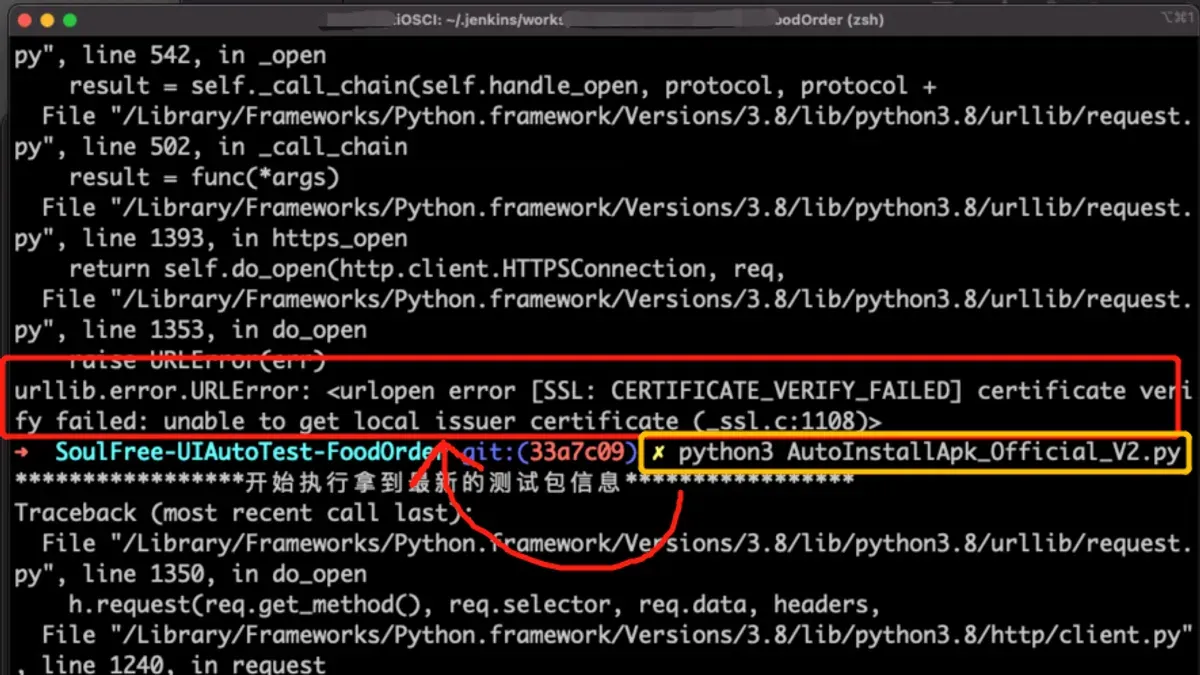
These errors typically appear as exceptions or warning messages in the terminal or console when attempting to access HTTPS resources.
Understanding the causes and remedies for these errors is essential to maintain secure communications without resorting to unsafe shortcuts. This guide addresses the precise steps for an SSL certificate error in Python on Mac fix, highlighting platform-specific details and the correct sequence of actions that ensure certificates are recognized properly.
How to Recognise an SSL Certificate Error in Python on Mac
SSL certificate errors in Python on Mac typically appear when a script or application attempts to establish a secure HTTPS connection but cannot verify the server's certificate against trusted authorities. Common error messages include "SSL certificate verify failed", "certificate cannot be trusted", or specific error codes such as ssl.SSLCertVerificationError. These errors often arise during HTTP requests made with libraries like requests or urllib.
For example, a Python requests exception might read:
requests.exceptions.SSLError: HTTPSConnectionPool(host='example.com', port=443): Max retries exceeded with url: / (Caused by SSLError(SSLCertVerificationError("[SSL: CERTIFICATE_VERIFY_FAILED] certificate verify failed: unable to get local issuer certificate")))
This message indicates the Python environment lacks the necessary trusted certificates to verify the remote server.
These errors are influenced by the Mac environment and Python version because the Python installer on Mac includes a special Install Certificates.command script to update Python’s trusted certificates separately from the system’s keychain. If this script is not run after installation or upgrade, Python's certificate store remains incomplete, causing verification failures.
| Observed Symptom | Likely Cause | Fix |
|---|---|---|
| "SSL certificate verify failed" after HTTP request | Python’s certificate store outdated or missing | Run the Install Certificates.command script included with Python installer |
| "certificate cannot be trusted" error on secure connection | Server certificate chain incomplete or untrusted CA | Verify server certificate or update CA bundle |
| Errors after Python upgrade or new install | Did not run Install Certificates.command | Run the script immediately after Python installation |
To confirm the fix worked, rerun the Python code causing the error. A successful HTTPS connection without SSL exceptions means the certificates are properly recognised. If errors persist, verifying the Python version and re-running the script in the correct order might be necessary.
What Causes SSL Certificate Errors in Python on Mac
SSL certificate errors in Python on Mac arise from a combination of system, Python environment, and network-related causes. However, Python does not automatically use this system store. Instead, it relies on its own set of certificates, typically managed through the certifi package or bundled certificates. When these certificates are outdated or missing, Python cannot verify SSL connections properly, resulting in errors.
Another frequent cause is the difference between Python installations. In contrast, Python installed via Homebrew or within virtual environments may use separate certificate bundles that can become outdated independently. This separation can cause SSL verification failures if the bundled certificates do not reflect the current trusted authorities.
Interception by proxies, corporate firewalls, or antivirus software can replace the original SSL certificates with ones that Python does not trust. This interception leads to untrusted certificate warnings or failures during SSL handshake. Such network interference requires addressing the proxy configuration or obtaining appropriate certificates from the network administrator.
To resolve these issues safely, the recommended approach involves:
- Running the
Install Certificates.commandscript included with the official Python installer to update Python’s trusted certificates from the system store. - Ensuring the certifi package is up to date by running
pip install --upgrade certifiin the relevant Python environment. - Verifying which Python installation is in use and, if necessary, aligning the environment with the system Python or updating Homebrew Python’s certificates.
This approach applies primarily to the official Python installer and may not fully resolve issues in all custom or heavily modified Python setups.
How to Fix SSL Certificate Errors in Python on Mac Safely and Quickly
Resolving SSL certificate errors on Mac requires a careful sequence of updates to ensure Python trusts the proper certificates without compromising security. The first step is to update the certifi package, which provides an up-to-date bundle of trusted root certificates used by Python. Running python3 -m pip install --upgrade certifi in Terminal updates this package to the latest version, addressing many common trust issues.
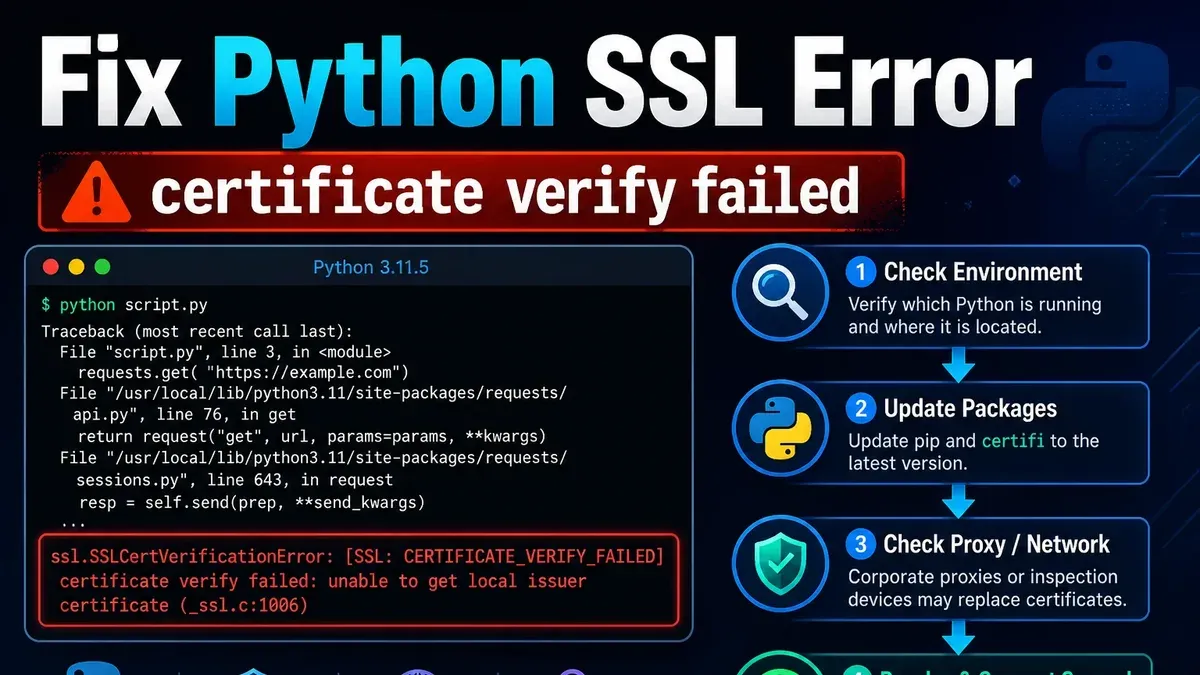
Next, it is essential to run the Install Certificates.command script that comes bundled with the Mac Python installer. This script refreshes the system's trusted certificates specifically for Python, a step unique to macOS installations. Locate this script in the Python folder inside /Applications or use /Applications/Python 3.x/Install Certificates.command (adjusting the path for the installed Python version). Double-clicking this script in Finder or running it via Terminal applies the necessary certificate updates.
After updating certificates, verify the Python version by running python3 --version in Terminal. Using a supported, maintained Python version is crucial since outdated versions may not support the latest security protocols. If the version is old, downloading and installing the latest Python release for Mac from the official source is recommended.
Finally, confirm that the Mac’s system date and time are accurate. SSL certificate validation depends on correct system time; a mismatch can cause errors even if certificates are current.
If the error no longer occurs and connections succeed, the update sequence was effective.
How to Ignore SSL Certificate Errors in Python on Mac When Testing
Ignoring SSL certificate errors in Python on Mac can be useful during controlled testing when the priority is to bypass certificate validation temporarily. This approach involves instructing Python libraries, such as requests, to skip verifying SSL certificates, which can expose the connection to security risks if used outside a safe environment.
To bypass SSL verification in requests, include the parameter verify=False in the request call. For example, requests.get('https://example.com', verify=False) disables certificate checks for that request. However, this triggers warnings about insecure requests, alerting that SSL verification is disabled.
Suppressing these warnings can be done by filtering them using Python’s warnings module. Adding warnings.filterwarnings('ignore', message='Unverified HTTPS request') silences the warnings but should be applied cautiously to avoid hiding important security alerts.
Ignoring SSL errors is strictly recommended only in non-production, testing environments where the data and network are trusted. The official Python and requests documentation both warn that disabling SSL verification exposes connections to man-in-the-middle attacks and should never be used for handling sensitive data or in live deployments.
If the error persists, additional troubleshooting or certificate updating is required instead of bypassing verification.
- Import
requestsandwarningsmodules in the Python script. - Use
verify=Falsein therequestscall to disable SSL verification temporarily. - Suppress the warning messages about unverified HTTPS requests using
warnings.filterwarnings.
- Add
verify=Falseto requests calls where SSL errors occur. - Import and apply
warnings.filterwarnings('ignore', message='Unverified HTTPS request')to suppress warnings.
When to Seek Professional Help for Persistent SSL Certificate Issues
Persistent SSL certificate errors in Python on Mac may indicate network-level SSL interception or corporate proxy complications. Such scenarios often present error messages referencing certificate verification failures despite having run the standard certificate update procedures. For example, errors mentioning "certificate verify failed" accompanied by unusual issuer names or connection resets can signal interception by firewall appliances or proxies that replace certificates dynamically.
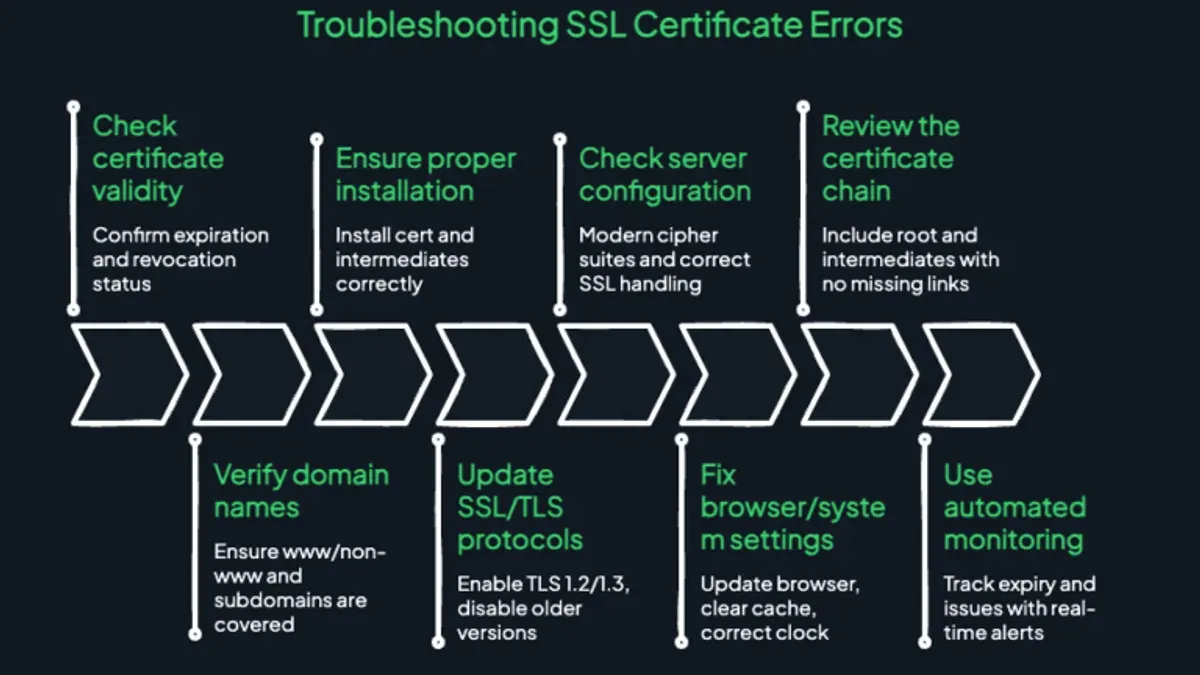
System-wide certificate store corruption or permission issues also warrant professional assistance. If running the macOS Install Certificates script and upgrading the certifi package repeatedly fail, and attempts to manually inspect or modify the system keychain yield permission denied errors or inconsistencies, the issue likely lies deeper in the operating system's trust infrastructure. These problems can be difficult to diagnose without elevated access or specialized tools.
When SSL errors persist only within specific configurations or after environment changes, professionals can help audit the full Python setup, environment variables, and certificate paths to identify mismatches or conflicts.
Before contacting support or a professional service, preparing detailed logs and environment information improves the efficiency of assistance. Collect Python version details (python3 --version), output from running the Install Certificates script, exact error messages, and network settings such as proxy configurations. This information helps diagnose whether issues stem from local configuration, network policies, or deeper system problems.
Follow these steps to prepare for professional help:
- Gather Python environment details by running
python3 --versionand listing installed packages related to SSL (e.g., certifi). - Run the macOS Install Certificates script again and save its output for review.
- Document the exact SSL error messages encountered during Python operations.
- Note any proxy or VPN usage and network interception settings.
Running the 'Install Certificates.command' script immediately after installing or upgrading Python ensures the system's trusted certificates align with Python's requirements. Updating the certifi package follows, reinforcing the certificate bundle Python uses. Skipping or rearranging these steps often leads to persistent errors, as Python relies on both the system and its package to validate SSL connections.
When testing code that temporarily requires ignoring SSL certificate verification, using Python’s verify=False parameter is a practical choice. However, this should be limited to controlled environments, as it removes critical security checks that guard against man-in-the-middle attacks. Persistent or complex SSL errors, especially those involving multiple systems, custom certificates, or corporate firewalls, warrant consultation with IT or security professionals who can provide tailored solutions and ensure secure configurations.
If errors persist despite these steps, especially in environments with custom certificates or proxies, escalating to professional support is advisable.
See also: How to Fix Python Command Not Found on Mac: Step-by-Step Guide · Fixing pip Externally Managed Environment Error on Mac: A Clear Guide · Fix 'xcrun: invalid active developer path' Error on Mac Step-by-Step


