
Fixing pip Externally Managed Environment Error on Mac: A Clear Guide
This guide explains how to fix the pip externally managed environment error on Mac, ensuring smooth Python package management without risking system stability.
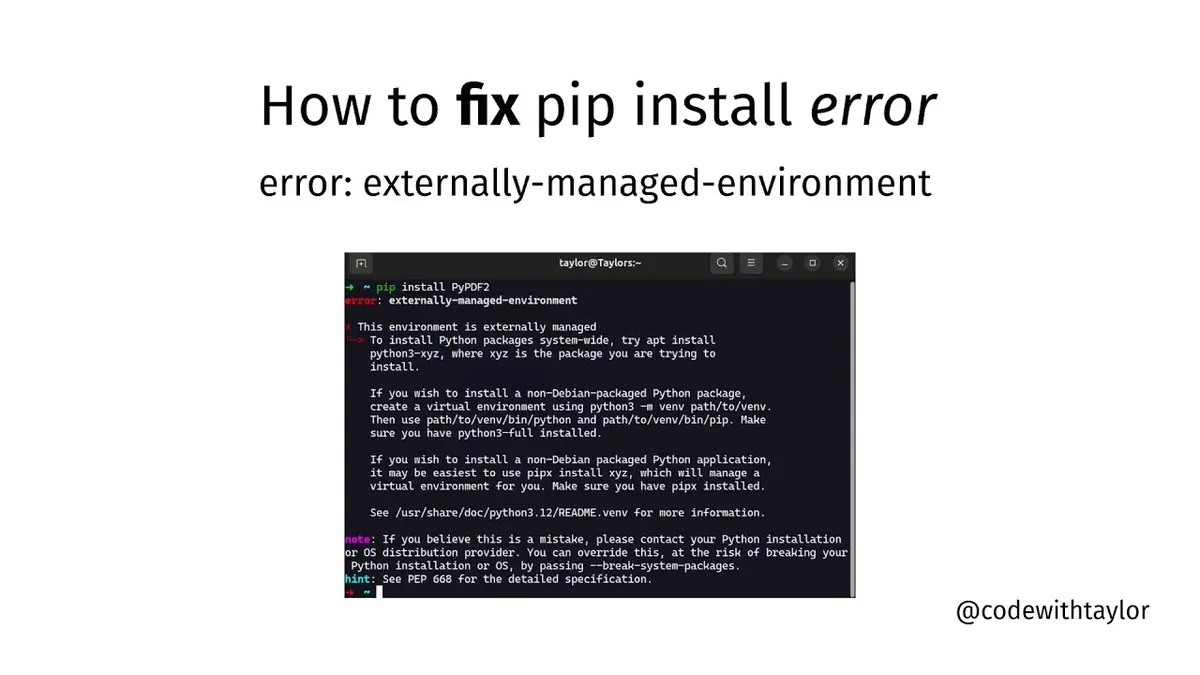
This error typically appears when attempting to install or upgrade Python packages using pip, especially with system Python or versions installed via Homebrew. Resolving this issue requires understanding the error's cause and following a precise sequence of fixes to avoid deeper system conflicts. The pip externally managed environment error on Mac fix starts by recognizing how macOS restricts pip access to protect system-managed Python packages, then progresses through a hierarchy of troubleshooting steps designed to maintain system stability while restoring pip functionality.
Starting with the least invasive measures and only advancing to more complex solutions ensures minimal risk to the Python environment or the operating system.
At a Glance: Clear Steps to Fix the Pip Externally Managed Environment Error on Mac
- Recognize the exact error messages signaling an externally managed environment restriction.
- Understand macOS Python management policies that trigger the error.
- Apply fixes in order: use virtual environments, avoid system Python for pip installs, then consider reinstalling Python if needed.
- Know when to adjust environment variables or PATH settings and when to stop and seek expert help.
Identify the 'pip externally managed environment' error on Mac
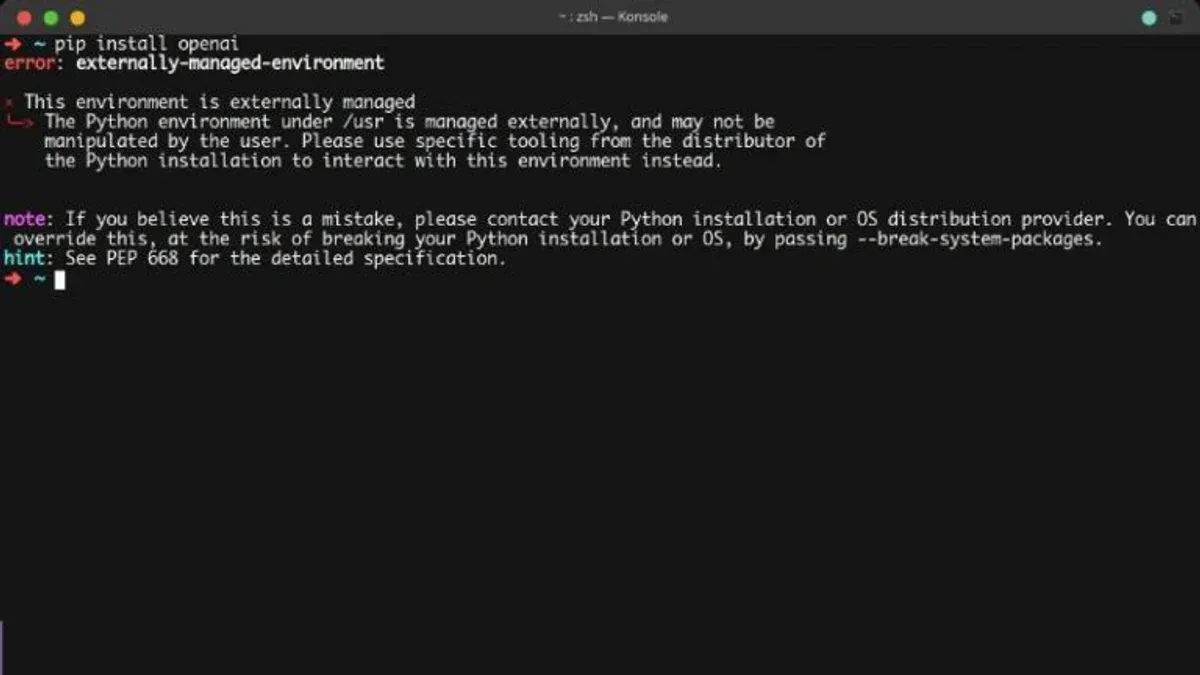
When running pip commands on macOS, encountering the message "pip is being invoked in an externally managed environment" signals a specific restriction. Another common related message is "pip is configured with locations that require TLS/SSL, but the ssl module in Python is not available." These errors typically appear when attempting to install or upgrade packages using the system Python or Python installed via Homebrew. The system or Homebrew-managed Python environments restrict pip to protect system integrity, so these errors prevent changes that could break system-managed packages.
Symptoms include failure to install or update Python packages with pip, accompanied by the exact error messages shown in the terminal. This differs from other Python or pip errors by explicitly mentioning the "externally managed environment" or SSL module issues, rather than generic package installation failures or missing dependencies. Visual confirmation comes from these precise error outputs in the Mac Terminal.
| Error Message or Symptom | Cause | Fix Approach |
|---|---|---|
pip is being invoked in an externally managed environment | Use of system or Homebrew Python restricting pip to prevent package conflicts | Use a virtual environment or install Python from python.org to avoid restrictions |
pip is configured with locations that require TLS/SSL, but the ssl module in Python is not available. | Python build missing SSL support, often in system Python | Install Python version with SSL support or use virtual environment |
To confirm this error and begin resolving it, the following steps apply:
- Run a
pipinstall or upgrade command in Terminal, noting the exact error message. - Check if the Python interpreter used is the system or Homebrew-managed version by running
which python3andpython3 --version. - If the error matches the externally managed environment messages, proceed to isolate Python package management using a virtual environment or install a Python distribution free from these restrictions.
Successful resolution is indicated when pip installs or upgrades packages without showing the externally managed environment error or SSL module message. Avoid applying fixes that alter system Python files directly, as this may cause system instability.
Understand why the 'externally managed environment' error happens
The 'externally managed environment' error on Mac occurs because certain Python installations restrict pip from modifying packages directly. macOS includes a system Python that is essential for operating system tasks; altering its packages risks destabilizing the system. Similarly, Python installed via Homebrew applies controls to prevent pip from changing system-managed packages, indicating this with the 'externally managed environment' flag.
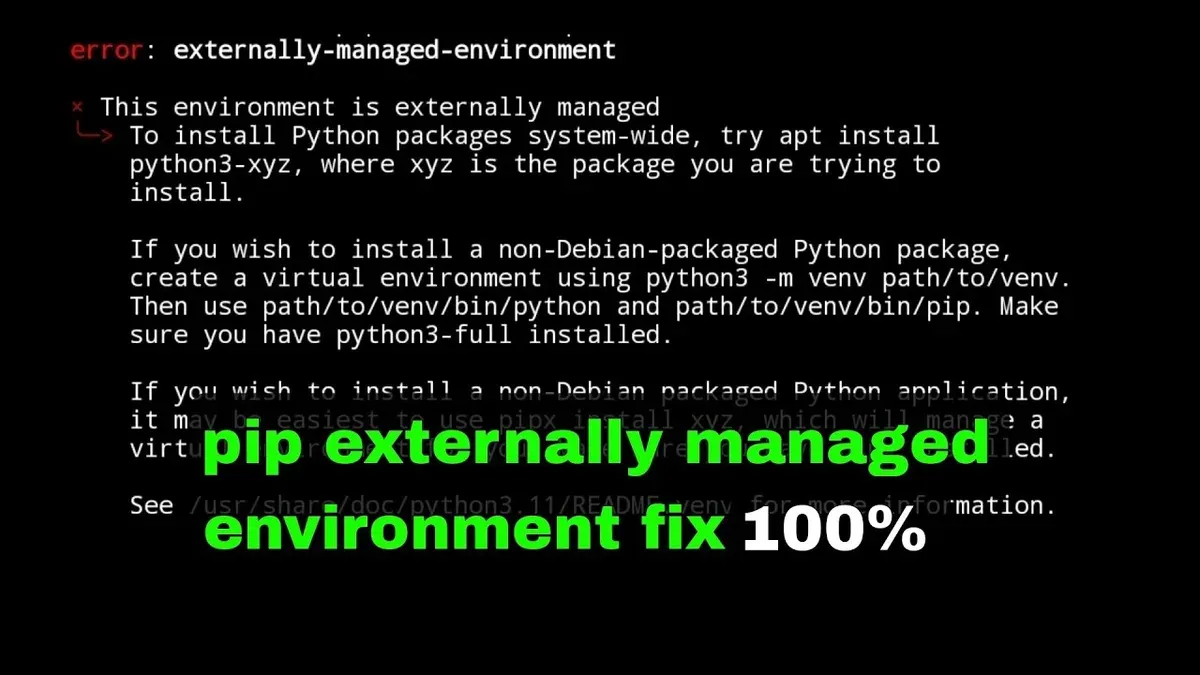
This flag was introduced in recent Python packaging to signal that the environment is managed by an external system, such as the operating system or a package manager. It prevents pip from installing, upgrading, or uninstalling packages outside of its control, thereby protecting critical Python components. Attempting to run pip commands without using a virtual environment or when multiple Python versions conflict triggers this error because pip recognizes that it could disrupt the managed environment.
When this error appears, the safest approach is to avoid modifying the system Python directly. Instead, create and activate a virtual environment where package management is unrestricted. To confirm the fix:
- Create a virtual environment with
python3 -m venv env. - Activate it using
source env/bin/activatein the terminal. - Run pip commands inside this environment; the error should no longer occur.
If pip commands succeed without the error inside the virtual environment, it indicates the problem stemmed from attempts to modify a protected Python installation.
- Create a virtual environment using
python3 -m venv env. - Activate the virtual environment with
source env/bin/activate.
Try the quickest and safest fixes first
When encountering the 'pip externally managed environment' error on a Mac, the first approach is to apply fixes that pose minimal risk and require no deep system changes. A commonly used method is to add the --break-system-packages flag to the pip command. This temporarily overrides the restriction imposed by system-managed Python, allowing package installation despite the warning. For example, running pip install --break-system-packages package_name lets pip proceed, but this flag should be used cautiously since it bypasses system safeguards.
Another safe and highly recommended fix is to create and use a virtual environment. Virtual environments isolate Python packages from the system Python, preventing conflicts and permission issues. To create one, run python3 -m venv myenv, then activate it with source myenv/bin/activate. Inside this environment, pip installs packages without triggering the externally managed error.
Confirming the correct Python and pip versions is essential before applying fixes. Checking with which python3 and which pip3 ensures the expected executables are in use and helps avoid confusion between system Python and other installations. If these commands point to system directories like /usr/bin or Homebrew paths, the restrictions explain the error.
- Run pip with the
--break-system-packagesflag when a quick override is acceptable - Create and activate a virtual environment using
python3 -m venv - Verify Python and pip paths with
which python3andwhich pip3
Perform more involved fixes if quick solutions fail
When quick fixes do not resolve the 'pip externally managed environment' error on Mac, deeper adjustments to the Python setup and environment may be necessary. Reinstalling Python using Homebrew or the official Python installer ensures a clean, user-managed Python environment that avoids system restrictions. To reinstall with Homebrew, run brew uninstall python3 to remove the current installation, then brew install python3 to install a fresh version. This action replaces system-managed Python with a version that allows full pip control, but it requires Homebrew to be installed and updated.
Adjusting the PATH environment variable is essential to prioritize the newly installed Python and pip binaries. Editing the shell configuration file (such as ~/.zshrc or ~/.bash_profile) to include export PATH="/opt/homebrew/bin:$PATH" at the top ensures that the Homebrew Python is the default. After saving the file, running source ~/.zshrc or the equivalent reloads the configuration. This step prevents the shell from calling the system Python, which triggers the error.
If conflicts remain, using pip install --user installs packages in the user directory, avoiding system folders managed by macOS or Homebrew. This method bypasses permission restrictions without altering system Python. Additionally, removing conflicting Python versions or shell aliases that override Python commands helps clear environment confusion. Checking with which python3 and alias commands can identify such conflicts.
Check the outcome and when to seek professional help
After applying fixes for the pip externally managed environment error, verifying that the issue is resolved is crucial. Begin by testing pip installs with a simple package, such as pip install requests --break-system-packages if using the flag approach, or within a virtual environment by activating it and running pip install requests. Successful installation typically displays lines ending with "Successfully installed requests-" without error messages. If installation completes cleanly, the fix has worked.
Persistent errors despite following the recommended troubleshooting steps may indicate deeper issues with the Python environment or system integrity. Common signs include repeated messages about system package management conflicts, permission denials, or corruption warnings when running pip commands. These symptoms suggest that underlying system protections or Python installations are damaged or misconfigured beyond straightforward fixes.
When basic and advanced steps fail, consulting a Mac technician with experience in system-level Python management or a Python environment specialist is advisable. These professionals can safely diagnose complex environment conflicts, potential file system issues, or permission problems without risking system stability. Avoid running risky commands that disable system protections without expert guidance, as this can lead to irreversible damage.
- Test pip installation of a simple package to confirm success
- Observe for persistent error messages indicating deeper problems
- Contact a specialist if errors continue after all fixes
Final checklist to resolve pip externally managed environment error on Mac
Begin by confirming the exact error message displays the phrase "externally managed environment." This verification ensures the troubleshooting applies to the correct issue. Next, test pip commands with the --break-system-packages flag to safely bypass system restrictions without risking package integrity.
Create and activate a virtual environment before running pip installs. This isolates package changes from the system Python and prevents conflicts. Verify the active Python and pip versions and their file paths using which python3 and which pip3 to confirm they point to the intended environments.
If the error persists, reinstall Python through Homebrew or the official Python installer. After reinstalling, adjust the PATH environment variable to prioritize the newly installed Python directory, ensuring it is used instead of the system or conflicting versions. When installing packages, use pip install --user to avoid modifying system directories.
Finally, remove any conflicting Python installations or shell aliases that may interfere with pip’s operation. After each step, test pip functionality to confirm progress. If pip installs succeed without the externally managed error, the fix is effective.
Essential Steps to Resolve the pip Externally Managed Environment Error on Mac
See also: Fix 'xcrun: invalid active developer path' Error on Mac Step-by-Step · How to Fix Python Command Not Found on Mac: Step-by-Step Guide · Fix 'zsh: command not found' on Mac: Step-by-Step Solutions · How to Fix Steam Games That Won't Launch on Mac


