
Fix 'xcrun: invalid active developer path' Error on Mac Step-by-Step
Learn how to fix the xcrun invalid active developer path error on Mac with a clear step-by-step troubleshooting guide.

Resolving the xcrun: invalid active developer path error requires a clear understanding of its cause and the correct sequence of corrective steps. This error typically appears when the system’s developer tools path is misconfigured or missing, preventing crucial command-line developer tools from functioning.
Following this step-by-step guide will enable efficient troubleshooting and repair of this issue, covering the precise order in which commands and installations must be executed. The guide addresses common reasons behind the error message and offers a reliable method for the xcrun invalid active developer path on Mac fix.
The process also explains the importance of each step’s placement in the sequence to avoid persistent problems.
Check What Triggers the 'xcrun' Error
The 'xcrun: invalid active developer path' error arises when the system cannot locate the command line developer tools required for certain operations. This usually happens after macOS updates or changes to Xcode, which can remove or misconfigure the active developer directory path. When this path is invalid or deleted, attempts to run tools like git or xcodebuild prompt the 'xcrun' failure.
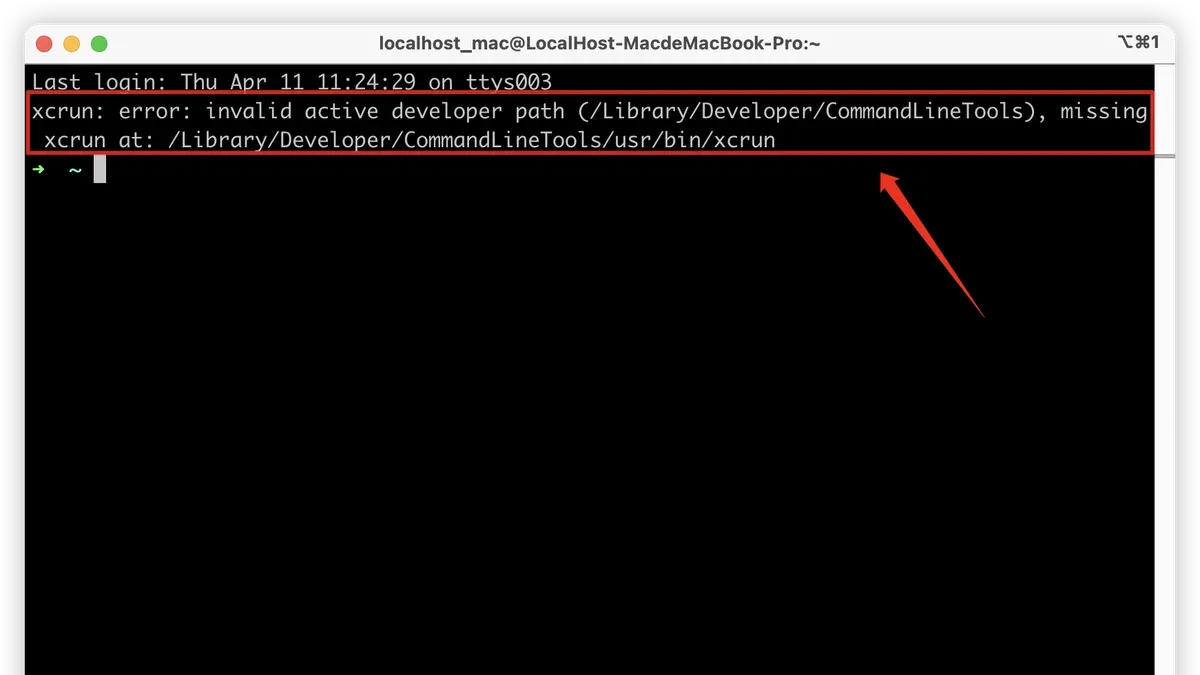
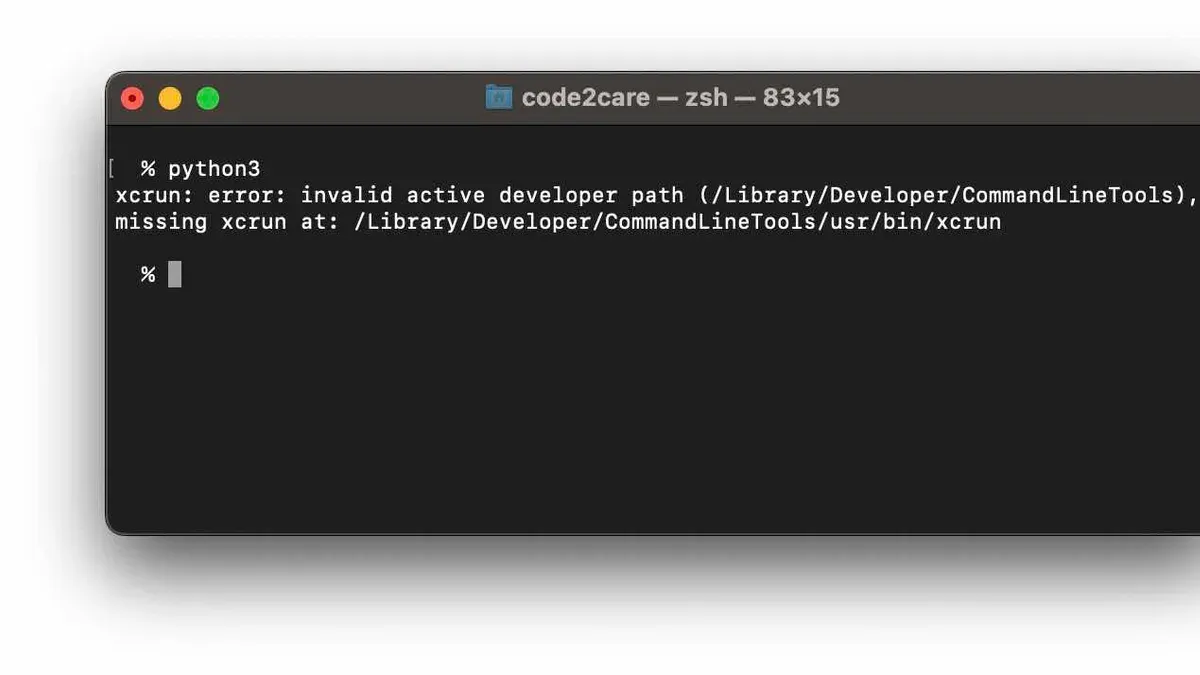
Common commands that trigger this error include running git status, xcodebuild -version, or other command line utilities dependent on developer tools. The terminal typically displays the message exactly as:
xcrun: error: invalid active developer path (/Library/Developer/CommandLineTools), missing xcrunTo clarify the relationship between symptoms, causes, and fixes, consider this failure map:
| Symptom | Cause | Fix |
|---|---|---|
xcrun: error: invalid active developer path (/Library/Developer/CommandLineTools), missing xcrun | Deleted or moved command line tools after system or Xcode update | Reset active developer path with sudo xcode-select --reset |
| Command line tools not installed | Initial setup missing or removed | Install developer tools via xcode-select --install |
Prepare to Reset the Developer Path
Before beginning the reset process, certain prerequisites must be in place to ensure a smooth resolution. Administrator privileges are essential because the key command sudo xcode-select --reset requires elevated permissions to modify system settings related to developer tools. Without such rights, the reset command will fail to execute properly.
If the developer tools are missing or need reinstallation, macOS will attempt to download these components, which can be a sizable download depending on the system version and tools involved. Interruptions during this download can cause incomplete installations, leading to persistent errors.
No additional software needs to be installed if the developer tools are already present and only the active developer path requires resetting. However, if there is uncertainty about the presence or integrity of these tools, be prepared for the system to fetch and install them during the reset process.
- Confirm administrator access on the Mac by verifying that the account can run commands with
sudo. Successful execution will prompt for the account password. - Ensure the Mac is connected to the internet with a stable connection to support any required downloads.
- Open the Terminal application to enter commands necessary for resetting the developer path.
- Be ready for possible prompts to download developer tools if they are missing; this download can take several minutes based on internet speed.
It does not apply to accounts without administrative privileges or systems that have restrictions preventing the installation or modification of developer tools.
Reset the Active Developer Path Correctly
Resolving the 'xcrun: invalid active developer path' error requires a specific sequence of actions to restore the developer tools properly. Begin by ensuring the command line developer tools are installed, as attempting to reset the path without them leads to persistent failures. Installing the tools first prepares the system for a successful reset.
- Run
xcode-select --install. This command prompts the system to install the necessary command line developer tools if they are missing. A software update window should appear, guiding through the installation process. If the tools are already installed, a message will indicate this, and no installation will proceed. - After confirming the tools are present, execute
sudo xcode-select --reset. This command resets the active developer directory to the system default path, which is essential for correcting the invalid path error. Administrator privileges are required for this step. Running this command before installing tools will not resolve the error and may cause repeated prompts or failures. - Check the active developer path with
xcode-select -p. The expected output is a valid path such as/Applications/Xcode.app/Contents/Developeror/Library/Developer/CommandLineTools. Finally, test the fix by runningxcrunalone or with a subcommand likexcrun clang --version; no error messages should appear.
Following this order avoids the common pitfall of resetting the path before tools are installed, which leaves the system pointing to a non-existent directory and perpetuates the error. Terminal output before the fix typically shows the error message "xcrun: error: invalid active developer path", whereas after these steps, the command runs without error, confirming the resolution.
Troubleshoot Persistent Issues and Alternative Fixes
If the standard reset does not resolve the 'xcrun: invalid active developer path' error, further steps are necessary to address persistent issues. One common cause is having multiple versions of Xcode installed, which can confuse the active developer path. In this case, manually setting the path to the correct Xcode installation is essential.
- Open Terminal and enter
sudo xcode-select -s /Applications/Xcode.app/Contents/Developer. This command explicitly points the system to the main Xcode developer directory. - After running the command, test by executing
xcrun --version. If the version prints without error, the path is correctly set. - If errors persist, consider uninstalling Xcode completely. Deleting the
/Applications/Xcode.appfolder removes the existing installation. - Reinstall Xcode from the official source to ensure a clean and uncorrupted setup. Then repeat the manual path setting command as above.
Comparing path settings reveals that using a non-existent or outdated developer directory results in the same 'invalid active developer path' error, while correctly specifying the full Xcode developer path restores functionality. Reinstalling Xcode resolves issues stemming from corrupted or incomplete installations that resetting alone cannot fix.
Verify the Fix and Maintain Developer Tools
After resetting the active developer path, confirming the fix is essential to ensure development commands function correctly. Run common commands such as xcodebuild -version and git --version in the Terminal. Successful execution without error messages indicates the developer tools are properly configured. For example, xcodebuild -version should return the installed Xcode version, while git --version displays the Git version.
macOS updates can invalidate the active developer path, causing the error to reappear. It is prudent to repeat the reset procedure following system upgrades to maintain a valid developer directory. Periodically verifying the developer path and tools installation after such updates prevents prolonged disruptions in development workflows.
To check the current active developer directory, run xcode-select -p. It should point to the correct Command Line Tools or Xcode directory, typically /Library/Developer/CommandLineTools or /Applications/Xcode.app/Contents/Developer. If it deviates, running sudo xcode-select --reset restores the default path.
- Open Terminal and enter
xcodebuild -version. Success shows version info without errors. - Run
git --version. The command returns Git’s version number. - Check the active developer path with
xcode-select -p. Confirm it matches the expected directory for installed tools. - After any macOS update, repeat steps one through three to ensure continued functionality.
Undoing recent changes to developer tools installations or updates can be done by reinstalling the tools or resetting the path again if needed.
See also: How to Fix Homebrew Permission Denied Errors on Mac · Microsoft Word Keeps Crashing on Mac: How to Fix It Step-by-Step · How to Fix 'Cannot Be Opened Because the Developer Cannot Be Verified' on Mac · How to Fix ‘An Error Occurred While Preparing the Installation’ on Mac


