
How to Fix 'Cannot Be Opened Because the Developer Cannot Be Verified' on Mac
Learn how to fix the 'cannot be opened because the developer cannot be verified' error on Mac and safely open blocked apps with simple steps.
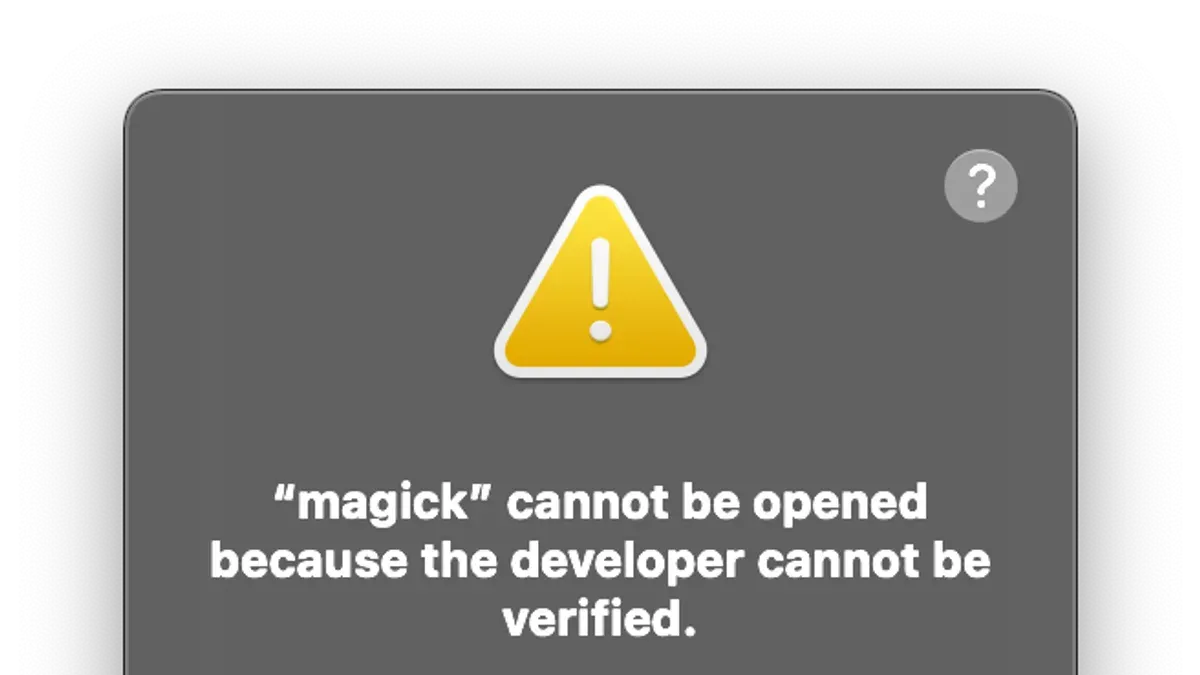
You double-click a Mac app and get the warning “cannot be opened because the developer cannot be verified.”
Apple’s checks are meant to stop outside-App-Store software until macOS can verify the developer identity and, on newer systems, notarization.
Checked in November 2026 against Apple Support, Apple Developer, Apple Developer Documentation (full list at the end); limits like these change, so the date matters.
Quick overview of the Mac fix
Fix the block with the quickest approved method
Apple’s current support flow is simple: try to open the app once, then use the built-in override path in System Settings. That is the cleanest fix when you trust the app and only need to launch it once.
- Double-click the app once so macOS shows the warning.
- Open System Settings, then go to Privacy & Security.
- In the Security section, find the blocked app and click Open Anyway.
- Confirm with Open when macOS asks again.
This is the route Apple wants you to use for a trusted app that was blocked by Gatekeeper. Gatekeeper is the macOS security technology that checks software from outside the App Store before it runs.
What the warning means and why it appears
macOS checks outside-App-Store apps with a Developer ID signature so it can confirm the software came from an identified developer and has not been altered. On macOS Catalina and later, Apple also requires outside-App-Store software to be notarized by default.
If the developer cannot be verified and the app has not been notarized, macOS cannot verify that the app is free of malware. That is why this alert appears instead of launching the app normally.
It is not the same as the App Store-only alert, the damaged-app alert, or the “Apple cannot check” alert, and the next step is different for each one.
| What you see | What it means | What to do |
|---|---|---|
| Cannot be opened because the developer cannot be verified | The app is not passing the trust check for outside-App-Store software | Use Open Anyway only if you trust the app |
| App is blocked as damaging your computer | macOS detected malicious content or a revoked authorization | Do not override it; find another source or version |
| macOS says it can’t be opened because it is damaged | The app is modified or damaged | Do not treat it as a normal verification issue |
| Apple cannot check the app for malicious software | This is a different warning with a different next step | Use the matching Apple guidance for that alert |
Choose the right path for your situation
The same warning can have very different answers depending on whether you trust the app, want a broader allowance, or are blocked by management settings.
| If this is your situation | Then do this | Why this fits |
|---|---|---|
| You trust the app and only need to open this one copy once | Use Open Anyway in System Settings > Privacy & Security | Apple presents this as the temporary exception path for a trusted app |
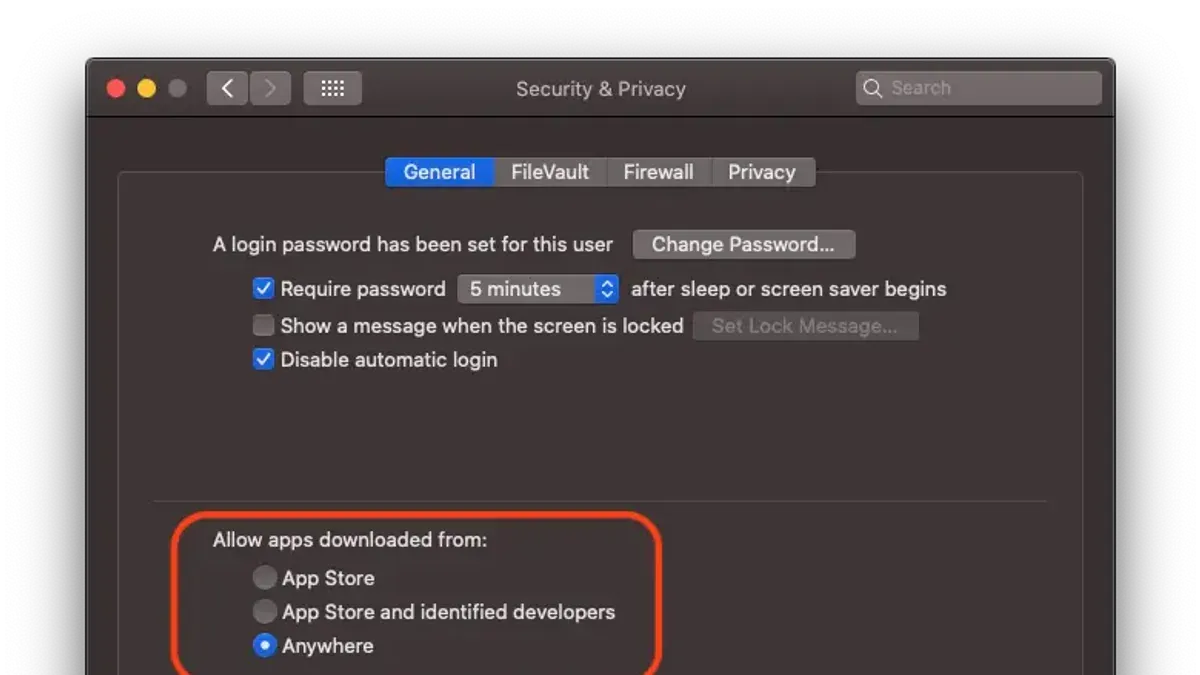
| You want the Mac to allow more outside-App-Store apps in general and the Mac is not managed by IT | Change the allowance setting in System Settings > Privacy & Security > Security to App Store and identified developers | This is the broader app gate for less restrictive approval |
| The app came from an untrusted source or the alert is about damage or malware | Do not override the block | Apple treats these as different risks, not a normal trust exception |
| You are the developer and want users to stop seeing the warning | Use a Developer ID certificate and submit the software for notarization | That is what Gatekeeper expects for software distributed outside the Mac App Store |
Use the broader app allowance only when you actually need it
If you want the Mac to allow more apps from outside the App Store, the current setting is in System Settings > Privacy & Security > Security. There you can choose either App Store or App Store and identified developers.
Apple says the safest source for Mac apps is the App Store. It also says the App Store provides worldwide distribution and payment processing in 175 regions, with unlimited hosting and bandwidth for apps, updates, in-app purchases, and more.
Notarization is not required for software distributed through the Mac App Store because the App Store submission process already includes equivalent security checks.
What to check before you change the setting
Apple says these Privacy & Security controls might not be available if the Mac is managed by a system administrator or IT department.
What changes on managed or shared Macs
On managed Macs, you may not be able to change the app allowance setting or use the one-app override. That is normal when an organization controls software policy through administration tools.
If the Open Anyway button is missing or the setting is grayed out, the restriction may be coming from device management rather than from the app itself. In that case, you need the administrator to approve the app or adjust the policy.
For shared Macs, the same rule applies if a system administrator has locked the security settings.
If you need the app on a managed device, ask the administrator or IT team to review the app and approve it centrally. The user-level override path is not guaranteed to be available on such machines.
How the older macOS path differs
Older Apple guidance used a different menu path. On those systems, the setting appeared under System Preferences > Security & Privacy > General, and the button was also called Open Anyway.
That older guide also showed a Finder route: control-click the app, choose Open, then click Open in the dialog that appears. That still describes the same idea: trigger the warning first, then approve the app once.
| Version path | Menu path | Action |
|---|---|---|
| Current macOS flow | System Settings > Privacy & Security > Open Anyway | Approve one blocked app after the first failed launch |
| Current app gate setting | System Settings > Privacy & Security > Security | Choose App Store or App Store and identified developers |
| Older macOS flow | System Preferences > Security & Privacy > General | Click Open Anyway there |
| Older Finder flow | Finder > control-click app > Open > Open | Approve the app from the Finder context menu |
If you are following a guide that still says System Preferences, that guide is using the older layout. On the current Apple support flow, use System Settings instead.
When the app should not be opened
Do not treat every blocked app as if it needs the same fix. Apple says that if macOS detects malicious content or revoked authorization, the app may be blocked as damaging your computer; if it is modified or damaged, macOS says it cannot be opened; and if it is known malware, macOS moves it to the Trash.
That means the correct response is to stop and find another source or version when the warning is about malware or damage. The verification alert is a trust issue; the damage and malware alerts are not.
This is the main place people go wrong: they see a block and assume every block is safe to bypass. It is not.
When you are the developer
If you are trying to prevent users from seeing this warning, the fix is on the signing side, not on the user side. Apple expects outside-App-Store software to be signed with a Developer ID certificate and notarized before distribution.
Apple says you can create up to five Developer ID Application certificates and up to five Developer ID Installer certificates. Its notary service handles macOS apps, non-app bundles such as kernel extensions, disk images in UDIF format, and flat installer packages.
Apple also says software built after June 1, 2019 and distributed with Developer ID must be notarized to run on macOS 10.15 and later. That is why older unsigned distribution practices no longer work reliably on current systems.
The notary service no longer accepts uploads from altool or Xcode 13 or earlier starting November 1, 2023. If you are packaging new software now, use the current notarization workflow rather than an obsolete upload path.
A Developer ID certificate plus an Apple notarization ticket lets Gatekeeper verify that the software is not known malware and has not been tampered with. That is the combination you want if you are distributing outside the Mac App Store.
Apple says Gatekeeper was introduced in macOS 10.7.5. Its role has been to keep unverified software from running by default ever since.
How to tell whether the fix worked
The fix worked if the app opens normally when you double-click it and the verification warning does not return. If you used Open Anyway, the app should now behave like an authorized app on future launches.
If the warning returns, stop and check the type of alert again. A damaged-app or malware warning needs a different response, and a managed Mac may still be enforcing policy even after you try the override.
Confirm the app opens correctly
Use this final check to make sure you actually cleared the right block and did not weaken security more than necessary.
If the app still will not open after the correct override path, the problem is usually one of three things: you are looking at a different security warning, the Mac is managed, or the app itself is damaged, modified, or not properly signed and notarized. In that case, do not keep forcing the launch; either use the approved override path, get administrator help, or replace the app with a properly signed and notarized version.
Source notes and references
- Safely open apps on your Mac — Apple Support
- Developer ID certificates — Apple Developer
- Distributing software on macOS — Apple Developer
- Notarizing macOS software before distribution — Apple Developer Documentation
- macOS - Safely Open Apps on your Mac Quick Guide — Virginia Department of Health



