
How to Fix the Application Can't Be Opened on Mac Error
Discover practical steps to fix the application can't be opened on Mac error by addressing macOS security, permissions, and Gatekeeper settings.
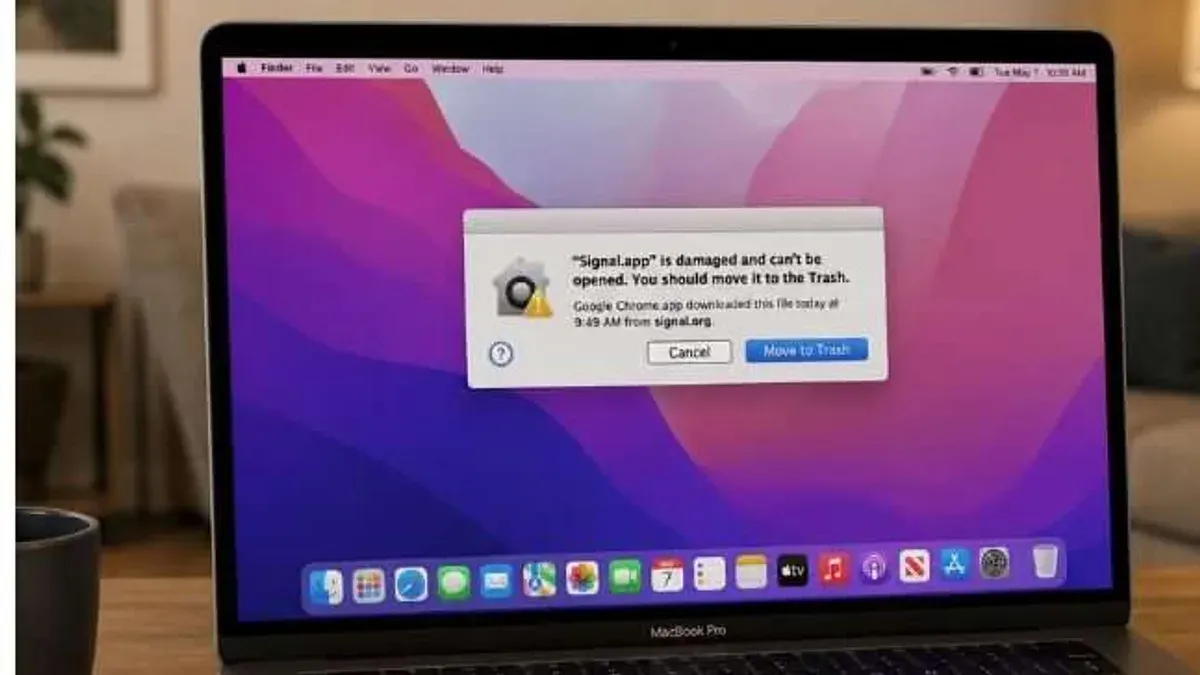
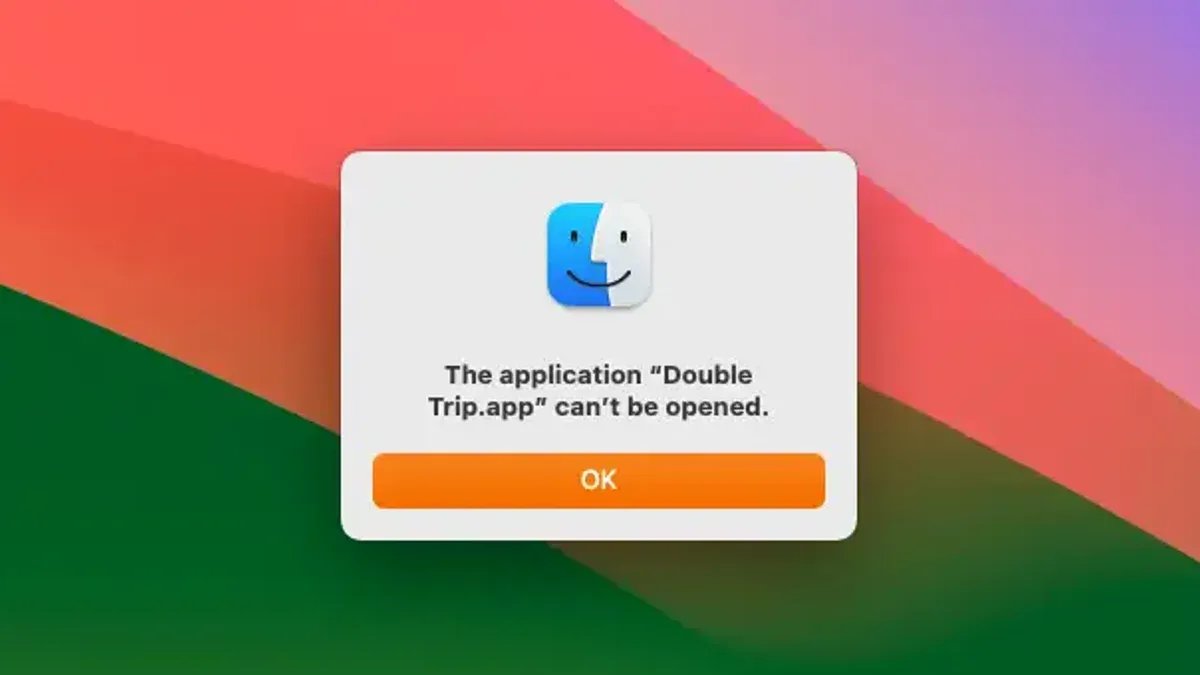
You try to open an app on your Mac, but instead of launching, a message pops up saying the application can't be opened. This common hurdle can stop work in its tracks, especially when you need the app immediately.
Understanding the application can't be opened on Mac fix involves knowing how macOS handles app security and permissions. Many times, the issue stems from macOS blocking apps that aren’t notarized or have altered permissions, which can be resolved with targeted actions.
This article walks you through clear, practical steps to diagnose and fix why certain applications won’t open, focusing on macOS-specific security settings, permissions, and the quirks of Gatekeeper that often confuse users.
Why can't I open certain applications on my Mac
Several factors can prevent applications from launching on your Mac. One common cause is macOS security features like Gatekeeper, which blocks apps from unidentified developers to protect your system. You might see an error such as “cannot be opened because Apple cannot check it for malicious software,” indicating the app hasn’t been notarized or verified.
App damage or file corruption also stops applications from opening. If the app’s files are incomplete or altered improperly, macOS may refuse to launch it to avoid instability.
Compatibility issues can arise when an app is designed for an earlier or different macOS version or incompatible hardware, leading to failure on newer machines or systems.
Downloaded or transferred apps often carry quarantine flags that macOS uses to control access until you explicitly allow them. Without clearing these flags, the app may remain blocked.
User permission problems, such as insufficient read or execute rights, can also prevent launching. If you lack the necessary permissions, macOS won't run the app.
Tip: When you encounter a Gatekeeper block, the “Open Anyway” button only appears after the first launch attempt in the Security & Privacy settings, allowing you to override the block safely.
How to fix application not opening on Mac by checking app permissions
Incorrect file or folder permissions can prevent an app from launching properly. To verify and adjust these permissions, start by locating the application in Finder.
- Right-click the app icon and select Get Info. In the Info window, scroll to the Sharing & Permissions section at the bottom. You should see your user account listed along with the permission level.
- Check that your user account has Read & Write access. If it shows Read only or No Access, click the lock icon at the bottom right, enter your administrator password, then change the privilege to Read & Write.
- Close the Info window and try opening the app again. If it still won’t open, proceed to use Terminal for advanced permission adjustments.
- Open Terminal and enter
chmod +xfollowed by a space. Drag the app’s executable file into the Terminal window to automatically fill its path, then press Enter. This command adds execution permission to the app. - Verify execution permission by running
ls -lwith the app path; you should see an x in the permission string, confirming executability. - Try launching the app once more. If it opens, the permission fix worked. If not, confirm your user account has sufficient privileges by checking Users & Groups in System Settings and ensuring your account type is Administrator or Standard with full access.
Tip: Sometimes apps fail to launch because permissions are set correctly on the app but not on related support files or folders in ~/Library. Check permissions there if problems persist.
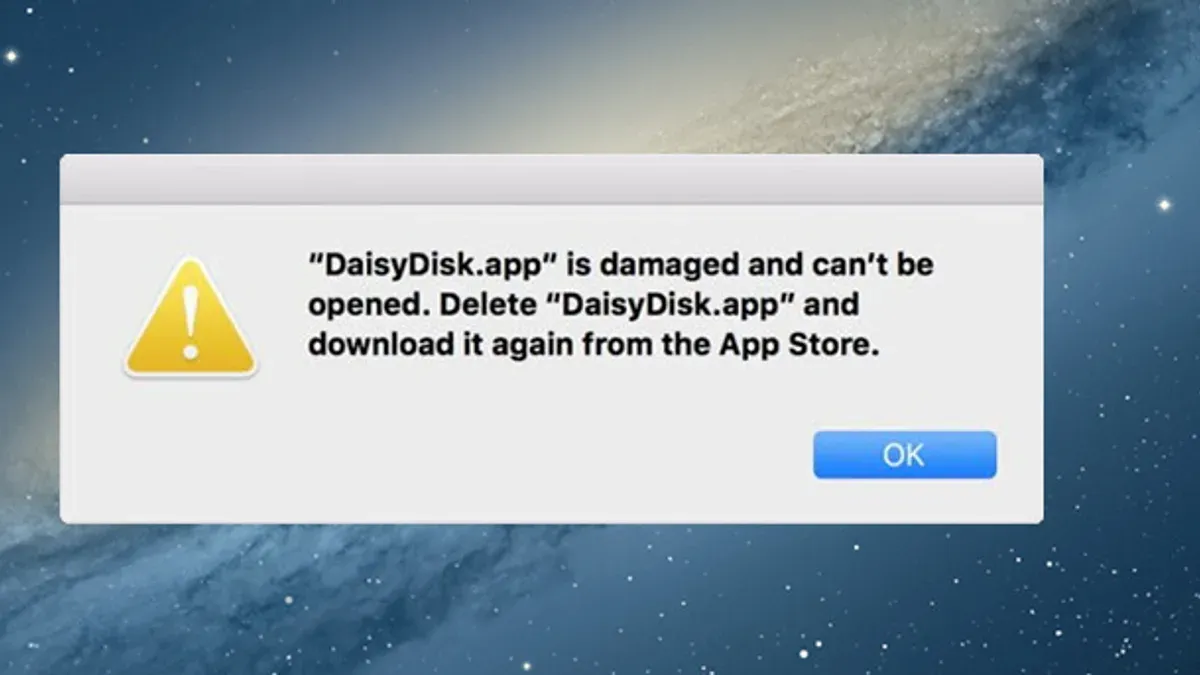
How to fix the 'application is damaged and can't be opened' error on Mac
- Delete the damaged application by dragging it to the Trash. This removes corrupted files that prevent launch.
- Download a fresh copy of the application from a trusted source. Ensure it is compatible with your macOS version to avoid repeated errors.
- Open Terminal and enter the command
xattr -d com.apple.quarantinefollowed by a space, then drag the freshly downloaded app into the Terminal window and press Enter. This removes the quarantine attribute that can block app opening. - Launch Disk Utility from the Utilities folder and run First Aid on your startup disk. This scans and repairs disk permissions and file system errors that could cause app damage.
- Check for app updates or look for alternative versions that explicitly support your macOS release. Updating or switching can resolve incompatibilities causing damage errors.
- Try opening the app again. If the error persists, Terminal command success is usually indicated by no output after execution, and Disk Utility will report completion without errors.
Tip: After running the xattr -d com.apple.quarantine command, the error message should no longer appear when opening the application.
How to fix the application cannot be opened Mac fix by adjusting security settings
If macOS blocks an app from opening, you can adjust security settings to allow it while maintaining system protection. Start by opening the Security & Privacy pane in System Settings and look under the General tab.
- Locate the section titled "Allow apps downloaded from". If it is set to "App Store" only, change it to "App Store and identified developers" to widen the permission scope. You should see the option update immediately.
- Try opening the blocked app again. If macOS still prevents it, return to the General tab where you will often see an "Open Anyway" button. Click this button to manually allow the app. The app should launch after you confirm in the new dialog.
- Understand that bypassing Gatekeeper checks by enabling "Anywhere" is possible but not recommended, as it reduces protection against unverified software. This option is hidden by default and requires running a Terminal command to appear.
- After successfully launching the app, reset your security settings to the previous level to keep your Mac protected. Revert "Allow apps downloaded from" back to "App Store and identified developers" or stricter as you prefer.
Tip: The "Open Anyway" button only appears after an attempt to launch a blocked app, so try opening the app first to reveal this option.
Screenshots of the Security & Privacy settings panel and logs of Gatekeeper events can confirm which apps were blocked and allowed, helping you track changes made.
How to troubleshoot when 'mac app not opened could not verify' error appears
This error stems from macOS Gatekeeper’s inability to confirm an app’s notarization status, a security process Apple uses to verify apps are free from malicious content. Notarization involves Apple scanning and approving apps before users open them, but sometimes cached data or quarantine flags cause verification failures.
To resolve this, reset any cached data and quarantine attributes that might block app verification. Use Terminal commands to clear these flags and reset Gatekeeper’s settings.
- Open Terminal from Applications > Utilities.
- Type
xattr -d com.apple.quarantinefollowed by a space, then drag the problematic app’s icon into Terminal to autofill its path. Press Enter. This removes the quarantine flag preventing verification. - Next, enter
spctl --reset-defaultand press Enter. This resets Gatekeeper’s security settings to their default state, clearing any corrupted verification caches. - Quit Terminal, then try opening the app again. It should now verify and launch without the error.
- If the issue persists, re-download or reinstall the app from a trusted source to ensure you have a notarized version.
Tip: Apple developer documentation explains notarization as an automated check to protect macOS users from malicious software, but Gatekeeper’s behavior varies with macOS versions and app notarization status.
User reports consistently show that removing quarantine flags and resetting Gatekeeper often resolves verification errors that block apps from opening.
When to seek professional help or consider alternative solutions
If you have tried all recommended fixes and the application still won’t open, it may be time to consult professional support. Persistent launch failures can indicate deeper system-wide corruption or malware that requires advanced diagnostics and repair beyond typical user tools.
Applications demanding specific hardware capabilities or macOS versions that your Mac does not support also fall outside common troubleshooting. For example, apps designed for the latest Silicon chips might not run properly on older Intel Macs, making professional advice or alternative software necessary.
Complex permission or user account issues sometimes require intervention from Apple Support or certified technicians who can safely reset system components or perform clean installations without risking data loss.
- Contact Apple Support or visit an authorized service provider to diagnose persistent errors. You should receive a clear explanation or repair plan if the issue is hardware or system-level.
- If your Mac is suspected of malware infection, professional tools can remove threats that standard user methods cannot detect, restoring app functionality.
- Explore alternative applications compatible with your macOS version and hardware if the current app is unsupported. Professionals can recommend suitable replacements.
- Weigh the cost of professional help against ongoing troubleshooting time and potential data risk. Certified technicians offer a safer, often faster path to resolution.
Tip: Before seeking help, back up your data to avoid loss during advanced repairs or reinstalls.
- How to Fix Your System Has Run Out of Application Memory on Mac
- How to Fix Kernel Panic After Update on Mac
- How to Disable App Nap in Mac Terminal: Step-by-Step Instructions
- How to Run Python Scripts in Mac Terminal: A Clear Step-by-Step Guide
Frequently asked questions
How to fix app not opening?
If an app won’t open, first check its permissions in the Finder by selecting the app and pressing Command+I to open the Info window. Ensure you have the right to open it under “Sharing & Permissions.” Also, verify in System Settings under “Privacy & Security” if the app is blocked; if so, use the “Open Anyway” button after attempting to launch the app. Running the Terminal command xattr -d com.apple.quarantine on the app can remove quarantine flags that block opening.
How to fix application cannot be opened on mac?
This error often relates to macOS security measures like Gatekeeper. After trying to open the app, go to System Settings > Privacy & Security and look for an “Open Anyway” option to allow it. If the app is damaged or not notarized, resetting Gatekeeper with spctl --reset-default in Terminal may help, but only if you trust the app source. Re-downloading the app from a verified developer can also resolve corruption issues.
Why won't an application open?
An application might not open due to insufficient permissions, macOS security blocking unnotarized apps, or file corruption. Gatekeeper may prevent launching apps that are unsigned or altered, showing messages like “application is damaged.” Checking app permissions, adjusting security settings, or removing quarantine attributes often resolves this. Occasionally, incompatibility with the macOS version can also prevent opening.
When to consult experts or explore other options
This advice focuses on common macOS app-opening errors and how to resolve them through settings and permissions. Issues caused by hardware failure, deep system corruption, or macOS bugs that resist standard troubleshooting steps require professional diagnosis. If your Mac frequently crashes, fails to boot properly, or shows signs of hard drive problems, contacting Apple Support or authorized technicians is advisable.
Removing or reinstalling problematic apps might not fix issues linked to malware or corrupted system files. In such cases, advanced tools or clean installations performed by experienced users or professionals provide safer solutions.
The most practical next step is to check the "Open Anyway" button in the Security & Privacy section right after macOS blocks an app. This option appears only after an app is prevented from opening and allows you to override Gatekeeper restrictions safely when you trust the source. Missing this step often causes confusion and unnecessary app deletion.



