How to Disable App Nap in Mac Terminal: Step-by-Step Instructions
Discover how to disable App Nap in Mac Terminal to prevent pauses and slowdowns during long-running Terminal processes with easy step-by-step commands.
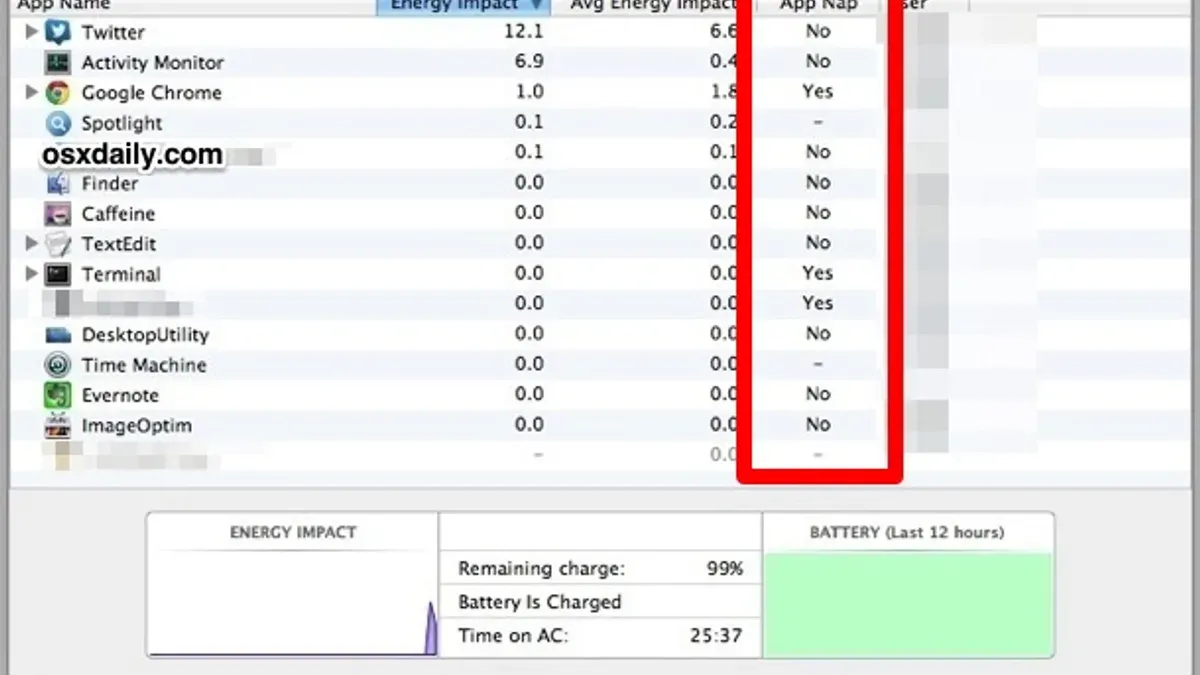
When running long Terminal processes on your Mac, you might notice unexpected slowdowns or pauses. This can happen because macOS uses a feature called App Nap to save energy by limiting background app activity.
This article explains how to disable App Nap in Mac Terminal, showing you step-by-step commands and techniques. You'll also learn when disabling App Nap is helpful for keeping your Terminal workflows active and when it might be better to leave it enabled.
Key takeaways
- App Nap can pause or slow Terminal processes when the app is inactive.
- You can disable App Nap specifically for Terminal using Terminal commands.
- Disabling App Nap system-wide is usually unnecessary and may reduce battery life.
- Checking Terminal process activity helps determine if App Nap is affecting your work.
- Troubleshooting steps can resolve common issues after disabling App Nap.
Before you start: understanding App Nap and what you need
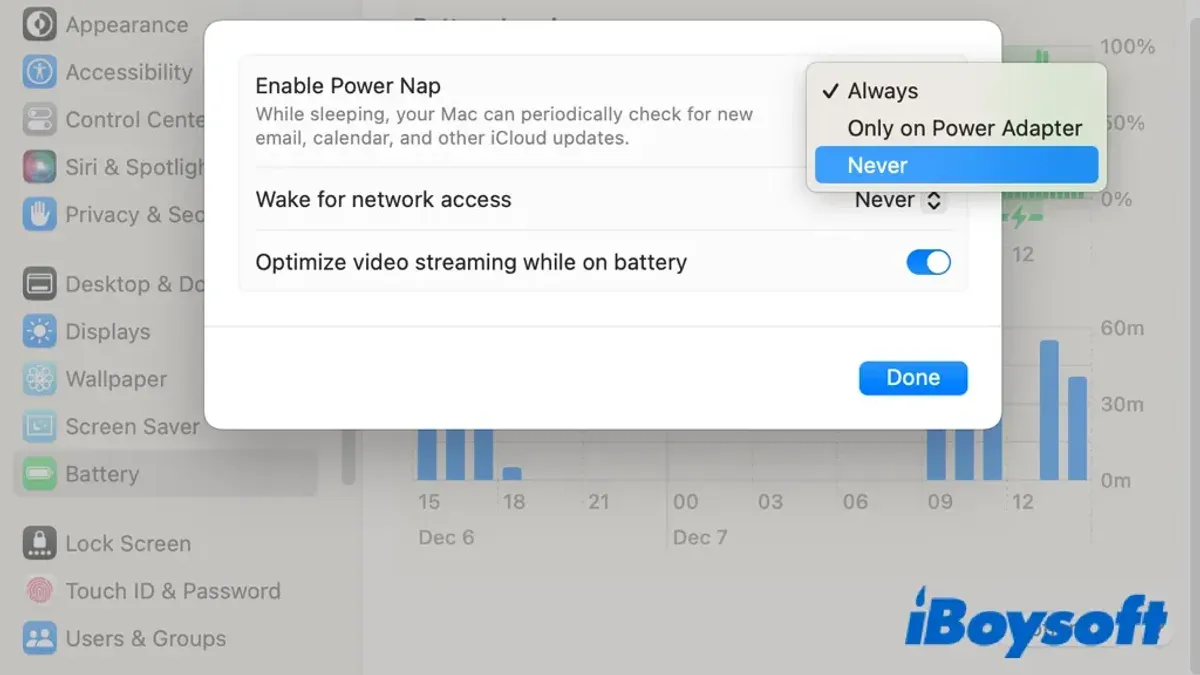
App Nap is a macOS feature designed to conserve battery life by pausing or slowing down applications that are running in the background. While this helps extend battery life on Mac laptops, it can interfere with Terminal workflows by suspending long-running commands or scripts when the Terminal window is not actively in use.
Examples of Terminal activities impacted by App Nap include lengthy data transfers using rsync, prolonged compilation processes with make, or scripts running extensive loops. When App Nap activates, these processes may pause unexpectedly, delaying completion.
Before disabling App Nap for Terminal, you need administrator access to execute system-level commands. Familiarity with basic Terminal commands is also essential, as you will be modifying app settings through the command line.
Keep in mind that disabling App Nap increases energy consumption, potentially reducing battery life. It is advisable to disable it only when you experience interruptions, and to re-enable it when uninterrupted background activity is no longer necessary.
How to disable App Nap for Terminal using Terminal commands
- Open Terminal on your Mac. This is where you'll enter the commands to modify App Nap settings specifically for the Terminal app.
- Enter the following command to disable App Nap for Terminal:
defaults write com.apple.Terminal NSAppSleepDisabled -bool YES
This command sets the preference to prevent App Nap from affecting Terminal processes. - To apply the change, quit Terminal completely and then reopen it. You can quit Terminal by pressing Cmd + Q or selecting Terminal > Quit Terminal from the menu bar.
- Verify the setting took effect by running:
defaults read com.apple.Terminal NSAppSleepDisabled
If the terminal outputs 1 (or YES), App Nap is disabled for Terminal. - If you want to re-enable App Nap for Terminal later, use:
defaults delete com.apple.Terminal NSAppSleepDisabled
Then quit and reopen Terminal to apply the change.
Before disabling App Nap, ensure you understand the trade-offs, such as increased energy consumption. The commands shown modify preferences only for Terminal, leaving system-wide App Nap settings untouched.
How to stop Terminal in Mac from sleeping without disabling App Nap system-wide
You can prevent Terminal from sleeping during specific tasks without turning off App Nap altogether by using the caffeinate command. This tool temporarily inhibits system sleep and App Nap only while a command or script runs, minimizing energy impact compared to a full App Nap disable.
- Open Terminal and type
caffeinate -i your_command, replacingyour_commandwith the process you want to keep active. You should see the command run without interruption. - For example, run a long script with
caffeinate -i./long_script.sh. The Terminal session stays awake until the script finishes. - To keep Terminal awake for a specific time, use
caffeinate -t 3600to prevent sleep for 3600 seconds (one hour). Terminal remains active during this period.
Using caffeinate is ideal when you only occasionally need to prevent sleep for lengthy Terminal processes, avoiding constant energy use and potential battery drain that comes with disabling App Nap system-wide.
| Method | Energy Impact | Best Use Case |
|---|---|---|
| Disabling App Nap for Terminal | Higher (continuous) | When Terminal needs to run uninterrupted constantly |
Running commands with caffeinate | Lower (temporary) | For occasional long-running Terminal tasks |
How to check if App Nap is affecting your Mac Terminal processes
If you notice your Terminal commands slowing down or pausing unexpectedly, App Nap may be responsible. Identifying its impact involves monitoring process activity and system indicators.
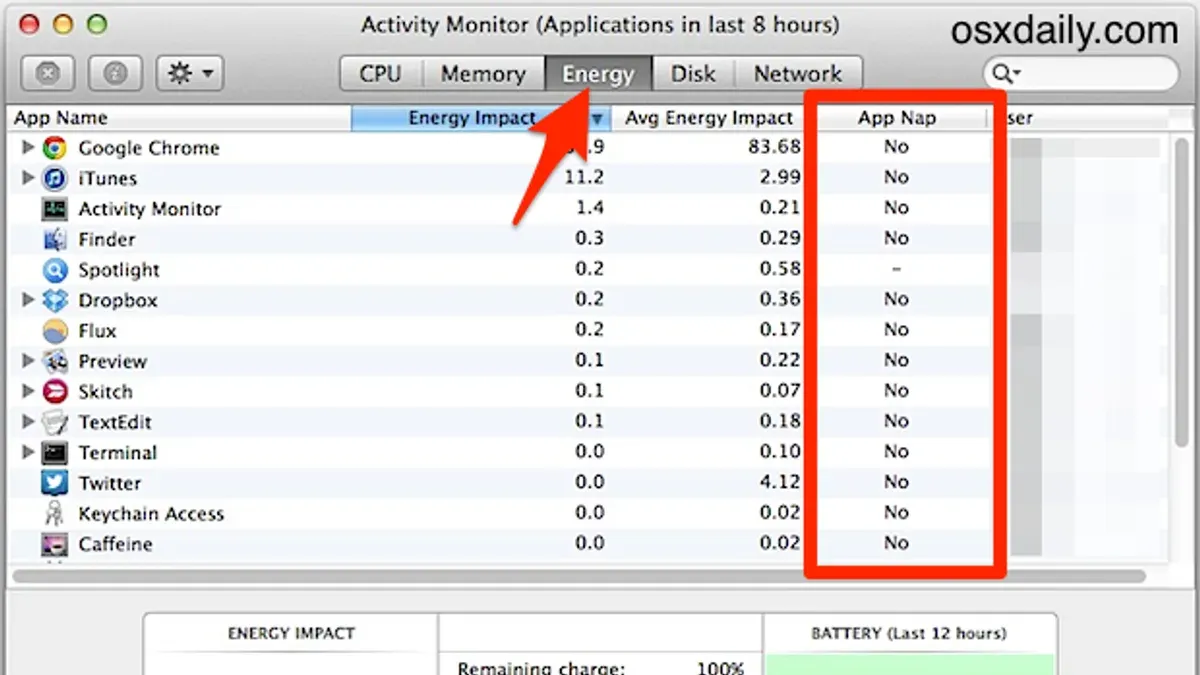
- Open Activity Monitor by navigating to Applications > Utilities > Activity Monitor.
- In Activity Monitor, find the Terminal process in the list.
- Right-click on the Terminal process and select Inspect.
- Look for the App Nap status in the Inspect window. If it shows App Nap: Yes, Terminal is currently being managed by App Nap.
- Alternatively, observe the Energy tab in Activity Monitor. A low energy impact with Terminal in a suspended state can indicate App Nap is active.
- To check process states via Terminal, run
pmset -g assertions. This lists power management assertions; absence of Terminal-related assertions during slowdowns suggests App Nap involvement. - Use
ps aux | grep Terminalto verify if Terminal processes are running normally or stalled. - Differentiate App Nap effects from other issues by confirming CPU usage is low despite expected activity, and no memory or disk bottlenecks appear in Activity Monitor.
By combining these checks, you can determine if App Nap is the cause of Terminal pauses, guiding whether you should disable it or address other performance factors.
Troubleshooting common issues when disabling App Nap in Terminal
If disabling App Nap appears ineffective, first confirm that you executed the commands with administrator privileges. An error like "Domain not found" or "Operation not permitted" typically indicates permission issues. Running commands with sudo often resolves this.
If Terminal behaves unpredictably after disabling App Nap, resetting its preferences can help. To do this, quit Terminal, then in Terminal enter defaults delete com.apple.Terminal followed by reopening Terminal. This resets Terminal settings without affecting your data.
Be aware that disabling App Nap can increase energy consumption and reduce battery life. If you notice faster battery drain or system cooling fans running more often, consider using the caffeinate command as a more energy-friendly alternative.
- Open Terminal and type
sudo defaults write com.apple.Terminal NSAppSleepDisabled -bool true. Press Enter and provide your password when prompted. You should see no error messages. - Verify the setting by typing
defaults read com.apple.Terminal NSAppSleepDisabled. The output should be1. - If you see a permission error, ensure you used
sudoand typed your password correctly. - If Terminal behaves oddly post-change, quit Terminal and run
defaults delete com.apple.Terminal, then reopen Terminal to reset preferences. - Monitor your battery and system performance; if issues arise, revert settings with
sudo defaults write com.apple.Terminal NSAppSleepDisabled -bool false.
- How to Keep Your Mac Awake Using the Terminal’s Caffeinate Command
- How to Disable Gatekeeper in Mac Terminal: Step-by-Step Guide
- How to Install Oh My Zsh in Mac Terminal: A Clear Step-by-Step Guide
- How to Use Aliases in zsh on Mac Terminal: A Practical Guide
Frequently asked questions
how to stop terminal in mac
To stop Terminal processes on a Mac, you can close the Terminal window or use the exit command to terminate the shell session. If you want to stop a specific running process, press Control + C to interrupt it. For more forceful termination, use the kill command with the process ID.
mac os terminal sleep
Terminal itself does not sleep, but macOS can apply App Nap or system sleep to reduce resource use when Terminal is idle or in the background. This can pause or slow down running scripts or commands. Preventing system sleep or disabling App Nap for Terminal helps keep processes active.
can I disable App Nap system-wide on mac
Disabling App Nap system-wide is not officially supported through a simple setting and is generally not recommended since it may increase energy consumption and reduce battery life. You can disable App Nap for individual apps like Terminal using Terminal commands or by adjusting app-specific Info.plist settings, but system-wide disabling requires advanced tweaks that can affect system stability.
does disabling App Nap improve Terminal performance
Disabling App Nap can improve Terminal performance when running long scripts or background processes by preventing them from being paused or slowed down. However, if your tasks are short or Terminal is actively used, the benefit is minimal. Keep in mind that disabling App Nap may increase power usage.
What this advice does not cover and who should look elsewhere
Disabling App Nap can increase battery consumption and reduce energy efficiency on Mac laptops. If you prioritize longer battery life or rely heavily on energy-saving features, this guide may not suit your needs. Additionally, this advice focuses on Terminal.app specifically and does not address other apps or system-wide settings that might affect performance.
If you experience ongoing performance issues unrelated to App Nap or need advanced process management, consider consulting Apple's official support or using third-party utilities designed for more granular control.
The most useful next step is to monitor your Terminal workflows after disabling App Nap. Keep an eye on battery usage and process responsiveness to ensure that the change improves your experience without causing unwanted side effects. If you notice increased battery drain or other issues, you can always re-enable App Nap by reversing the Terminal commands outlined earlier.