
How to Keep Your Mac Awake Using the Terminal’s Caffeinate Command
Discover how to use the caffeinate command in Mac Terminal to prevent your Mac from sleeping during important tasks.
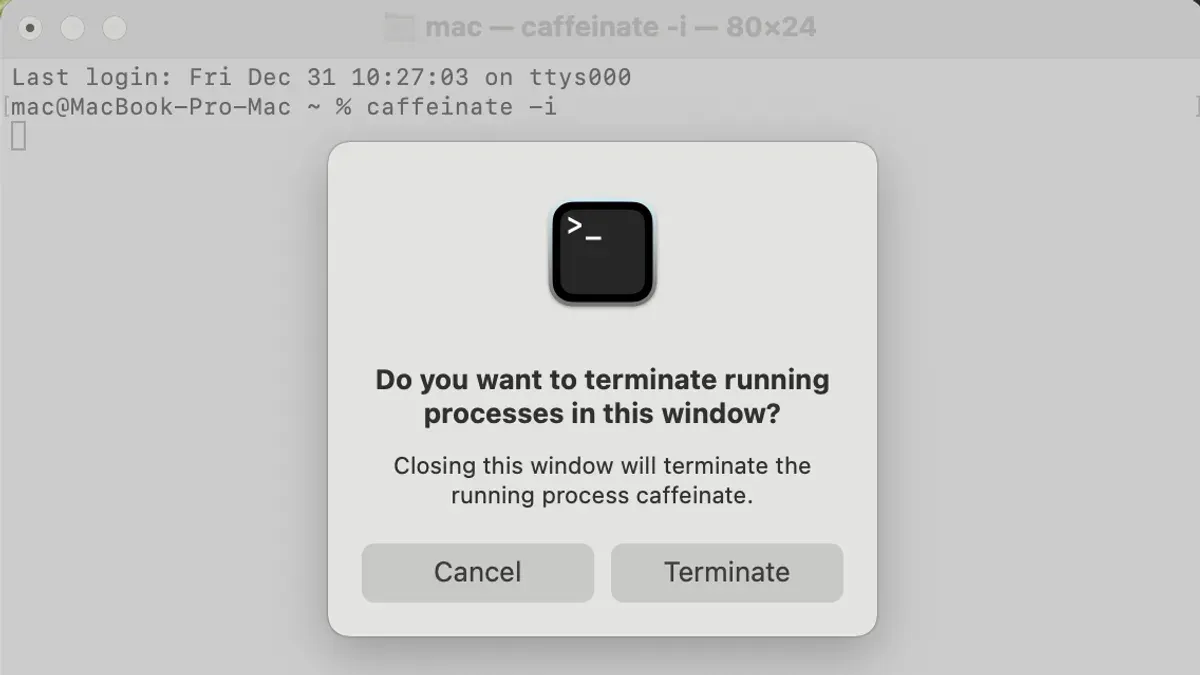
Your Mac automatically goes to sleep to conserve energy, but sometimes you need it to stay awake during long tasks like backups, downloads, or presentations. If you’ve ever wished for a simple way to prevent sleep without changing global settings, the Terminal’s caffeinate command is the tool you’re looking for.
This article explains how to keep Mac awake with caffeinate in Mac Terminal, focusing on practical commands, customizing durations, and integrating caffeinate into your workflows. You’ll also find tips for troubleshooting common issues and knowing when to consider alternative methods.
Key takeaways
- Use
caffeinatewith the-toption to specify how long your Mac stays awake in seconds. - Target specific sleep behaviors like display sleep or system idle with options like
-dor-i. - Incorporate
caffeinateinto shell scripts to automate wake prevention during critical tasks. - Common issues include forgetting to run caffeinate with elevated permissions or conflicts with energy saver settings.
- For long-term awake needs, consider system preferences or third-party apps if caffeinate’s session-based approach isn’t enough.
Before you start: What you need to use caffeinate
To use caffeinate effectively, you must have access to the Mac Terminal app and some familiarity with basic command line operations. Caffeinate is included in macOS by default, so you don’t need to install any additional software. It was introduced in OS X Mountain Lion (version 10.8) and is supported on all subsequent macOS versions.
Check your macOS version if you are unsure. Open Terminal and enter sw_vers -productVersion; the output will show your current macOS version. Any version from 10.8 onward includes caffeinate.
Before using caffeinate, consider why you want to keep your Mac awake. Common reasons include preventing sleep during downloads, long-running scripts, or presentations. Understanding the situation helps you choose the correct caffeinate options and duration.
- Open the Terminal app from Applications > Utilities or using Spotlight. You should see a command prompt starting with your computer's name.
- Type sw_vers -productVersion and press Enter. The Terminal will display your macOS version number (e.g., 13.4).
- Confirm your macOS version is 10.8 or newer; if it is, caffeinate is available.
- Try running caffeinate -h to view the built-in help documentation. If you see usage instructions, caffeinate is ready for use.
Basic caffeinate commands to keep your Mac awake
The simplest way to prevent your Mac from sleeping is to run caffeinate with no additional arguments. This command will keep your Mac awake indefinitely until you stop it manually.
- Open Terminal.
- Type
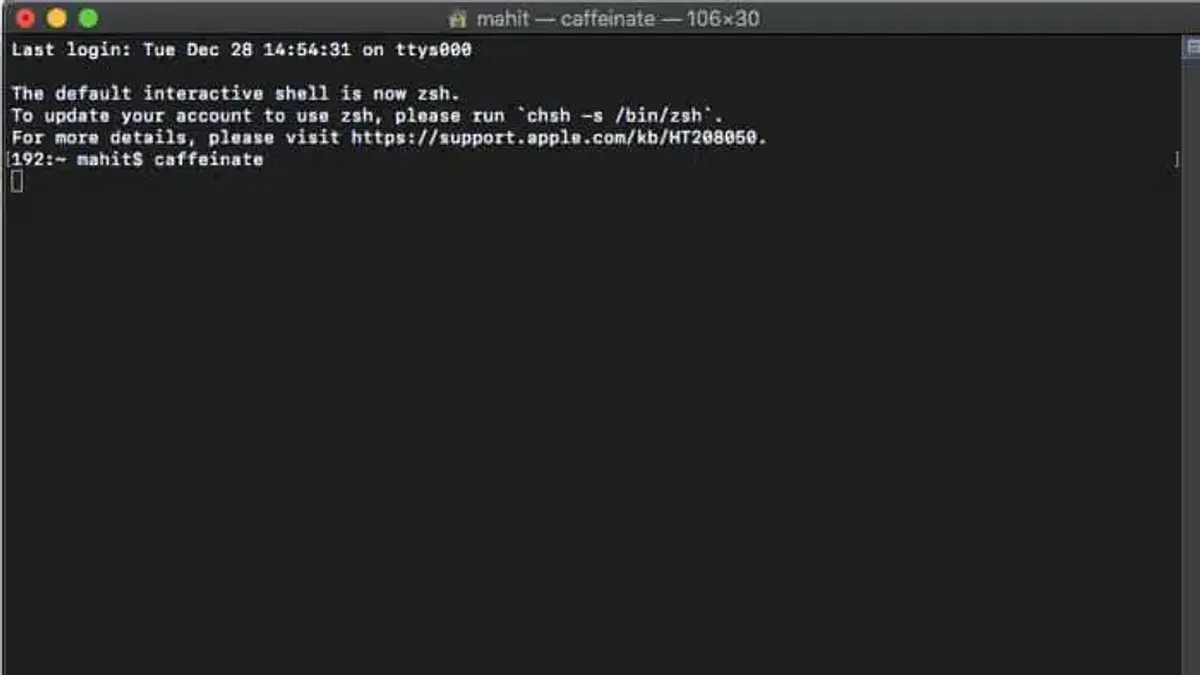
caffeinateand press Enter. - Your Terminal will appear to hang, indicating caffeinate is active; your Mac will stay awake while this process runs.
- To stop caffeinate, press Control + C.
You can also specify a duration in seconds with the -t option. For example, to keep your Mac awake for one hour (3600 seconds):
- Open Terminal.
- Type
caffeinate -t 3600and press Enter. - The command runs for the specified time, then exits automatically; your Mac will sleep normally afterward.
To run caffeinate in the background, append & at the end:
- Open Terminal.
- Type
caffeinate &and press Enter. - The command runs in the background, freeing your Terminal prompt for other commands.
- To stop it, find the process ID with
psor usekillall caffeinate.
These basic commands provide a reliable, customizable way to keep your Mac awake during tasks without navigating system settings.
Using caffeinate options to target specific sleep behaviors
The caffeinate command offers several flags that let you precisely control which sleep behaviors to prevent on your Mac. Understanding these flags helps tailor caffeinate to your task requirements.
| Flag | Sleep Type Prevented | Typical Use Case |
|---|---|---|
| -d | Display sleep | Keep the screen active during presentations or video playback |
| -i | System idle sleep | Prevent system sleep when running background tasks |
| -m | Disk sleep | Keep disks awake during intensive file operations |
| -s | System sleep (sleep button or lid close) | Prevent system sleep triggered by lid closing or power button |
By combining flags, you can customize behavior. For example, caffeinate -di prevents both display and system idle sleep, suitable for presentations requiring full system responsiveness without dimming the screen.
- Open Terminal and enter
caffeinate -d. Your display will stay awake, ideal for showing slides or videos without the screen dimming. - Try
caffeinate -ito keep the system awake during long script executions that don’t require active display. - Use
caffeinate -mwhen copying or moving large files to avoid disk spin-down interruptions. - Combine flags like
caffeinate -d -mif you want both the display and disks to stay awake, such as during video editing. - To prevent sleep triggered by lid closing, add
-s, for examplecaffeinate -s, though this is less common and may affect battery life.
Without any flags, caffeinate prevents system idle sleep but allows display and disk sleep. Choosing flags depends on your workflow; for instance, stopping display sleep (-d) is useful during presentations, while preventing disk sleep (-m) benefits file-intensive tasks.
Integrating caffeinate into scripts and automation
Using caffeinate within shell scripts or automation workflows ensures your Mac stays awake during extended tasks like backups or file transfers. This prevents interruptions caused by sleep modes.
- Create a shell script that wraps your long-running command with caffeinate. For example, use caffeinate -s rsync -av /source /destination to keep the system awake while copying files. When the task finishes, the Mac can sleep normally again.
- Combine caffeinate with multiple commands using && or run caffeinate in the background with &. For instance, caffeinate -d & starts display sleep prevention in the background while other commands execute.
- In Automator, add a "Run Shell Script" action and insert your caffeinate command to maintain wakefulness during automated workflows. This is useful for scheduled maintenance or batch processing.
- Schedule caffeinate commands via cron jobs to keep the Mac awake at specific times. For example, 0 2 * * * caffeinate -t 3600 keeps the Mac awake for an hour starting at 2 AM for overnight tasks.
- Note: Continuous use of caffeinate can increase power consumption and reduce battery life. Use it selectively and monitor system resources during prolonged awake periods.
Troubleshooting common caffeinate issues
If caffeinate does not keep your Mac awake, system settings or process interruptions may be overriding it. Follow this checklist to identify and fix common issues.
- Check for conflicting sleep settings: Open System Preferences > Battery > Battery and Power Adapter. Ensure options like Put hard disks to sleep when possible and Enable Power Nap are disabled, as they can interfere with caffeinate.
- Verify caffeinate is running: In Terminal, type
ps aux | grep caffeinate. You should see the caffeinate process active. If not, restart caffeinate. - Use
pmset -g assertionsto diagnose sleep assertions. This command lists processes preventing sleep. Confirm caffeinate appears with an active assertion indicating it is keeping your Mac awake. - Check if caffeinate stopped unexpectedly: If your caffeinate command was run with a duration, verify the timer has not expired. For manual start, ensure the Terminal window or script running caffeinate remains open.
- Restart caffeinate if needed: Quit the process and relaunch with appropriate flags. Consider running it with
-ito prevent idle sleep if other flags do not work. - Review third-party apps or scripts that may override caffeinate. Some energy-saving utilities or system management tools can cause conflicts.
Addressing these points usually resolves issues where caffeinate fails to keep your Mac awake.
When not to use caffeinate and alternative methods
Caffeinate does not override all sleep triggers, such as closing the lid on MacBooks, which typically forces sleep regardless of caffeinate commands. If you need to prevent sleep in these cases, adjusting Energy Saver preferences or using third-party apps may provide more control.
Battery drain is a significant consideration. Running caffeinate continuously can lead to faster battery depletion, especially on portable Macs. Avoid using caffeinate when on battery power or if you require permanent sleep prevention, as it is designed for temporary awake periods during specific tasks.
For more persistent or user-friendly solutions, you can modify Energy Saver settings by going to System Preferences > Battery (or Energy Saver on older macOS versions) and adjusting options like “Prevent computer from sleeping automatically when the display is off.” This method is less precise but conserves battery better and requires no Terminal knowledge.
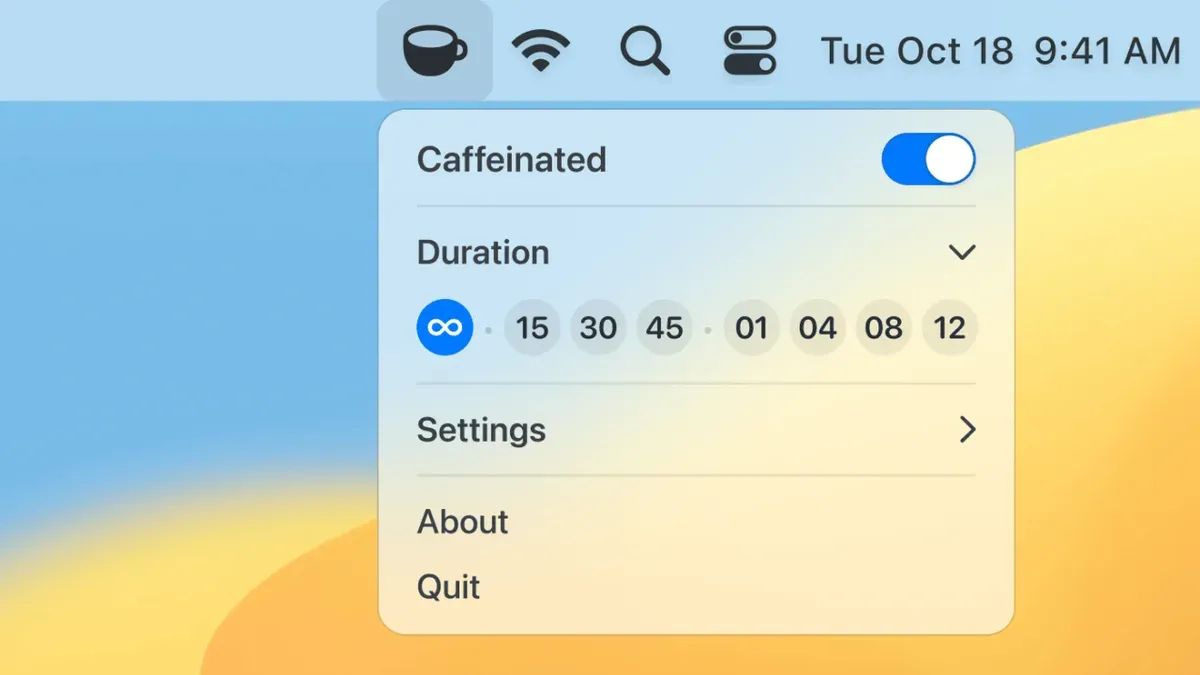
Third-party tools such as Amphetamine or KeepingYouAwake offer graphical interfaces to control sleep behavior with timers and triggers, making them suitable for users uncomfortable with Terminal commands.
In summary, avoid caffeinate if you need permanent sleep prevention, lack Terminal familiarity, or want to conserve battery. Instead, rely on Energy Saver settings or dedicated apps tailored to your workflow.
- How to Check Uptime Using Mac Terminal: A Clear Step-by-Step Guide
- How to Shutdown Your Mac with a Timer Using Terminal
Frequently asked questions
Can I use caffeinate to keep my Mac awake when the lid is closed?
Caffeinate can prevent sleep but does not override macOS's built-in behavior when the lid is closed. To keep your Mac awake with the lid closed, you typically need an external display or use clamshell mode with power connected. Without these, caffeinate alone won't stop the Mac from sleeping upon lid closure.
How do I stop caffeinate once it’s running?
To stop caffeinate, locate its process in the Terminal or Activity Monitor and terminate it using Ctrl+C if you started it in the current Terminal session, or use the kill command followed by the process ID. Ending the caffeinate process immediately releases the hold on sleep prevention.
Does caffeinate prevent screen saver or just sleep?
Caffeinate primarily prevents the system from sleeping, but it does not inherently disable the screen saver. To stop the screen saver, you need to adjust settings in System Preferences under Desktop & Screen Saver or use additional commands or scripts alongside caffeinate.
Will using caffeinate drain my battery faster?
Yes, keeping your Mac awake with caffeinate can lead to faster battery drain since the system remains active. The actual impact depends on what tasks are running and screen brightness, so use caffeinate selectively to balance performance and battery life.
What caffeinate does not cover and when to consider other options
Caffeinate only prevents sleep triggered by system idle timers and does not override hardware events such as closing the MacBook lid. It cannot keep your Mac awake if the lid is shut or if a critical system event forces sleep or shutdown. Additionally, caffeinate does not manage display sleep separately from system sleep unless you specify options, so be aware of potential screen dimming even if the system stays awake.
If you need to keep your Mac awake during lid closure or require more granular control over power management, consider using third-party utilities like Amphetamine or adjusting settings in System Preferences under Battery > Power Adapter. These tools offer options beyond the scope of caffeinate.
For complex automation workflows, integrating caffeinate with launchd jobs or AppleScript can be effective, but if you require persistent wakefulness across restarts or user sessions, deeper system configuration or dedicated apps might be necessary.
To get started, open Terminal and test a simple caffeinate command such as caffeinate -t 3600 to keep your Mac awake for an hour. This quick step ensures you understand the command’s behavior before integrating it into scripts or longer tasks.



