How to Convert FLAC to ALAC on Mac: Step-by-Step Guide
Discover easy methods to convert FLAC to ALAC on Mac, ensuring compatibility with Apple devices without losing audio quality.
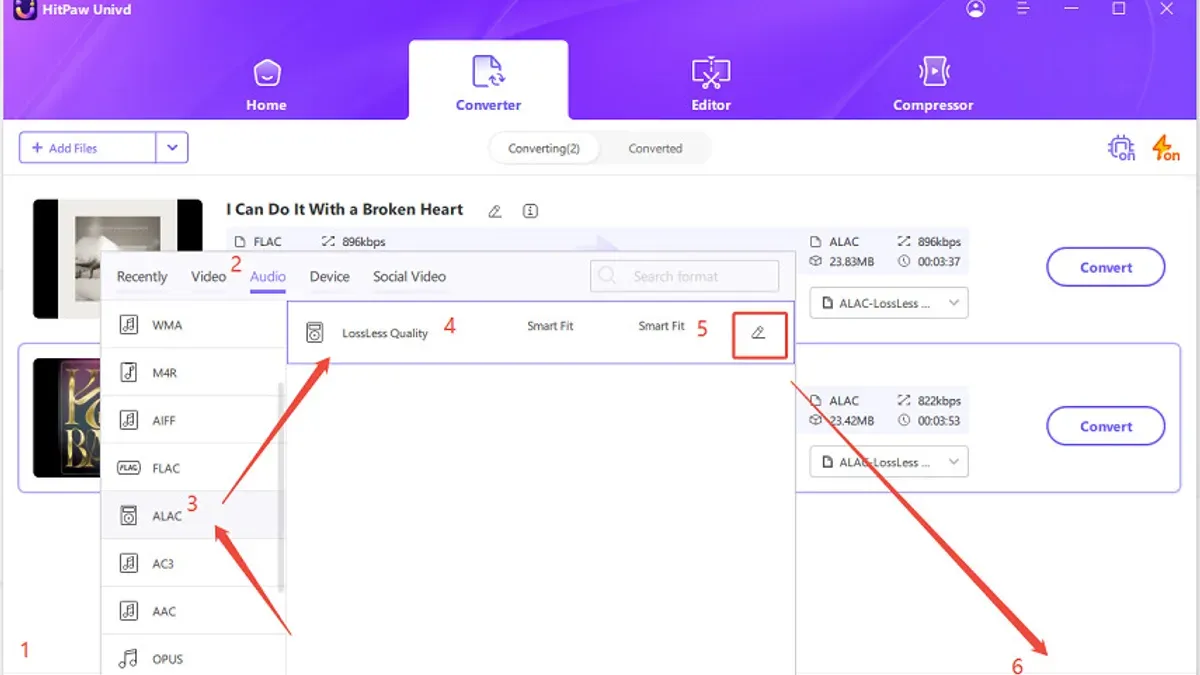
You have a collection of FLAC audio files on your Mac, but want to enjoy them smoothly across Apple devices like iPhones and iPads. Since FLAC is not natively supported in the Apple ecosystem, converting these files to ALAC ensures compatibility without sacrificing audio quality.
This article explains how to convert FLAC to ALAC on Mac using free tools and built-in apps. It also compares the two formats objectively to help you decide which suits your needs best, along with tips to troubleshoot common issues during conversion.
Key takeaways
- Use free tools like XLD or All2ALAC for quick FLAC to ALAC conversion on Mac.
- The Music app (formerly iTunes) can convert audio files to ALAC but requires importing FLAC files first.
- ALAC is Apple's lossless format with seamless device support; FLAC offers wider platform compatibility outside Apple devices.
- Ensure metadata and album art are preserved during conversion by choosing the right settings in your chosen tool.
- Common issues include unsupported FLAC codecs and incorrect import settings—verify these before converting.
Before you start: What you need to convert FLAC to ALAC on Mac
FLAC (Free Lossless Audio Codec) and ALAC (Apple Lossless Audio Codec) are both lossless formats, meaning they preserve audio quality without compression loss. FLAC is widely supported across platforms but not natively compatible with Apple devices. ALAC is Apple's preferred lossless format, ensuring seamless playback on Macs, iPhones, and iPads.
To convert FLAC files to ALAC on Mac, you'll need suitable software. Popular free options include XLD (X Lossless Decoder), which supports batch conversion and metadata preservation, and VLC Media Player, which offers basic conversion capabilities. Paid alternatives like dBpoweramp provide user-friendly interfaces and faster conversion with advanced tagging features.
Make sure your Mac runs macOS 10.12 or later for optimal compatibility with these tools. Before conversion, back up your original FLAC files to prevent accidental loss during the process.
Here’s a quick checklist:
- Choose and install your converter software (e.g., XLD or dBpoweramp). After installation, you should see the app icon in your Applications folder.
- Locate your FLAC files on your Mac. Confirm they play correctly in an audio player.
- Create a backup folder for your original FLAC files. Verify the files copied properly by comparing file sizes.
- Familiarize yourself with your chosen converter’s interface, especially output format settings. Confirm ALAC is selectable as an output option.
How to convert FLAC to ALAC on MacBook using free tools
You can use XLD (X Lossless Decoder), a free and reliable tool, to convert FLAC files to ALAC on your MacBook. Follow these steps to install and convert efficiently.
- Download XLD from the official site (http://tmkk.undo.jp/xld/index_e.html) and open the downloaded.dmg file to install the app. You should see the XLD icon in your Applications folder.
- Launch XLD. In the menu bar, click XLD > Preferences, then go to the General tab and set the "Output format" dropdown to Apple Lossless (ALAC). This sets your default conversion format.
- Go to the Metadata tab and ensure options like "Write tags to output files" are enabled to preserve album art and track info during conversion.
- Close Preferences. Drag and drop your FLAC files or entire folders into the XLD window. You should see the files listed with their details.
- Click the Open button at the bottom right to start the conversion. A progress bar will appear, and the converted ALAC files will be saved in the same folder as your original FLAC files by default.
- For batch conversion, simply select multiple FLAC files or folders before dragging them into XLD. All files will convert sequentially, maintaining metadata and folder structure.
- After conversion, compare file sizes and check the ALAC files in Finder or Music app to confirm successful conversion and metadata retention.
XLD’s straightforward interface and batch processing capabilities make it a practical free solution for converting FLAC to ALAC on Mac.
How to convert FLAC to ALAC using iTunes or Music app on Mac
Since FLAC files are not natively supported by the Music app or iTunes, you’ll first need to convert your FLAC files to a compatible format before importing. A common method is to use a free converter to change FLAC into WAV or AIFF, which can then be imported and converted to ALAC within the Music app.
- Convert your FLAC files to WAV or AIFF using a third-party tool. Once done, open the Music app on your Mac.
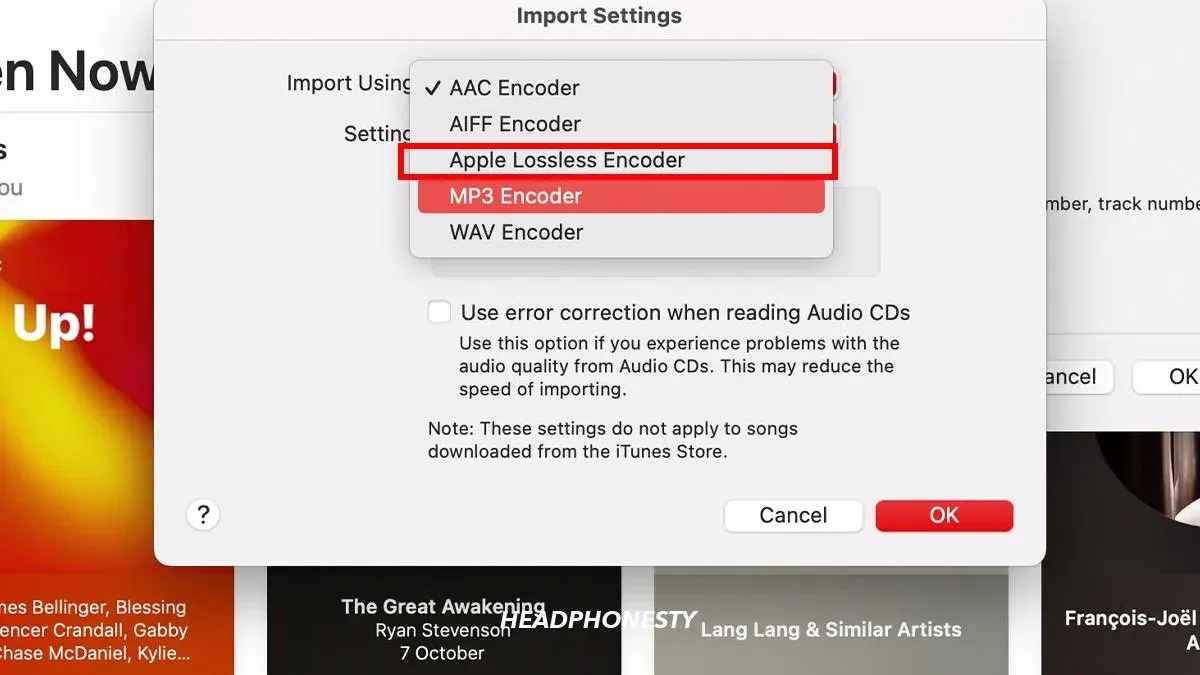
- Go to Music > Preferences from the menu bar, then click the Files tab and select Import Settings.
- In the import settings window, choose Apple Lossless Encoder from the dropdown menu and click OK. This sets ALAC as the default import format.
- Import the converted WAV or AIFF files by dragging them into the Music app or using File > Import. The files will appear in your library.
- Select the imported tracks, then go to File > Convert > Create Apple Lossless Version. The Music app will generate ALAC copies of the files.
- You’ll see the new ALAC versions appear alongside the originals. Conversion speed varies but typically takes a few seconds per track depending on file size and Mac performance.
- After confirming the ALAC files are intact, you can remove the original WAV or AIFF files from your library to save space.
This method uses only native Apple software but requires an initial FLAC to WAV/AIFF step. The resulting ALAC files maintain lossless quality and are fully compatible with Apple devices.
Is FLAC or ALAC better? Understanding the difference
Both FLAC (Free Lossless Audio Codec) and ALAC (Apple Lossless Audio Codec) offer lossless compression, meaning audio quality remains identical to the original source. Neither format compromises sound fidelity, so your listening experience depends more on device compatibility and ecosystem integration than on audio performance.
Compatibility is a key differentiator. ALAC is natively supported across Apple devices and software, including iPhones, iPads, Apple Music, and the Music app on Mac, enabling seamless playback without conversion. FLAC, while widely supported on many platforms and third-party apps, is not natively supported by Apple’s ecosystem, often requiring conversion or special players on Macs and iOS devices.
File size differences between FLAC and ALAC are generally minimal, as both use similar lossless compression techniques. Metadata handling is robust in both formats, though ALAC integrates more smoothly with Apple’s metadata standards, improving tag consistency and album art display in Apple apps.
| Feature | FLAC | ALAC |
|---|---|---|
| Audio Quality | Lossless (identical to source) | Lossless (identical to source) |
| Compatibility | Cross-platform; requires third-party apps on Apple devices | Native support on Apple devices and software |
| File Size | Similar to ALAC, varies by content complexity | Similar to FLAC, varies by content complexity |
| Metadata Support | Good, wide support but may vary by player | Optimized for Apple metadata standards |
For example, if you primarily use Apple devices, ALAC offers hassle-free playback and better integration with the Music app. If you use a variety of platforms including Windows or Android, FLAC provides broad compatibility without conversion.
Troubleshooting common issues when converting FLAC to ALAC on Mac
Conversion errors often stem from corrupted files or incompatible software settings. If you see an error like "File could not be decoded" or "Unsupported format," first verify the FLAC file plays correctly in a media player. If the file is corrupt, try obtaining a fresh copy. Additionally, ensure your conversion tool is updated to the latest version to avoid compatibility issues.
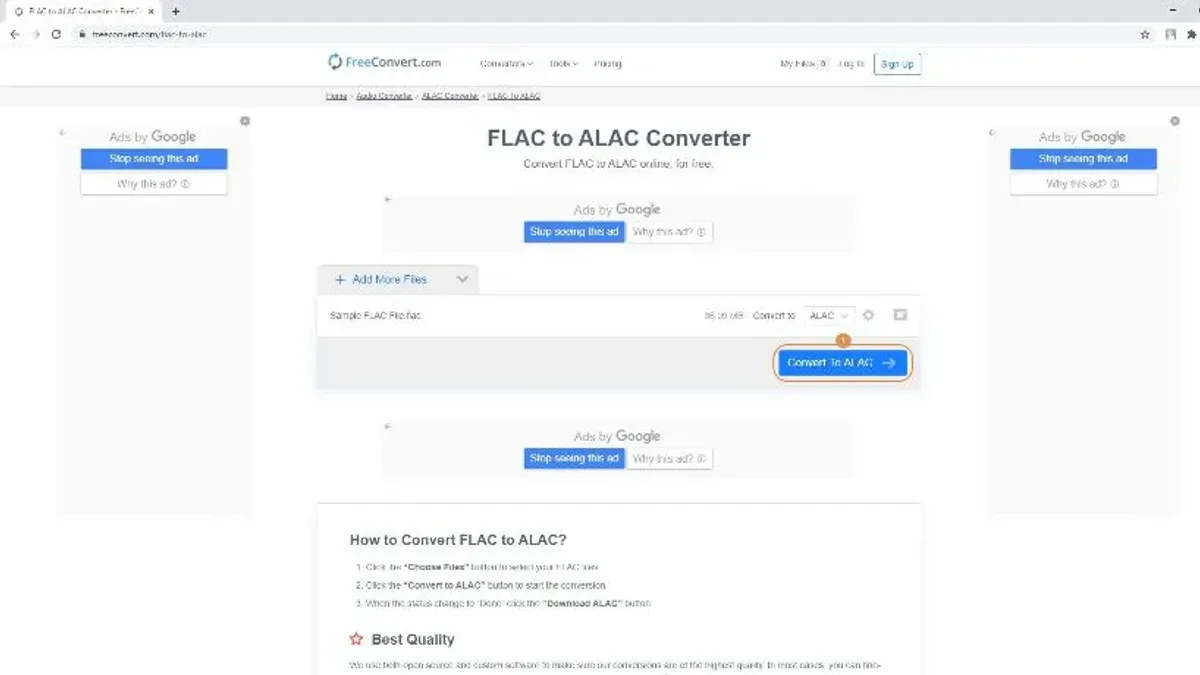
Metadata loss or mismatches can occur if the converter does not fully support tags. Commonly, track titles, artist names, or album art might not transfer properly. To fix this, use a dedicated tag editor like MetaBliss or Kid3 after conversion to manually correct or restore metadata. Before converting, check the metadata fields in your FLAC files and compare them post-conversion to confirm completeness.
DRM protection is rare in FLAC files but can block conversion. If you encounter a "DRM protected file cannot be converted" message, you will need to remove DRM using authorized software or obtain a non-DRM version of the audio. For corrupted FLAC files, tools like FLAC Frontend can attempt repairs, but success is not guaranteed.
- Open your FLAC file in a reliable media player to confirm it is not corrupted. Successful playback indicates the file is intact.
- Update your conversion software (e.g., XLD or dBpoweramp) to the latest version to ensure compatibility with macOS and FLAC formats.
- After conversion, check metadata in the Music app or a tag editor. If data is missing, open the ALAC file in a tag editor and manually enter missing information.
- If you receive a DRM error, verify the file source and use appropriate DRM removal tools or acquire a DRM-free version.
- If conversion repeatedly fails, try converting the FLAC file to an intermediate format like WAV before converting to ALAC, which can sometimes resolve encoding issues.
- How to Convert WAV to MP3 on Mac: Easy Step-by-Step Methods
- How to Convert MP4 to MP3 on Mac: Step-by-Step Methods
- How to Open.ape File on Mac: Clear Step-by-Step Guide
- How to Open.opus Files on Mac: Clear Step-by-Step Guide
Frequently asked questions
Can you convert flac to alac?
Yes, you can convert FLAC files to ALAC on a Mac using various software options. Free tools like XLD and All2MP3 support this conversion, as do Apple's Music app and iTunes with the proper import settings. The process typically involves importing the FLAC files and exporting or converting them to ALAC format.
Which is better alac or flac?
Both ALAC and FLAC are lossless audio formats, so neither is inherently better in sound quality. FLAC is more widely supported across platforms, while ALAC is optimized for Apple devices and integrates smoothly with iOS and macOS. Your choice depends on your preferred ecosystem and device compatibility.
Can you convert FLAC to ALAC without losing quality?
Yes, converting FLAC to ALAC can be done without losing audio quality because both formats use lossless compression. Ensure the conversion tool you use processes the file correctly without re-encoding to a lossy format. This maintains the original fidelity of your audio files.
Which is better ALAC or FLAC for Apple devices?
ALAC is better suited for Apple devices because it is natively supported in macOS, iOS, and related apps like Music and iTunes. FLAC requires third-party apps or conversion to play seamlessly on Apple hardware. If you want hassle-free playback and syncing, ALAC is the preferable choice.
Are there free FLAC to ALAC converters for Mac?
Yes, several free converters are available for Mac users, including XLD (X Lossless Decoder) and All2MP3. These tools allow you to convert FLAC files to ALAC without cost, offering straightforward interfaces and reliable performance. You can also use the Music app by adjusting import settings to ALAC format.
What this guide does not cover
This guide focuses on lossless conversion for personal use and does not cover DRM-protected files, which require authorized software or licenses to handle. It also does not address professional mastering workflows or batch conversions for large-scale commercial projects, which need specialized tools and expertise beyond basic conversion methods.
If you are dealing with files protected by digital rights management or require high-end audio processing, consider using professional audio software or consulting an audio engineer.
For most Mac users wanting to convert FLAC to ALAC for seamless playback on Apple devices, the step-by-step instructions provided here will cover your needs efficiently.
The most useful next step is to start by installing a reliable free converter like XLD or using the native Music app’s import settings to create ALAC files. This hands-on approach will help you ensure your audio files maintain quality and compatibility across your Apple devices.