
How to Open.opus Files on Mac: Clear Step-by-Step Guide
Discover simple ways to open.opus files on Mac using media players, converters, and online tools for hassle-free audio playback.
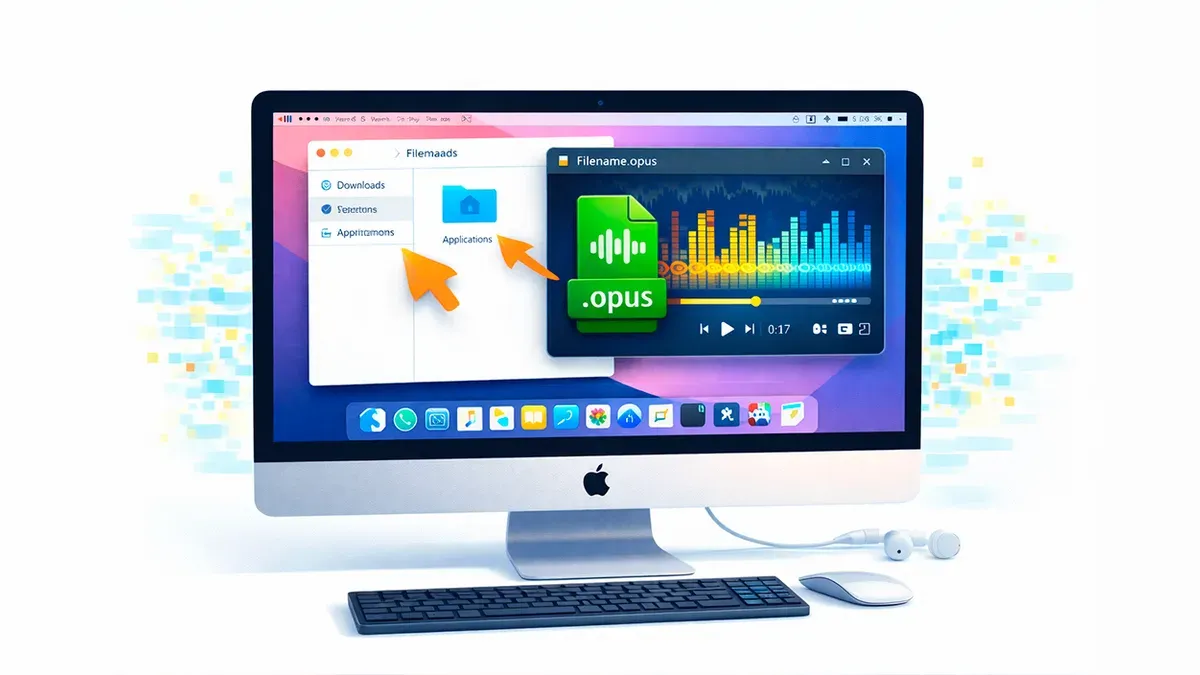
You’ve received an audio file with a.opus extension but aren’t sure how to play it on your Mac. Since.opus is not as universally supported as MP3, you might wonder how to open.opus file on Mac without hassle.
This guide walks you through practical, step-by-step methods to play and convert.opus files on your Mac. You’ll learn about free media players that support Opus, how to convert files to MP3 for compatibility, and options using online tools and browser extensions. Additionally, it explains the open-source background of the Opus format and how it compares to alternatives, helping you decide the best approach for your audio needs.
Key takeaways
- Use VLC or IINA media players on Mac to play.opus files directly.
- Convert.opus to MP3 with free tools like ffmpeg or Audacity for wider device compatibility.
- Online converters and browser extensions offer quick playback without installing apps.
- Opus is an open-source codec designed for efficient, high-quality audio streaming.
- Knowing your playback needs helps choose between native playback or conversion.
Before you start: What you need to open.opus files on Mac
The.opus audio format is an open-source, highly efficient codec designed for interactive speech and music transmission over the internet. It is widely used for streaming and VoIP applications due to its low latency and good audio quality at various bitrates. However, macOS does not offer native support for.opus files through its default media player, QuickTime, which means you need additional software to play these files.
To open.opus files on your Mac, you will require compatible media players or conversion tools. Popular third-party media players that support Opus include VLC Media Player (version 3.0 and later) and IINA (version 1.3 and above). Both are free, regularly updated, and provide seamless playback of.opus audio files on Mac.
If you prefer converting.opus files to a more universally supported format like MP3 for compatibility with other devices or software, you will need dedicated audio conversion tools. Several free and paid converters are available for macOS that can handle this task efficiently.
Before proceeding, ensure your Mac runs macOS 10.12 Sierra or later, as most up-to-date media players and converters require this or newer versions for optimal performance. Older macOS versions may face compatibility or performance issues.
- Check your macOS version by clicking the Apple menu and selecting "About This Mac." A version number of 10.12 or higher means you can use modern.opus-compatible players.
- Download and install VLC Media Player from videolan.org or IINA from iina.io. When installed successfully, launching these apps should open without errors.
- Open your.opus file using the installed media player by selecting "File" → "Open File," then browsing to your.opus audio. The audio should play immediately if the player supports the file.
How to open a.opus file on Mac using free media players
To play.opus files on your Mac, free media players like VLC and IINA offer straightforward solutions with robust support for this audio format. Both players handle.opus files smoothly, providing a reliable playback experience beyond native macOS apps.
- Download VLC media player: Visit the official VideoLAN website at videolan.org/vlc and click "Download VLC" for macOS. Once the.dmg file finishes downloading, open it and drag the VLC icon into your Applications folder.
- Open VLC: Launch VLC from your Applications folder. You should see the main VLC window with playback controls.
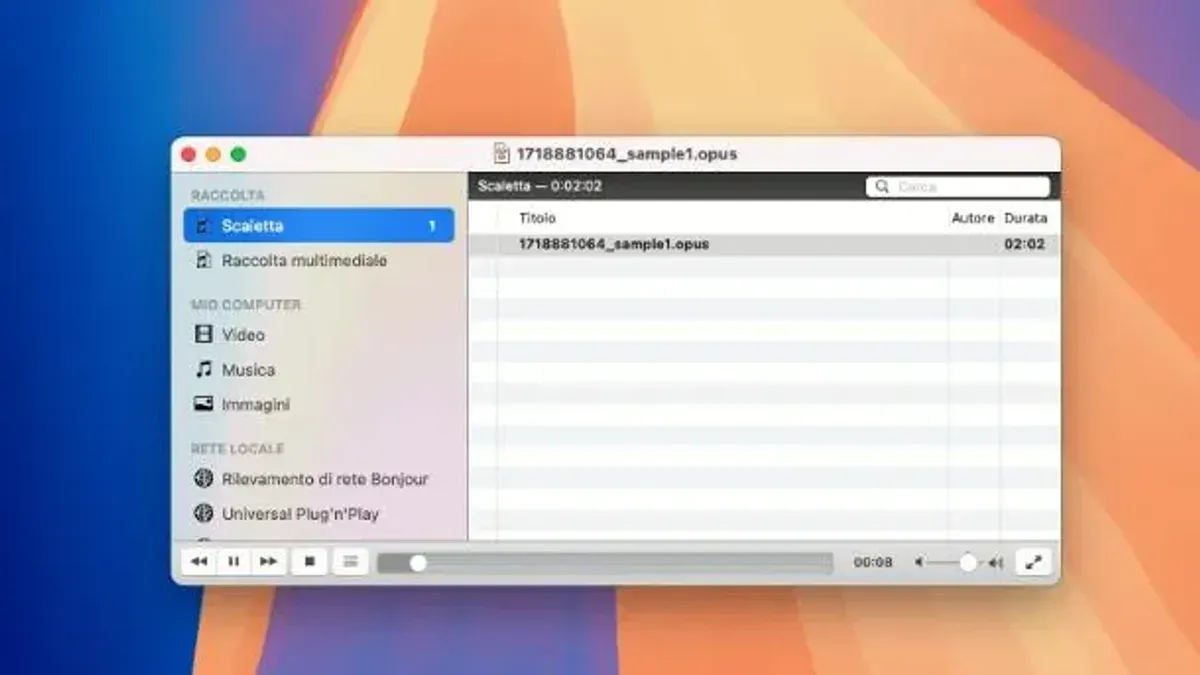
- Open your.opus file: Click "File" in the menu bar, then select "Open File..." Navigate to your.opus audio file and select it. VLC will begin playing the file immediately.
- Use playback features: VLC offers volume control, playback speed adjustment, and playlist management. You can pause, rewind, or skip through your.opus file as needed.
Alternatively, IINA is a macOS-native player designed for modern Mac environments. Download it from iina.io. After installation, open your.opus file by choosing "Open File" from the File menu or dragging the file onto the IINA window.
Compared to VLC, IINA provides a more integrated macOS look and feel, including Touch Bar support and dark mode compatibility, while maintaining stable playback and high audio quality for.opus files.
Using dedicated media players like VLC or IINA ensures you avoid compatibility issues common with native apps that lack.opus support. These players also tend to offer better audio decoding, smoother playback, and additional features like playlists and equalizers tailored for audio enthusiasts.
How to convert.opus files to MP3 on Mac for wider compatibility
Converting.opus files to MP3 improves compatibility with apps and devices that do not support the Opus format. MP3 is a widely accepted standard, ensuring smoother playback across most platforms.
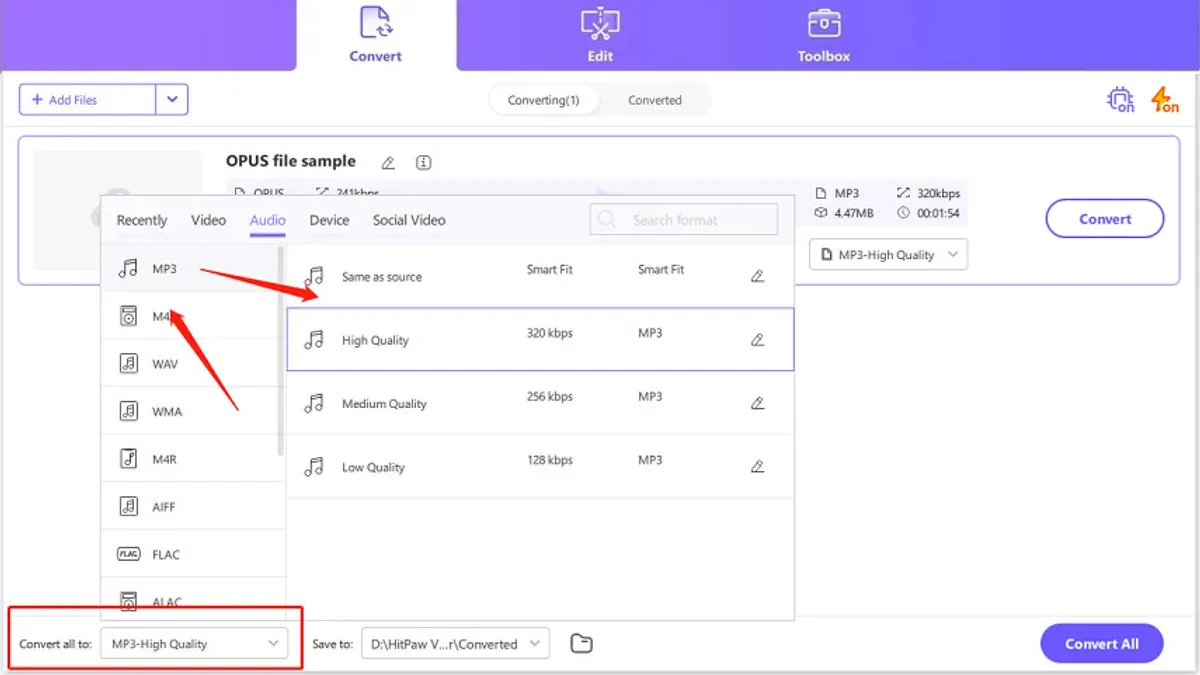
Using FFmpeg in Terminal
FFmpeg is a free, powerful command-line tool for audio conversion. To convert a.opus file to MP3 with a target bitrate of 192 kbps, follow these steps:
- Open the Terminal app on your Mac.
- Navigate to the folder containing your.opus file using the cd command. For example, cd ~/Downloads.
- Run the conversion command:
ffmpeg -i input.opus -b:a 192k output.mp3 - Wait for the process to complete. You should see progress details and return to the prompt when done.
- Check the folder for output.mp3, which will be larger than the.opus file but compatible with most players.
This conversion balances quality and file size, as 192 kbps MP3s maintain good audio fidelity. Bitrates above 192 kbps increase file size with diminishing audible improvements.
Using Graphical Converter Apps
If you prefer a user interface, apps like Adapter and Audacity offer straightforward conversion options. In Adapter, add your.opus file, select MP3 as the output format, and choose bitrate settings (commonly 192 kbps). Audacity allows importing the.opus file and exporting it as MP3 via File > Export > Export as MP3, where you can adjust quality settings.
Graphical apps provide visual progress and options but rely on codecs like LAME for MP3 encoding, which might need installation.
How to open.opus files on Windows and cross-platform considerations
Windows users can open.opus files using popular media players such as VLC and Foobar2000, both of which offer native support for the Opus codec. VLC is widely favored for its simplicity and broad format compatibility, while Foobar2000 provides advanced customization options and supports plugins for enhanced playback features.
Comparing Mac and Windows, both platforms rely heavily on third-party software for Opus playback since native support remains limited. VLC and FFmpeg, key tools for playback and conversion, are available on both operating systems, ensuring a consistent experience across platforms.
| Software | Mac Compatibility | Windows Compatibility | Opus Playback |
|---|---|---|---|
| VLC Media Player | Yes | Yes | Full native support |
| IINA | Yes | No | Full native support on Mac only |
| Foobar2000 | No | Yes | Full native support on Windows only |
| FFmpeg (CLI) | Yes | Yes | Supports conversion and playback via compatible players |
To open a.opus file on Windows using VLC:
- Download and install VLC Media Player from the official website.
- Open VLC and click Media > Open File.
- Navigate to your.opus file and select it.
- Click Open to start playback. The audio should begin playing immediately without additional configuration.
For cross-platform management, using VLC or FFmpeg ensures that you can handle.opus files seamlessly whether you switch between Mac and Windows. Foobar2000 is a strong Windows-only option, while IINA remains Mac-exclusive. When converting files, FFmpeg’s command-line interface is consistent across both systems, making it a reliable choice for batch processing or scripting.
Understanding the Opus file format and its open-source nature
An Opus file contains audio encoded using the Opus codec, which is a versatile, open-standard audio compression format. Officially defined in RFC 6716 by the Internet Engineering Task Force (IETF), Opus is designed for interactive speech and music transmission over the internet.
Opus excels in applications such as streaming, Voice over IP (VoIP), and other real-time audio communications due to its low latency and adaptability to varying network conditions. It also supports high-quality audio compression, making it suitable for music and other audio content where fidelity matters.
Regarding its open-source nature, the Opus codec itself is royalty-free and openly licensed, allowing developers and companies to implement it without paying licensing fees. The codec’s reference implementation is available under a permissive BSD license, encouraging widespread adoption and integration in software and hardware.
Compared to MP3, Opus typically achieves better audio quality at similar or lower bitrates, thanks to more advanced compression algorithms. Side-by-side audio quality tests consistently show Opus outperforming MP3 in clarity and efficiency, especially at lower bitrates, making it a modern alternative for audio streaming and storage.
How to play.opus files on Mac using online tools and browser extensions
If you prefer not to install software, online players and browser extensions offer convenient alternatives to open.opus files. These tools let you upload and play or convert files directly in your browser, though they often have limitations on file size and raise privacy considerations.
Using online Opus players and converters
Several websites support.opus playback and conversion without installation. Online Audio Converter (online-audio-converter.com) allows you to upload an.opus file and play it or convert it to other formats like MP3. The interface is straightforward but uploading large files can take time, and you should be mindful of privacy as files are processed on external servers.
AudioTrimmer (audiotrimmer.com) also supports.opus playback and offers simple trimming and format conversion features. It works well for small to medium files, providing quick previews after upload.
Browser extensions for Opus playback
Extensions like Audio Player for Chrome support playback of various audio formats including.opus directly in the browser without uploading files. After installation, you can drag an.opus file into the extension, and it will play locally, addressing privacy concerns.
Another option is the VLC Web Plugin, though its support is less common and may require additional configuration.
Limitations of online tools
- File size limits often range from a few megabytes to around 100 MB, restricting large audio files.
- Uploading files to third-party servers poses privacy risks; avoid sensitive content.
- Playback quality and control features may be limited compared to dedicated apps.
Using online tools and extensions provides a quick, installation-free approach to open.opus files on Mac, suitable for occasional use or when software installation is not an option.
Troubleshooting common issues when opening.opus files on Mac
If you encounter problems playing.opus files on your Mac, several typical issues may be the cause. Here are common problems and how to resolve them:
File corruption or incomplete downloads
If playback fails with errors like "Unable to play file" or the file won’t open, the.opus file might be corrupted or only partially downloaded. To fix this, try re-downloading the file from the source. If you created the file yourself, verify the export or recording process was completed successfully.
Missing codecs or outdated media players
Error messages such as "Unsupported codec" or "Cannot decode audio" often indicate your media player lacks the necessary codec or is outdated. To resolve this:
- Check your player version (e.g., VLC: Help > Check for Updates). Ensure you have the latest release installed.
- If the player is up to date, reinstall it to repair corrupted codec files.
- Visit the official VLC website (https://www.videolan.org) or IINA (https://iina.io) to download the latest version.
Updating ensures you have full Opus codec support.
Incorrect file extensions or mislabeled files
If the file extension is not.opus but the file contains Opus audio (e.g.,.ogg), your player might not recognize it. To fix this, rename the file extension to.opus or open the file using a flexible player like VLC that supports multiple containers.
Performance issues and audio glitches
Lag, stuttering, or distorted audio can result from insufficient system resources or conflicts with other software. Try these steps:
- Close other applications to free up CPU and memory.
- Restart your Mac to clear temporary system issues.
- Lower the playback quality settings if your player offers them.
- Update macOS to the latest version for improved media handling.
These actions usually resolve common playback glitches.
- How to Open.WMA Files on Mac: Clear Step-by-Step Guide
- How to Open and Play.flac Files on Mac: Step-by-Step Guide
- How to Open.webp Files on Mac: Practical Step-by-Step Methods
- How to Open.heic Files on Mac: Clear Step-by-Step Methods
Frequently asked questions
How to open opus files on windows?
On Windows, you can open.opus files using media players like VLC or Foobar2000, which support the format natively. Installing these free players lets you play.opus files without conversion. Alternatively, you can convert.opus files to more common formats like MP3 using software such as Audacity or online converters if you require broader compatibility.
How to listen to opus files?
You can listen to.opus files with compatible audio players that support this open-source format, including VLC, Foobar2000, and some mobile apps. On Mac, dedicated players or browser-based tools can also handle.opus playback. If your preferred app does not support.opus, converting the file to MP3 or WAV is a practical option.
What is a.opus file?
A.opus file is an audio file that uses the Opus codec, designed for efficient streaming and high-quality audio at low bitrates. It’s an open and royalty-free format widely used for internet audio applications like VoIP and music streaming. The file typically offers better compression and quality balance compared to older formats.
What's an opus file?
An Opus file is a digital audio file encoded with the Opus codec, known for low-latency and versatile audio performance. It supports a range of audio types, from speech to music, and adapts well to varying network conditions. This makes it a popular choice for real-time communication and streaming.
What is opus file format?
The Opus file format refers to audio files encoded using the Opus codec, standardized by the Internet Engineering Task Force (IETF). It combines technologies from SILK and CELT codecs to deliver efficient, high-quality audio compression. Opus files are often used for streaming, telephony, and storage where bandwidth or file size is a concern.
What this article does not cover and who should look elsewhere
This article does not cover professional audio editing workflows involving Opus files or advanced codec parameter tuning that may require specialized software such as Audacity with custom plugins or command-line tools like FFmpeg. If you need to perform detailed audio mastering, multitrack editing, or batch processing of Opus files with fine codec control, consider using dedicated audio production software.
The single most useful next step is to install a versatile media player like VLC on your Mac. VLC supports Opus files out of the box and lets you play your audio without any conversion, offering a quick and reliable way to access your files directly. This avoids compatibility issues and preserves original quality, making it the easiest method for most users.



