How to Convert SVG to PNG on Mac: Clear Step-by-Step Methods
Discover clear step-by-step methods to convert SVG files to PNG on Mac using built-in tools, free software, and online converters.
You have an SVG file on your Mac that you need to use in a format compatible with most applications, such as PNG. Whether you’re preparing graphics for a website, presentation, or document, you need a straightforward way to convert SVG files without losing quality or detail.
This article covers how to convert SVG to PNG on Mac using several methods. You’ll find step-by-step instructions for built-in tools like Preview, as well as reliable online converters, free software options like Inkscape, and command-line utilities such as ImageMagick. Each method suits different skill levels and output requirements, helping you choose the best option based on your file complexity and technical comfort.
Key takeaways
- Preview on Mac can export SVG files to PNG but may not preserve complex SVG details.
- Online converters offer quick results but watch for file size limits and privacy concerns.
- Inkscape provides advanced control and high-quality PNG exports for free.
- ImageMagick’s command line is powerful for batch conversions but requires terminal familiarity.
- Choose your method based on file complexity, output quality, and your technical skill.
Before you start: What you need to convert SVG to PNG on Mac
SVG (Scalable Vector Graphics) files are vector-based images that scale without loss of quality, commonly used for logos, icons, and illustrations. PNG (Portable Network Graphics) files are raster images made of pixels, ideal for detailed pictures and web use with transparent backgrounds. Understanding the differences helps you choose the right conversion method.
| Characteristic | SVG | PNG |
|---|---|---|
| Image Type | Vector | Raster (pixel-based) |
| Scalability | Infinite without quality loss | Fixed resolution; can pixelate if enlarged |
| Typical Use | Logos, icons, illustrations | Photos, detailed images, transparency support |
| Compatibility | Supported by most browsers and design apps | Supported by virtually all image viewers and editors |
To convert SVG to PNG on Mac, you will need certain software and tools. The built-in Preview app can handle simple SVG files but may struggle with complex designs. For more control and quality, third-party apps like Inkscape or command-line tools such as ImageMagick are options.
Some methods require installing software via Homebrew, a Mac package manager, while online converters need an internet connection. Choose your tools based on your technical comfort and whether your SVG files are simple or contain complex gradients, filters, or animations.
- Confirm your SVG files are accessible on your Mac. You should be able to open them with Preview or a browser.
- Decide if you want a quick conversion (Preview or online) or higher-quality control (Inkscape, ImageMagick).
- If using command-line tools, ensure Homebrew is installed by running brew help in Terminal; you should see help instructions.
- If using online converters, check your internet connection is stable for uploading files.
- Prepare to install any required apps or packages before starting the conversion process.
How to convert SVG to PNG using the Mac Preview app
The Preview app on Mac offers a quick and easy way to convert simple SVG files to PNG without installing additional software. This method works best for straightforward SVG images without multiple layers or advanced effects.
- Locate your SVG file in Finder and double-click it to open in Preview. If it doesn’t open in Preview by default, right-click the file, select Open With, and choose Preview. You should see your SVG rendering on screen.
- Go to the menu bar and click File > Export. This opens the export dialog.
- In the Format dropdown, select PNG. You can then adjust the resolution by clicking the Options button if available, typically allowing you to set the image’s pixel dimensions for better quality.
- Choose your desired save location and filename, then click Save. Preview will create a PNG version of your SVG.
Keep in mind that Preview’s rendering of complex SVGs may be limited. Multi-layer or highly detailed SVGs might lose some fidelity or appear flattened. Also, Preview doesn’t support transparent backgrounds well in some SVG exports, which can affect PNG transparency.
Below are screenshots illustrating the export steps and a comparison of the resulting PNG quality for a simple versus a complex SVG file. The simple SVG retains clarity, while the complex SVG appears less sharp and loses layering details.
How to convert SVG to PNG on Mac using online converters
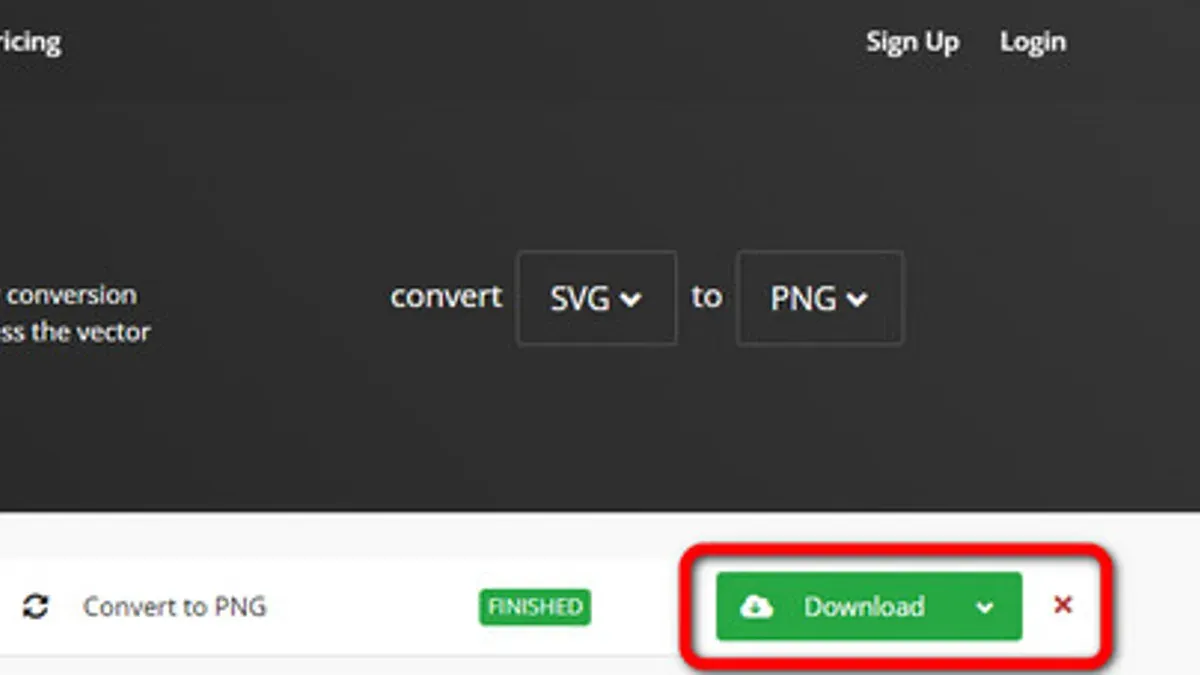
Online converters offer a convenient way to convert SVG files to PNG without installing any software. Popular free options include CloudConvert, Convertio, and Online-Convert. Each has different strengths and limitations regarding speed, quality, and privacy.
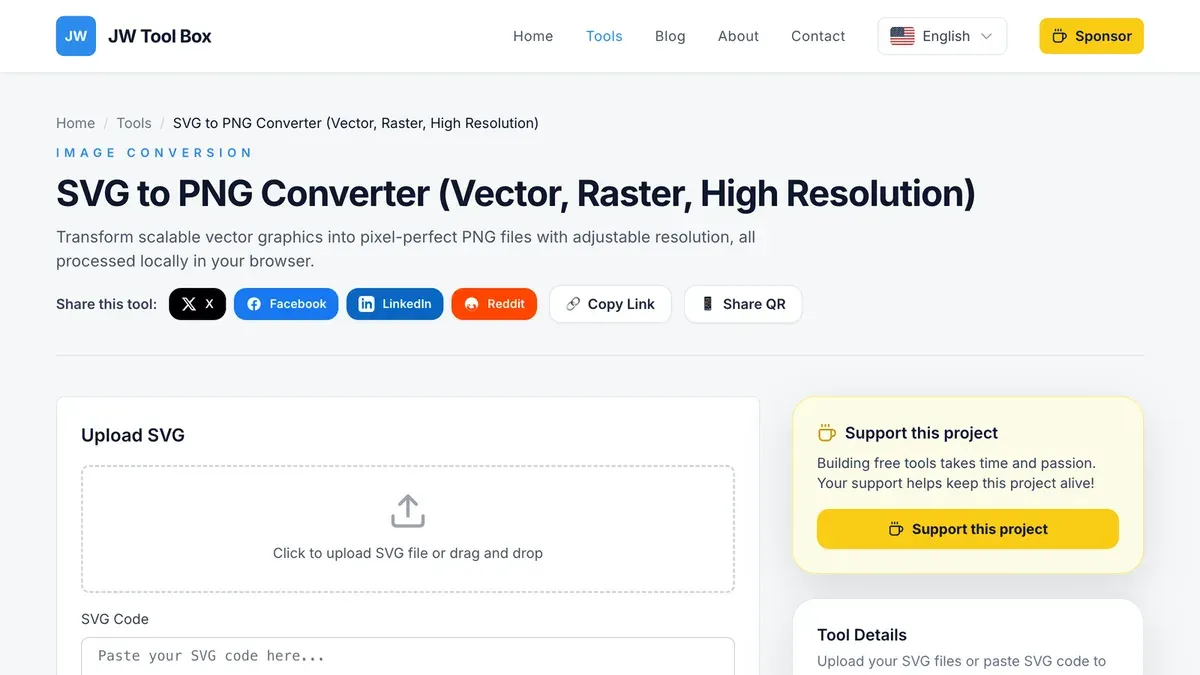
CloudConvert supports batch uploads and provides good quality output but limits file size unless you create an account. Convertio offers an intuitive interface with drag-and-drop support but may compress images slightly, affecting quality. Online-Convert allows format customization but has slower processing times and strict file size limits.
- Open your chosen online converter website (for example, CloudConvert SVG to PNG).
- Click the “Select File” or “Choose Files” button to upload your SVG from your Mac. You should see your file listed once uploaded.
- Adjust any available settings such as output image size or quality if the site offers these options.
- Click the “Convert” button to start processing. A progress bar or spinner usually appears.
- Once conversion is complete, download the PNG file to your Mac by clicking the provided link or download button.
Keep in mind that online converters upload your files to external servers, so privacy may be a concern for sensitive images. Most free converters impose limits on file size and number of conversions. Complex SVGs may not convert perfectly, leading to quality loss or missing elements.
How to convert SVG to PNG on Mac with free software like Inkscape
Inkscape is a powerful, free desktop application that offers precise control over SVG to PNG conversions, especially useful for complex graphics where Preview or online tools fall short. It supports adjustable resolution and background options, giving you high-quality results suitable for professional use.
- Download the latest Inkscape Mac installer from the official website (inkscape.org) and open the.dmg file. You should see the Inkscape application icon ready to be dragged into your Applications folder.
- Launch Inkscape from your Applications folder. Upon opening, familiarize yourself with the interface to confirm a successful installation.
- Open your SVG file in Inkscape by selecting File > Open. The SVG should render fully with all vector details visible.
- To export as PNG, go to File > Export PNG Image. This opens the export panel on the right side of the window.
- Under the "Export Area" section, choose your desired option (Page, Drawing, Selection, or Custom). For full SVG export, "Page" is typical.
- In the "Image Size" section, set the resolution (DPI) for your PNG. Increasing DPI above the default 96 will produce a higher-quality image; for example, 300 DPI is common for print-ready files.
- Choose your export folder and file name by clicking the "Export As" button, then click "Export". The PNG file should appear at the chosen location.
Inkscape's export typically results in sharper, cleaner PNGs with accurate color and transparency handling, outperforming Preview and many online converters for complex SVGs. If you encounter installation issues, ensure your MacOS version supports the Inkscape build and that you have allowed apps from identified developers in your security settings.
Export errors often relate to incorrect export area selection or insufficient file permissions; double-check these settings if you don’t see your PNG after export.
How to convert SVG to PNG on Mac using the command line with ImageMagick
ImageMagick is a powerful command-line tool that enables efficient SVG to PNG conversion on Mac, ideal for batch processing or automation. Start by installing ImageMagick via Homebrew if it's not already on your system.
- Open Terminal and run brew install imagemagick. You should see installation progress and a confirmation when complete.
- To convert a single SVG file to PNG, use the basic command:
magick input.svg output.png. This creates a PNG with default size and quality settings. - Control output size and quality by adjusting density and resize options. For example:
magick -density 300 input.svg -resize 1024x1024 output.pngsets a higher density for better detail and resizes the PNG to 1024 by 1024 pixels. - To ensure a transparent background, add
-background nonebefore the input filename:magick -background none -density 300 input.svg output.png. This is useful if your SVG has transparent areas. - For batch conversions, navigate to the folder containing your SVG files and run:
for f in *.svg; do magick -density 300 "$f" "${f%.svg}.png"; done. This command converts all SVGs in the folder to PNGs with improved quality.
Using ImageMagick command-line options allows precise control over output dimensions and transparency. A typical SVG file around 50 KB might convert to a PNG of 200–300 KB depending on size and complexity, maintaining crisp image quality suitable for a variety of uses.
How to handle converting PNG to SVG and other related format questions
Converting PNG to SVG is not a straightforward process because PNG is a raster format made of pixels, while SVG is a vector format based on paths and shapes. This fundamental difference means you cannot simply convert a PNG file into a scalable SVG without some form of tracing or vectorization, which can lead to loss of detail or inaccurate representations.
If you need to convert a PNG to SVG, consider using vectorization tools like Adobe Illustrator's Image Trace feature or free software such as Inkscape's Trace Bitmap function. These tools analyze the raster image and create vector paths, but results vary depending on image complexity and quality. Simple graphics with clear edges convert better than complex or photographic images.
JPEG to SVG conversion shares similar limitations. Because JPEGs are compressed raster images, converting them to SVG often results in quality loss and imprecise vectors, especially for photographs or detailed images.
Understanding the difference between raster and vector graphics helps clarify these challenges. Raster images store color data for each pixel, making them resolution-dependent, while vectors describe images mathematically, enabling scalability without quality loss. Direct conversion from raster to vector requires interpretation of shapes and colors, which can be imperfect.
- Open your PNG file in a vectorization tool like Inkscape.
- Use the Trace Bitmap feature (Path > Trace Bitmap) to create vector paths from the image.
- Adjust threshold and smoothing settings to improve path accuracy.
- Preview the vectorized result and edit paths as needed to refine the image.
- Save or export the file as an SVG format.
After conversion, inspect the SVG at different zoom levels to ensure it meets quality expectations. Complex images may require manual cleanup or simplification for better results.
Troubleshooting common issues when converting SVG to PNG on Mac
If your SVG file doesn’t open or export correctly, the file may be corrupted or contain unsupported elements. For example, Preview may display an error like "Could not open the file." Try opening the SVG in a dedicated editor like Inkscape to verify its integrity.
Missing fonts can cause text to render incorrectly or disappear in the PNG output. To fix this, embed fonts directly into the SVG file if possible, or convert text to paths before exporting. In Inkscape, select all text and use Path > Object to Path to avoid font issues.
Color shifts or loss of transparency in the PNG often happen due to incompatible color profiles or export settings. When using ImageMagick, add the -background transparent flag to preserve transparency. In Preview, ensure you export with PNG format selected and check that the background is set to transparent if needed.
Very large SVG files can slow down or freeze conversion tools. To handle this, simplify the SVG by removing unnecessary layers or effects in an editor like Inkscape. Alternatively, use command-line tools with batch processing and limit output resolution to speed up conversion.
- Open the SVG in Inkscape to check for errors; if it opens without issues, the file is likely sound.
- Convert text to paths with Path > Object to Path to fix font problems; export again and check the PNG.
- Use ImageMagick with
-background transparentto preserve transparency; runconvert input.svg -background transparent output.png. - If conversion is slow or hangs, simplify the SVG by removing complex elements or lower export resolution.
- After each step, verify the PNG output displays correctly without missing elements or color issues.
Choosing the best method to convert SVG to PNG on Mac for your needs
When deciding how to convert SVG files to PNG on your Mac, consider the balance between speed, output quality, ease of use, and privacy.
| Method | Speed | Output Quality | Ease of Use | Privacy | Best for |
|---|---|---|---|---|---|
| Preview App | Fast | Basic (suitable for simple SVGs) | Very easy (built-in GUI) | High (local processing) | Casual users with simple files |
| Online Converters | Very fast | Varies (may compress or limit file size) | Very easy (no installation) | Low (uploading files online) | Quick conversions without software |
| Inkscape | Moderate | High (customizable export) | Moderate (requires installation and learning) | High (local processing) | Designers needing quality control |
| ImageMagick (Command Line) | Fast | High (with proper parameters) | Complex (command line knowledge needed) | High (local processing) | Developers and batch processing |
Recommendations:
- If you have simple SVG files and want quick results with no added software, use Preview. You should see your PNG export complete quickly with basic fidelity.
- For fast, occasional conversions without software, online tools work well, but avoid sensitive files due to privacy concerns.
- If you require high-quality output and customization, especially for complex SVGs, Inkscape offers robust options. After exporting, check the PNG for visual accuracy.
- Developers or power users converting batches or automating workflows can use ImageMagick. Successful conversion will be confirmed by command output and generated PNG files.
- Sometimes combining methods helps: start with Preview for a quick look, then refine with Inkscape or ImageMagick for quality.
- For professional vector editing or intricate SVG files, dedicated software like Adobe Illustrator may be necessary to preserve all details and layers before exporting to PNG.
- How to Convert WebP to PNG on Mac: Step-by-Step Methods
- How to Convert PNG to PDF on Mac: Simple Step-by-Step Methods
- How to Convert HEIC to JPG on Mac: Simple Step-by-Step Guide
Frequently asked questions
How do you convert svg to png?
You can convert SVG to PNG by opening the SVG file in a compatible app like Preview or Inkscape and exporting it as PNG. Alternatively, use online converters or command-line tools such as ImageMagick to perform the conversion. Choose a method based on your technical comfort and the complexity of the SVG file.
How to convert svg file to png?
To convert an SVG file to PNG, open the SVG in Preview on your Mac, then go to File > Export, and select PNG as the format. If Preview doesn’t support the file’s features well, using free software like Inkscape or an online converter can offer better quality and control over resolution.
How can i convert svg to png?
You can convert SVG to PNG by dragging the SVG into Preview and exporting it as PNG, using a website like CloudConvert, or running a command such as magick input.svg output.png if you have ImageMagick installed. Consider the file’s detail level and your desired image quality when selecting a method.
Can i convert png to svg?
Converting PNG to SVG is possible but more complex since PNG is raster and SVG is vector. Tools like Vector Magic or Inkscape offer tracing features to convert PNG images into editable SVGs, but results depend on the image quality and complexity. This process is not a direct conversion and may require manual adjustment.
How to convert svg to png file?
Open the SVG file in Preview, then select File > Export and choose PNG as the output format. For higher quality or batch conversions, use Inkscape’s export feature or a command-line tool like ImageMagick with the appropriate syntax. Adjust the export resolution or size to ensure the PNG meets your needs.
What this advice does not cover
This article does not cover professional-grade vector editing software workflows like Adobe Illustrator, which may be necessary for highly complex SVG files or commercial-quality outputs. If your project demands precise control over every vector element, advanced styling, or print-ready formats, consider using specialized vector design tools that support comprehensive SVG editing and export options.
For most Mac users looking to convert SVG files to PNG quickly and effectively, the methods outlined here provide a balance between ease of use and output quality. The best way to move forward is to choose the method that matches your technical comfort and the complexity of your SVG files. Experiment with Preview for simple tasks, or try Inkscape or ImageMagick if you need more control and batch processing. Always check the resulting PNG for transparency and resolution settings before using it in your projects.