
How to Convert HEIC to JPG on Mac: Simple Step-by-Step Guide
Discover easy ways to convert HEIC images to JPG on Mac for better compatibility and sharing across apps and devices.
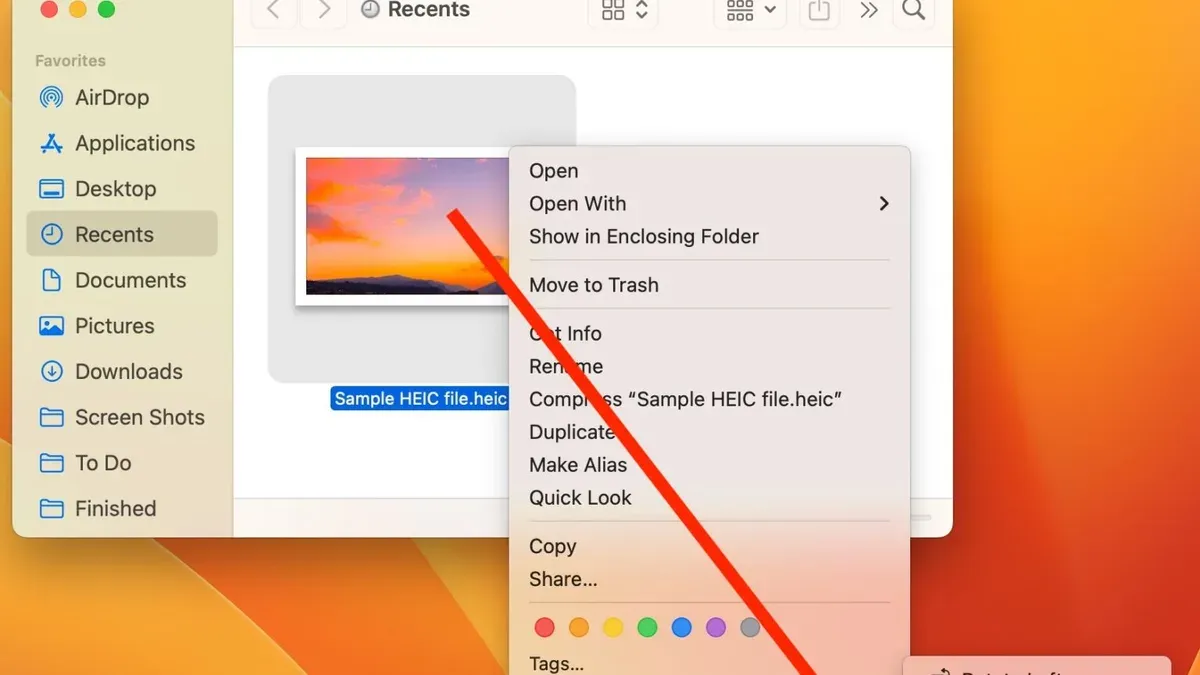
You’ve just transferred photos from your iPhone to your Mac, only to find they’re saved in HEIC format, which many apps don’t support. Converting these HEIC images to JPG makes them easier to share, edit, and use across different programs.
This article covers how to convert HEIC to JPG on Mac using various methods, from quick manual conversions with Preview to bulk processing with Automator, maintaining image quality, and using command line tools. You’ll also find tips for using the Photos app and free online converters, plus solutions for common issues.
Key takeaways
- Preview app allows quick one-by-one HEIC to JPG conversion through Export options.
- Automator lets you batch convert multiple HEIC files efficiently without third-party apps.
- Use "Export" in Photos app to convert HEIC images while preserving metadata.
- Command line tools like sips offer powerful bulk conversion but require basic Terminal familiarity.
- Free online converters can help but watch for privacy and file size limits.
Before you start: what you need to convert HEIC to JPG on Mac
The High Efficiency Image Container (HEIC) format is the default image format on many Apple devices, including iPhones and Macs, due to its efficient compression that saves storage space while maintaining high image quality. For example, a typical HEIC photo can be about 30-50% smaller than the equivalent JPG file without noticeable quality loss.
To convert HEIC files on your Mac, you need to ensure your system supports the format. macOS High Sierra (10.13) and later versions natively support HEIC, and built-in apps like Preview and Photos can open these files. If your Mac runs an earlier macOS version, you may need third-party software to work with HEIC files.
JPG (or JPEG) is a widely compatible image format supported across most devices and platforms. You might want to convert HEIC images to JPG to ensure compatibility with older software, websites, or when sharing files with others who don’t support HEIC.
Before converting, it’s critical to back up your original HEIC files. Conversions can sometimes reduce image quality or metadata, so keeping the original files ensures you can revert or try different methods without loss.
- Locate your HEIC files in Finder. You should see the.heic extension and be able to preview images by pressing the spacebar.
- Confirm your Mac’s macOS version by clicking the Apple menu > About This Mac. If it is High Sierra (10.13) or newer, you have native HEIC support.
- Make a backup copy of your HEIC files by selecting them, then right-clicking and choosing Duplicate or copying them to an external drive. You should see duplicate files with the same names in your backup location.
How to convert HEIC to JPG on MacBook, MacBook Air, and MacBook Pro using Preview
Preview is the simplest built-in app on your Mac for converting HEIC files to JPG format. It lets you convert a single image or multiple files without extra software.
- Select your HEIC file(s) in Finder. For multiple files, hold the Command key and click each one.
- Right-click the selected file(s) and choose Open With > Preview. The images will open in one Preview window if multiple files are selected.
- In Preview, click File > Export if you have one image open. If multiple images are open, use File > Export Selected Images or select all thumbnails (Command + A).
- In the export dialog, click the Format dropdown and choose JPEG.
- Adjust the Quality slider to balance image quality and file size. Higher quality produces larger files but retains more detail.
- Select your destination folder and click Save. For multiple images, Preview exports all selected files as JPGs to the chosen folder.
This method preserves good image quality, and the files are generally smaller than HEIC. However, Preview is not ideal for very large batches since selecting and exporting hundreds of images can be tedious and slow.
For example, exporting a 12MP HEIC photo at maximum quality produces a JPG around 2-3 MB, while reducing quality to 70% can cut file size roughly in half with minor visible loss.
How to convert HEIC to JPG on Mac in bulk using Automator
Automator is a built-in macOS tool that lets you create custom workflows to automate repetitive tasks like batch converting HEIC images to JPG. This approach saves time without needing third-party software and works well for processing large collections.
- Open Automator from your Applications folder. You will see a prompt to choose a document type; select Workflow and click Choose. You should see a blank workflow area on the right.
- In the left sidebar’s search bar, type Get Specified Finder Items. Drag this action to the workflow area. This action lets you select the HEIC files you want to convert.
- Click the Add button inside the Get Specified Finder Items action and select the HEIC files or a folder containing them. You will see the list of files in the workflow.
- Search for Change Type of Images in the action library and drag it below the first action. When prompted, click Add to duplicate files before conversion to preserve originals.
- In the Change Type of Images action, set the format dropdown to JPEG. This configures the conversion output format.
- Save the workflow with a memorable name like "HEIC to JPG Batch Converter" for reuse later.
- To run the workflow, click the Run button at the top-right. You will see progress as each file converts to JPG alongside the originals in the same folder.
This method handles hundreds of images efficiently; for example, converting 100 HEIC files typically takes less than a few minutes, depending on your Mac’s processing power.
Advantages of Automator include no need for extra software, easy reuse of workflows, and the ability to customize conversion steps further. However, it requires manual selection of files each time unless you expand the workflow to include folder monitoring. Also, it lacks progress bars or detailed logs, making troubleshooting less straightforward than dedicated apps.
How to convert HEIC to JPG on Mac without losing quality
HEIC uses advanced compression that retains higher image quality and metadata than JPG, which relies on lossy compression. Converting HEIC to JPG typically involves some quality loss unless you carefully manage export settings and choose the right tools.
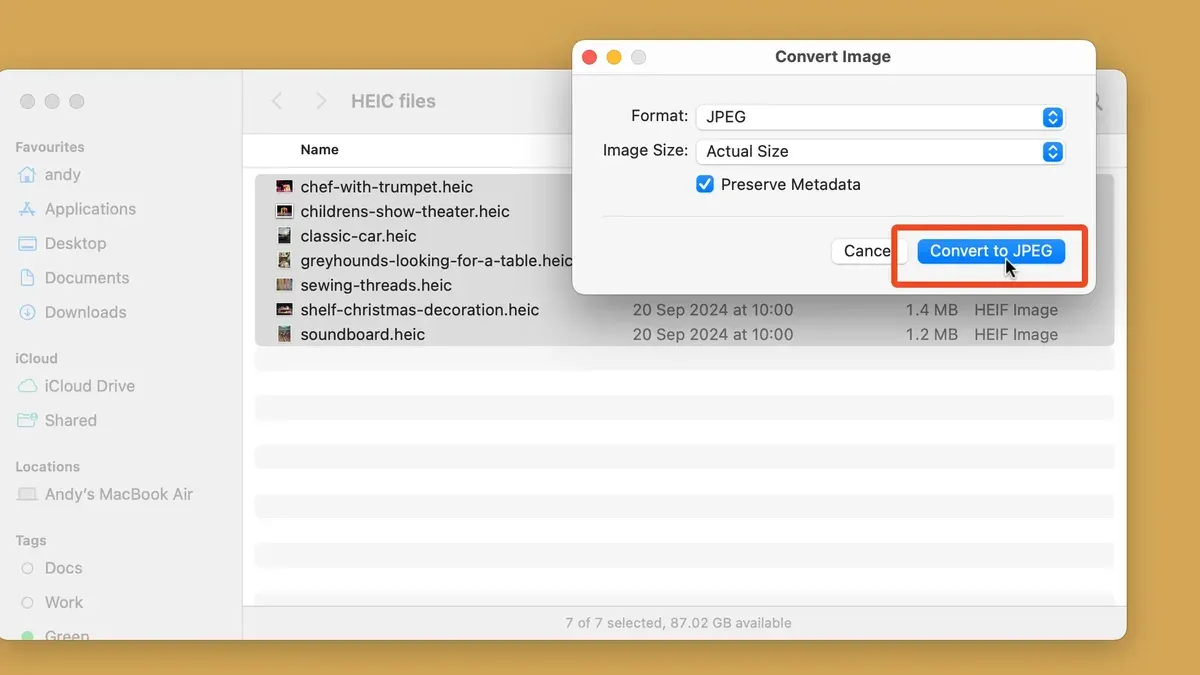
When using Preview, select File > Export, then choose JPEG format. Adjust the Quality slider to 100% to minimize compression artifacts. This preserves much of the original detail but can result in larger file sizes.
Third-party apps like iMazing HEIC Converter or Permute offer options for near-lossless conversion by preserving EXIF metadata and color profiles, which helps maintain color accuracy and file information. These apps often provide batch processing with quality presets.
To avoid subtle color shifts or metadata loss, check if the conversion tool supports preserving the original color profile (such as sRGB or P3) and EXIF data. Some converters strip this information by default, which can degrade image fidelity.
If you want to keep every detail intact, consider whether conversion is necessary; sometimes keeping HEIC files is preferable since JPG inherently reduces quality. If conversion is required, always compare side-by-side images to verify the output quality and metadata retention.
- Open your HEIC file in Preview and go to File > Export. You should see the export dialog with format options.
- Select JPEG from the Format dropdown and move the Quality slider to 100%. This ensures minimal compression loss.
- Save the file and compare the new JPG with the original HEIC in Preview by toggling between them to check visual quality.
- Use a metadata viewer app or Get Info in Finder to confirm that EXIF data and color profile are preserved.
- If quality or metadata is insufficient, try a third-party app with explicit preservation options and repeat the comparison.
How to convert HEIC to JPEG on Mac using Photos app
The Photos app offers a user-friendly way to convert HEIC images to JPEG, especially if you already manage your photos within this app. Importing HEIC files into Photos is straightforward, and exporting them as JPEG lets you control quality and size.
- Open the Photos app on your Mac.
- Drag and drop your HEIC images into the Photos library or use File > Import to add them. Confirm you see the images in your library.
- Select the photos you want to convert. For batch export, hold Shift or Command to select multiple images.
- Go to File > Export > Export [number] Photos. A dialog will appear with export options.
- Choose JPEG as the Photo Kind. You can set the JPEG Quality from Low, Medium, High, to Maximum. Selecting High or Maximum preserves most details but results in larger files.
- Set the size option to either Full Size or a scaled version if you want smaller files. Full Size maintains original dimensions.
- Optionally, check or uncheck “Include Metadata” to retain information like location and camera settings.
- Click Export, choose a destination folder, and wait for the process to complete.
Photos’ export generally preserves image quality well, though file sizes can be slightly larger than Preview exports at equivalent quality settings. Unlike Preview, Photos keeps metadata intact by default, which is useful if you need to retain photo details.
For batch exports, Photos handles dozens of images smoothly but can slow down with very large collections. Unlike Automator, it lacks automation but offers a visual interface that some users find easier.
How to convert HEIC to JPG on Mac using command line
If you are comfortable with Terminal, using command line tools like sips and ImageMagick offers a powerful way to convert HEIC to JPG. These tools enable both single image conversion and batch processing through scripting, ideal for automation and custom workflows.
Using sips for single and batch conversion
- Open Terminal from Applications > Utilities.
- To convert a single HEIC file, enter: sips -s format jpeg /path/to/input.heic --out /path/to/output.jpg. Successful execution shows no error and creates the JPG file.
- For batch conversion in a folder, run: for file in /path/to/folder/*.heic; do sips -s format jpeg "$file" --out "${file%.*}.jpg"; done. This converts all HEIC files to JPG in the folder.
Using ImageMagick for advanced options
First, install ImageMagick via Homebrew (brew install imagemagick) if not already installed. Then convert a single file with: magick convert input.heic output.jpg. Batch conversion can be scripted similarly.
Command line conversion is faster than manual methods for large batches and integrates well with scripts for repetitive tasks. However, be cautious as overwriting files can occur if output paths are not specified correctly. Testing on sample files before full batch runs is recommended.
Performance varies by Mac model and file size, but batch conversions using sips or ImageMagick generally complete within seconds for dozens of images, much faster than GUI-based methods.
How to convert HEIC to JPG on Mac using free and online apps
If you prefer a graphical user interface or seek quick online solutions, several free Mac apps and online converters can help you convert HEIC to JPG. These tools vary in features, privacy, and suitability depending on your needs.
| App/Tool | Pricing | Features | Privacy and Limits |
|---|---|---|---|
| iMazing HEIC Converter | Free | Drag-and-drop interface, batch conversion, preserves metadata | Local app, no upload, safe for sensitive files |
| HEIC to JPEG (Mac App Store) | Free with in-app purchases | Simple conversion, batch support, adjustable quality | Local processing, safe for private images |
| CloudConvert (Online) | Free limited conversions, paid plans for bulk | Supports many formats, customizable output | Uploads files to servers, limited file size, not recommended for sensitive content |
| Zamzar (Online) | Free limited conversions daily | Easy to use, email notifications, multiple formats | Files uploaded to cloud, privacy concerns for confidential images |
To convert HEIC to JPG using iMazing HEIC Converter, follow these steps:
- Download and install iMazing HEIC Converter from the official website. The app opens with a simple drag-and-drop window.
- Drag your HEIC files into the app window. You should see the files listed ready for conversion.
- Set the output format to JPG and adjust the quality slider if desired to balance size and quality.
- Click the Convert button and select the destination folder. The app processes the files and saves JPGs to the chosen location.
- Verify the converted files by opening them in Preview or your preferred image viewer; the images should display correctly and retain quality.
Online converters offer convenience but upload your files to external servers, which may pose privacy risks. Avoid using online tools for sensitive or confidential images. Free apps that process files locally provide better privacy and usually faster performance without file size limits.
Troubleshooting common issues when converting HEIC to JPG on Mac
Preview won’t open HEIC files
If Preview fails to open HEIC files, you may see the error message “The document could not be opened.” This often happens if your macOS version is outdated or the file is corrupted. First, ensure your Mac runs macOS High Sierra or later. If it does, try opening the file in the Photos app or another HEIC-compatible viewer. If the file remains inaccessible, it might be damaged and require recovery tools or a new source.
Fixing color profile or metadata loss after conversion
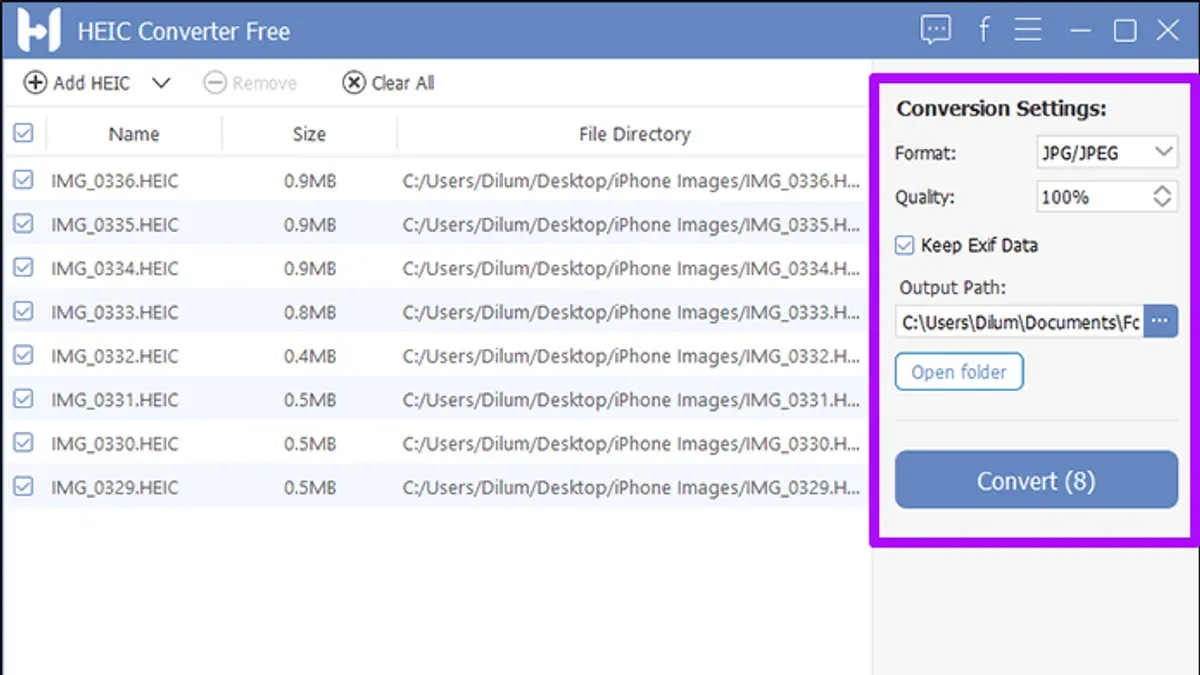
Color shifts or missing metadata can occur if the conversion tool strips embedded profiles. To avoid this, use converters that explicitly preserve metadata, such as the Photos app export or Automator workflows with metadata options enabled. After conversion, right-click the JPG, select Get Info, and check the More Info tab for color profile details to confirm preservation.
Handling corrupt or unsupported HEIC files
Corrupt HEIC files often cause errors like “Could not complete the operation because the file is damaged.” Unsupported variants of HEIC may not open in standard apps. To address this, try opening the file in alternative apps like GraphicConverter or online HEIC repair services. If the file is irreparably corrupt, re-obtaining the image from the original device is recommended.
Batch conversion errors and how to avoid them
Batch conversions may fail with errors such as “Process exited with code 1” or halt midway. Common causes include file permission issues, unsupported file formats mixed in the batch, or insufficient disk space. To troubleshoot:
- Verify all input files have.heic extensions and are not corrupted; a successful preview is a good sign.
- Check file permissions by selecting files, pressing Command + I, and confirming you have read/write access.
- Ensure enough free storage is available on your Mac’s drive.
- Restart the conversion app or Automator workflow and run a smaller batch as a test.
If the problem persists, convert files individually or in smaller groups to isolate problematic files.
- How to Open and Edit.md Files on Mac: A Complete Guide
- How to Open and Work with CSV Files on Mac: Step-by-Step Guide
- How to Open.rtf Files on Mac: Easy Step-by-Step Guide
- How to Open.pages Files on Mac and Windows: A Step-by-Step Guide
Frequently asked questions
how to convert heic to jpg on macbook
To convert HEIC to JPG on a MacBook, open the HEIC image with Preview. Then, go to the File menu, select Export, and choose JPEG as the format. Adjust the quality slider if needed, and save the file to your desired location.
how to convert heic to jpg on mac free
You can convert HEIC to JPG on Mac for free using built-in tools like Preview or Automator. Preview allows single-image conversion, while Automator can handle batch processing without additional software. Both options maintain image quality without any cost.
convert heic to jpg mac app
Several Mac apps convert HEIC to JPG, including Preview, Photos, and third-party apps like ImageOptim or iMazing HEIC Converter. Preview is native and straightforward for individual files, while apps like iMazing support batch conversions with customizable settings.
convert heic to jpg apple
Apple provides multiple ways to convert HEIC to JPG, such as using the Photos app by exporting images as JPEG or using Preview's Export feature. Additionally, Automator offers an Apple-supported method for batch conversion without sacrificing image quality.
What this advice does not cover
This article does not cover converting HEIC files on non-Apple devices or using paid professional image editors, which may offer additional features but require separate guidance. If you primarily work on Windows or Android, or need advanced editing capabilities alongside conversion, consider specialized software designed for those environments.
The single most useful next step is to decide which conversion method fits your typical workflow and Mac model. For quick individual conversions, Preview is straightforward and reliable. If you handle large batches regularly, setting up an Automator workflow can save significant time. Understanding these options ensures you can efficiently convert HEIC files to JPG without unnecessary steps or quality loss.



