
How to Open and Edit.md Files on Mac: A Complete Guide
Discover how to open and edit.md files on your Mac using built-in apps and specialized Markdown editors for a smooth experience.
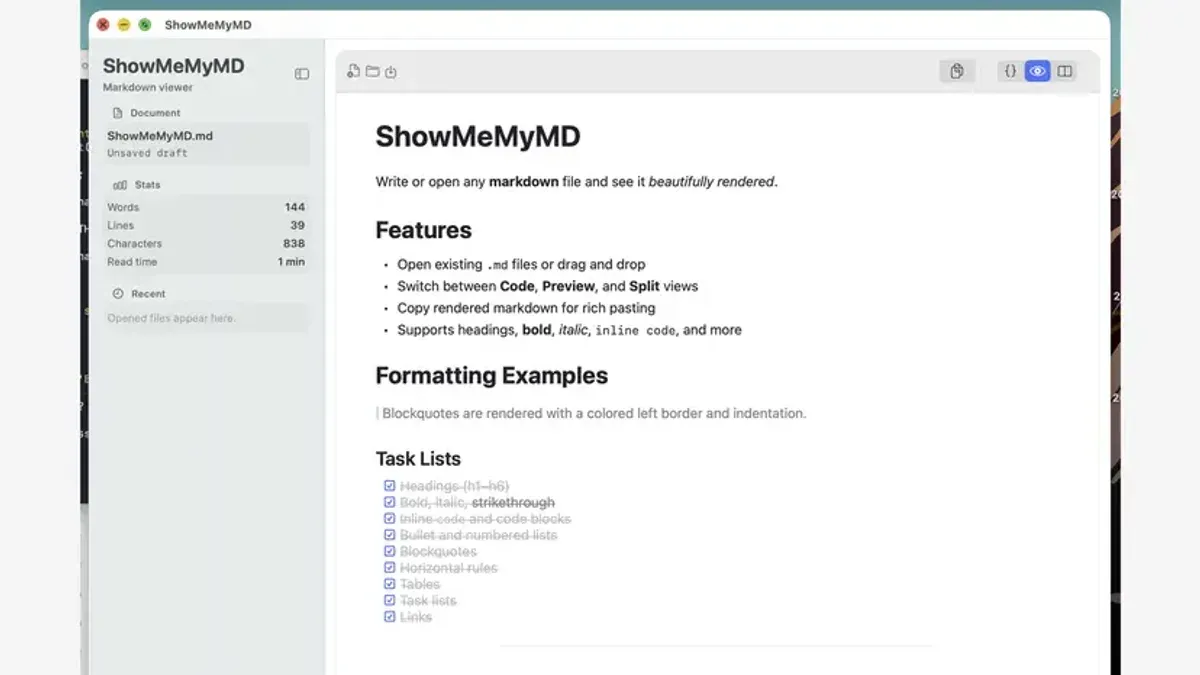
You’ve come across a.md file on your Mac and aren’t sure how to open it. Perhaps it’s a README from a project or notes someone shared, and you want to view or edit it without hassle.
This guide covers how to open.md file on Mac using built-in tools and dedicated Markdown editors. You’ll also learn how to create.md files easily, explore options for advanced users with Visual Studio Code, and get tips on cross-platform compatibility with Windows. Common issues and best practices for managing Markdown files effectively on your Mac are included to help you choose the right tools and workflows.
Key takeaways
- Preview.md files quickly using macOS TextEdit or Quick Look.
- Dedicated Markdown editors like MacDown or Typora provide live preview and formatting tools.
- Create.md files with any plain text editor or Terminal commands.
- Visual Studio Code offers advanced editing features and extensions for Markdown.
- Check file encoding and line endings if you encounter display issues across platforms.
Before you start: what you need to open a.md file on Mac
A.md file is a Markdown plain text file commonly used for documentation, notes, and writing content with simple formatting. It contains readable text with special characters that represent elements like headings, lists, and links.
You can open.md files on your Mac using built-in plain text editors such as TextEdit. However, these apps display raw Markdown syntax without rendering formatting, which may make the content harder to read. Preview, another native app, doesn’t support.md files directly.
For better readability and editing, specialized third-party Markdown editors provide live previews and syntax highlighting. These apps improve your experience by showing formatted text alongside the raw Markdown code.
Advanced users might prefer using terminal-based tools or code editors like Visual Studio Code, which offer extensive Markdown support, including preview, extensions, and integration with version control.
| App Type | Example | Raw Markdown View | Formatted Preview | Editing Features |
|---|---|---|---|---|
| Built-in Plain Text Editor | TextEdit | Yes | No | Basic text editing |
| Built-in Viewer | Preview | No | No | Not supported |
| Third-Party Markdown Editor | Typora, MacDown | Yes | Yes | Syntax highlighting, live preview |
| Code Editor | Visual Studio Code | Yes | Yes | Advanced editing, extensions |
To open a.md file with TextEdit:
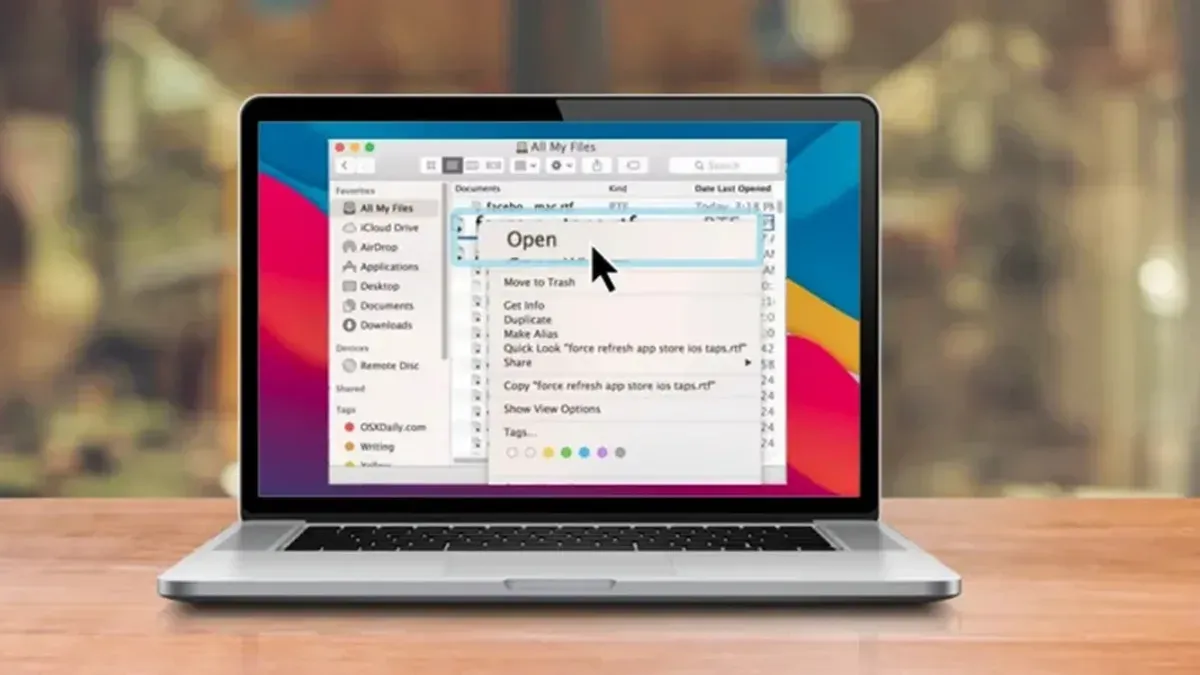
- Right-click the.md file and select Open With > TextEdit. You should see the raw Markdown text displayed.
- If you want to edit the file, simply start typing. TextEdit saves in plain text when you select Format > Make Plain Text.
- For formatted previews, consider installing a Markdown editor from the Mac App Store or online.
How to open.md file on Mac using built-in tools
Mac offers several native ways to open.md files without installing extra software, each with distinct use cases and limitations.
Opening with TextEdit
- Locate your.md file in Finder and right-click it.
- Choose Open With > TextEdit.
- The file opens in plain text, allowing you to view and edit the Markdown code directly.
TextEdit displays the raw Markdown syntax without rendering formatting, making it suitable for quick edits but not for previewing how the file will look when rendered.
Using Quick Look for preview
- Select the.md file in Finder.
- Press the Spacebar to activate Quick Look.
Quick Look shows a plaintext preview of the file contents with no Markdown formatting applied. It is useful for a fast peek but does not support rendering elements like headers or links.
Opening via Terminal with 'cat' or 'less'
- Open the Terminal app from /Applications/Utilities.
- Type
catfollowed by a space, then drag your.md file into Terminal to insert its path. - Press Enter to display the file’s raw content in Terminal.
- Alternatively, use
lessand the file path for scrollable read-only viewing.
This method is read-only and displays the unformatted Markdown code. Use it when you want to quickly inspect file contents without editing.
Each built-in approach offers immediate access without setup but lacks Markdown rendering. For visual formatting or advanced editing, dedicated Markdown editors are recommended.
How to open markdown file on Mac with dedicated Markdown editors
Dedicated Markdown editors offer enhanced features like live preview, syntax highlighting, and export options that improve your editing experience compared to basic text editors. Popular choices include MacDown, Typora, iA Writer, and Visual Studio Code, each catering to different user preferences.
| Editor | Live Preview | Syntax Highlighting | Export Options | Price | User Experience |
|---|---|---|---|---|---|
| MacDown | Yes | Yes | HTML, PDF | Free | Simple WYSIWYG with side-by-side preview |
| Typora | Seamless (WYSIWYG) | Yes | HTML, PDF, Word | Paid (one-time fee) | Clean, distraction-free WYSIWYG editor |
| iA Writer | Yes | Yes | PDF, Word, HTML | Paid (subscription or one-time) | Minimalist with focus mode, WYSIWYG style |
| Visual Studio Code | Split preview and editor | Yes | Via extensions | Free | Code-focused, highly customizable |
- Download and install your chosen Markdown editor from the official website or Mac App Store. For example, visit macdown.uranusjr.com for MacDown or code.visualstudio.com for Visual Studio Code.
- Launch the app and use the File menu to open your.md file. The interface will display your file with syntax highlighting and a live preview, depending on the app.
- For Visual Studio Code, install the "Markdown All in One" extension from the Extensions sidebar to enable enhanced Markdown features including live preview.
- Explore export options in the File or Export menus to save your Markdown file in formats like PDF or HTML as needed.
- Choose between WYSIWYG editors like Typora for a seamless writing and preview experience, or code-centric editors like Visual Studio Code if you prefer manual control and extensions.
How to create a.md file in Mac using simple methods
Creating a new.md file on Mac can be done easily with built-in tools, Markdown editors, or the command line. Each method suits different user preferences and workflows.
Using TextEdit to create a.md file
- Open TextEdit from your Applications folder.
- Go to TextEdit > Preferences and select Plain Text under the Format tab to avoid rich text formatting.
- Close the preferences and create a new document.
- Type your Markdown content or leave it blank for a new file.
- Choose File > Save.
- In the save dialog, enter your desired filename with the .md extension (for example, example.md).
- Uncheck If no extension is provided, use.txt if checked, then click Save.
After saving, verify the file extension is.md by locating it in Finder.
Using Markdown editor apps
Most Markdown editors like iA Writer, Typora, or MacDown let you create new Markdown files with syntax assistance. Open the app, select New File, and save it with a.md extension. These editors provide immediate syntax highlighting and preview as you write.
Using the Terminal to create a blank.md file
- Open Terminal.
- Navigate to the folder where you want the file using the cd command.
- Type touch filename.md (replace filename with your preferred name) and press Enter.
This creates a new, empty.md file that you can open and edit with any text or Markdown editor.
How to open md file on macOS using Visual Studio Code for advanced users
Visual Studio Code (VS Code) is a free, powerful code editor popular among developers and advanced users for editing Markdown (.md) files with enhanced control and customization. It supports live preview, syntax highlighting, and numerous extensions to optimize your Markdown workflow.
- Download and install VS Code from the official website (code.visualstudio.com). After installation, launch the app and you will see the main editor interface.
- Open your.md file by selecting File > Open File… or dragging the file into the VS Code window. The raw Markdown will appear with syntax highlighting.
- Enable the Markdown preview by clicking the Open Preview to the Side icon in the top-right corner of the editor pane or pressing Cmd+K V. You will see a live, formatted preview of your Markdown beside the code.
- To extend functionality, open the Extensions Marketplace by clicking the Extensions icon on the sidebar or pressing Cmd+Shift+X. Search for popular Markdown extensions like Markdown All in One or Markdown Preview Enhanced and click Install. These add features such as table of contents, enhanced preview, and export options.
- Export your Markdown file to HTML or PDF by opening the Command Palette (Cmd+Shift+P), typing Markdown: Export, and selecting the desired format. The exported file will be saved in your project folder.
VS Code’s interface allows side-by-side editing and preview, providing immediate feedback on your Markdown formatting. The trade-off is a steeper learning curve and more setup compared to simpler editors, but the customization and integration options make it ideal for power users.
Below are screenshots illustrating the VS Code interface with a Markdown file open, the live preview panel, and the Extensions Marketplace showing Markdown-related extensions available for installation.
How to open.md files on Windows and cross-platform compatibility tips
On Windows, several applications can open and edit.md files effectively. Popular options include Notepad++, Visual Studio Code, and Typora. Notepad++ is a lightweight text editor with syntax highlighting, while Visual Studio Code offers advanced Markdown support similar to its Mac counterpart. Typora provides a seamless live preview experience, making it user-friendly for those less familiar with raw Markdown.
The Markdown file format remains consistent across Mac and Windows platforms. This means a.md file created or edited on a Mac will retain its structure and content when opened on Windows, and vice versa. However, differences in text encoding and line endings can occasionally affect how the file displays, especially in simpler editors.
To preserve formatting and ensure smooth transfer between Mac and Windows, save your.md files using UTF-8 encoding. When moving files, use cloud storage services like OneDrive, Dropbox, or Google Drive, or transfer via USB drives formatted in exFAT for compatibility. Avoid copying files through older FAT32 drives that may alter file metadata.
For example, opening the same.md file in Visual Studio Code on both Mac and Windows shows identical syntax highlighting and live preview panels side by side. Screenshots from both systems demonstrate consistent rendering of headers, links, and lists, confirming cross-platform reliability.
Troubleshooting common issues opening.md files on Mac
If your.md files do not open in the desired app, it may be a file association problem. To fix this, right-click the.md file, select Get Info, then under Open with: choose your preferred Markdown editor and click Change All…. This ensures all.md files open with that app by default.
Corrupted or improperly encoded files may fail to open or display gibberish. Use Terminal to check encoding by running file -I filename.md. If the encoding is not UTF-8, convert it with iconv -f original_encoding -t utf-8 filename.md -o fixed.md. This resolves issues caused by incompatible character sets.
Markdown syntax will not render in editors lacking Markdown support, showing raw symbols instead. Verify your editor supports Markdown preview or switch to one that does. This trade-off affects readability versus simplicity.
File permissions can prevent opening or editing.md files. To check, run ls -l filename.md in Terminal. If your user lacks read/write permission, use chmod u+rw filename.md to grant access. For complex permission issues, sudo chown yourusername filename.md can change ownership, but use it cautiously.
Best practices for managing and editing.md files efficiently on Mac
Choosing the right app depends on your editing needs. For basic note-taking or quick edits, lightweight editors like MacVim or even TextEdit are sufficient. For feature-rich editing with live preview, syntax highlighting, and export capabilities, consider apps like Typora, iA Writer, or Visual Studio Code. Assess your comfort level and project complexity before deciding.
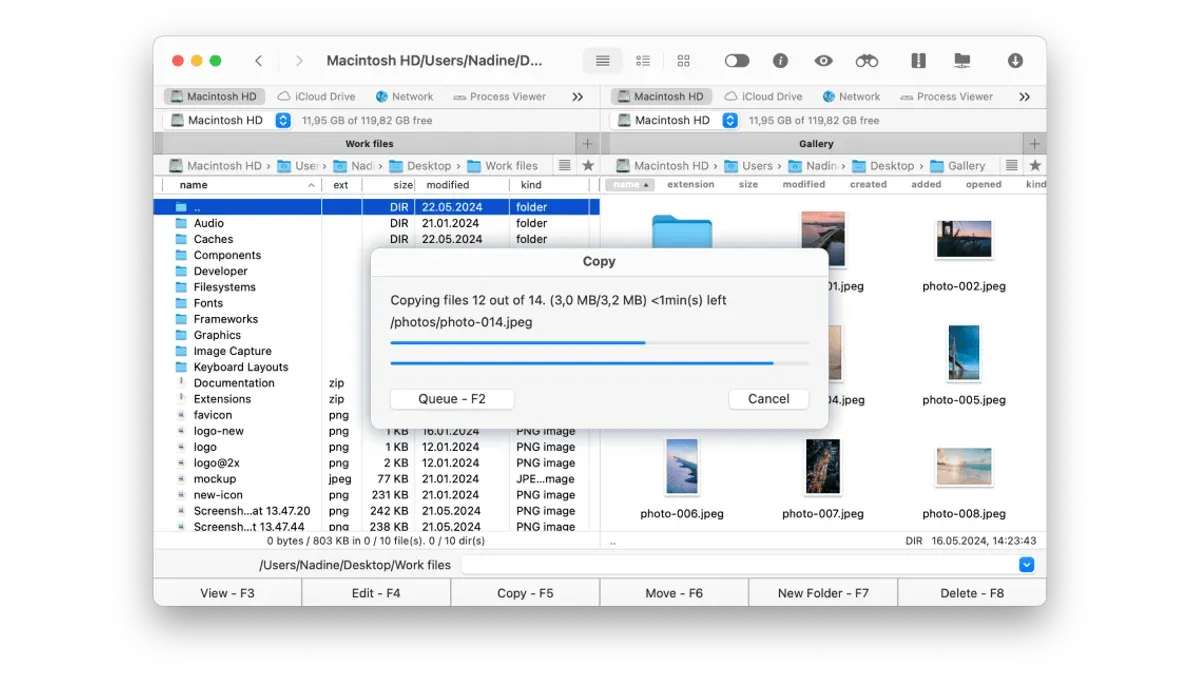
Using version control systems such as Git can significantly improve collaboration and history tracking for Markdown projects. Pair this with cloud syncing services like iCloud Drive, Dropbox, or Google Drive to keep files accessible and backed up across devices.
Organize your Markdown files by project folders or thematic categories to avoid clutter. For example, create separate directories for work reports, personal notes, and documentation. Consistent naming conventions, such as date prefixes (e.g., 2026-10-19-meeting-notes.md), enhance searchability and order.
Backing up important Markdown content is essential. Regularly export critical files to PDF or HTML within your editor to safeguard against format incompatibilities. Additionally, schedule periodic backups using Time Machine or manual copies to external drives.
- Choose an editor suited to your needs: open your.md file and verify syntax highlighting and preview availability. Successful selection improves editing comfort.
- Set up a Git repository in your project folder and commit changes regularly. Confirm commits appear in your version history.
- Use a cloud service by placing your Markdown folder inside its sync directory. Check that files update across your Mac and other devices.
- Create a clear folder structure for your Markdown files with descriptive names. Open Finder and confirm easy navigation and file retrieval.
- Export essential Markdown files to PDF or HTML formats via your editor’s export menu. Verify the exported file’s readability and formatting.
- How to Open.docx Files on Mac: A Step-by-Step Guide
- How to Open.pptx Files on Mac: Simple Step-by-Step Methods
- How to Open.xlsx Files on Mac: Easy Methods and Tips
- Mac Keyboard Shortcut to Open Quick Note: Complete User Guide
Frequently asked questions
How to open md file on macbook?
You can open an.md file on a MacBook using built-in apps like TextEdit by right-clicking the file, selecting "Open With," and choosing TextEdit. For enhanced functionality, dedicated Markdown editors such as MacDown or Typora provide better rendering and editing features. Additionally, advanced users often use Visual Studio Code, which offers syntax highlighting and preview options.
What opens.md files?
.md files are plain text files formatted using Markdown syntax. They can be opened and edited with any text editor, including native options like TextEdit on Mac or Notepad on Windows. To view formatted content, Markdown-specific editors or integrated development environments (IDEs) like Visual Studio Code or Atom are preferred.
How to open md file in mac os?
On macOS, you can open an.md file by double-clicking it if the default application is set, or by right-clicking and selecting "Open With" to choose an app like TextEdit or a Markdown editor. Using a dedicated Markdown editor gives you the advantage of live preview and easier formatting. Alternatively, command-line tools like 'cat' or 'less' can display the file content in Terminal.
How to open md file on windows?
Windows users can open.md files with Notepad or WordPad for basic text viewing. For better readability and editing, apps like Visual Studio Code, Typora, or MarkdownPad provide Markdown rendering and editing features. Setting one of these as the default app simplifies opening.md files with a double-click.
What opens.md files on Mac?
On a Mac,.md files open with simple text editors like TextEdit or more specialized Markdown editors such as MacDown, Typora, or Visual Studio Code. Each option offers different levels of Markdown support, from plain text viewing to live preview and syntax highlighting. Choosing the right tool depends on whether you want basic access or a richer editing experience.
What this guide does not cover and who should look elsewhere
This guide does not cover converting.md files into complex document formats like DOCX or LaTeX, which require specialized tools such as Pandoc or dedicated conversion software. If your workflow demands extensive formatting, citation management, or publishing-ready output, consider using professional document processors or typesetting systems instead.
For users needing collaborative editing with real-time synchronization or integration with platforms like GitHub, exploring cloud-based Markdown editors or version control systems would be more suitable than the basic and intermediate options discussed here.
Next step to take
To build confidence with.md files on your Mac, start by opening an existing Markdown file using the built-in TextEdit app to familiarize yourself with the raw syntax. Then, experiment with a dedicated Markdown editor like MacDown or Typora to see live-rendered previews alongside your writing. This hands-on approach helps you understand the balance between simplicity and functionality, allowing you to select the tools that best fit your needs and workflow.



