How to Open.docx Files on Mac: A Step-by-Step Guide
Discover easy ways to open.docx files on Mac with step-by-step instructions using Pages, Word, and free alternatives.
You just received a.docx file via email or downloaded it from the web, and now you need to open it on your Mac. You may wonder how to open.docx file on Mac without losing formatting or functionality.
This guide walks you through practical, step-by-step methods using Apple’s built-in Pages app, Microsoft Word, free alternatives, and online tools. You’ll also learn how to view.docx files without editing, convert older.doc files for smoother access, and troubleshoot common problems. Each option includes clear instructions and considerations to help you decide which approach suits your needs best.
Key takeaways
- Use Apple Pages to open, edit, and save.docx files natively on Mac with good compatibility.
- Microsoft Word offers full functionality but requires a subscription or purchase.
- Free tools like Google Docs and LibreOffice provide accessible alternatives with some formatting differences.
- You can view.docx files quickly using Quick Look without opening an app.
- Convert older.doc files to.docx using Pages or Word for better compatibility.
Before you start: What you need to open.docx files on Mac
A.docx file is a Microsoft Word document format commonly used for text documents including letters, reports, and resumes. It supports text, images, tables, and advanced formatting, making it more complex than the older.doc format. Understanding this helps set expectations on how different apps handle these files.
Check your Mac’s operating system version because compatibility varies between apps. For example, Apple’s Pages app supports.docx files on macOS 10.15 Catalina or later. Microsoft Word requires at least macOS 10.14 Mojave on recent versions. If your Mac runs an older OS, you might face limitations or need alternative software.
File size and complexity can affect how smoothly an app opens your.docx file. Simple text documents under a few megabytes generally open quickly in most apps. However, files with high-resolution images, embedded objects, or macros may load slower or fail to display correctly, especially in free or built-in apps.
Several apps on Mac can open.docx files without extra cost. Apple’s Pages is pre-installed on many Macs and can open and edit.docx files with reasonable compatibility. Previewing is possible with Quick Look by selecting the file and pressing the spacebar, though editing is not supported. Additionally, free apps like LibreOffice and Google Docs (via a web browser) offer alternatives with varying degrees of formatting fidelity.
- Locate the.docx file on your Mac using Finder. You should see the file extension ".docx" at the end of the filename.
- Verify your macOS version by clicking the Apple menu > About This Mac. Ensure it meets the minimum requirements for your preferred app (e.g., 10.15 for Pages).
- Assess the file size by right-clicking the.docx file and selecting Get Info. Files larger than 10 MB or containing complex elements may require more robust apps like Microsoft Word.
- Confirm that you have at least one compatible app installed, such as Pages or Microsoft Word. If not, consider downloading a free alternative like LibreOffice or plan to use an online tool.
- Prepare for potential conversion or compatibility issues by backing up important documents before editing, especially if macros or unusual formatting are present.
How to open.docx file on Mac using Apple’s Pages app
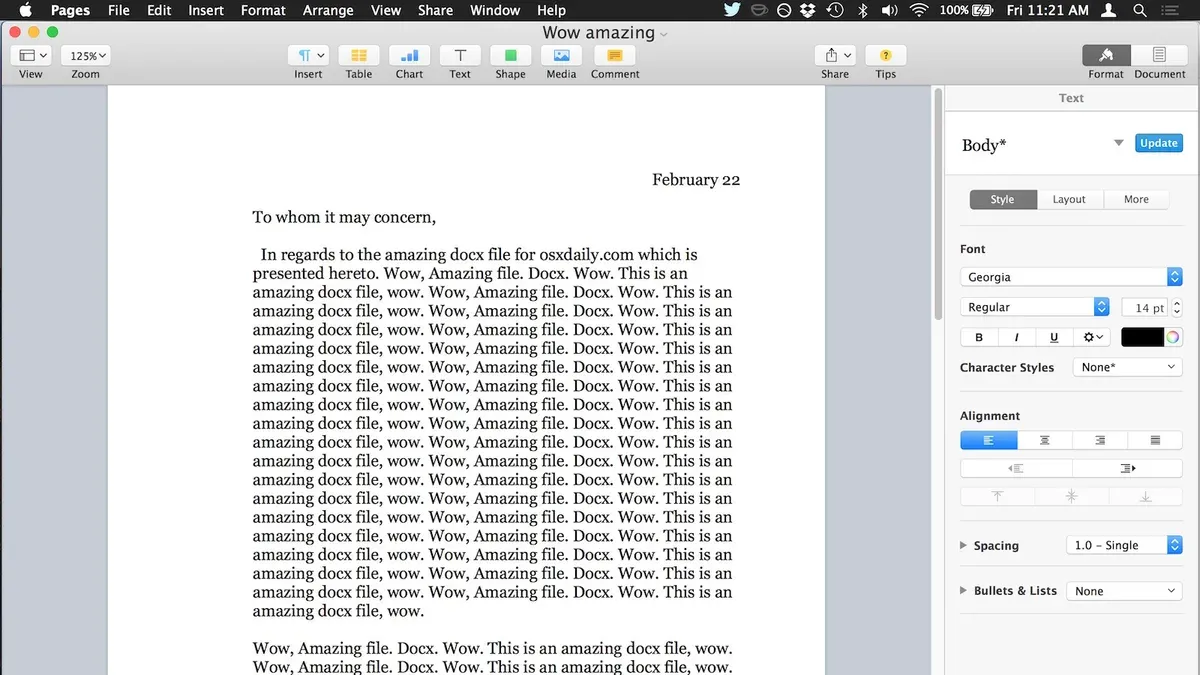
Apple’s Pages app is a native option for Mac users to open and edit.docx files without additional software. Many users overlook Pages, but it offers a straightforward way to handle these files with decent compatibility.
- Open Finder and navigate to the Applications folder. You should see Pages among your installed apps.
- Launch Pages by double-clicking it. The Pages start screen will appear, presenting options to create or open documents.
- From the Pages menu bar, select File > Open. A file dialog box will open.
- Locate the.docx file you want to open, select it, and click Open. The document loads into Pages for viewing and editing.
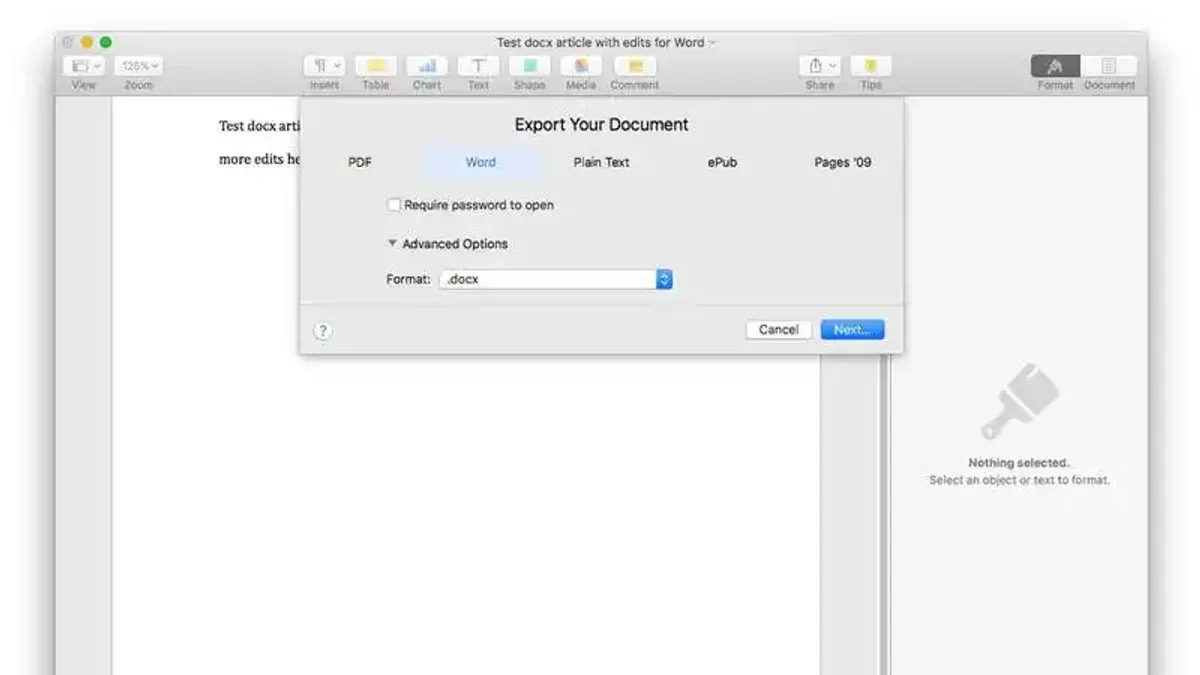
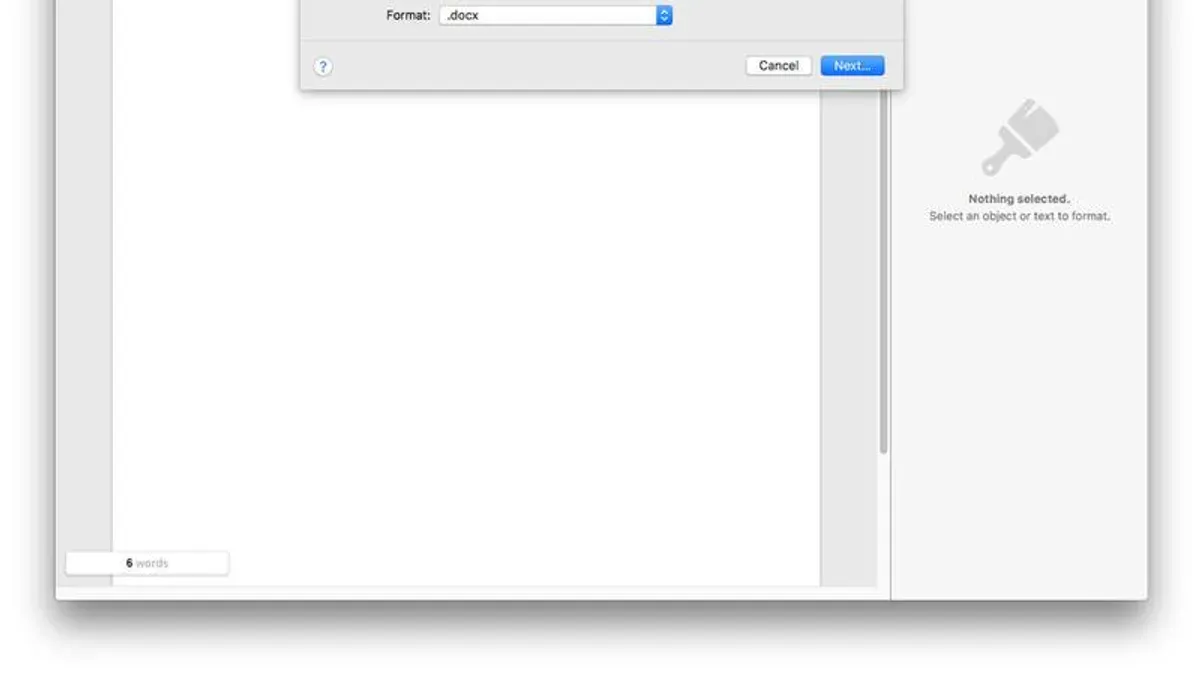
- After making edits, save your changes by clicking File > Save or export the document via File > Export To to formats like PDF or Word (.docx). This preserves your work and allows sharing in compatible formats.
Pages handles most formatting well, especially basic layouts, fonts, and images. However, complex elements like advanced tables, macros, or some embedded objects may not retain all original formatting perfectly when compared to Microsoft Word.
Pages is a solid choice for users who want a free, fast, and reliable way to open and edit.docx files without installing Microsoft Office. It is especially suitable for documents with straightforward formatting.
For files requiring precise formatting retention or advanced features, Microsoft Word remains superior, as Pages can occasionally alter layout details or lose specific Word-only elements.
How to open.docx file on Mac using Microsoft Word
Microsoft Word is the industry-standard application for working with.docx files, offering the most comprehensive compatibility and editing features. If you don’t have Word installed on your Mac, you’ll need to get it first.
- Visit the Microsoft website or the Mac App Store to download Microsoft Word. After purchase or subscription sign-in, install the app on your Mac. Once installed, open Microsoft Word.
- In Word, go to File > Open and navigate to your.docx file location. Select the file and click Open. The document will open with full formatting and editing capabilities.
- Use Word’s extensive tools to edit your document, including track changes, comments, tables, charts, and advanced formatting options.
Microsoft Word supports every feature included in the.docx format, such as complex tables, embedded objects, macros, and advanced styles. These features often do not display or function correctly in other apps.
Word requires a Microsoft 365 subscription or a one-time purchase, which is a consideration if you want full native support. However, Word remains the most reliable option for professional editing and document fidelity.
With Word’s dominance in the office software market, it is the safest choice when dealing with business or academic documents that rely on advanced features or exact formatting.
How to open.docx file on Mac using free alternatives and online tools
If you prefer not to install paid software, free and web-based options offer practical ways to open and edit.docx files on your Mac. Two popular choices are Google Docs and LibreOffice, each with its own advantages and limitations.
Using Google Docs
Google Docs lets you open, edit, and save.docx files directly in your web browser without installing anything. It handles basic formatting well but may struggle with complex layouts or advanced features like tracked changes.
- Open your web browser and go to docs.google.com. You should see the Google Docs homepage or sign-in screen.
- Sign in with your Google account. If you don’t have one, create a free account.
- Click the folder icon labeled "Open file picker" near the top right, then select the "Upload" tab.
- Drag your.docx file into the upload area or click "Select a file from your device" to locate it. The file will upload and open in Google Docs.
- Edit your document as needed. When done, use "File > Download" to save it back as a.docx or other formats.
Google Docs offers easy access anywhere but uploading files to a cloud service involves privacy considerations. Avoid uploading sensitive documents if privacy is a concern.
Using LibreOffice
LibreOffice is a free, open-source office suite you can install on your Mac. Its Writer app opens.docx files offline and supports more advanced formatting than many free options.
- Download LibreOffice from libreoffice.org and install it on your Mac.
- Open LibreOffice Writer from your Applications folder.
- Go to "File > Open" and select your.docx file. The document will open for editing.
- After editing, save your file in.docx format by choosing "File > Save As" and selecting the.docx extension.
LibreOffice provides better local control over your files and generally retains formatting more accurately than online tools, though it may not perfectly match Microsoft Word’s rendering, especially for complex elements.
In summary, Google Docs offers convenience and accessibility at the cost of potential privacy risks and limited formatting fidelity, while LibreOffice provides a robust offline option with better feature support but requires installation and occasional adjustment for complex documents.
How to view.docx files on Mac without editing
If you only need to quickly check the contents of a.docx file without making any changes, your Mac offers simple, built-in options that don’t require installing full word processors.
Using Quick Look preview on Mac Finder
Quick Look lets you view the document’s contents directly from Finder.
- Select the.docx file in Finder.
- Press the spacebar to open the Quick Look preview.
- Review the document’s text and basic formatting in the popup window.
Quick Look generally preserves the document layout well for basic text and images, but complex formatting like tables, footnotes, or advanced styles may not display perfectly.
Opening.docx files with TextEdit
TextEdit, macOS’s default text editor, can open.docx files for basic viewing.
- Right-click the.docx file and choose Open With > TextEdit.
- The document opens in TextEdit showing the text content.
TextEdit often strips or simplifies complex formatting, meaning tables, graphics, and styles may be lost or altered. It is only suitable for plain text review.
When to use viewing-only methods: These quick options are ideal when you need to check the text quickly without editing or when you want to avoid installing larger apps. However, for documents with intricate formatting or when accuracy matters, using a dedicated editor is preferable.
How to convert.doc to.docx on Mac for easier access
The.doc format is an older Microsoft Word file type created before the introduction of the XML-based.docx format. While.doc files can still be opened on Mac,.docx files offer better compatibility, faster loading, and improved support across modern apps and cloud services.
Converting.doc files to.docx on your Mac helps ensure smoother editing and viewing, especially when using newer software versions or alternative apps like Pages or Google Docs. The conversion typically results in smaller file sizes and enhanced support for formatting features.
To convert a.doc file using Microsoft Word on Mac:
- Open the.doc file in Microsoft Word. You should see the document displayed with its original formatting.
- Click File in the menu bar, then select Save As.
- In the save dialog, click the File Format dropdown menu and choose Word Document (.docx).
- Choose your desired save location and filename, then click Save.
- Confirm that the new.docx file opens correctly by double-clicking it to view in Word or another compatible app.
If you don’t have Microsoft Word, free tools like LibreOffice or online converters can also perform this task:
- LibreOffice lets you open.doc files and save them as.docx through File > Save As.
- Online converters offer quick conversion without installing software but may have file size limits and potential privacy considerations.
While free options work well for most basic documents, complex layouts or embedded elements might convert less perfectly than with Word. Always review the converted file to ensure formatting is preserved.
For example, converting a 450 KB.doc file to.docx in Word often reduces the size by roughly 20% and improves compatibility with Mac apps. This streamlined format supports newer features and cloud syncing more effectively.
Troubleshooting common issues when opening.docx files on Mac
If a.docx file won’t open or shows errors like “The file is damaged and cannot be opened” or “File format not recognized,” start by verifying the file’s integrity. Ensure the file was fully downloaded or properly transferred; incomplete downloads are a frequent cause of errors.
For corrupted or damaged files, try opening the file with different apps such as LibreOffice or Google Docs, which sometimes handle corrupted files better than native apps. If these apps fail, use the "Open and Repair" feature available in Microsoft Word by choosing File > Open, selecting the file, then clicking the arrow next to Open and selecting "Open and Repair." Successful repair will allow you to access the document’s content.
Formatting issues or missing elements often occur when opening complex.docx files in apps other than Microsoft Word. To minimize this, use apps that support advanced features or convert the file to PDF to preserve layout for viewing. If formatting discrepancies persist, try saving the.docx file again in Word with compatibility mode enabled or flatten complex elements like charts and images.
If none of these steps resolve your issues, consider professional recovery or conversion services specializing in document repair, especially for critical or heavily corrupted files, as they use dedicated tools beyond standard apps.
- Check file completeness by re-downloading or re-transferring the.docx file; a complete file should open or show a preview in Finder's Quick Look.
- Attempt opening the file in a different app like LibreOffice or Google Docs; success means the file is not fully corrupted.
- If using Microsoft Word, select File > Open, choose the file, click the arrow next to Open, and select "Open and Repair"; the file should open with recovered content.
- For formatting issues, save the document in Word with "Compatibility Mode" enabled via File > Save As, then reopen in your preferred app; formatting should improve.
- If persistent errors occur, seek professional recovery services; you will receive a repaired file or conversion advice.
- How to Open and Install.pkg Files on Mac: A Clear Step-by-Step Guide
- How to Open.dmg Files on Mac: A Clear Step-by-Step Guide
Frequently asked questions
How to open docx file on pc?
On a PC, you can open.docx files using Microsoft Word, which is the most compatible option. If you don't have Word, free alternatives like LibreOffice or Google Docs also support.docx files. Simply right-click the file, choose "Open with," and select your preferred program.
How to open docx file in docs?
To open a.docx file in Google Docs, upload the file to Google Drive first. Then right-click the file and select "Open with" > "Google Docs." The document will open in Google Docs, allowing you to view or edit it online.
How to open docx files on computer?
Opening.docx files on a computer depends on your operating system and installed software. On Windows or Mac, Microsoft Word is the standard choice. Alternatively, you can use free software like LibreOffice or cloud-based tools like Google Docs for easy access.
How to open docx files on macbook pro?
On a MacBook Pro, the built-in Pages app can open and edit.docx files. You can also use Microsoft Word for Mac if installed. For quick viewing without editing, Preview or Quick Look can display the content.
How to open word documents in mac?
Word documents open on Mac primarily through Microsoft Word or Apple's Pages app. To open a file, right-click the document, choose "Open with," and select your preferred app. For viewing only, Quick Look (press Spacebar on the selected file) is a fast option.
What this guide does not cover
This article does not cover advanced editing features or macro-enabled.docm files, which require specialized software. If you need to work with complex macros, advanced formatting, or collaborative editing features unique to Microsoft Word, consider using the full Microsoft Word application or seeking dedicated Microsoft Word support.
For the majority of Mac users, the steps outlined here will allow you to open, view, and perform basic edits on.docx files using a variety of tools. However, if your documents include specialized content or require professional-level editing, native Word on Mac or Word Online with a subscription remains the most reliable choice.
The single most useful next step is to try opening your.docx file with Apple’s Pages app first if you do not have Microsoft Word installed. Pages is built into macOS and handles.docx files with good compatibility for most typical documents. This approach saves time and avoids the need for additional downloads.