How to Open and Install.pkg Files on Mac: A Clear Step-by-Step Guide
Discover how to open and install.pkg files on Mac with easy methods using Finder and Terminal for smooth software installation.
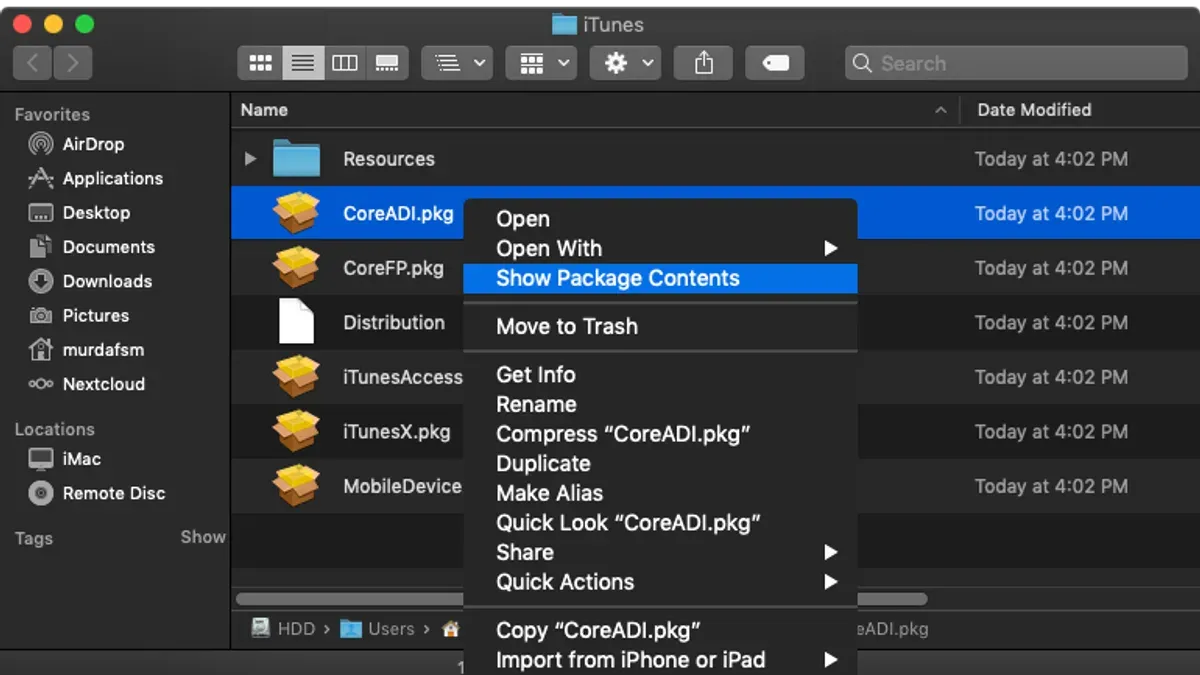
You just downloaded a software package ending in.pkg and aren’t sure how to open it on your Mac. Perhaps you tried double-clicking it but encountered an error or unexpected behavior. Understanding how to open.pkg file on Mac correctly is essential for smooth installation and avoiding common pitfalls.
This article guides you through practical methods to open and install.pkg files using both the Finder interface and the Terminal command line. It also clarifies how.pkg files differ from other installer formats, addresses cross-platform issues such as handling.pkg files on Windows, and offers troubleshooting tips when installations fail.
Key takeaways
- Open.pkg files by double-clicking them in Finder to launch the Installer app safely.
- Use the Terminal’s "installer" command to install.pkg files when GUI installation fails.
- .pkg files are macOS installer packages, different from simple app bundles or disk images.
- Windows cannot natively open.pkg files; they require special tools or conversion.
- Check security settings in System Preferences if the.pkg file won’t open due to unidentified developer warnings.
Before you start: What you need to open and install.pkg files
A.pkg file is a macOS installer package that bundles software files and installation scripts into one file, used to install applications or system components. These files typically range from a few megabytes to several hundred megabytes depending on the software being installed.
To install most.pkg files, you will need administrator access on your Mac. This means having a user account with permission to approve system changes, as installation often requires writing files to protected system folders.
Standard.pkg installers are supported on macOS versions from OS X 10.5 (Leopard) onward, so ensure your system meets the minimum requirements for the software you want to install.
Security is a major consideration with.pkg files because they can execute scripts during installation. Always download.pkg files from trusted sources, such as official developer websites or the Mac App Store, to reduce the risk of malware or unwanted software.
Before you proceed, make sure you have:
- Downloaded the.pkg file from a reputable source without interruption; the file size should match the stated size on the website (commonly between 10 MB and 500 MB). After download, the file should appear in your Downloads folder or chosen location.
- Confirmed you have administrator privileges by checking System Preferences > Users & Groups for your account type; it should say “Admin.”
- Verified your macOS version by clicking the Apple menu > About This Mac; the version number should be compatible with the installer requirements.
How to open a.pkg file on Mac using Finder and Installer app
- Locate the.pkg file in Finder. This is usually in your Downloads folder or wherever you saved it. When you find it, the file icon typically looks like a white box labeled with the software name.
- Double-click the.pkg file. This action launches the built-in Installer app automatically. If a prompt appears about the app being downloaded from the internet, confirm you want to open it.
- In the Installer app window, you will see a welcome screen with the name of the software package. Click Continue to proceed.
- Read the License Agreement, then click Continue and Agree to accept the terms if you wish to install.
- Choose the installation location if given the option, or confirm the default disk is selected. Click Install to begin the installation process.
- Enter your administrator username and password when prompted to authorize the installation. After authentication, the Installer app will copy files and configure the software.
- Once installation completes successfully, you will see a confirmation screen in the Installer app. Click Close to exit.
- Optionally, before installation, you can verify the digital signature by clicking Show Certificate in the Installer app’s menu bar to ensure the installer is from a trusted developer.
The Installer app interface is designed to guide you clearly through the process with straightforward prompts and progress indicators. A successful installation ends with a confirmation message, signaling that the software is ready to use.
How to install a.pkg file on Mac from the command line
Using the Terminal to install a.pkg file offers a powerful alternative to the graphical Installer app. This method is well-suited for advanced users who want automation, remote installation, or need to troubleshoot GUI failures.
The core command is installer, which accepts options and paths to the package and target volume. The basic syntax is:
sudo installer -pkg /path/to/package.pkg -target /
Here, -pkg specifies the package file, and -target / indicates installation on the main system volume.
- Open Terminal from Applications > Utilities.
- Type the installer command with the full path to your.pkg file. For example:
sudo installer -pkg ~/Downloads/example.pkg -target / - Press Enter and provide your administrator password when prompted.
- Observe the output; a success message like “installer: The install was successful.” confirms completion.
- Optionally, verify installation by checking installed files or using system tools relevant to the software installed.
This command-line approach can be faster than GUI installation, especially when running remotely via SSH or embedding in scripts. It also provides clearer error messages for diagnosing issues.
Use the -verbose option to get detailed progress info during installation, which can aid troubleshooting.
How to open.pkg files on Windows and why it’s different
.pkg files are installer packages designed specifically for macOS and are not natively executable on Windows systems. Unlike Windows installer formats such as.msi or.exe,.pkg files contain installation scripts and resources tailored for Apple's operating environment, making direct installation on Windows impossible.
However, if you need to access the contents of a.pkg file on Windows, third-party extraction tools like 7-Zip can partially open these files. 7-Zip often succeeds in unpacking the archive layers within.pkg files, allowing you to view some embedded files such as scripts, resources, or payload data.
Keep in mind that extracting contents does not equate to installing the software. Windows cannot run macOS-specific binaries or installation scripts contained in a.pkg, so the extracted files might be of limited use unless you have a macOS environment or virtual machine.
For cross-platform compatibility, consider looking for Windows versions of the software in.exe or.msi format, or use a virtual machine or dual-boot setup with macOS to install.pkg files directly. Attempting to convert.pkg files to Windows installers is generally impractical due to differences in system architectures and software packaging conventions.
- Download and install 7-Zip for Windows from the official website. Once installed, you should see 7-Zip options in the right-click context menu.
- Right-click the.pkg file and select "7-Zip" > "Open archive". If successful, a window will display the internal structure of the.pkg file.
- Navigate through the archive contents to locate payload files or scripts. You can extract these files by selecting them and clicking "Extract".
- Review the extracted files, but note that executing or installing the software on Windows may not be possible if the contents are macOS binaries.
Troubleshooting when you can’t open or install.pkg files on Mac
If the.pkg file won’t open or the Installer app crashes, start by quitting the Installer completely and reopening the file. Persistent crashes can indicate corrupted downloads or system conflicts.
Permissions issues often prevent installation. Ensure you have administrator access by checking System Preferences > Users & Groups. If prompted for a password during installation, enter the administrator credentials. If permission errors occur, repairing disk permissions via Disk Utility can help.
macOS security features like Gatekeeper may block.pkg files from unidentified developers or those lacking notarization, showing messages such as "cannot be opened because the developer cannot be verified". To override, Control-click the.pkg file, choose Open, and then confirm the prompt. Alternatively, adjust settings in System Preferences > Security & Privacy > General by allowing apps downloaded from identified developers or temporarily setting it to Anywhere (which requires enabling via Terminal).
If the installer reports corruption or incomplete downloads, re-download the.pkg file from a trusted source. Partial downloads often cause checksums to fail, leading to errors like "the package appears damaged".
- Restart your Mac in Safe Mode by holding Shift during startup. Safe Mode disables non-essential extensions and runs diagnostics. After logging in, try opening the.pkg again. Success here suggests third-party software conflicts.
- Use Disk Utility (Applications > Utilities) to run First Aid on your startup disk. Repairing disk errors can resolve permission and file system issues that block installation.
- If all else fails, check the installer log by opening Console and filtering for installer messages. This can provide specific error codes or missing dependencies.
Understanding what a.pkg file is on Mac and how it differs from other installer formats
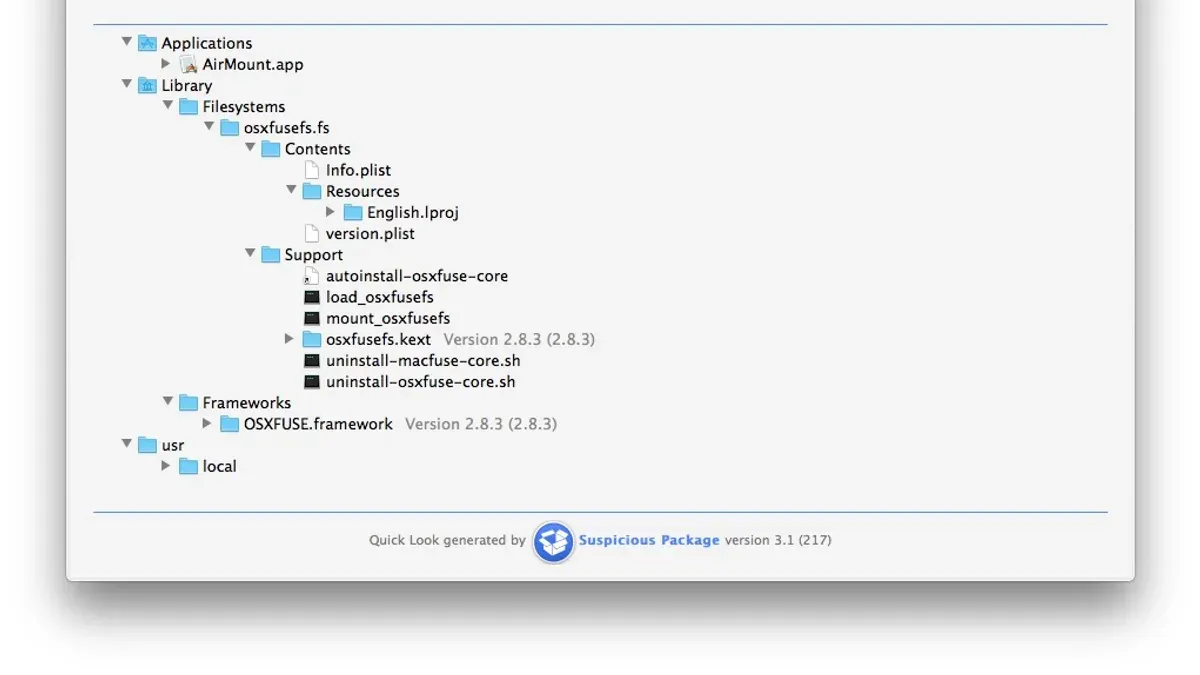
A .pkg file on macOS is a package bundle designed to install software by containing all necessary components, including executable scripts, resources, and metadata. It acts as a container that organizes installation files and instructions, enabling complex setups such as pre-installation checks, file placement, and post-installation scripts.
Unlike .dmg files, which are disk image containers generally used to distribute applications or files, .pkg files focus specifically on installing software with scripted control. Meanwhile, .app bundles are complete application packages that run directly without a traditional install process.
Developers often prefer .pkg files for complex installations that require system modifications, multiple components, or specific configuration steps. The package format supports signing and verification to maintain security and integrity during installation.
For developers, macOS provides tools like pkgbuild and productbuild to create custom .pkg files, allowing precise control over installation behavior and package contents.
| Installer Format | Purpose | Typical Use | Installation Method |
|---|---|---|---|
| .pkg | Scripted installation package | Complex installs with scripts and multiple components | Installer app or command line |
| .dmg | Disk image container | Distributing apps or files for manual installation | Mounted as volume, then drag-and-drop |
| .app | Application bundle | Standalone apps ready to launch | Run directly or drag to Applications folder |
How to create a.pkg file on macOS for software distribution
Creating a.pkg installer on macOS involves using command-line tools like pkgbuild and productbuild. These tools help assemble software components into a structured package that can be distributed and installed on other Macs.
- Prepare your software files: Organize the files and folders you want to install into a directory structure matching their intended install location (e.g., /Applications or /usr/local/bin). This ensures the installer places files correctly.
- Create a component package with pkgbuild: Run a command like
pkgbuild --root /path/to/root --identifier com.example.myapp --version 1.0 --install-location /Applications MyApp.pkg. This command builds a basic.pkg file containing your software. You should see a.pkg file named MyApp.pkg in your current directory. - Optionally sign the package: Use the
--sign "Developer ID Installer: Your Name"option with pkgbuild or productbuild to add a trusted Apple Developer signature. This reduces warnings during installation. - Combine component packages with productbuild (if needed): For complex installers with multiple components or a distribution script, use
productbuild --distribution distribution.xml --package-path./packages FinalInstaller.pkgto create the final installer.
Custom.pkg files are commonly used by developers distributing proprietary software and enterprises deploying internal tools to multiple Macs. They allow precise control of file placement, pre/post-install scripts, and user prompts.
Limitations include the need for command-line familiarity, a valid developer certificate for signing, and careful testing to ensure compatibility. Incorrectly structured packages can cause installation failures or system issues.
How to install a.pkg file from the Mac Terminal when GUI installation fails
If the graphical installer for a.pkg file does not complete successfully, the Terminal offers a reliable fallback. Using the installer command with administrator privileges can bypass some GUI-related issues.
- Locate the full path of your.pkg file. You can drag the.pkg file into the Terminal window to automatically insert its path.
Expected result: The Terminal shows the full path, for example,/Users/yourname/Downloads/example.pkg. - Run the installation command with verbose output:
sudo installer -pkg /full/path/to/file.pkg -target / -verboseR
Expected result: The Terminal prompts for your password, then begins showing detailed installation logs. - Watch the verbose output for errors or confirmation messages. A successful install ends with
installer: The install was successful.
Expected result: No error messages appear; the final line confirms success. - If errors appear, note the error codes or messages. These can indicate permission issues, incompatible software versions, or corrupted packages.
- After completion, verify the installation by checking the installed application or running any post-installation commands required by the software.
Example Terminal session:
Last login: Sat Oct 17 09:15:23 on console
$ sudo installer -pkg /Users/yourname/Downloads/example.pkg -target / -verboseR
Password:
installer: Package name is ExampleApp
installer: Upgrading at base path /
installer: The install was successful.
$
If issues persist after using the command line, consider contacting the software vendor or checking online forums for specific error codes. Alternative installation methods or updated installer files may be necessary.
- How to Open.dmg Files on Mac: A Clear Step-by-Step Guide
- How to Open and Use.ISO Files on Mac: A Clear Step-by-Step Guide
Frequently asked questions
How to install pkg on mac?
To install a.pkg file on Mac, double-click the file in Finder to launch the Installer app. Follow the on-screen prompts to proceed with the installation, providing administrator credentials if requested. Alternatively, you can use the Terminal command sudo installer -pkg /path/to/file.pkg -target / to install via command line.
How to open pkg file on mac?
Opening a.pkg file on Mac typically involves double-clicking it in Finder, which triggers the Installer app to open. If you want to view the contents without installing, you can right-click the.pkg, select Show Package Contents, and browse the files inside, though this is mainly for advanced users.
How to open.pkg file on windows?
.pkg files are macOS installer packages and are not natively supported on Windows. To open or extract their contents on Windows, you need third-party tools like 7-Zip or specialized macOS file extractors, but you cannot run the installation as on a Mac.
How to install pkg file in mac?
Installing a.pkg file on Mac can be done by double-clicking the file to start the Installer app and following the steps. If the graphical installer fails, use Terminal with the command sudo installer -pkg /path/to/file.pkg -target / for a more direct installation method.
What is a pkg file mac?
A.pkg file on Mac is a package installer format used to distribute software. It contains scripts and files needed to install applications or system components, and differs from drag-and-drop apps by providing a guided installation process that can modify system settings.
Limits of this guide and when to seek expert help
This guide does not cover opening or installing.pkg files that are corrupted or specifically designed for older macOS versions unsupported by your system. Creating.pkg files requires familiarity with developer tools like Xcode and the command-line utility pkgbuild, making it unsuitable for casual users. Additionally, some.pkg files may include scripts that require administrator privileges; only proceed with files from trusted sources to avoid security risks.
The single most useful next step is to verify the source and integrity of your.pkg file before installation. Use Finder to check the file’s size and metadata, and confirm that it comes from a reputable developer. This precaution helps prevent installation issues and protects your system from potentially harmful software.