How to Open.dmg Files on Mac: A Clear Step-by-Step Guide
This guide explains how to open.dmg files on Mac using Finder, Disk Utility, and Terminal, including tips for password-protected files and troubleshooting.
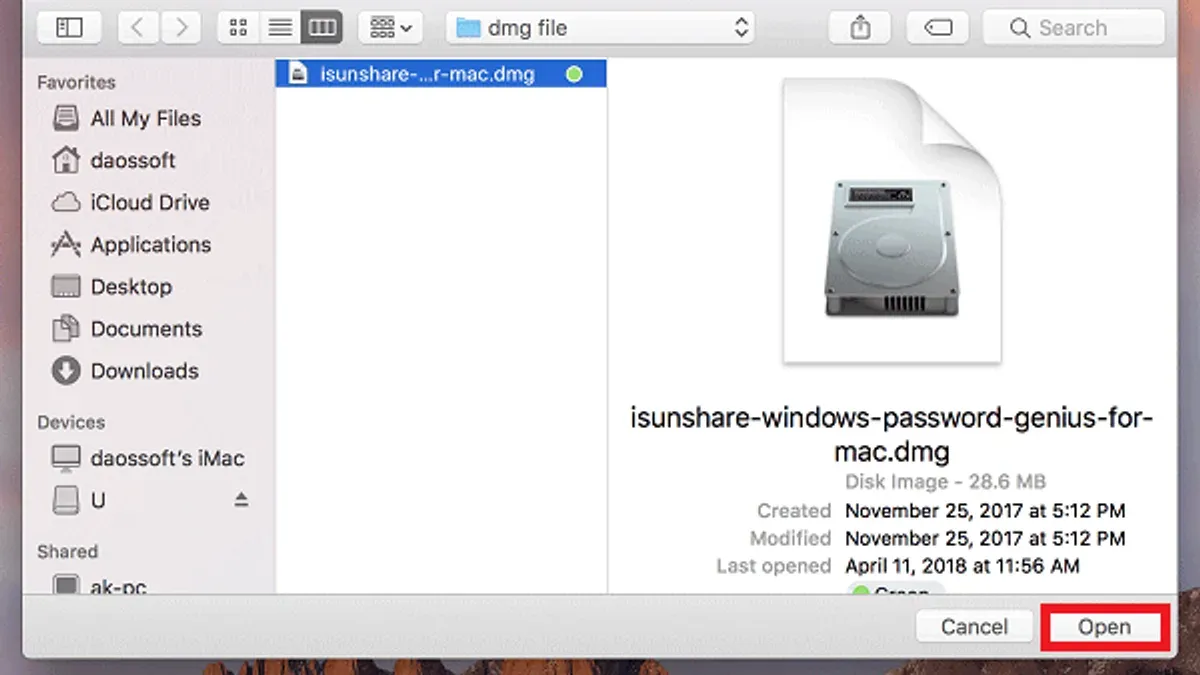
You just downloaded an application for your Mac, and it came as a.dmg file. Now you're wondering how to open.dmg file on Mac and get the software installed without hassle.
This guide walks you through what a.dmg file is, how to open it using both graphical tools like Finder and Disk Utility, and command-line methods through Terminal. It also covers installing apps from.dmg files, handling password-protected images, and troubleshooting common issues, including cross-platform concerns if you encounter.dmg files on Windows.
Key takeaways
- A.dmg file is a disk image used to distribute software on Mac.
- You can open.dmg files via Finder by double-clicking or using Disk Utility to mount them.
- Terminal commands like hdiutil attach allow opening and extracting.dmg files without graphical tools.
- Password-protected.dmg files require the correct password to mount and access content.
- If a.dmg file won’t open, checking file integrity and permissions often resolves the issue.
Before you start: what you need to open a.dmg file
A.dmg file is a disk image format primarily used for distributing software on macOS. It functions like a virtual disk that contains compressed application files or installers. Unlike generic archive formats such as ZIP or ISO, a.dmg is optimized for Mac environments, supporting features like read-only or read-write volumes and encryption.
To open a.dmg file, you need a Mac running macOS or a MacBook with sufficient user permissions. The two primary graphical tools for managing.dmg files are Finder and Disk Utility. Finder typically mounts the image automatically when you double-click the file, showing the contents as a virtual drive. Disk Utility offers more control, allowing you to mount, verify, or repair disk images.
For users comfortable with command-line operations, Terminal access is essential. Terminal commands provide alternative ways to mount, unmount, or convert.dmg files, useful in script automation or when graphical tools fail.
Note that some.dmg files are password-protected for security reasons. You will need the correct credentials to access or install from these files. Without the password, mounting or extracting the contents is not possible through standard tools.
- Locate the.dmg file in Finder. Double-click it and observe if a new virtual drive appears on the desktop or in Finder's sidebar, indicating a successful mount.
- If double-clicking fails, open Disk Utility from Applications > Utilities. Click "File" > "Open Disk Image", select your.dmg file, and check if it mounts in the sidebar.
- To use Terminal, launch it from Applications > Utilities. Type
hdiutil attach /path/to/file.dmgand press Enter. If successful, the.dmg will mount, visible in Finder or the desktop. - Prepare any passwords needed if the.dmg is encrypted. Without these, the file cannot be accessed.
What is a dmg file on Mac and why it matters
A.dmg file is a disk image file format used exclusively on macOS. It acts as a compressed, mountable virtual drive that contains files or software packages. When you open a.dmg file, macOS treats it like a separate disk, allowing you to access its contents without permanently copying them to your physical drive.
Commonly,.dmg files serve as containers for software installers or file archives. For example, popular applications such as Google Chrome, Microsoft Office for Mac, and Adobe Photoshop are often distributed in.dmg format. This allows developers to package all necessary installation files in a single, compressed image that users can easily mount and interact with.
Unlike Windows executable (.exe) files or compressed archives like.zip, a.dmg file is not directly executable or simply an archive. Instead, it must be mounted as a virtual disk to access the contained files. This design enhances security and installation control on macOS by isolating the installer or files until you choose to open them.
How to open a.dmg file on Mac using Finder and Disk Utility
Opening a.dmg file on Mac is straightforward using Finder or Disk Utility. These tools allow you to mount the disk image and access its contents easily.
- Locate the.dmg file in Finder. Double-click the file to mount it automatically. If successful, a new volume icon appears on your desktop or in the Finder sidebar under Locations.
- Open the mounted volume by clicking its icon. Inside, you will typically find the application or installer files. This volume behaves like a virtual disk.
- To install software, drag the application icon from the mounted volume to your Applications folder. Some installers might include a.pkg file; double-click it and follow the on-screen prompts to complete installation.
- If double-clicking does not mount the.dmg file, open Disk Utility (found in Applications > Utilities). In Disk Utility’s sidebar, click File > Open Disk Image, then select the.dmg file.
- After selecting the file, click the Mount button in Disk Utility's toolbar. The mounted volume should then appear on your desktop or Finder sidebar.
- Access the volume as described earlier and proceed with installation or file management.
Using Finder is usually faster for most users, while Disk Utility offers a manual alternative if automatic mounting fails or if you want to verify the disk image's status.
How to install a.dmg file on Mac
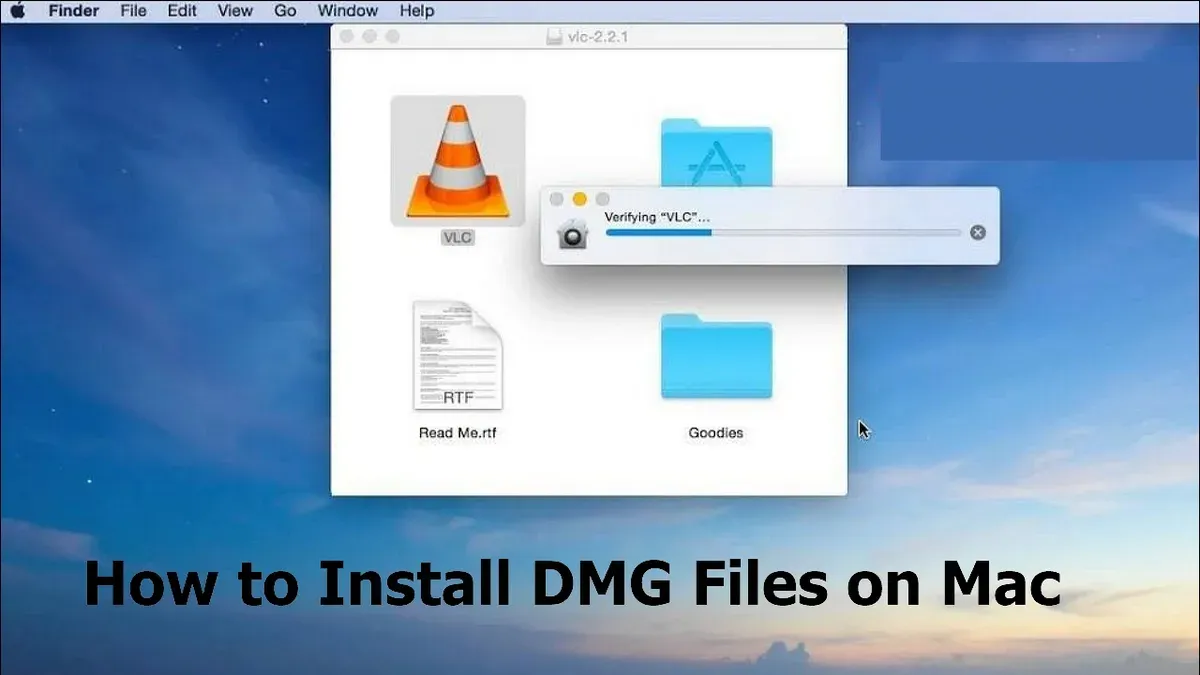
- After opening the.dmg file, locate the mounted volume on your desktop or in the Finder sidebar under Locations. You should see a new drive icon named after the application or the.dmg file itself.
- Open the mounted volume by double-clicking it. Inside, look for the application’s icon or an installer package (.pkg file). For example, if you downloaded a common app like VLC, you will see the VLC icon and sometimes a shortcut to the Applications folder.
- If the volume contains the application icon, drag it directly to your Applications folder in the Finder sidebar or open a separate Finder window and drag it there. You should see the app copy progress bar indicating the installation process.
- If the volume has an installer package (.pkg), double-click it to launch the macOS Installer. Follow the on-screen prompts to complete the installation. Once finished, the application will be installed in your Applications folder.
- After installation, eject the mounted.dmg volume by either right-clicking its icon on the desktop and selecting Eject or clicking the eject symbol next to it in the Finder sidebar. This unmounts the virtual drive safely from your system.
- You can now launch the installed application from the Applications folder or Launchpad. The.dmg file itself can be deleted if no longer needed, as the app is fully installed.
How to open a.dmg file on Mac using Terminal
If graphical methods fail or you prefer command-line control, Terminal offers a reliable way to mount and access.dmg files. The key command is hdiutil attach, which mounts the disk image as a volume.
- Open Terminal from Applications > Utilities.
- Type
hdiutil attach /path/to/your/file.dmgand press Enter. Replace/path/to/your/file.dmgwith the actual file path. You should see information about the mounted image and the mount point, typically under/Volumes/. - Navigate to the mount point by typing
cd /Volumes/NameOfMountedVolume. ReplaceNameOfMountedVolumewith the volume name shown in the previous step. - From here, you can copy files using
cpor install software by running installer scripts if available. Use commands likecp -R./MyApp.app /Applications/to copy an application. - When finished, unmount the image with
hdiutil detach /Volumes/NameOfMountedVolume. Confirm the volume is unmounted by checkingls /Volumes/.
Note that you might need administrator privileges for some operations, so prefix commands with sudo if you encounter permission errors. Using Terminal commands provides precise control especially useful in scripts or troubleshooting mount failures.
How to extract a.dmg file on Mac without mounting
Extracting the contents of a.dmg file without mounting it can streamline automation or scripting workflows. This approach avoids the overhead of creating a virtual drive but may not fully preserve the disk image's structure or metadata.
Using Third-Party Extraction Tools
- Install The Unarchiver from the Mac App Store or download 7z (7-Zip) via Homebrew by running
brew install p7zipin Terminal. You should see a confirmation that the software is installed. - Open Terminal and navigate to the folder containing your.dmg file using
cd /path/to/folder. Listing the directory withlsshould show your.dmg file. - Extract the.dmg contents using
7z x filename.dmg. A list of extracted files will display, indicating successful extraction.
These tools can pull out files directly but might not handle encrypted or compressed images as completely as mounting does.
Using hdiutil to Convert and Extract
- Convert the.dmg to a.cdr disk image by running
hdiutil convert filename.dmg -format UDTO -o filename.cdr. Terminal will show progress and confirm the.cdr file creation. - Rename the.cdr file to have a.iso extension for easier handling:
mv filename.cdr filename.iso. The directory listing will reflect this change. - Use extraction tools like The Unarchiver or 7z on the.iso file to extract its contents without mounting. Extraction output will list the extracted files.
This method can sometimes bypass mounting issues but adds conversion steps and may still miss certain disk image attributes.
How to open a.dmg file on Mac without password
Password protection on a.dmg file is a deliberate security feature designed to restrict unauthorized access. There is no legitimate method to bypass or remove the password without knowing it, as it encrypts the disk image contents.
Attempting to use third-party cracking or hacking tools to guess or bypass the password carries significant risks. These tools can be unreliable, potentially harmful, and may violate software usage terms or legal regulations.
The recommended approach is to obtain the password legally from the source who provided the.dmg file. If you cannot reach the source, accessing the file without the password is unlikely and unauthorized attempts should be avoided.
How to mount a.dmg file on MacBook and MacBook Pro
Mounting a.dmg file on MacBook and MacBook Pro models works the same way across all devices running macOS. There are no device-specific differences, so the standard methods via Finder or Disk Utility apply equally.
For older MacBook models, handling very large.dmg files can slow performance during mounting. To improve responsiveness, close unnecessary apps and ensure enough free disk space. Running macOS updates can also optimize system handling of disk images.
If a.dmg file does not mount on your MacBook or MacBook Pro, try these troubleshooting steps:
- Verify the.dmg file is not corrupted by downloading it again or checking its checksum. A successful mount should open a new volume in Finder.
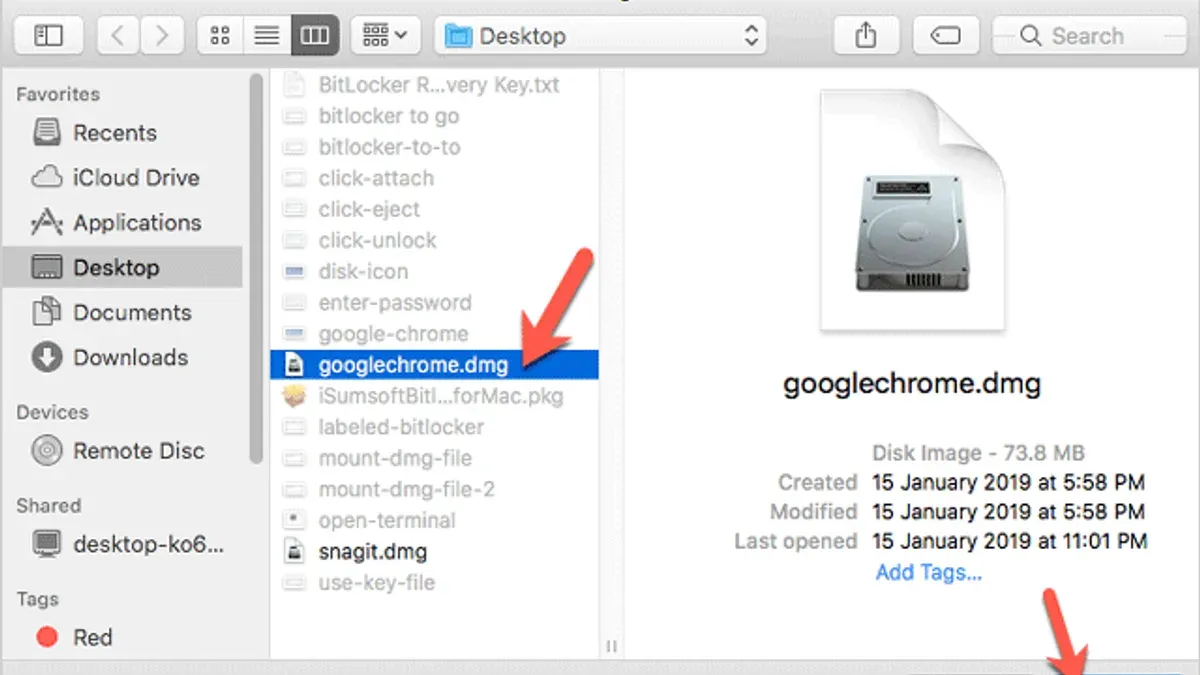
- Use Disk Utility to attempt manual mounting: open Disk Utility, select "File" > "Open Disk Image," and choose the.dmg file. A successful mount displays the image in the sidebar.
- Restart your MacBook to clear temporary system issues that may block mounting.
- Check for macOS updates, as some mounting issues can be resolved by patches or driver updates.
- If the.dmg is encrypted, confirm you have the correct password; incorrect credentials prevent mounting.
Addressing these points typically resolves mounting problems specific to MacBook hardware or system states.
Troubleshooting: what to do if a.dmg file is not opening on Mac
If your.dmg file fails to open or mount, start by checking its integrity. A common issue is an incomplete or corrupted download, which can trigger errors such as "The disk image could not be opened" or "The file is corrupted."
- Verify the file size matches the source's listed size. If it doesn't, redownload the file from a reliable source, ensuring the connection is stable. When successful, the file should open or mount without error.
- Check file permissions by selecting the.dmg file in Finder, pressing Command + I, and reviewing the "Sharing & Permissions" section. If you lack read access, click the lock icon, authenticate, and adjust permissions to "Read & Write." After this, try opening the file again.
- If permissions are correct but the image still won’t mount, open Terminal and run hdiutil verify /path/to/file.dmg. This will diagnose image integrity. If errors appear, the file is likely corrupted and must be replaced.
- For persistent issues, use Terminal to mount the image manually with hdiutil attach /path/to/file.dmg. This can provide clearer error messages for troubleshooting.
- When multiple attempts fail, consider downloading the.dmg from a different trusted source to rule out file-specific problems.
Addressing these steps typically resolves most problems encountered when opening.dmg files on Mac.
Frequently asked questions
How to install dmg file on mac?
To install a.dmg file on Mac, double-click it to mount the disk image. Then, drag the application icon from the mounted window to your Applications folder. After copying, eject the disk image by clicking the eject icon next to it in Finder.
How to open dmg file on mac terminal?
Use the Terminal command hdiutil attach /path/to/file.dmg to mount the.dmg file. Once mounted, the contents appear as a volume under /Volumes, accessible via Terminal or Finder. To unmount, use hdiutil detach /Volumes/VolumeName.
How to open dmg file on macos?
On macOS, simply double-click the.dmg file in Finder to mount it. The mounted volume opens automatically, showing the files inside. If it doesn't open, locate the volume under the Devices section in Finder’s sidebar.
How to open dmg file on macbook pro?
Opening a.dmg file on a MacBook Pro is the same as on other Macs: double-click the file in Finder to mount it. If the.dmg is password protected, you will be prompted to enter the password before it mounts.
How to extract dmg file on mac?
To extract a.dmg file without mounting, use the Terminal command 7z x /path/to/file.dmg if you have p7zip installed. Alternatively, third-party apps like The Unarchiver can extract.dmg contents directly without mounting.
What this guide does not cover and who should seek other resources
This guide does not cover how to create.dmg files or how to open encrypted.dmg files without proper authorization. Users should not attempt to bypass password protection on.dmg files as doing so may violate software licenses or applicable laws. Additionally, methods to open.dmg files on Windows are limited and often require third-party tools that are not discussed here.
The most useful next step is to familiarize yourself with the Finder and Disk Utility tools on your Mac, as these built-in options handle the majority of.dmg file use cases. Ensuring you understand how to mount and install from.dmg files correctly will streamline installing software and managing disk images safely and efficiently.