
How to Use Mac Keyboard Shortcuts to Adjust Volume Quietly
Discover how to use a Mac keyboard shortcut to adjust volume quietly with finer control for subtle audio changes in any environment.
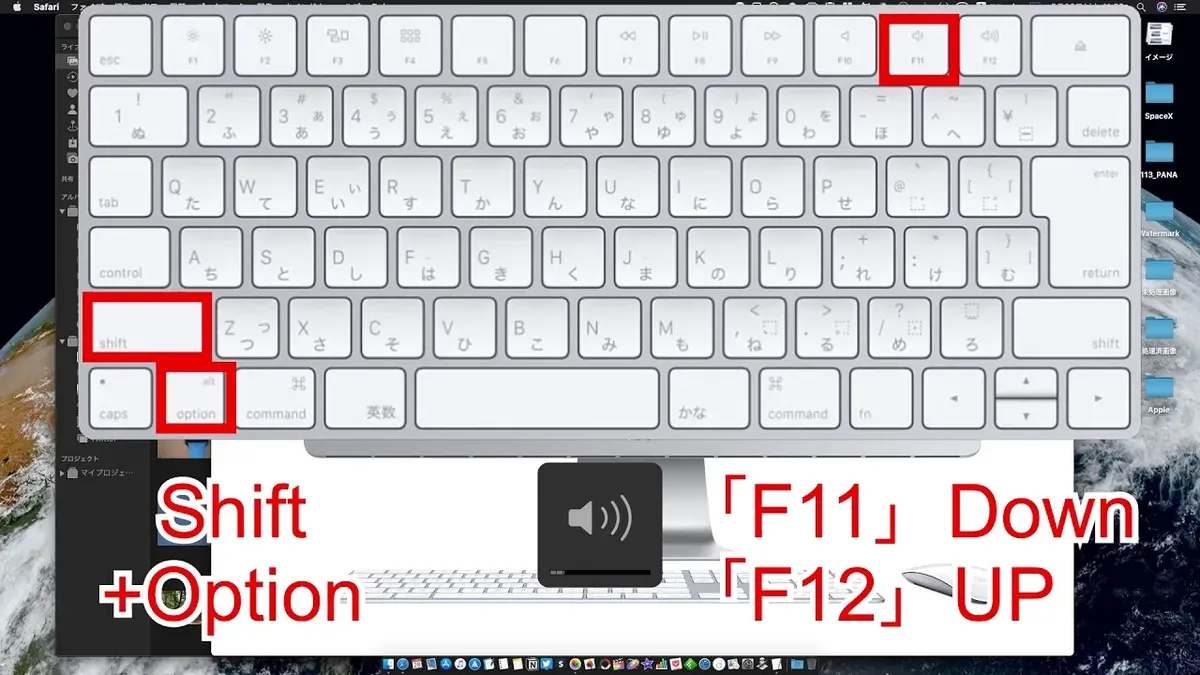
You’re in a quiet room and want to lower your Mac’s volume in the smallest increments possible without disturbing others. Pressing the usual volume keys can feel too loud or too soft, making it tricky to get the right sound level. This article explains how to use a Mac keyboard shortcut to adjust volume quietly, offering you finer control over your device’s audio.
We’ll explore the default shortcuts that let you change volume in quarter-step increments, practical tips for when to use them, and how to customize your Mac’s settings to improve volume control precision. Understanding these options helps avoid common mistakes and lets you manage your audio more effectively.
Key takeaways
- Hold Shift + Option while pressing volume keys to adjust volume in quarter-step increments quietly.
- Using Sound preferences, you can change alert volumes independently from system volume.
- Customizing volume controls via Accessibility settings can enhance audio management.
- Regular volume keys adjust sound too coarsely for subtle changes.
- Misunderstanding shortcuts can lead to unexpected volume jumps or no effect at all.
Understanding Mac volume control and why quiet adjustment matters
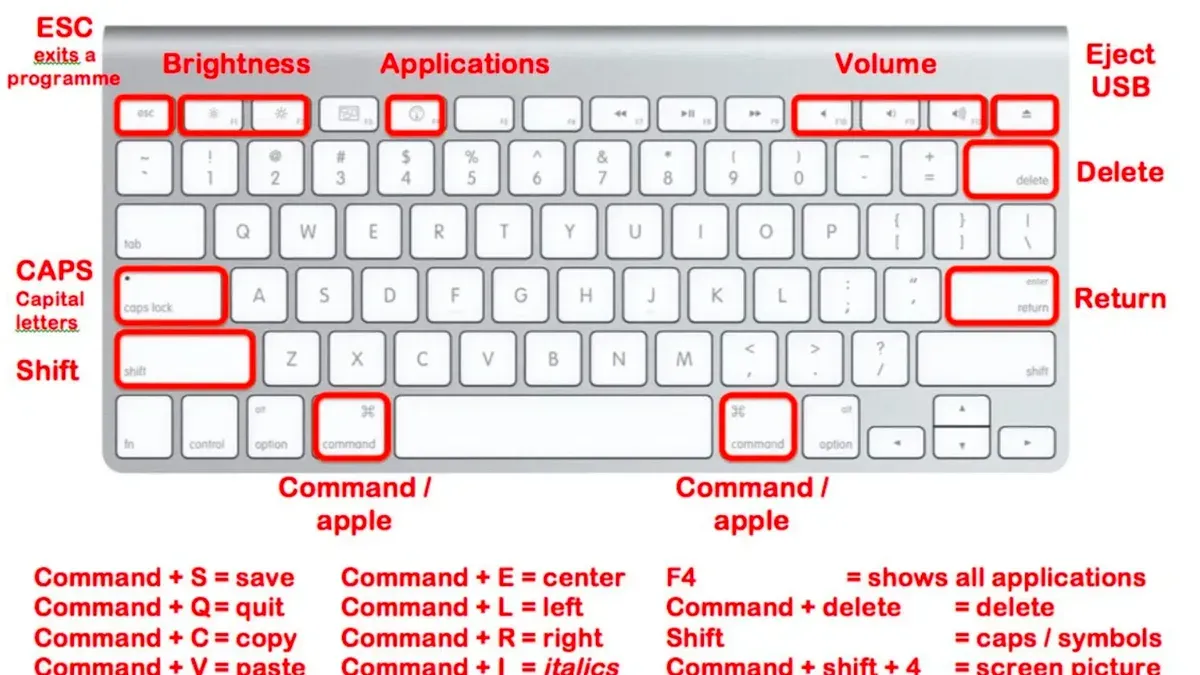
Mac volume control typically operates through dedicated keys on the keyboard—usually F11 to lower and F12 to raise the volume—or via the sound icon in the menu bar. Each press changes the volume by a fixed step, often around 6.25% per increment on most Mac models. This step size can feel too coarse when you want to adjust sound levels subtly.
Quiet volume adjustments become essential in environments where loud or abrupt changes are disruptive. For instance, during virtual meetings, a sudden jump in volume might interrupt others or cause audio clipping. Similarly, in public spaces or when using headphones, fine-tuning volume helps maintain comfort without drawing attention or damaging hearing.
Consider a scenario where you’re listening to a podcast on your Mac in a quiet office. Pressing the volume down key once might reduce sound too much, making you miss details, while pressing it twice could make it too soft. The default step size limits your ability to find the perfect level, revealing the need for more precise control.
How Mac keyboard shortcuts adjust volume quietly
On a Mac, pressing the volume keys alone changes the sound in relatively large steps, typically around 6.25% per key press. This can be too coarse when you want to fine-tune audio levels without noticeable jumps. To achieve smaller, quieter volume adjustments, you hold down both Shift and Option while pressing the volume up or down keys.
Using Shift + Option + Volume keys reduces each step to approximately 1.56%. This means you get about four times the granularity, allowing you to adjust volume more subtly. When you use this shortcut, the system still shows the volume indicator on screen, but the volume bar moves in smaller increments and the associated sound feedback is softer and less jarring.
For example, if the normal volume key increases the output from 50% to 56.25%, the quiet adjustment will increment from 50% to 51.56%, then 53.12%, and so on. This makes it easier to find a comfortable listening level without overshooting.
| Shortcut | Volume Step Size | Visual Feedback | Audible Feedback |
|---|---|---|---|
| Volume Up/Down keys | ~6.25% | Volume bar moves in large steps | Normal click sound |
| Shift + Option + Volume Up/Down | ~1.56% | Volume bar moves in smaller increments | Softer, quieter clicks |
By using these keyboard shortcuts together, you gain precise control over your Mac’s volume without abrupt changes, which is especially useful in quiet environments or when working with sensitive audio levels.
Practical ways to use quiet volume adjustments effectively
Quiet volume adjustments are particularly useful when you need to control sound discreetly, such as during calls or presentations. For example, while on a video call, holding Shift + Option and pressing the volume down key lets you lower the sound gradually without disrupting others in the room. This subtle control prevents abrupt volume changes that can be distracting.
In shared spaces like offices or libraries, using these quiet volume steps helps maintain a respectful noise level. Instead of toggling between loud and muted, you can fine-tune audio playback to a comfortable minimum, making it easier to stay aware of your surroundings.
Combining these shortcuts with accessibility features such as Sound Check (found in System Settings > Sound > Output) enhances the listening experience by evening out volume fluctuations across different media. Additionally, pairing quiet volume adjustments with Reduce Loud Sounds in System Settings > Accessibility > Audio provides extra control for sensitive ears.
One user noted that this method "makes volume changes during meetings less jarring," highlighting how the approach improves daily interactions. Whether adjusting for privacy or comfort, quietly tweaking volume with these shortcuts offers smoother audio management without interrupting your workflow.
Customizing Mac settings for enhanced volume control
Beyond keyboard shortcuts, you can refine your Mac's volume control through system preferences and third-party tools. In System Preferences, under Sound > Sound Effects, adjusting the alert volume independently from the main volume can help manage specific sounds quietly without affecting overall audio.
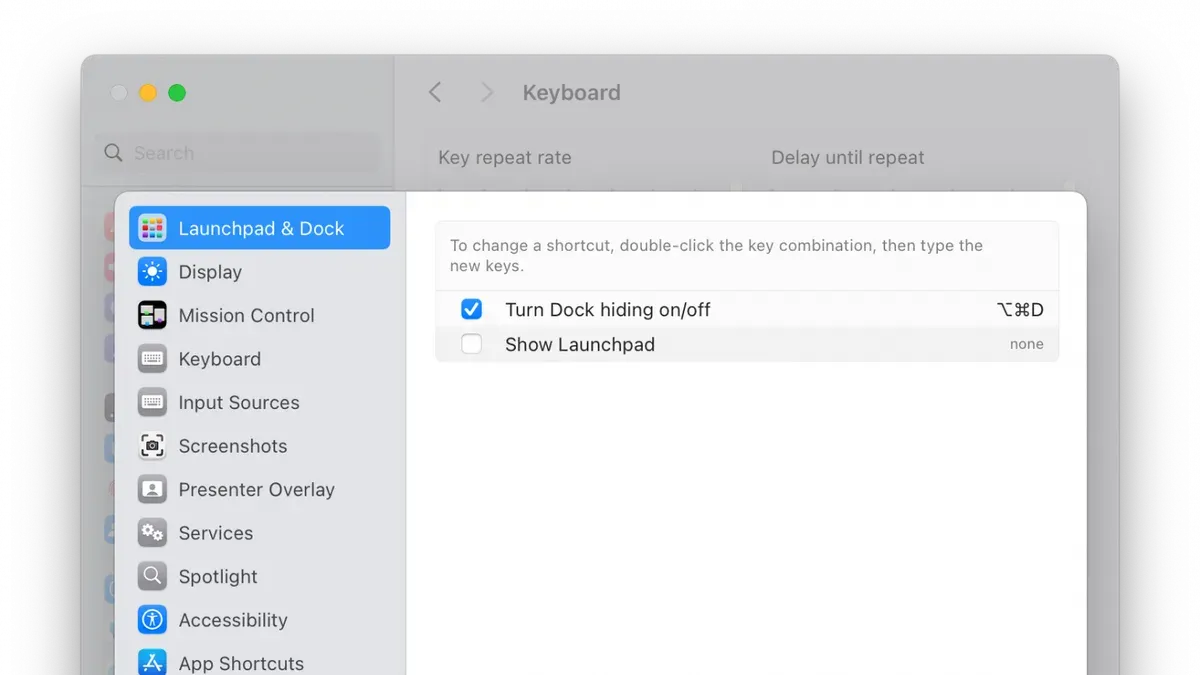
Accessibility settings offer further customization. Navigate to System Preferences > Accessibility > Audio, where options like “Play stereo audio as mono” and “Flash the screen when an alert sound occurs” assist users with distinct audio needs. Additionally, enabling “Reduce loud sounds” under Audio may help protect hearing by limiting peak volume.
For more granular volume adjustments, third-party apps like BackgroundMusic and SoundSource provide finer control over output levels, allowing volume changes in increments smaller than the default system steps. For example, SoundSource lets you adjust volume per app with sliders that move in smaller increments, ideal if you want one application quieter than another without lowering the entire system volume.
While built-in settings maintain simplicity and integration, third-party apps offer precision and flexibility at the cost of added complexity and sometimes a purchase requirement. Screenshots in Sound > Sound Effects and Accessibility > Audio illustrate where these options live, helping you supplement keyboard shortcuts with tailored volume management.
Common mistakes and misunderstandings about Mac volume shortcuts
One frequent error is confusing Mac's quiet volume adjustment with silent mode. Holding Shift and Option while pressing volume keys lowers the volume in finer increments but does not mute sound entirely. Users expecting no audio output after these shortcuts may mistakenly believe their Mac is in silent mode, which actually requires pressing the physical mute key or selecting "Mute" in the sound settings.
Another common misunderstanding is expecting volume to change without holding modifier keys. The standard volume keys adjust sound in larger steps, so users who want quieter increments must remember to hold both Shift and Option simultaneously. Forgetting either key results in the default volume jump, which can be abrupt and less precise.
Volume control also has limitations when using external audio devices. For example, USB or Bluetooth speakers often have their own internal volume controls, and Mac's keyboard shortcuts may only adjust the Mac's output level, not the device's volume. If you picture adjusting volume through Mac keys while a Bluetooth speaker remains loud, it’s because the device’s physical volume setting is overriding or supplementing the Mac’s output.
- How to Increase Mac Screen Brightness in Small Steps Using Keyboard Shortcuts
- Mac Keyboard Shortcut to Zoom In and Out: A Clear How-To Guide
- Mac Keyboard Shortcut to Open Notification Center: Quick Access Explained
Frequently asked questions
Can I adjust volume quietly on all Mac models using the same shortcuts?
Most modern Mac models support the same quiet volume adjustment shortcuts, such as holding the Shift and Option keys while pressing the volume up or down keys. However, some older Macs or those with customized keyboards may not respond identically. If your Mac uses a third-party keyboard, shortcut behavior can also vary.
What if my Mac volume keys don’t respond to quiet adjustment shortcuts?
If the quiet adjustment shortcuts don’t work, first check if the keyboard shortcuts are enabled and not overridden by other software. Restarting your Mac can help reset temporary conflicts. Additionally, verify that your macOS version supports these shortcuts, as very old versions might lack this feature.
Is there a way to make volume adjustments even smaller than the default quiet increments?
The default quiet increments are the smallest volume steps macOS offers via keyboard shortcuts. For finer control, you can use third-party apps that allow more granular volume adjustments or adjust volume through the Audio MIDI Setup utility by changing output volume levels manually.
How do quiet volume adjustments interact with Bluetooth or external speakers?
Quiet volume adjustments work similarly with Bluetooth and external speakers, but actual volume changes depend on the audio device’s capabilities. Some Bluetooth devices have their own volume controls that may override or limit the Mac’s adjustments. External speakers connected via USB or audio jack generally follow the Mac’s volume settings more directly.
Limitations of this advice
This advice focuses on built-in Mac keyboard shortcuts and system settings; it may not cover all external audio hardware or third-party software behaviors. If you use specialized audio interfaces, mixers, or apps like Logic Pro or Audio Hijack, volume control might behave differently and require separate configuration. Additionally, Macs connected to Bluetooth speakers or headphones can have volume adjustments influenced by the device itself, which is beyond the scope of keyboard shortcut adjustments.
The single most useful next step is to explore System Preferences > Sound > Output and ensure your selected output device supports fine volume control. Then, test quiet adjustments by holding Shift + Option while pressing the volume keys to adjust volume in quarter-step increments, giving you precise control over your audio levels.



