How to Open.tar.gz Files on Mac: A Step-by-Step Guide
Discover simple steps to open.tar.gz files on Mac using Terminal commands or third-party apps for hassle-free extraction.
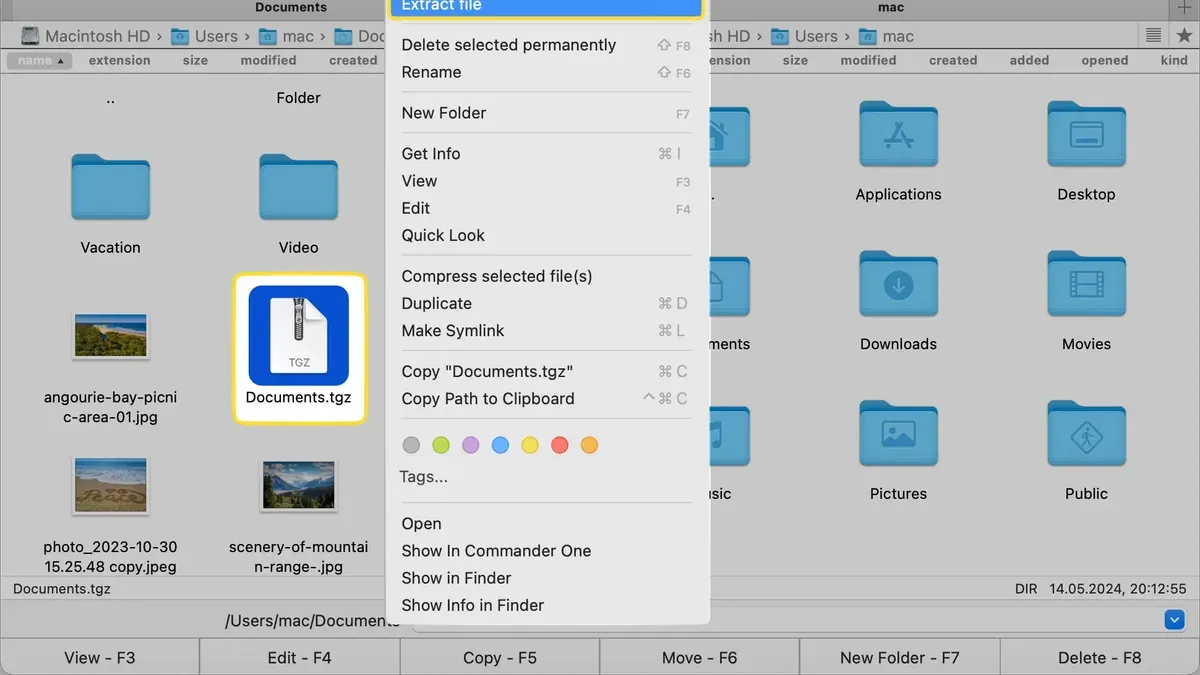
You’ve downloaded a file with a.tar.gz extension and aren’t sure how to access its contents on your Mac. Maybe it arrived as part of a software package or a compressed archive from a colleague, and you need to extract or run the files inside. Understanding how to open.tar.gz file on Mac will help you handle these archives efficiently, whether you prefer using built-in tools or third-party apps.
This guide walks you through the steps to open.tar.gz files on macOS, comparing native Terminal commands with popular third-party software options. It also covers related processes on Windows and Linux for cross-platform users, plus how to run or install software packaged in.tar.gz archives. Finally, you’ll find troubleshooting tips for common issues encountered when working with these files.
Key takeaways
- Use Terminal’s built-in tar command for quick, no-install extraction of.tar.gz files.
- Third-party apps like The Unarchiver offer a user-friendly alternative with drag-and-drop support.
- Windows and Linux have their own tools—7-Zip on Windows, tar on Linux—for handling.tar.gz archives.
- Running or installing software from.tar.gz requires extra steps beyond extraction, often involving Terminal commands.
- Common issues include permission errors and incomplete extractions, which can usually be resolved via Terminal or software settings.
Before you start: What you need to open.tar.gz files on Mac
A .tar.gz file is a compressed archive commonly used to bundle multiple files together and reduce their size. This format combines the tar utility, which packages files without compression, with gzip, which compresses the package. Typical.tar.gz file sizes range from a few megabytes for small software packages to several hundred megabytes for larger data sets or applications.
macOS includes built-in tools that let you extract.tar.gz files without additional software. The primary method is via the Terminal app, using commands like tar -xzf. This approach is reliable and works well for users comfortable with command-line interfaces.
For those preferring graphical interfaces, popular third-party apps such as The Unarchiver and Keka offer straightforward drag-and-drop extraction and support multiple archive formats. These apps are particularly useful if you frequently handle compressed files and want to avoid the Terminal.
However, some.tar.gz files may contain complex directory structures or require specific software to run after extraction. In such cases, additional command-line knowledge or specialized tools might be necessary.
| Feature | Built-in Terminal Tools | Third-Party Apps (The Unarchiver, Keka) |
|---|---|---|
| Graphical Interface | No | Yes |
| Supports Multiple Archive Types | Limited (primarily.tar.gz) | Yes |
| Ease of Use | Requires command-line knowledge | User-friendly with drag-and-drop |
| Customization | High (via command options) | Limited |
| Installation Required | No (pre-installed) | Yes (free downloads) |
How to open.tar.gz file on Mac using Terminal
You can extract.tar.gz files directly on your Mac using the built-in Terminal app without installing any additional software. The core command used is tar, which handles both decompression and extraction in one step.
- Open Terminal from Applications > Utilities.
- Navigate to the folder containing your.tar.gz file using the
cdcommand. For example,cd ~/Downloadsmoves to the Downloads folder. - Type the extraction command:
tar -xzf filename.tar.gzand press Enter. Replacefilename.tar.gzwith your actual file name. - Wait for the command to finish. If successful, there will be no error messages, and the contents of the archive will be extracted into the current directory.
- Use
lsto list the extracted files and confirm their presence.
The command options used are -x to extract, -z to decompress gzip format, and -f to specify the file name. This combination is common and works efficiently for most.tar.gz archives.
Advantages of using Terminal include no need for extra downloads and fine control over extraction. Limitations are that it requires comfort with command-line tools and does not provide a graphical preview of contents. For more complex archives or ease of use, third-party apps may be preferred.
Example terminal output after running tar -xzf example.tar.gz:
$ tar -xzf example.tar.gz $ ls example-folder example.txtThis shows the archive extracted successfully with its files now accessible.
How to open.tar.gz file on Mac with third-party apps
If you prefer a graphical interface over Terminal commands, third-party apps like The Unarchiver and Keka provide straightforward ways to extract.tar.gz files on Mac. These tools are especially helpful if you want batch extraction or additional file management features.
To use The Unarchiver:
- Download The Unarchiver from the Mac App Store or its official website. Once installed, launch the app.
- Open The Unarchiver's Preferences and ensure ".tar.gz" is selected in the Supported Archive Formats tab. This lets you double-click.tar.gz files to extract them automatically.
- Locate your.tar.gz file in Finder and double-click it. The Unarchiver will extract the contents to the same folder.
- Check the extraction folder to confirm files are unpacked correctly.
For Keka:
- Download Keka from the official site or the Mac App Store and install it.
- Drag and drop your.tar.gz file onto the Keka window or its Dock icon.
- Keka extracts the archive to the same directory by default, showing progress during extraction.
- Verify that the extracted files appear correctly in the output folder.
Below is a comparison of features:
| Feature | The Unarchiver | Keka |
|---|---|---|
| Ease of use | Simple double-click extraction | Drag-and-drop interface |
| Batch extraction | Limited support | Supports batch extraction |
| Extraction speed | Fast for small to medium files | Generally fast, handles large files well |
| Additional formats supported | Broad, including rar, zip, 7z | Very broad, including dmg, iso, rar |
| Other features | Auto-extract on double-click | Compression and splitting archives |
Third-party apps are preferable when you want a more visual approach, need batch processing, or require support for multiple archive formats beyond.tar.gz. Terminal remains quicker for single extractions but lacks the user-friendly interface and extra features these apps provide.
User experiences often highlight The Unarchiver's convenience for casual users and Keka's flexibility for power users managing numerous or large archives.
How to open tar.gz file on Windows
Windows does not natively support.tar.gz files, but popular third-party tools like 7-Zip and WinRAR handle them efficiently. These programs allow you to extract.tar.gz files with simple interfaces and reliable performance.
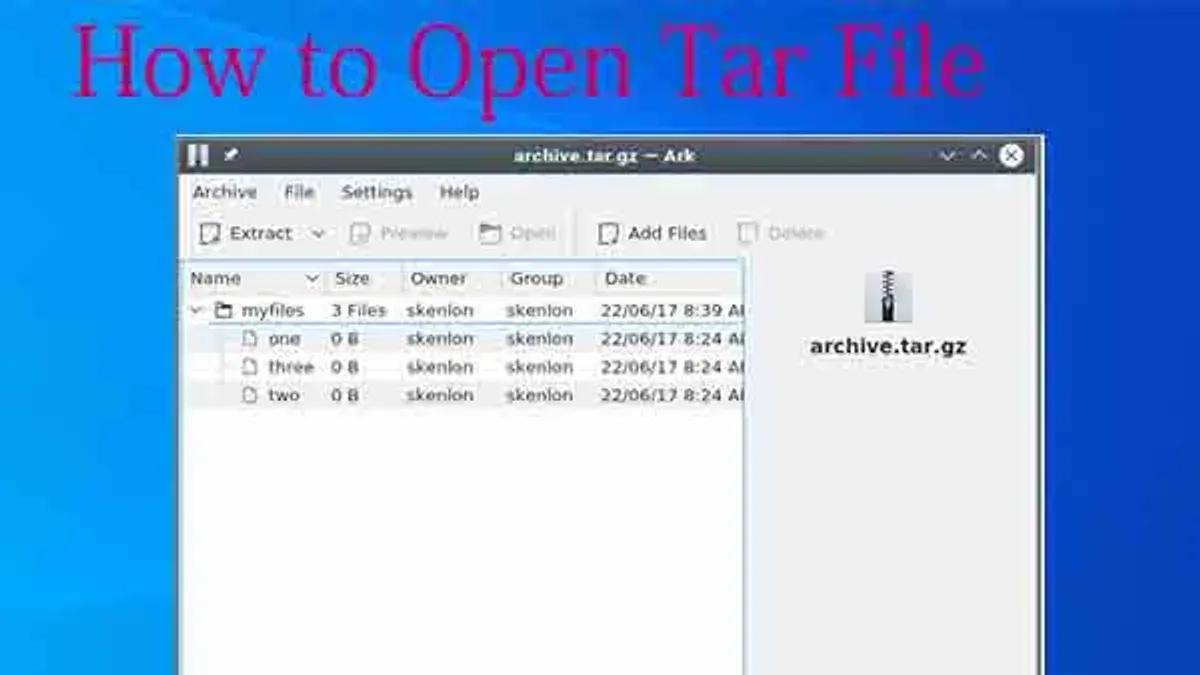
To extract a.tar.gz file using 7-Zip, follow these steps:
- Download and install 7-Zip from its official website.
- Right-click the.tar.gz file in File Explorer, hover over "7-Zip," and select "Extract Here" or "Extract to [Folder Name]." You should see the compressed contents extracted in the chosen location.
- If you first get a.tar file after extraction, right-click the.tar file and repeat the extraction process to access the actual files.
WinRAR follows a similar process:
- Install WinRAR from the official site.
- Right-click the.tar.gz file and choose "Extract Here" or "Extract to [Folder Name]."
- Extract the resulting.tar file if present.
When transferring.tar.gz files between Mac and Windows, ensure the file paths and permissions are compatible. Windows may not preserve Unix file permissions, which can affect executable scripts. To avoid issues, verify extracted file integrity and adjust permissions as needed on the target system.
Both 7-Zip and WinRAR offer graphical interfaces that simplify extraction compared to command-line tools. While 7-Zip is free and open source, WinRAR is shareware with a trial period. Performance differences are minor for typical.tar.gz files, so user preference and licensing may guide your choice.
How to open tar.gz file in Linux
Extracting.tar.gz files on Linux is straightforward, typically done via the Terminal or graphical archive managers. The process closely mirrors macOS usage, leveraging the native tar command or user-friendly GUI tools.
- Open a Terminal window on your Linux system.
- Navigate to the directory containing the.tar.gz file using cd /path/to/directory.
- Run the extraction command: tar -xzf filename.tar.gz.
- If successful, the Terminal returns to the prompt without errors, and the extracted files appear in the current directory.
For example, extracting archive.tar.gz involves: tar -xzf archive.tar.gz, which decompresses and untars the archive in one step.
Graphical archive managers like File Roller (for GNOME) or Ark (for KDE) provide intuitive right-click context menu options such as “Extract Here” or “Extract to...” for users less comfortable with the command line.
These GUI tools function similarly to third-party Mac apps, offering visual progress and extraction options. Both command-line and GUI methods on Linux maintain compatibility with macOS extraction commands, ensuring consistent handling of.tar.gz files across systems.
How to run a.tar.gz file on Mac
A.tar.gz file is a compressed archive, not an application you can run directly. To execute any program or script inside, you first need to extract the archive and locate the executable files or scripts it contains.
After extraction, look for files with executable extensions such as .sh (shell scripts) or binaries without extensions. Before running these, you may need to adjust file permissions to allow execution.
Follow these steps to extract and run a simple script from a.tar.gz file:
- Extract the.tar.gz file using Terminal or a third-party app. You should see a new folder with extracted contents.
- Open Terminal and navigate to the extracted folder using
cd /path/to/folder. Replace/path/to/folderwith your actual folder location. - Check for executable scripts by listing files with
ls -l. Look for files withxin their permissions (e.g.,-rwxr-xr-x). - If the desired script (e.g.,
install.sh) is not executable, make it so withchmod +x install.sh. - Run the script by typing
./install.sh. If successful, the script will execute and display its output or prompt.
Exercise caution when running extracted files, especially from unknown sources. Malicious scripts can harm your system or compromise security. Always verify the origin and review script contents if possible before execution.
How to install software from a tar.gz file on Mac
Software distributed as.tar.gz files often contains source code, install scripts, or precompiled binaries. Installation steps depend on the package contents and whether you need to compile the software.
Typically, a software tarball includes a README or INSTALL file with instructions. If source code is included, you may need to compile it using tools like make and gcc, which are part of Xcode Command Line Tools on macOS.
- Extract the.tar.gz file using Terminal or a third-party app; you should see a directory with source files and documentation.
- Open Terminal and navigate to the extracted directory with
cd path/to/directory. Verify presence of a README or INSTALL file usingls. - Read the README or INSTALL file with
cat READMEorless INSTALLto understand specific requirements. - If the package uses the common configure-make-install process, run
./configure. Successful completion shows configuration summary without errors. - Compile the software with
make. Expect a series of compilation messages; no fatal errors indicate success. - Install the software system-wide by running
sudo make install. Enter your password when prompted; no errors confirm installation. - Alternatively, if an install script like
install.shexists, run it withsh install.shor./install.shafter ensuring execute permissions withchmod +x install.sh.
If the package includes precompiled binaries or uses a package manager (e.g., Homebrew formulas), prefer those for easier installation and updates.
When compilation or scripts fail, or instructions are unclear, consider seeking software distributed via macOS-native package managers or official installers to avoid compatibility issues.
For example, installing the open-source tool "htop" from source involves extracting the tarball, running ./configure, make, and sudo make install, resulting in the htop command available in Terminal.
Troubleshooting common issues when opening.tar.gz files on Mac
Encountering issues when opening.tar.gz files on Mac is often due to corrupted archives, permission errors, or command failures. Address these systematically to minimize frustration.
Handling corrupted or incomplete archives
If you see errors like "tar: Unexpected EOF in archive" or "gzip: unexpected end of file", the archive is likely corrupted or incomplete. Re-download the file from the original source to ensure a complete copy. Avoid partial transfers or interruptions during download.
Dealing with permission errors during extraction or execution
Permission issues may cause errors such as "Permission denied" when extracting or running files. To fix this, use Terminal to adjust permissions: run chmod +x filename to make a script executable, or use sudo before commands to gain administrative rights when necessary. Also, check the folder permissions where you extract the files to ensure you have write access.
What to do if Terminal commands fail or apps do not open files
If Terminal commands return errors like "command not found" or third-party apps fail to open.tar.gz files, verify the file extension and integrity first. Restart the app or Terminal, and ensure you have the latest macOS updates installed. For apps, check their support documentation for compatibility notes.
Tips for verifying file integrity and source authenticity
Before extraction, confirm the file’s integrity by comparing checksums (e.g., SHA-256) if provided by the source. Use Terminal commands such as shasum -a 256 filename.tar.gz to generate a checksum. Only extract files from trusted sources to avoid security risks.
Checklist for troubleshooting steps
- Verify the.tar.gz file size and re-download if unexpectedly small or incomplete.
- Check file permissions with ls -l and modify using chmod if needed.
- Run extraction commands with sudo if permission errors persist.
- Confirm file integrity using checksum comparison.
- Restart Terminal or third-party apps and update macOS.
- Consult app help or Terminal man pages for specific error messages.
- How to Open.rar Files on Mac: A Clear Step-by-Step Guide
- How to Open and Run.msi Files on Mac: A Clear Step-by-Step Guide
- How to Open and Run.exe Files on Mac: Step-by-Step Guide
Frequently asked questions
How to open tar.gz on windows?
On Windows, you can open tar.gz files using tools like 7-Zip or WinRAR. Right-click the file, choose your extraction program, and select "Extract Here" or "Extract to" a folder. Windows 10 and later also support tar extraction via the command line using the Windows Subsystem for Linux or PowerShell commands.
How to download tar.gz file in windows?
Downloading a tar.gz file on Windows is the same as any other file; use your web browser to click the download link. Save the file to a convenient location like your Downloads folder. Ensure your browser is not blocking the file due to its compressed format.
How to tar gz file?
To create a tar.gz file, you use the tar command with gzip compression in Terminal or command prompt. For example, run tar -czf archive-name.tar.gz folder-or-file to compress a folder or file. This bundles and compresses the data into a single.tar.gz archive.
How to install tar.gz file?
Installing software from a tar.gz file usually involves extracting it first, then running setup commands. Often, this means opening Terminal, navigating to the extracted folder, and running ./configure, make, and sudo make install, but exact steps depend on the software. Always check the included README or INSTALL files for specific instructions.
How to open tar gz file on mac?
On Mac, you can open a tar.gz file using the built-in Archive Utility by double-clicking it. Alternatively, use Terminal with the command tar -xzf filename.tar.gz to extract the contents. For more control or different features, third-party apps like The Unarchiver are easy to use.
Limits of this guide and when to seek specialized help
This article does not cover advanced software development workflows involving.tar.gz files, such as complex build systems or containerization setups, which require specialized knowledge beyond basic extraction and installation. If you are working with automated build environments, Docker containers, or need to compile software from source with custom configurations, consulting dedicated development resources or a systems engineer is recommended.
The most useful next step is to familiarize yourself with the Terminal commands and options for handling.tar.gz files on macOS. Mastering these commands gives you flexibility and control, especially when third-party apps are unavailable or when working remotely via SSH. Experiment with extracting files using tar -xzvf filename.tar.gz in Terminal to build your confidence and troubleshoot effectively.