
Mac Keyboard Shortcut to Open Quick Note: Complete User Guide
Discover how to quickly open Quick Note on your Mac using the keyboard shortcut and customize it for your workflow.
You’re working on your Mac when a sudden idea or important detail needs capturing quickly. Instead of opening Notes or another app, you want a faster way to jot it down without interrupting your flow.
This guide explains how to use the Mac keyboard shortcut to open Quick Note, a handy feature that lets you capture information instantly. You’ll learn not only the default shortcut but also how to customize or disable it according to your workflow preferences. Additionally, practical tips will help you use Quick Notes more effectively on your Mac laptop.
Key takeaways
- The default shortcut to open Quick Note is Fn + Q on compatible Mac keyboards.
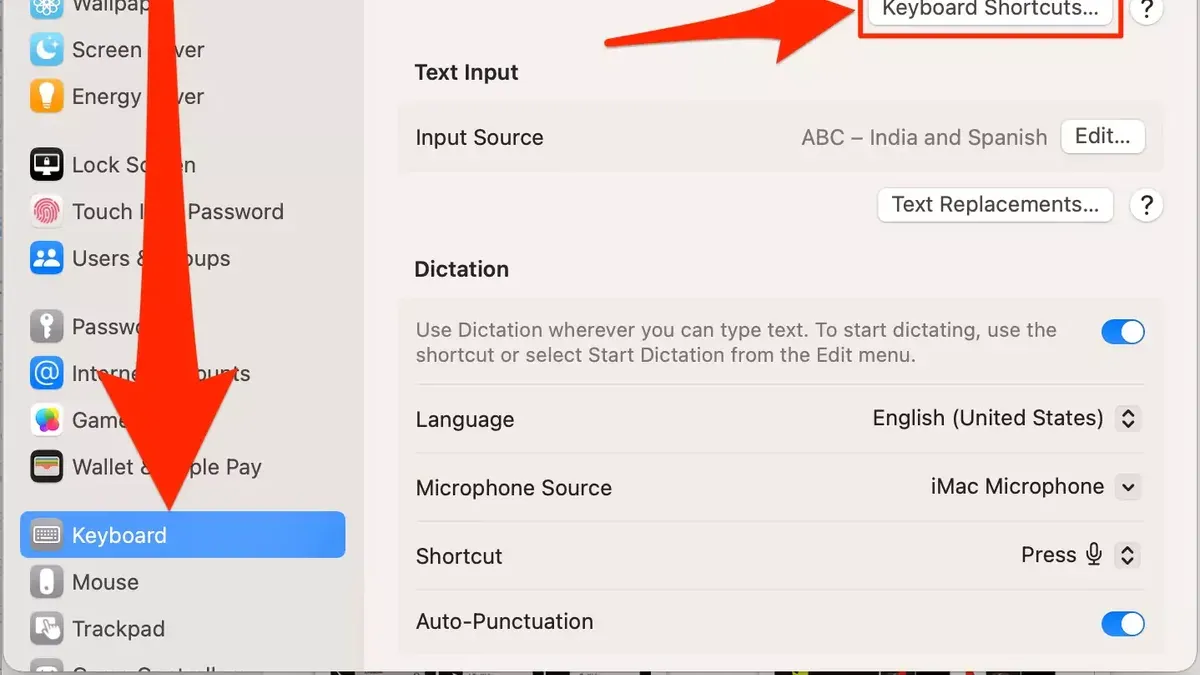
- You can customize or disable this shortcut in System Settings under Keyboard > Keyboard Shortcuts > Mission Control.
- Quick Note integrates seamlessly with apps like Safari to capture relevant content.
- Using Quick Note without customization may conflict with other shortcuts, so adjusting it can improve productivity.
What Quick Note is and why it matters for Mac users
Quick Note is a fast note-taking feature built into macOS that integrates directly with the Apple Notes app. It allows you to capture thoughts, links, or ideas instantly without switching apps or interrupting your current workflow. For example, while researching in Safari, you can open a Quick Note to jot down a useful link or reminder without losing your place.
All Quick Notes are saved in the Apple Notes app and automatically synced across your Apple devices via iCloud, ensuring your notes are always accessible and up to date. This seamless integration means you can start a note on your Mac and finish it on your iPhone or iPad.
Using keyboard shortcuts to open Quick Note significantly speeds up access compared to navigating menus or switching apps. According to Apple’s documentation, this streamlined approach reduces friction in capturing information, helping you stay focused and efficient. Many users report that quickly opening Quick Note via a shortcut saves valuable seconds that add up during a busy day.
How to open Quick Notes using the Mac keyboard shortcut
The default keyboard shortcut to open Quick Note on a Mac is Fn + Q. Pressing these keys simultaneously launches a Quick Note window anywhere in macOS, allowing you to jot down ideas immediately without switching apps.
On Mac laptops with a Touch Bar, the shortcut may behave differently. Instead of Fn + Q, you might see a Quick Note icon available on the Touch Bar itself, which you can tap to open Quick Note. For desktops or laptops without a Touch Bar, the Fn + Q shortcut is the primary method.
Additionally, Quick Note can be triggered by moving your cursor to the designated hot corner, if configured. You can check or customize this by navigating to System Preferences > Desktop & Screen Saver > Hot Corners, where one corner can be set to open Quick Note.
To verify or change the keyboard shortcut, go to System Preferences > Keyboard > Shortcuts > Mission Control. There, look for the “Quick Note” entry and confirm the key combination assigned. For example, if you want to avoid conflict with other shortcuts, you can assign a different combination such as Control + Option + Q.
Imagine you are working on a document and suddenly want to note a reference. Simply pressing Fn + Q (or tapping the Touch Bar icon) instantly opens Quick Note, letting you type without losing focus on your main task.
How to use Quick Notes effectively on your Mac laptop
To create a new Quick Note swiftly, press the assigned keyboard shortcut (such as Fn + Q), then immediately start typing your content. You can add text, insert links by pasting URLs, or drag images and files directly into the note for richer context. For example, while researching online, you might highlight a key point, open Quick Note with the shortcut, and paste the link and summary in seconds.
Switching between Quick Notes and the full Apple Notes app is seamless. Click the Quick Note’s “Show in Notes” button to open it in the main app, where you can organize notes into folders or apply tags. This helps keep your ideas structured over time.
Quick Notes sync automatically via iCloud, letting you access them across your Mac, iPhone, and iPad without extra effort. Keyboard shortcuts speed up note-taking compared to relying solely on the trackpad or mouse, reducing interruptions. For instance, creating and saving a note via shortcut can take under 10 seconds, while navigating menus manually may take twice as long, making shortcuts a practical productivity boost.
How to customize or turn off the Quick Note keyboard shortcut on Mac
To change or disable the Quick Note shortcut, open System Preferences and navigate to Keyboard, then select the Shortcuts tab. From the sidebar, choose Mission Control or App Shortcuts depending on your macOS version. Locate the Quick Note shortcut, typically assigned to Fn + Q, and click on it to edit.
If the default shortcut conflicts with other apps—for example, some video editing software uses Fn + Q for quitting a tool—you can assign a new key combination here. Try using combinations with Control, Option, or Command keys, like Control + Option + Q, to avoid overlap.
Additionally, Quick Note can be triggered by hot corners. To disable this, go to System Preferences > Desktop & Screen Saver > Screen Saver > Hot Corners and check if Quick Note is assigned to any corner. Remove it to prevent accidental activation when moving your cursor.
Changing or disabling the shortcut is useful if you find Quick Note opening unintentionally or if the shortcut interferes with your workflow. For example, if you use a design app that relies heavily on Fn + Q, reassigning the shortcut ensures both tools remain accessible without disruption.
Common mistakes to avoid when using Quick Note shortcuts
One frequent mistake is confusing the Quick Note shortcut with other Apple Notes or third-party app shortcuts. For example, users sometimes expect ⌘ + N, which opens a new note in Apple Notes, to trigger Quick Note, causing frustration when it doesn’t work as intended. Another common misunderstanding is expecting Quick Notes to save outside the Apple Notes ecosystem. Quick Notes are fully integrated into Apple Notes and cannot be exported or saved independently, which can surprise those trying to use them as standalone files.
Not customizing the default shortcut can also lead to accidental activation, especially if you frequently press Fn + Q for other tasks. This often happens during typing or gaming, interrupting workflow unexpectedly. Lastly, overusing the Quick Note shortcut without organizing notes afterward results in clutter, making it harder to locate important entries later. Users have reported forums filled with random Quick Notes due to rapid, unstructured capturing.
For example, if you rapidly open Quick Note multiple times with the shortcut but never review or categorize these notes, you may end up with dozens of unsorted snippets, reducing the feature’s productivity benefits.
- How to Use Mac Keyboard Shortcut to Turn On Dictation
- Mac Keyboard Shortcut to Open Notification Center: Quick Access Explained
Frequently asked questions
How to turn off quick notes mac?
To turn off Quick Note on your Mac, open System Settings and go to Desktop & Dock. Scroll down to the Quick Note section and disable the option labeled "Show Quick Note on screen corners." This will prevent Quick Note from activating when you swipe to a corner of the screen.
How to use quick notes on laptop?
On a Mac laptop, you can open Quick Note using the default keyboard shortcut or by moving your cursor to a hot corner if enabled. Once open, you can type or paste content, use formatting tools, and add links. Quick Notes sync across your Apple devices via iCloud for seamless access.
How to use shortcuts on mac?
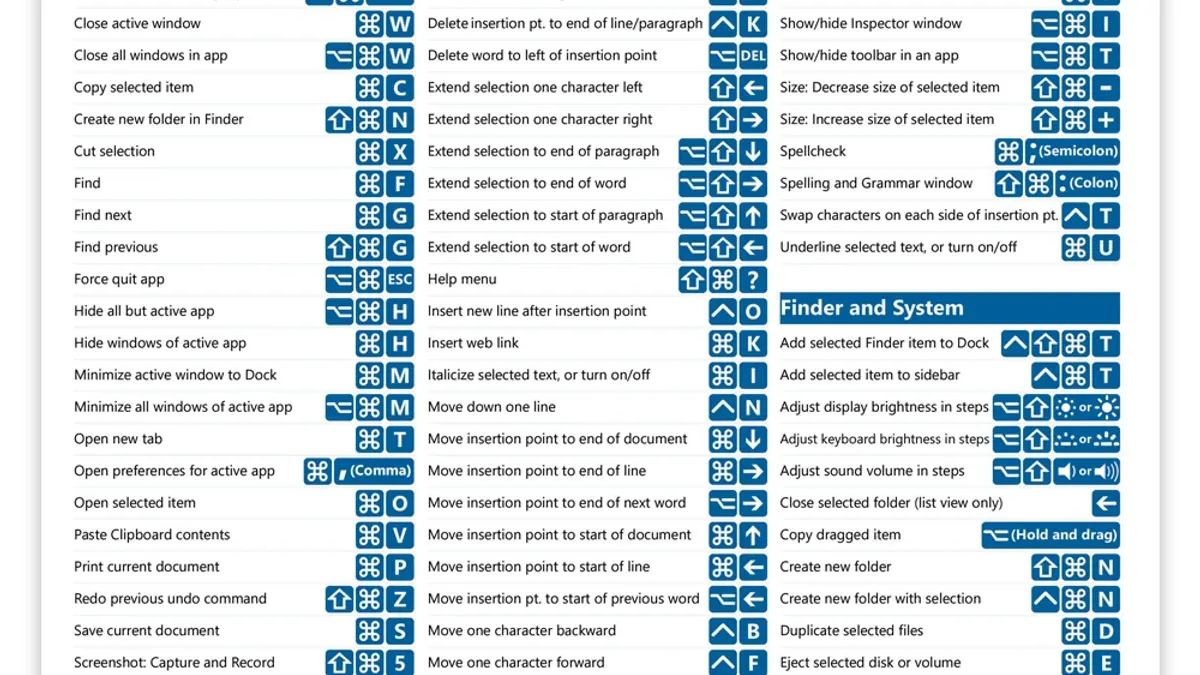
Shortcuts on Mac can be used by pressing specific key combinations tied to system functions or apps. To customize or view shortcuts, go to System Settings > Keyboard > Keyboard Shortcuts. You can enable, disable, or assign new shortcuts based on your workflow needs.
how to open quick notes
You can open Quick Note on a Mac by pressing the default shortcut: Fn + Q, or by moving your pointer to the bottom-right corner if the hot corner feature is enabled in System Settings. Alternatively, you can open the Notes app and create a new Quick Note from there.
how to turn off quick notes mac
Disabling Quick Note involves turning off the hot corner trigger in System Settings under Desktop & Dock. If you want to disable the keyboard shortcut, you need to customize or remove it in System Settings > Keyboard > Keyboard Shortcuts > Mission Control.
What this advice does not cover and important considerations
This article does not cover Quick Note functionality on iPad or iPhone, focusing solely on Mac usage. Some Mac models or macOS versions may have different default shortcuts or may not include the Quick Note feature at all. When customizing keyboard shortcuts, be aware that conflicts with third-party applications can occur, so it is essential to test any changes carefully to ensure smooth operation.
The most useful next step is to explore the System Settings > Keyboard > Keyboard Shortcuts panel on your Mac. Here, you can review the default Quick Note shortcut, customize it to fit your workflow, or disable it if necessary. Testing your new shortcut immediately in different apps helps confirm it works as expected and avoids interruptions during daily tasks.



