
Mac Keyboard Shortcut to Open Mission Control: A Practical Guide
Discover how to open Mission Control on Mac using keyboard shortcuts and customize them for faster multitasking and workspace organization.
You’re juggling multiple projects and windows on your Mac, trying to keep everything accessible without cluttering your screen. Quickly switching between apps and desktops can save you time, but only if you know the right shortcuts.
This guide explains how to use the Mac keyboard shortcut to open Mission Control, helping you decide which shortcut method fits your workflow best. You’ll also learn how to customize these shortcuts and practical tips for organizing your workspace efficiently.
Key takeaways
- Mission Control offers an overview of all open windows, helping you manage multitasking efficiently.
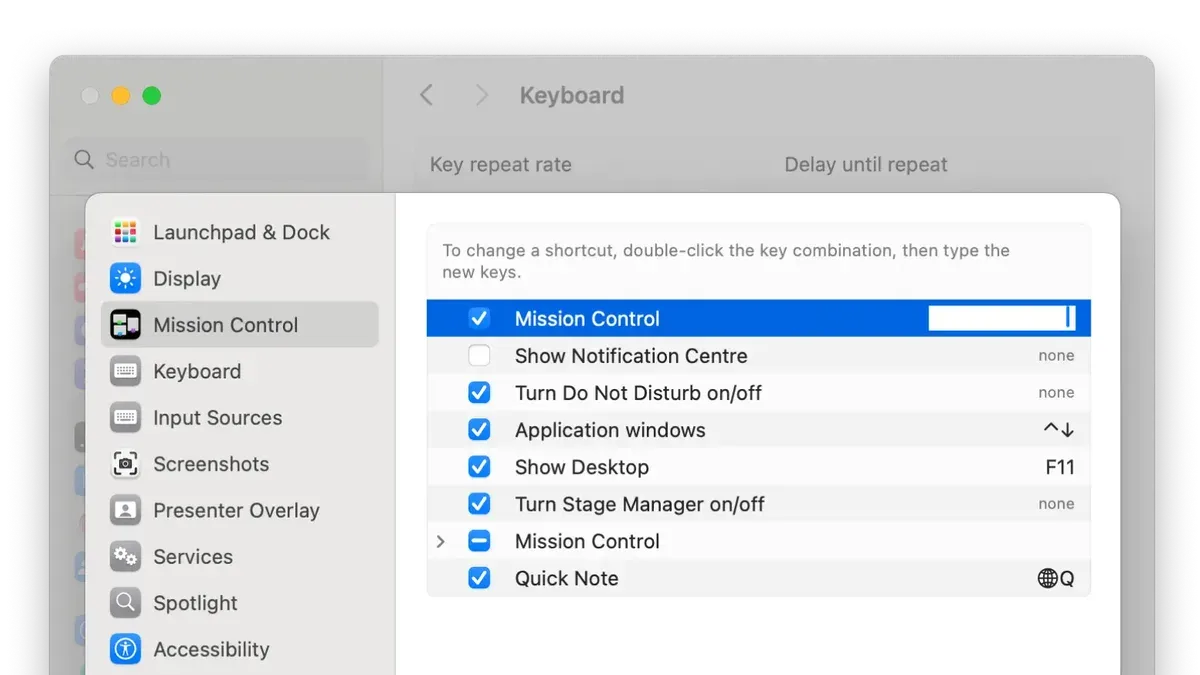
- The default shortcut is usually Control + Up Arrow, but you can customize it in System Settings under Keyboard > Keyboard Shortcuts > Mission Control.
- Using Mission Control gestures on a trackpad can complement keyboard shortcuts for faster access.
- Organize your workspace by grouping related windows into separate desktops accessible via Mission Control.
- Avoid overlapping shortcuts that conflict with other apps to ensure smooth workflow navigation.
What Mission Control is and why it matters for Mac users
Mission Control is a built-in Mac feature that offers a bird’s-eye view of all your open windows, desktop spaces, and full-screen apps. It simplifies managing multiple tasks by grouping and displaying them visually, so you can quickly find and switch between what you need.
Using Mission Control enhances multitasking efficiency, reducing the time spent searching for windows or cluttered desktops. For example, instead of cycling through apps one by one or minimizing windows, you see everything organized in a single view.
Keyboard shortcuts to activate Mission Control are faster and more direct than relying on trackpad gestures or clicking the Dock icon. This speed improves workflow by minimizing interruptions—allowing you to keep your hands on the keyboard and maintain focus. Users who incorporate shortcuts often notice smoother navigation and less time lost managing windows.
How to open Mission Control on Mac using default keyboard shortcuts
The primary keyboard shortcut to open Mission Control is Control + Up Arrow. Pressing these keys simultaneously reveals all your open windows and desktops, offering a quick overview of your workspace.
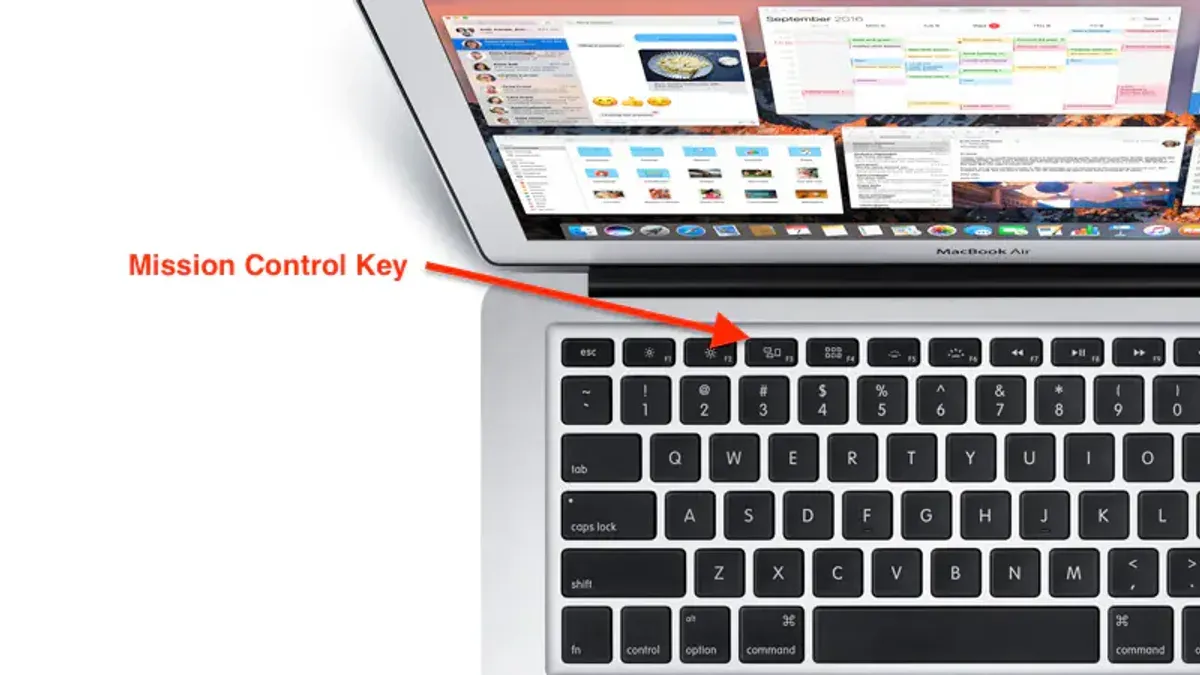
On many Apple keyboards, especially recent models, there is a dedicated Mission Control key often labeled with three rectangles or marked as F3. Tapping this key instantly activates Mission Control without needing to hold down other keys.
For third-party or older Mac keyboards, the default shortcut might vary or the dedicated key could be absent. In such cases, the Control + Up Arrow remains the most reliable method, but you may need to check System Preferences under Keyboard > Shortcuts > Mission Control to confirm or customize your shortcut.
You can also open Mission Control from the Dock by clicking its icon, typically a blue rectangle with three smaller rectangles above it. However, using keyboard shortcuts is generally faster and keeps your workflow uninterrupted, as it requires no cursor movement.
For example, if you’re editing a document and want to switch quickly to another app, pressing Control + Up Arrow lets you glance at all open windows in a flash—much quicker than moving your mouse to the Dock and clicking the icon.
How to use Mission Control on Mac to organize your workspace efficiently
Once you open Mission Control using its shortcut, you gain a bird’s-eye view of all your open windows and Spaces. This allows you to quickly switch between apps without hunting through overlapping windows. For example, if you’re writing a report in one window and researching in another, Mission Control helps you jump back and forth smoothly.
You can create multiple desktops, called Spaces, by moving your cursor to the top right corner and clicking the plus button. Spaces help you separate different workflows, such as one for work apps and another for personal browsing.
Dragging windows between Spaces is straightforward: just click and hold a window in Mission Control, then drag it to the desired desktop thumbnail at the top. This lets you reorganize your workspace without closing or minimizing windows.
Combining Mission Control with Split View enhances multitasking further. For instance, you can drag two windows side by side in a Space, then use Mission Control to switch to a different Space with other apps, keeping your main workspace clutter-free.
Imagine working on a presentation while monitoring emails: open Mission Control, create a new Space for email, drag your mail client there, then switch quickly using your shortcut. This setup minimizes distractions and streamlines task switching.
How to customize the keyboard shortcut for Mission Control on Mac
To change the default Mission Control shortcut, begin by opening System Settings (or System Preferences on older macOS versions). Navigate to Keyboard > Keyboard Shortcuts, then select Mission Control from the sidebar. Here, you can see the current shortcut and assign a new key combination.
Click the existing shortcut next to "Mission Control" to activate it, then press your desired key combination. For example, you might choose Control + Option + M—easy to remember but less likely to conflict with other shortcuts.
When selecting a new shortcut, avoid combinations already used by system or popular apps to prevent interference. Common conflicts include Command + Tab or Control + Space. If your chosen shortcut doesn't respond consistently, it might overlap with another command.
For more advanced options, third-party utilities like BetterTouchTool or Karabiner-Elements let you create complex or device-specific shortcuts, such as assigning Mission Control to a function key or mouse button. These tools offer greater flexibility but require additional setup and permissions.
By customizing your shortcut thoughtfully, you can streamline access to Mission Control in a way that fits your workflow best.
Common mistakes to avoid when using Mission Control shortcuts
One frequent misunderstanding is confusing Mission Control with App Exposé or Dashboard. While Mission Control shows all open windows and desktops, App Exposé isolates windows of the active app, and Dashboard is a separate screen for widgets (if enabled). Users often press the wrong shortcut expecting a specific view, leading to frustration.
Another common issue is overloading keyboard shortcuts. Assigning Mission Control shortcuts that overlap with other system or app shortcuts can cause conflicts or accidental activations. For instance, setting Mission Control to Control + Down Arrow may clash with App Exposé’s default shortcut, resulting in unpredictable behavior.
Some users ignore trackpad gestures as a complement to keyboard shortcuts. Using a three- or four-finger swipe alongside shortcuts can improve efficiency, but overlooking this can limit your workflow flexibility.
Lastly, many do not customize shortcuts despite their unique workflow needs. Sticking to defaults might seem easier but can slow you down if those shortcuts conflict with other tasks. Customizing via System Settings > Keyboard > Keyboard Shortcuts > Mission Control lets you pick combinations that fit your habits and avoid disruptions.
For example, a reader on a forum described repeatedly triggering Dashboard instead of Mission Control because they confused the default shortcuts, highlighting how clarity and customization prevent such errors.
- How to Use Mac Keyboard Shortcut to Open Launchpad Easily
- Mac Keyboard Shortcut to Open System Settings Quickly
- Mac Keyboard Shortcut to Show Desktop: How to Quickly Access Your Desktop
- Mac Keyboard Shortcut to Minimize All Windows: A Complete Guide
Frequently asked questions
How to open mission control mac?
You can open Mission Control on a Mac by pressing the default keyboard shortcut Control + Up Arrow. Alternatively, swiping up with three or four fingers on a trackpad also activates Mission Control. These methods quickly display all your open windows and spaces for easier navigation.
How to access mission control mac?
Mission Control can be accessed through several methods: using the Control + Up Arrow shortcut, swiping up with three or four fingers on the trackpad, or clicking the Mission Control icon in the Dock or Launchpad. You can also assign a hot corner in System Preferences under Desktop & Screen Saver to trigger Mission Control by moving your cursor to that corner.
how to open mission control on mac
To open Mission Control on a Mac, press Control and the Up Arrow keys simultaneously. If you prefer gestures, use a three- or four-finger swipe up on the trackpad. You can customize these shortcuts in System Preferences under Keyboard > Shortcuts > Mission Control.
how to open mission control mac
Opening Mission Control on Mac is commonly done using Control + Up Arrow or a three- or four-finger trackpad swipe upward. If these don’t suit your workflow, you can change the shortcut via System Preferences > Keyboard > Shortcuts > Mission Control, tailoring it to your preference.
how to use mission control on mac
Mission Control helps organize your workspace by showing all open windows, desktop spaces, and full-screen apps in one view. Use it to quickly switch between tasks or create new desktops by clicking the plus icon in the top-right corner. Dragging windows between spaces or full-screen apps can streamline your multitasking setup.
Limits of these keyboard shortcut tips
This article does not cover trackpad gesture alternatives in detail; users relying heavily on gestures may need to explore additional resources to integrate Mission Control smoothly into their workflow. Additionally, some older Mac models or non-Apple keyboards might lack dedicated Mission Control keys or offer limited shortcut customization options, which could affect how you implement the recommendations here.
To make the most of Mission Control shortcuts, the single most useful next step is to visit System Settings > Keyboard > Keyboard Shortcuts > Mission Control. From there, you can experiment with customizing shortcuts to fit your unique workflow, ensuring quick access that matches how you like to navigate your desktop spaces and apps.



