
How to Use Mac Keyboard Shortcut to Open Launchpad Easily
Discover how to use and customize the Mac keyboard shortcut to open Launchpad for faster app access and better organization.
Trying to find an app quickly on your Mac can sometimes slow you down, especially if your Dock is cluttered or you have many apps installed. Instead of hunting through folders or scrolling endlessly, using a Mac keyboard shortcut to open Launchpad speeds up the process by showing all your apps in one place.
This article explains what Launchpad is and why it matters, shows you how to use the default shortcut, helps troubleshoot if the shortcut doesn’t work, and guides you through customizing your own shortcut. You’ll also learn tips for using Launchpad efficiently and how to explore other useful keyboard shortcuts on your Mac.
Key takeaways
- Launchpad provides a visual grid of all your apps, simplifying app launching on Mac.
- The default shortcut to open Launchpad is usually the F4 key or a dedicated Launchpad key.
- If the shortcut doesn’t work, you can access Launchpad via the Dock or Spotlight search.
- You can customize or assign new shortcuts in System Settings under Keyboard > Keyboard Shortcuts > Launchpad & Dock.
- Using folders and search within Launchpad improves app organization and speeds up finding apps.
What is the Mac Launchpad and why it matters
Launchpad is a built-in feature of macOS that provides a visual, grid-based interface to access all your installed applications. It acts as a central app launcher, displaying app icons across multiple pages similar to an iOS home screen, which allows you to quickly find and open programs without navigating folders or menus.
Compared to the Dock, which holds a limited number of app icons, Launchpad offers a comprehensive view of all your apps in one place. Unlike Spotlight, which requires typing app names, Launchpad presents a straightforward visual selection that can be faster for users who prefer scanning icons or when you don’t remember exact app names.
Launchpad is especially useful when you have many applications installed and want to keep your Dock minimal or clutter-free. For example, if you need to open an app that’s not on the Dock or remember its exact name for Spotlight, Launchpad lets you swipe through pages or use search within the grid to locate it quickly. This can save time compared to opening Finder or scrolling through menus.
In scenarios like switching between multiple productivity tools during work or launching games and utilities, Launchpad helps maintain a smooth flow by keeping all apps visually organized and accessible with a single gesture or shortcut. This visual approach complements other launch methods, giving you flexible options based on your workflow.
How to open Launchpad on Mac using the default keyboard shortcut
The default keyboard shortcut to open Launchpad on a Mac is the F4 key. On MacBook models and some Apple keyboards, this key is often labeled with a grid of small squares, representing the Launchpad icon. Pressing the F4 key instantly brings up the Launchpad interface, displaying all your apps in a full-screen overlay.
On Mac keyboards with a Touch Bar or compact layouts, the F4 key may require you to hold down the Fn (Function) key while pressing F4 to trigger Launchpad. For example, pressing Fn + F4 on these models will open Launchpad. This is because the function keys often default to hardware controls like brightness or volume, and holding Fn accesses the standard F-key functions.
External keyboards connected to a Mac may not have an F4 key with a Launchpad icon. In these cases, the default shortcut might not work directly. You can check the System Settings > Keyboard > Keyboard Shortcuts to confirm or modify the Launchpad shortcut for your setup.
To visualize, imagine using a MacBook Pro with a Touch Bar: you press and hold the Fn key on the lower-left corner, then tap the F4 key above the numbers. The screen switches to the Launchpad view, where you can quickly select an app. This immediate response makes accessing your app library faster than navigating with a mouse or trackpad.
How to get to Launchpad on Mac if the shortcut doesn’t work
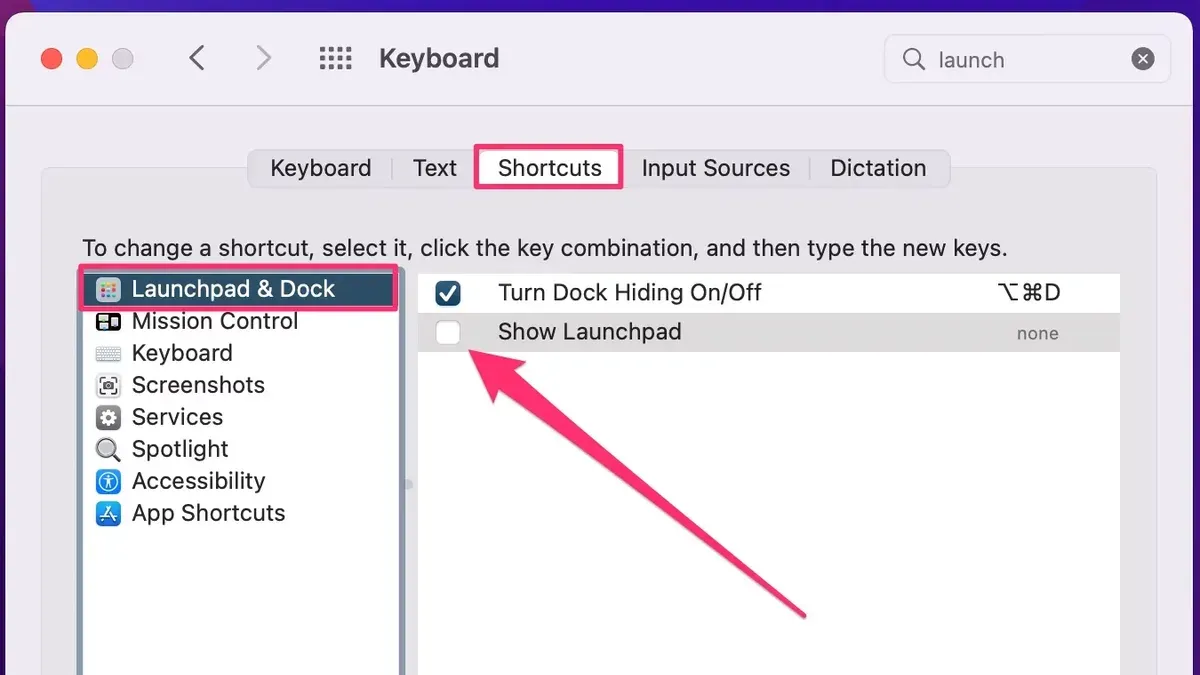
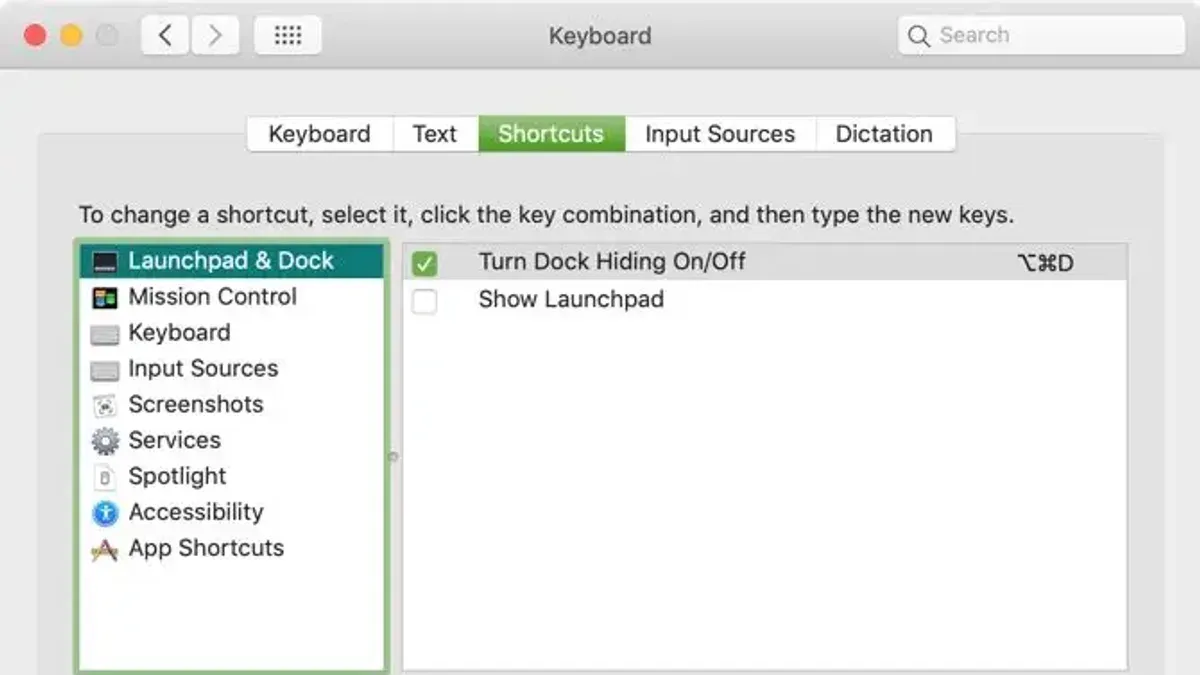
If pressing the default F4 key or Fn + F4 doesn’t open Launchpad, start by checking the shortcut settings. Open System Settings, go to Keyboard, then select Keyboard Shortcuts. Under the Launchpad & Dock section, ensure that the shortcut for Launchpad is enabled and assigned correctly. For example, if it’s unchecked or set to a different key, re-enable it or assign a preferred key combination.
As an alternative, you can access Launchpad using Spotlight by pressing Command + Space, typing "Launchpad," then pressing Enter. This method is slower than the shortcut but useful when troubleshooting. Another quick option is to click the Launchpad icon in the Dock; if it’s missing, you can add it back by opening the Applications folder, dragging the Launchpad app to the Dock, and dropping it where you want it.
If Launchpad opens but is unresponsive or behaves oddly, resetting its preferences may help. Open Terminal and enter the command defaults delete com.apple.dock; killall Dock. This resets Dock and Launchpad settings, restoring default shortcuts and icons but may require re-customizing your Dock.
For example, a user who found the Launchpad shortcut disabled after a macOS update re-enabled it in System Settings and added the icon back to the Dock. They found the shortcut quicker to access than the Dock icon, especially when working with keyboard-driven workflows.
How to customize or create your own shortcut to open Launchpad
You can change the Launchpad keyboard shortcut directly in System Settings. Open System Settings and navigate to Keyboard, then select Keyboard Shortcuts. Under the Launchpad & Dock category, find the Show Launchpad option. Click on the current shortcut and press your preferred key combination to replace it. For example, you might choose Control + Option + L for easier reach.
Third-party apps like BetterTouchTool or Karabiner-Elements allow more complex or customized shortcuts, including function key remapping or multi-step sequences. These tools offer flexibility if the built-in options feel limited, but they require additional setup and can affect system performance or conflict with other shortcuts.
Custom shortcuts offer advantages, such as fitting your workflow better or avoiding conflicts with other shortcuts. However, the default shortcut is simple and consistent across Macs, which reduces confusion especially if you use multiple devices. When assigning a new shortcut, avoid combinations already used by macOS or your frequent apps to prevent unexpected behavior.
A common pitfall is choosing shortcuts that involve keys reserved for system functions, such as Command + Space, which is Spotlight’s default. Another is forgetting to enable the shortcut in System Settings after creation. After setting a new shortcut, test it immediately to confirm it triggers Launchpad without issues.
How to use Launchpad efficiently once opened
Once Launchpad is open, you can navigate through your apps swiftly using both keyboard and trackpad gestures. Use the arrow keys to move between apps in the grid, and press Enter to launch the selected app. On a trackpad, swipe left or right with two fingers to move between pages of apps if you have multiple screens of apps organized.
Organizing apps into folders within Launchpad can significantly speed up your workflow. To create a folder, drag one app icon over another; this groups them together under a folder with a default name you can rename. For example, grouping all your productivity apps into a “Work” folder allows you to access them quickly without scrolling through several pages.
Launchpad also includes a search bar at the top. Typing part of an app’s name filters visible icons instantly, which is helpful if you have many apps installed. This search feature eliminates the need to manually scroll through pages when you want to open a specific app quickly.
In multi-monitor setups, Launchpad opens on the primary display by default. You can move your cursor to the primary screen or set a different display as primary in System Settings > Displays > Arrangement. This centralizes Launchpad access and prevents confusion about where it appears.
How to open keyboard shortcuts on Mac to explore more options
To find and manage all keyboard shortcuts on your Mac, start by opening System Settings from the Apple menu. Then select Keyboard and click the Keyboard Shortcuts button. This pane categorizes shortcuts into sections like Mission Control, Spotlight, and App Shortcuts, making it easy to browse and modify them.
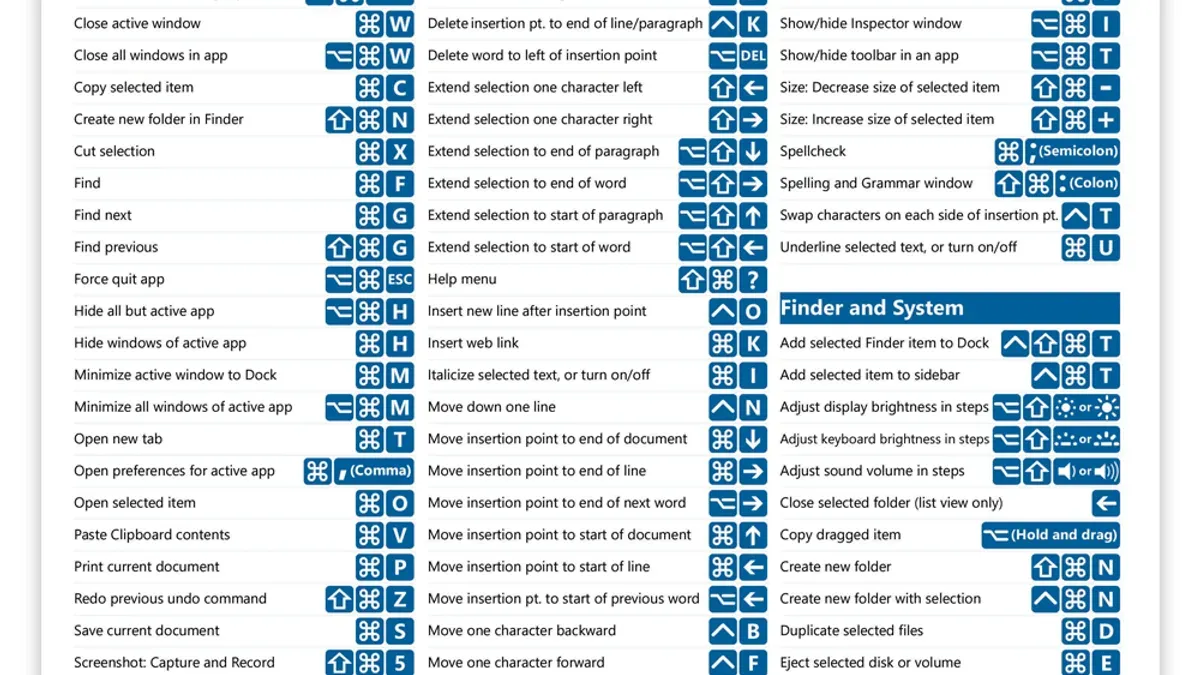
Within these categories, you can enable or disable shortcuts that might conflict with Launchpad’s shortcut. For example, if the default Launchpad shortcut uses F4 but another function is assigned there, you can uncheck that conflicting shortcut to ensure Launchpad opens reliably. Adjusting these settings can prevent accidental triggers or missed launches.
A concrete example: suppose Mission Control uses a shortcut overlapping with Launchpad’s. By deselecting Mission Control’s shortcut or assigning it a new key combo, you avoid interference and improve workflow efficiency. You can also create new shortcuts for system functions you use frequently, speeding up tasks without relying on the mouse.
Exploring the Keyboard Shortcuts pane lets you tailor your Mac’s interaction to your needs, harmonizing Launchpad access with other key commands for a smoother experience.
Common mistakes to avoid with Launchpad shortcuts
One frequent error is assigning a Launchpad shortcut that conflicts with existing system or app shortcuts. For example, setting Command + Space to open Launchpad overrides Spotlight search, leading to confusion and loss of expected functionality. Users often report that such conflicts cause shortcuts to stop working altogether or trigger unintended actions.
Another mistake is forgetting to enable the newly customized shortcut in System Settings > Keyboard > Keyboard Shortcuts after creating it. Without activation, the shortcut won’t respond, leaving you puzzled why Launchpad doesn’t open despite correct key presses.
It’s also a misconception that Launchpad is always the fastest way to launch apps. Depending on your workflow, Spotlight or the Dock might be quicker. If you rely solely on Launchpad shortcuts, you might miss optimizing your app access speed, especially when using typed searches or frequently accessed Dock icons.
Lastly, overlooking accessibility options can limit usability for users with special needs. For instance, Launchpad shortcuts might not be practical for those using alternative input devices or voice control. Exploring System Settings > Accessibility to adjust keyboard and interaction preferences ensures smoother access for everyone.
Frequently asked questions
How to access launchpad on mac?
You can access Launchpad on your Mac by clicking its icon in the Dock, which looks like a silver rocket. Alternatively, use the default keyboard shortcut, usually F4 or the dedicated Launchpad key, to open it instantly. If these options don’t work, you can open Launchpad via the Applications folder in Finder.
How to find launchpad on mac?
Launchpad is typically found in the Dock as a silver rocket icon. If it’s not visible there, check the Applications folder using Finder, where it is stored as a system app. You can also use Spotlight by pressing Command + Space and typing “Launchpad” to locate and open it quickly.
How to get launchpad back on mac?
If Launchpad is missing from the Dock, you can restore it by opening Finder, navigating to the Applications folder, and dragging the Launchpad app back to the Dock. Alternatively, reset Launchpad settings through System Preferences > Keyboard > Shortcuts > Launchpad & Dock to ensure the shortcut is active. Restarting your Mac can also resolve temporary glitches causing Launchpad to disappear.
Where is launchpad on macbook?
On a MacBook, Launchpad is usually accessible via the F4 key on the keyboard, which often has a grid of squares icon. It also appears in the Dock by default, identifiable as a silver rocket. If it’s not on the Dock, find it in the Applications folder or open it through Spotlight search.
How to open launchpad on mac with keyboard?
The default keyboard shortcut to open Launchpad is pressing the F4 key, which may have a Launchpad icon. If your Mac keyboard does not have this key, you can customize or create a new shortcut by going to System Preferences > Keyboard > Shortcuts > Launchpad & Dock. This allows you to assign any preferred key combination for quick access.
What this advice does not cover and who should do something else
This article focuses exclusively on using keyboard shortcuts to open Launchpad on Mac. It does not cover alternative ways to launch apps, such as Dock icons, Spotlight search, or third-party app launchers that may provide additional features or customization. If you rely on specialized accessibility tools or have a heavily customized macOS setup, some shortcuts and instructions might behave differently or require alternative approaches.
For users who need more advanced workflow automation or integration with other devices, exploring apps like Alfred or Keyboard Maestro may be more effective than relying solely on Launchpad shortcuts.
The most practical next step is to visit System Settings > Keyboard > Keyboard Shortcuts > Launchpad & Dock to verify or customize your Launchpad shortcut. This ensures you have a reliable, personally tailored keyboard shortcut that fits your workflow and avoids conflicts with other system or app shortcuts.



