
Mac Keyboard Shortcut to Open Terminal Quickly: A Practical Guide
Discover the fastest Mac keyboard shortcut to open Terminal and streamline your workflow with practical tips and custom shortcut setup.
You frequently need to open Terminal to run scripts or troubleshoot, but reaching for the mouse every time interrupts your flow. You want to know the most efficient way to open Terminal without fumbling through menus or launching Spotlight and typing commands.
This guide covers the Mac keyboard shortcut to open Terminal quickly, including built-in shortcuts and how to create custom ones. You will also learn how to use keyboard shortcuts within Terminal for faster operation, practical workflow tips, and common pitfalls to avoid when setting up your shortcuts.
Key takeaways
- Use Spotlight Search (Cmd + Space) and type "Terminal" as the quickest built-in method without setup.
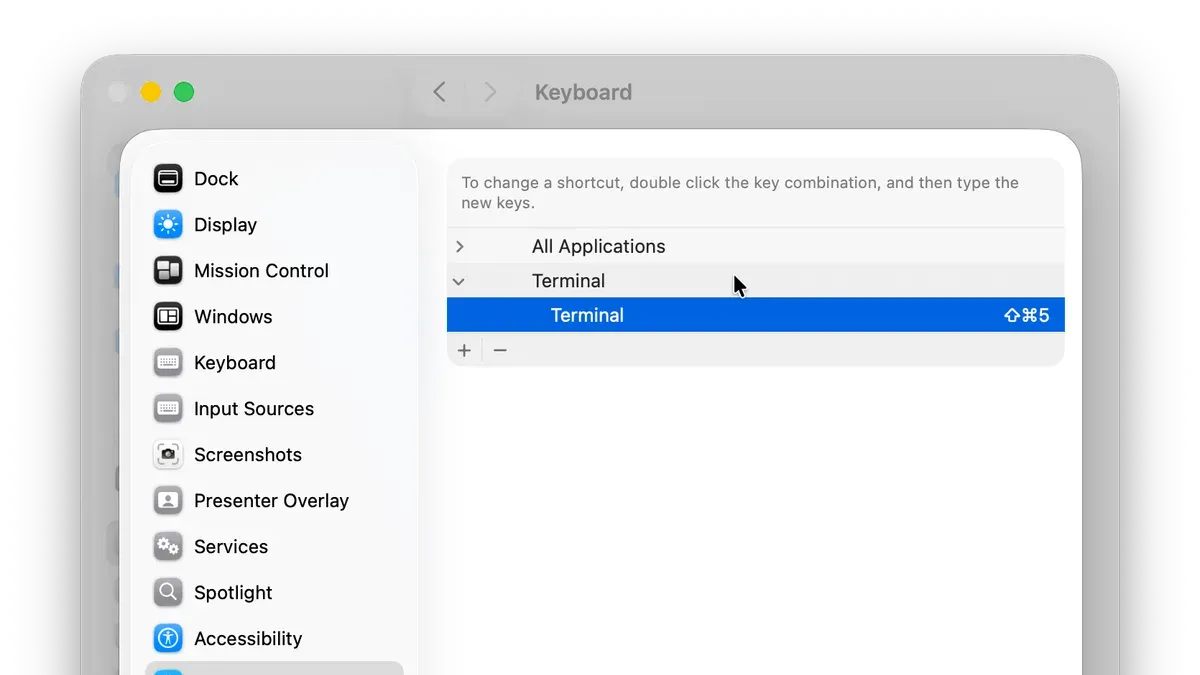
- Create a custom keyboard shortcut via System Settings > Keyboard > Shortcuts > App Shortcuts to open Terminal instantly.
- Leverage Terminal’s own shortcuts like Cmd + T for new tabs to speed up your workflow.
- Beware of conflicts with existing shortcuts when assigning custom keys.
- Integrate shortcuts into your daily routine to minimize context switching and boost productivity.
What Terminal is and why quick access matters
Terminal on a Mac is a command-line interface that provides direct control over the operating system. It allows users to execute commands, run scripts, and manage system tasks beyond what the graphical interface offers. Developers, system administrators, and power users rely on Terminal for activities like managing files, configuring networks, and automating repetitive workflows.
Many Mac users open Terminal multiple times a day to perform tasks such as checking system status, launching development environments, or interacting with version control systems like Git. Quick access to Terminal can save significant time, especially when toggling between coding and command execution.
For example, a developer debugging an application might frequently switch from an editor to Terminal to run build commands or monitor logs. Without a fast keyboard shortcut, this process can interrupt focus and slow productivity. Providing a reliable and swift way to open Terminal supports smoother workflows and reduces friction in daily tasks.
Default Mac keyboard shortcuts related to Terminal
macOS does not provide a universal default keyboard shortcut specifically to open the Terminal app directly. Instead, users commonly rely on Spotlight Search, accessible by pressing Command (⌘) + Space. After invoking Spotlight, you can type “Terminal” and press Return to launch it. This method typically takes around 3 to 5 seconds, depending on typing speed and Spotlight responsiveness.
Alternatively, Automator or the Services feature can be used to create partial shortcuts. For example, you can build a quick action in Automator that launches Terminal and assign it a keyboard shortcut via System Preferences > Keyboard > Shortcuts > Services. However, these require some setup and are not enabled by default.
While Spotlight offers a near-immediate way without configuration, it involves multiple key presses and typing, which can slow down workflows compared to custom shortcuts. The lack of a built-in direct shortcut means users either accept this slight delay or invest time creating personalized shortcuts.
Creating a custom keyboard shortcut to open Terminal
You can set up a custom shortcut to launch Terminal using macOS’s Automator and System Preferences. First, open Automator and select “Quick Action” (previously called “Service”). Set the workflow to receive “no input” in “any application.” Next, add the action “Run AppleScript” and enter the script tell application "Terminal" to activate. Save this Quick Action with a descriptive name like “Open Terminal.”
Then, open System Preferences and go to Keyboard > Shortcuts > Services. Find your new service under “General,” and click to add a keyboard shortcut—commonly something like Control + Option + Command + T. This shortcut now opens Terminal globally.
For more flexibility, third-party utilities such as Alfred or Keyboard Maestro allow you to assign shortcuts with additional conditions and workflows. These apps can reduce the typical 3-5 seconds it takes to open Terminal via Spotlight to under 1 second with a custom shortcut.
This method avoids conflicts with existing shortcuts and integrates seamlessly into your workflow, providing a reliable, fast way to open Terminal without leaving the keyboard.
Using Terminal shortcuts within Terminal for faster operation
Once you open Terminal, mastering built-in keyboard shortcuts can significantly speed up your workflow. These shortcuts help with command-line navigation, editing, and command execution without lifting your hands from the keyboard.
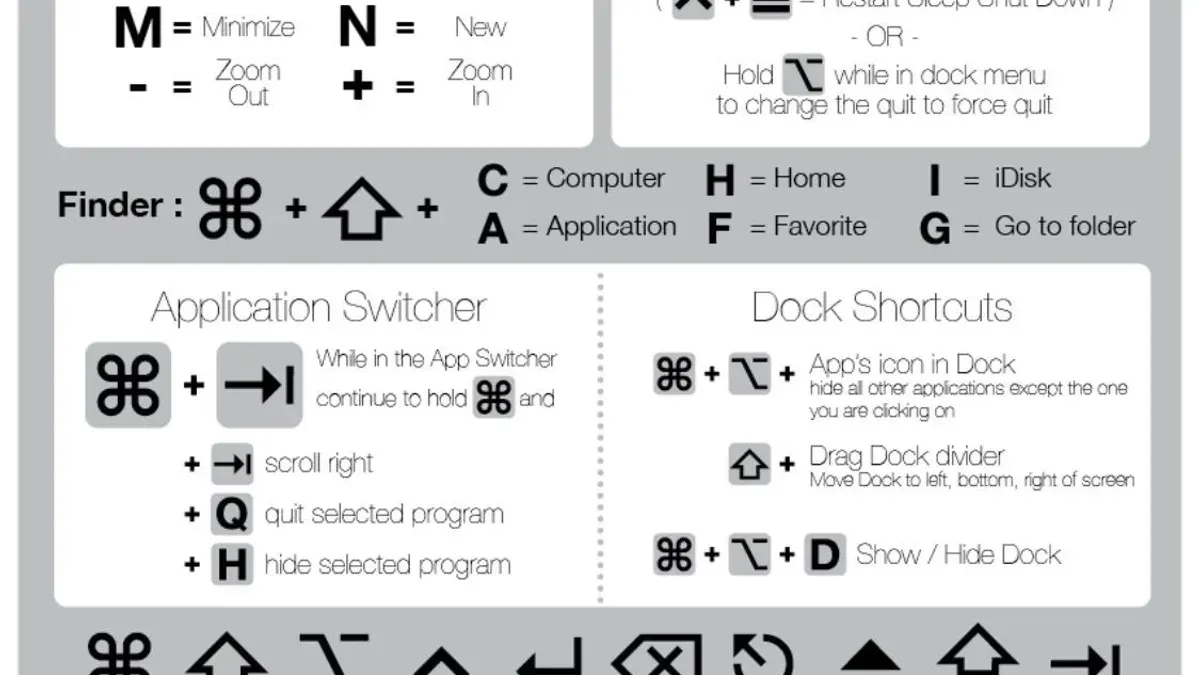
- Ctrl + A: Move the cursor to the beginning of the line.
- Ctrl + E: Move the cursor to the end of the line.
- Ctrl + U: Cut everything from the cursor to the start of the line.
- Ctrl + K: Cut everything from the cursor to the end of the line.
- Ctrl + W: Delete the word before the cursor.
- Ctrl + L: Clear the Terminal screen.
- Option + → / ←: Move the cursor one word to the right or left.
- Up/Down arrows: Cycle through previous commands.
For example, after quickly opening Terminal with your custom shortcut, you can press Ctrl + A to jump to the start of a long command to add a flag, then use Ctrl + E to jump back to the end to execute. This avoids multiple arrow key presses and mouse use, saving seconds that add up during repetitive tasks.
Combining a fast opening shortcut with these internal key commands streamlines your workflow, reducing the time spent navigating and editing commands, ultimately enhancing productivity.
Practical applications and workflow integration
Quick Terminal access streamlines workflows for developers, IT professionals, and casual power users by reducing the friction of switching contexts. For example, a developer can assign a custom shortcut to open Terminal directly within a project folder, then combine it with an IDE shortcut like Visual Studio Code's Cmd + ` to toggle between editor and command line efficiently.
IT professionals often automate routine tasks by triggering scripts through Terminal shortcuts integrated with system-wide hotkeys or third-party tools such as Alfred or Keyboard Maestro. This setup allows them to launch diagnostic commands or batch processes without navigating menus.
Casual users benefit by embedding Terminal shortcuts into Automator workflows, enabling them to run maintenance scripts or backups quickly. A practical workflow might involve pressing a single key to open Terminal, automatically navigate to a scripts directory, and execute a backup script, minimizing manual input.
Such integration avoids the common mistake of relying solely on mouse navigation, saving valuable time and reducing repetitive strain. Real-world users note that customizing shortcuts to fit their specific task sequences often leads to the most noticeable productivity gains.
Common mistakes and how to avoid them
One frequent pitfall is assigning a custom Terminal shortcut that conflicts with existing macOS or app shortcuts. For example, setting Command+T to open Terminal clashes with the standard new tab shortcut in many browsers and Terminal itself. To avoid this, check System Preferences under Keyboard > Shortcuts to identify and reassign conflicting shortcuts, ensuring your chosen shortcut remains unique and intuitive.
Another mistake is choosing overly complex shortcuts, such as combinations involving multiple modifiers and keys (e.g., Control+Option+Command+T). While these reduce accidental triggers, they can hinder quick access, defeating the purpose of a shortcut. Aim for a balance between simplicity and uniqueness, like Control+Option+T, to keep usability high.
Ignoring security implications is also common. Quick access to Terminal can expose your system if others use your Mac or malware exploits shortcut triggers. Always secure your Mac with strong passwords and consider disabling quick shortcuts when sharing your device. For instance, avoid enabling automatic Terminal launch on login or hot corners without proper authentication.
- How to Open Apps from Terminal on Mac: A Step-by-Step Guide
- How to Enable Touch ID for sudo in Mac Terminal
- Mac Keyboard Shortcut to Open Spotlight: A Clear Guide
- Mac Keyboard Shortcut to Open Applications Folder Quickly
Frequently asked questions
Is there a built-in keyboard shortcut to open Terminal on Mac?
macOS does not include a direct built-in keyboard shortcut solely to open Terminal by default. However, you can use Spotlight Search by pressing Command + Space, then typing "Terminal" and pressing Enter. This is the quickest built-in option without custom setup.
How can I create a custom shortcut to launch Terminal?
You can assign a custom keyboard shortcut to open Terminal by creating a new Automator service or Quick Action that launches Terminal, then linking it to a shortcut in System Settings under Keyboard > Keyboard Shortcuts > Services. Alternatively, third-party apps like BetterTouchTool allow creating more flexible shortcuts. Remember to choose a shortcut that doesn’t conflict with existing system commands.
Can I open Terminal in a specific folder using a shortcut?
Opening Terminal directly in a specific folder requires a custom script or Automator Quick Action that passes the folder path to Terminal. You can then assign a keyboard shortcut to this action. For example, creating a Quick Action that runs a shell script to open Terminal at the current Finder location is a common approach.
What are the best keyboard shortcuts to use inside Terminal?
Inside Terminal, useful shortcuts include Control + A to move to the beginning of the line, Control + E to move to the end, Control + U to clear the line, and Control + C to cancel the current command. Navigating commands efficiently with these shortcuts speeds up your workflow significantly.
What this guide does not cover
This article does not cover opening alternative terminal applications like iTerm2, which may have different shortcut options and customization capabilities. Users seeking advanced features such as split panes, session restoration, or extensive theming should explore those apps' specific documentation. Additionally, this guide focuses on macOS built-in functionality and system preferences; it does not address third-party utilities that automate or streamline Terminal access.
For users managing remote servers or requiring multiple terminal sessions simultaneously, solutions like tmux or screen inside Terminal may be more appropriate and have their own set of shortcuts and workflows.
Next step to improve your workflow
The most effective next step is to create a custom keyboard shortcut via System Preferences > Keyboard > Shortcuts > App Shortcuts, adding a new shortcut for Terminal’s “New Window” or “New Tab” command. Assign a unique key combination you can remember easily, avoiding conflicts with existing shortcuts. This small customization can significantly speed up your access to Terminal without relying solely on Spotlight or Dock navigation.



