
How to Enable Touch ID for sudo in Mac Terminal
This guide explains how to enable Touch ID for sudo in Mac Terminal with step-by-step instructions, backup tips, and troubleshooting advice.
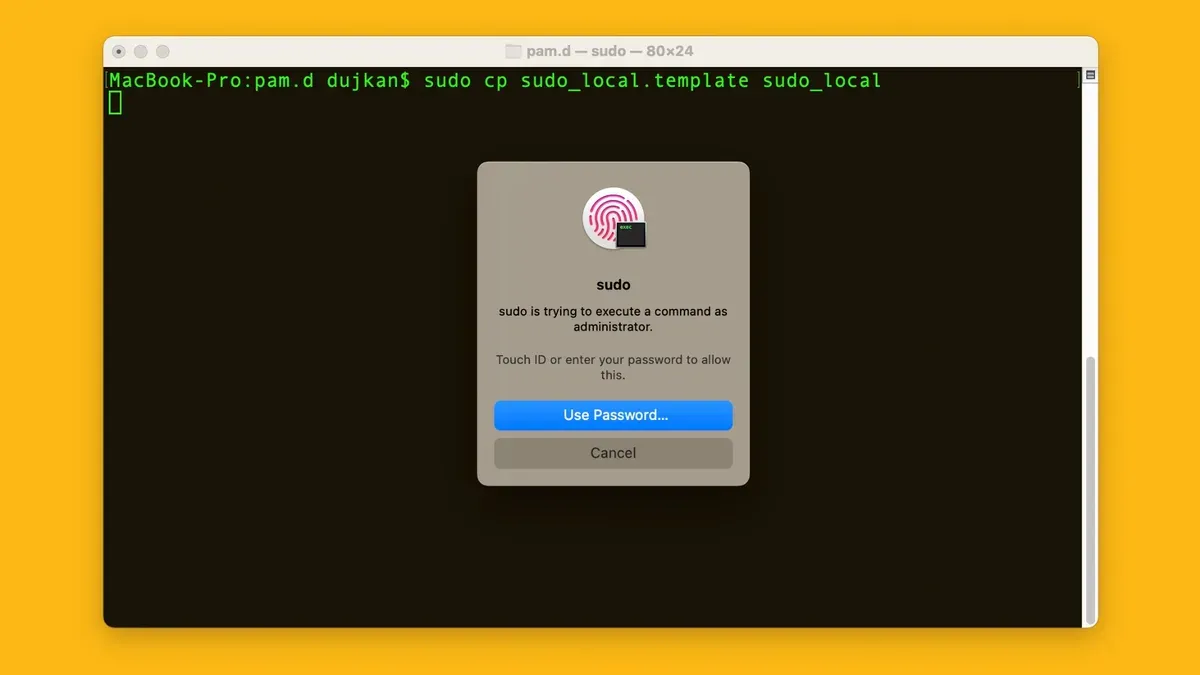
You often open Terminal to run commands requiring administrator privileges, entering your password multiple times a day. Instead of typing your password repeatedly, enabling Touch ID for sudo can speed up your workflow.
This article explains how to enable Touch ID for sudo in Mac Terminal with clear, step-by-step instructions. It covers backing up and editing the sudo PAM configuration, verifying the setup, troubleshooting common issues, and understanding the security trade-offs involved.
Key takeaways
- Back up the /etc/pam.d/sudo file before making changes.
- Add the fingerprint-authentication line at the top of the sudo PAM file to enable Touch ID.
- Test the setup by running a sudo command that prompts for authentication.
- Common issues include incorrect PAM syntax and missing fingerprint enrollment.
- Consider security implications; Touch ID bypasses password entry but still protects with biometric checks.
Before you start: requirements and considerations
To enable Touch ID for sudo commands in the Mac Terminal, your Mac must have a Touch ID sensor and be running macOS Sierra (10.12.2) or later, as this is when biometric sudo integration was introduced. Confirm your Mac model includes Touch ID by checking System Preferences under "Touch ID" settings.
You must have administrator privileges since modifying system authentication files requires elevated rights. Ensure you are logged into an admin account before proceeding.
Enabling Touch ID for sudo streamlines authentication but carries security trade-offs. While biometric authentication is convenient, a password offers stronger security as it cannot be bypassed if the fingerprint sensor is compromised. Consider your security needs before activation.
Backing up configuration files like /etc/pam.d/sudo is essential. This way, you can restore original settings if misconfiguration causes authentication failures.
- Verify your Mac has Touch ID hardware by opening System Preferences > Touch ID. You should see fingerprint options available.
- Check your macOS version by clicking the Apple menu > About This Mac. It must be Sierra 10.12.2 or newer.
- Confirm you are logged in with an administrator account by visiting System Preferences > Users & Groups. Your account should say "Admin" under your username.
- Create a backup of the sudo PAM file with:
sudo cp /etc/pam.d/sudo /etc/pam.d/sudo.backup. You should see no error messages if successful.
Locate and back up the sudo PAM configuration file
PAM (Pluggable Authentication Modules) is a framework used by macOS to manage authentication for various services, including the sudo command. The configuration file for sudo PAM controls how your Mac verifies your credentials when you run commands with elevated privileges.
The sudo PAM configuration file is typically located at /etc/pam.d/sudo. Before making any changes, you must create a backup of this file to restore the original settings if something goes wrong.
- Open Terminal and enter the command to back up the file:
sudo cp /etc/pam.d/sudo /etc/pam.d/sudo.backup
You will be prompted to enter your password. After entering it correctly, the command will complete without output. - Confirm the backup by listing the backup file:
ls -l /etc/pam.d/sudo.backup
You should see a line showing the backup file with its size and modification date, indicating the file exists.
Backing up is critical because any errors in the PAM configuration can lock you out of sudo, potentially requiring recovery mode to fix. Keeping the original file safe ensures you can restore proper authentication if needed.
Edit the PAM file to enable Touch ID for sudo
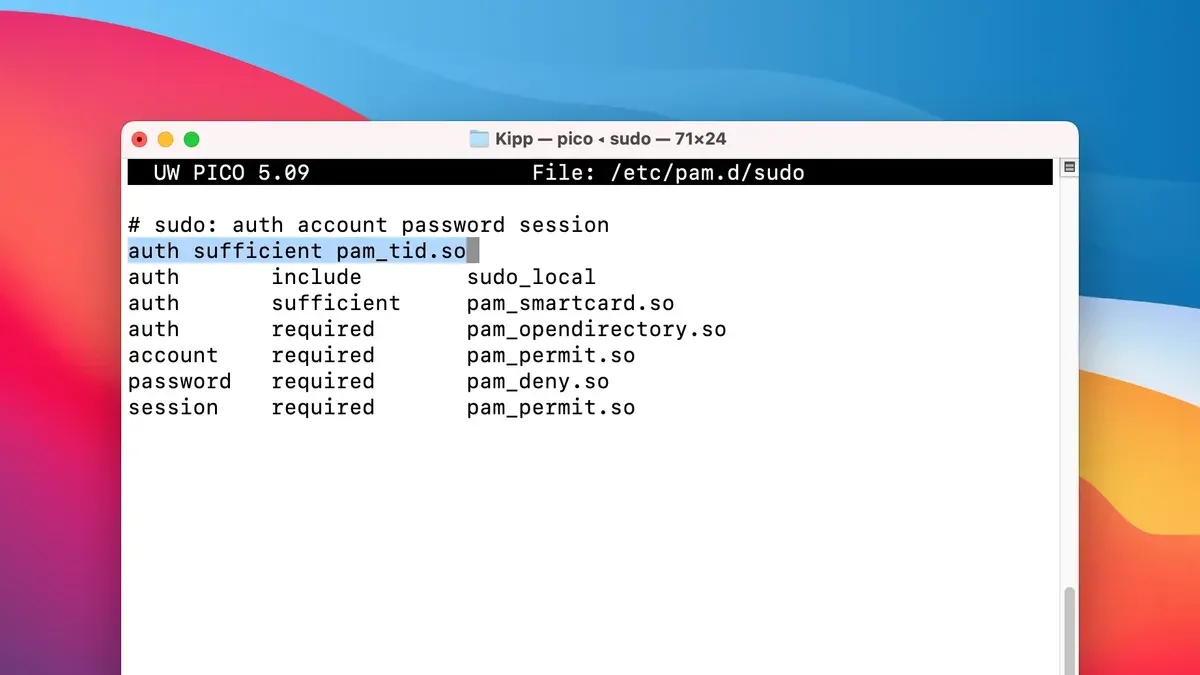
- Open Terminal and enter sudo nano /etc/pam.d/sudo. You will be prompted for your password; entering it grants editing access to the PAM configuration.
- In the editor, locate the authentication section near the top of the file. If you see a line starting with
# auth sufficient pam_tid.so, remove the leading # to uncomment it. If the line is not present, addauth sufficient pam_tid.soas the first authentication rule. - This line tells the Pluggable Authentication Module (PAM) system to use Touch ID as a sufficient authentication method. If Touch ID succeeds, sudo will not prompt for your password, streamlining access. If it fails or is unavailable, sudo falls back to the traditional password prompt.
- After adding or uncommenting the line, the relevant section will look like this before saving:
auth sufficient pam_tid.so
auth required pam_opendirectory.so - Press Ctrl + O to save the changes, then Enter to confirm the filename. Next, press Ctrl + X to exit the nano editor.
- You have now configured sudo to accept Touch ID authentication. The system is ready for testing.
Test Touch ID authentication with sudo
- Open Terminal and enter a simple command requiring sudo privileges, such as sudo ls. This command lists directory contents with elevated permissions.
Expected: Terminal prompts with[sudo] password for <username>:, but waits for Touch ID authentication instead of a typed password. - Place your registered finger on the Touch ID sensor when prompted. The system should authenticate you biometrically.
Expected: If recognized, the command executes immediately without requiring a typed password, and the directory listing appears. - If Touch ID fails or is unrecognized after a few attempts, the prompt falls back to the traditional password entry.
Expected: Terminal requests your account password to continue. Enter it to proceed. - Repeat the test with a different sudo command (e.g.,
sudo whoami) to confirm consistent Touch ID authentication behavior.
This procedure confirms your configuration is working correctly and that Touch ID can securely replace password prompts for sudo commands, with password fallback maintaining access in case of biometric failure.
Example terminal session:$ sudo ls
[sudo] password for user:
(Place finger on Touch ID sensor)
Desktop Documents Downloads
$
Troubleshoot common issues enabling Touch ID for sudo
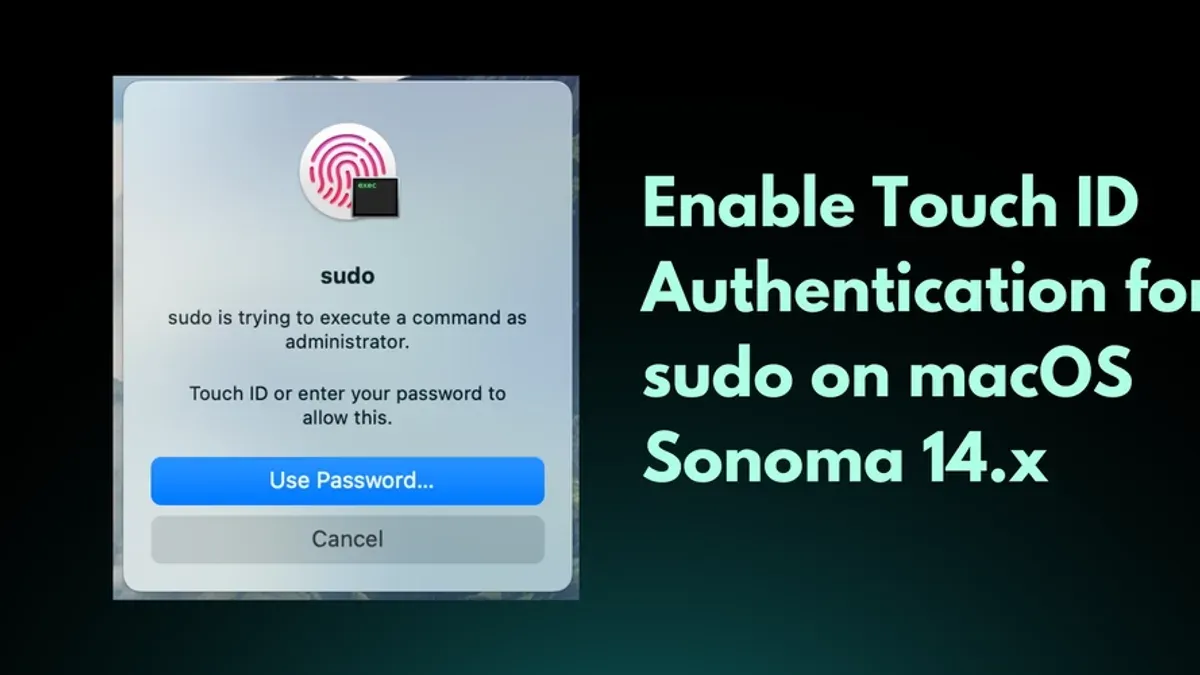
- Check PAM file syntax and placement of pam_tid.so line: If Touch ID is not recognized or you see no prompt, open
/etc/pam.d/sudoand confirm the lineauth sufficient pam_tid.sois correctly placed near the top. Incorrect placement or syntax errors can prevent Touch ID from activating. - Verify administrator privileges and file ownership: Permission denied errors often indicate you lack admin rights or the sudo PAM file ownership has changed. Run
ls -l /etc/pam.d/sudoto check ownership is root:wheel and confirm you have admin privileges withgroups. Fix ownership withsudo chown root:wheel /etc/pam.d/sudoif needed. - Ensure Touch ID sensor is enabled and set up: If the sensor does not respond, open System Preferences > Touch ID and verify your fingerprint is enrolled and "Use Touch ID for: Unlocking your Mac" is enabled. Re-enroll fingerprints if necessary.
- Restore original PAM configuration from backup: If sudo stops working after editing, restore the backup file with
sudo cp /etc/pam.d/sudo.backup /etc/pam.d/sudo. This should return sudo authentication to password-only mode, allowing safe troubleshooting.
Security considerations and when not to enable Touch ID for sudo
Enabling Touch ID for sudo offers convenience by replacing password prompts with biometric authentication, but it carries security trade-offs. Apple's biometric security model stores fingerprint data securely in the Secure Enclave, minimizing risk of data theft. However, if your fingerprint data is compromised, an attacker could gain sudo-level access without needing your password.
Multiple users sharing a device also present risks: Touch ID cannot distinguish which enrolled fingerprint authorized a sudo command. This lack of individual user identification may be problematic in shared or multi-user environments where accountability is essential.
Password authentication, while less convenient, remains the more secure choice in highly sensitive or regulated environments. It provides clear audit trails and requires knowledge-based verification, reducing risks related to biometric spoofing or shared device access.
Balance convenience with your security needs by considering device usage, user access policies, and the sensitivity of commands run with sudo. If you prioritize strict control and auditing, it may be better to keep password authentication for sudo commands.
- How to Use sudo Safely in Mac Terminal: A Step-by-Step Guide
- How to Install Oh My Zsh in Mac Terminal: A Clear Step-by-Step Guide
- How to Use Aliases in zsh on Mac Terminal: A Practical Guide
- How to Generate an SSH Key in Mac Terminal: A Step-by-Step Guide
Frequently asked questions
Can I enable Touch ID for sudo on all Mac models?
Touch ID for sudo is only supported on Mac models equipped with a Touch ID sensor, such as MacBook Pro and MacBook Air models with the fingerprint scanner. Older Macs without Touch ID hardware cannot use this feature. Additionally, your macOS version must support the necessary PAM module for Touch ID integration.
What happens if Touch ID authentication fails when using sudo?
If Touch ID authentication fails, sudo will prompt you to enter your user password as a fallback. This ensures you can still execute sudo commands even if fingerprint recognition does not work or you choose not to use Touch ID.
Is it possible to require both Touch ID and password for sudo commands?
By default, enabling Touch ID replaces the password prompt for sudo authentication but does not require both simultaneously. Configuring sudo to require both Touch ID and password is not standard and would require complex PAM modifications, which can increase login friction and risk misconfiguration.
How can I revert changes if enabling Touch ID for sudo causes problems?
You can revert changes by restoring the original sudo PAM configuration file you backed up before editing. If you did not create a backup, you can reinstall the sudo package via Terminal or manually restore the default settings to ensure authentication works as before.
What this guide does not cover and who should look elsewhere
This guide does not cover enabling Touch ID for Terminal commands beyond sudo or modifying other PAM (Pluggable Authentication Modules) configurations. If you require Touch ID integration for a wider range of commands or need to customize authentication policies extensively, consider consulting advanced macOS security documentation or seeking expert advice. Users unfamiliar with editing system files or those who need multi-user configurations might also want to proceed with caution or explore managed solutions.
The single most useful next step is to verify your Touch ID setup by running sudo -k to clear cached credentials, then executing a command like sudo ls to confirm Touch ID prompts correctly. This immediate test often reveals misconfigurations and ensures the authentication flow is smooth before relying on it for daily tasks.



