How to Open and Run.exe Files on Mac: Step-by-Step Guide
Discover practical ways to open and run.exe files on Mac using Wine, virtual machines, or Boot Camp for the best compatibility and performance.
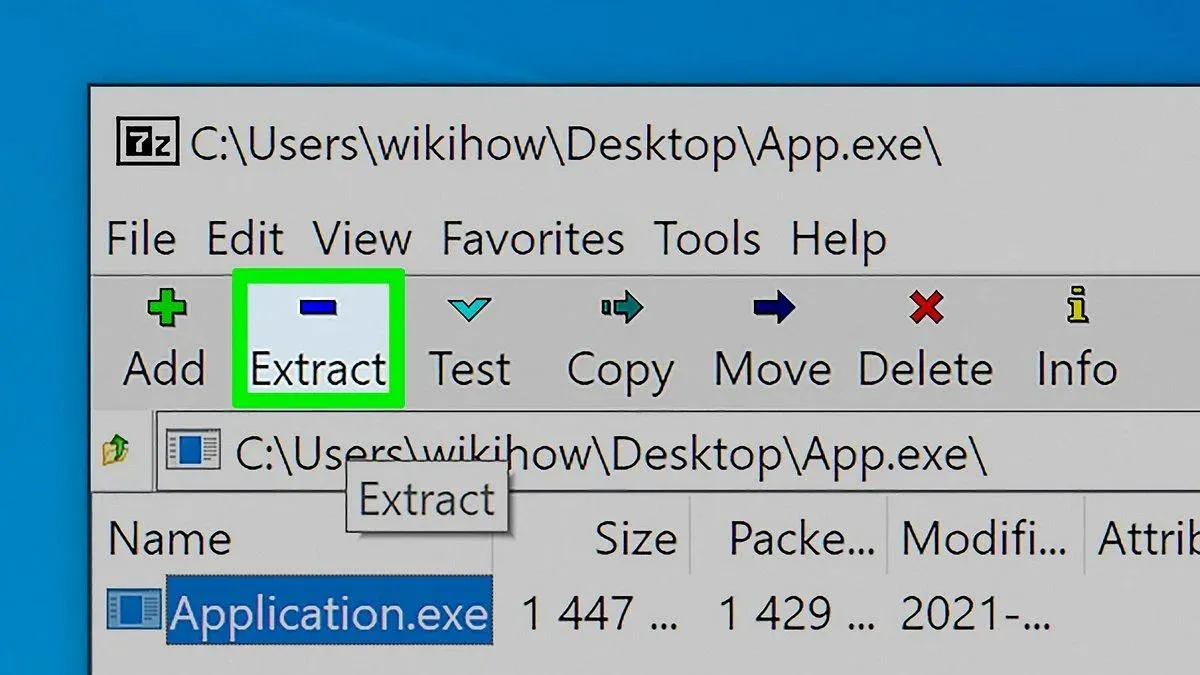
You have downloaded a Windows program in.exe format but when you try to open it on your Mac, nothing happens or you get an error. This is a common scenario because macOS does not natively support.exe files, which are designed for Windows environments.
This article explains how to open.exe file on Mac by comparing several practical methods. You will learn step-by-step how to use tools like Wine, virtual machines, and Boot Camp to run or install.exe files, considering ease of use, cost, and performance. Whether you want a free solution or a more integrated experience, you will find guidance to help you choose the best approach for your needs.
Key takeaways
- Wine allows you to run many.exe files on Mac without installing Windows but can have compatibility issues.
- Virtual machines like Parallels or VMware offer better compatibility but require a Windows license and more resources.
- Boot Camp lets you boot natively into Windows, providing the best performance but requires restarting your Mac.
- Free methods often involve trade-offs in ease or compatibility compared to paid solutions.
- Some.exe files, especially complex games or installers, may not run well or at all on Mac.
Before you start: What you need to open.exe files on Mac
.exe files are executable programs designed for Windows and cannot run directly on macOS. To open these files on your Mac, you need additional software or tools that create a Windows-compatible environment.
Common approaches include using Wine, a compatibility layer that allows some Windows applications to run on Mac without installing Windows; virtual machines like Parallels Desktop or VMware Fusion, which run a full Windows operating system within macOS; and Boot Camp, which lets you install Windows on a separate partition and boot directly into it.
Each method has hardware requirements: virtual machines and Boot Camp need sufficient disk space (often tens of gigabytes) and at least 8GB of RAM for smooth performance. Wine is lighter but supports fewer.exe files, typically simpler utilities or older games.
Before proceeding, verify the source of your.exe files. Files from unknown or untrusted origins can contain malware, posing security risks. Use antivirus software and avoid opening suspicious.exe files.
Examples of.exe files you might encounter include installers for Windows-only software, legacy games, or utilities like Notepad++ installer files. Knowing your use case can help you choose the right method to run them on your Mac.
- Confirm your Mac’s hardware specs: open the Apple menu > About This Mac; ensure you have enough RAM and disk space. Successful check means you can proceed with resource-heavy methods.
- Decide on the software method: Wine for lightweight apps, virtual machines for full Windows experience, or Boot Camp for native performance. Choosing the right tool matches your needs and hardware.
- Download the.exe file from a trusted source and scan it with antivirus software. A clean scan means it’s safe to continue.
How to run.exe files on Mac using Wine
Wine is a free compatibility layer that enables you to run Windows applications on macOS without installing Windows itself. It translates Windows system calls into macOS equivalents, allowing many simple.exe programs to work directly.
To get started, you can install Wine or a Wine-based app like WineBottler, which simplifies the process by packaging your.exe files into macOS-friendly apps.
- Download WineBottler from the official website and install it on your Mac. You should see Wine and WineBottler apps in your Applications folder after installation.
- Open WineBottler and use the "Advanced" tab to select your.exe file. Choose to create a standalone macOS app or run the.exe directly.
- Configure basic settings like Windows version emulation (commonly Windows 7 or Windows XP) within WineBottler before running the file.
- Launch the.exe file through WineBottler. A successful launch usually shows the Windows program window without error messages.
- Test with a simple Windows application like Notepad++ or older games known to work well under Wine, as complex or newer apps may not run properly.
Wine’s compatibility varies widely. Simple utilities and older software often run smoothly, but programs relying on advanced graphics, drivers, or heavy system integration may fail or behave unpredictably. Common issues include missing DLL files or crashes, which sometimes require manual configuration or additional components.
Overall, Wine offers a no-cost, lightweight solution for running many.exe files on Mac but may require patience and troubleshooting to handle compatibility limitations.
How to run.exe files on Mac using a virtual machine
Running Windows and.exe files on your Mac through a virtual machine (VM) offers greater compatibility and performance compared to Wine. Popular VM software includes Parallels Desktop, VMware Fusion, and the free VirtualBox. Parallels Desktop and VMware Fusion provide smoother integration and better graphics support but require a purchase, while VirtualBox is free but less polished and may require more manual setup.
To run.exe files using a VM, follow these steps:
- Download and install your chosen VM software (e.g., Parallels Desktop or VirtualBox). When installation finishes, open the VM application.
- Create a new virtual machine and select the option to install Windows. You will need a valid Windows ISO file and license key.
- Follow the prompts to install Windows inside the VM. Once installed, Windows will boot within a window on your Mac.
- Inside Windows, navigate to your.exe file and double-click it to run. The VM environment supports most.exe files, including resource-heavy programs like video editors or games.
- To share files, configure the VM's shared folders or drag and drop files between macOS and the VM window. This allows seamless file exchange without network setup.
VMs offer excellent compatibility and can handle demanding.exe applications, but they consume significant system resources and require a Windows license, adding to cost and complexity. Parallels Desktop provides better performance and integration, VMware Fusion is similar but less common, and VirtualBox is free but may lag in speed and ease of use.
How to run.exe files on Mac using Boot Camp
Boot Camp allows you to install Windows on a separate partition of your Mac’s hard drive, enabling you to boot directly into Windows. Unlike virtualization, this method runs Windows natively, providing full access to your Mac’s hardware and delivering superior performance for running.exe files.
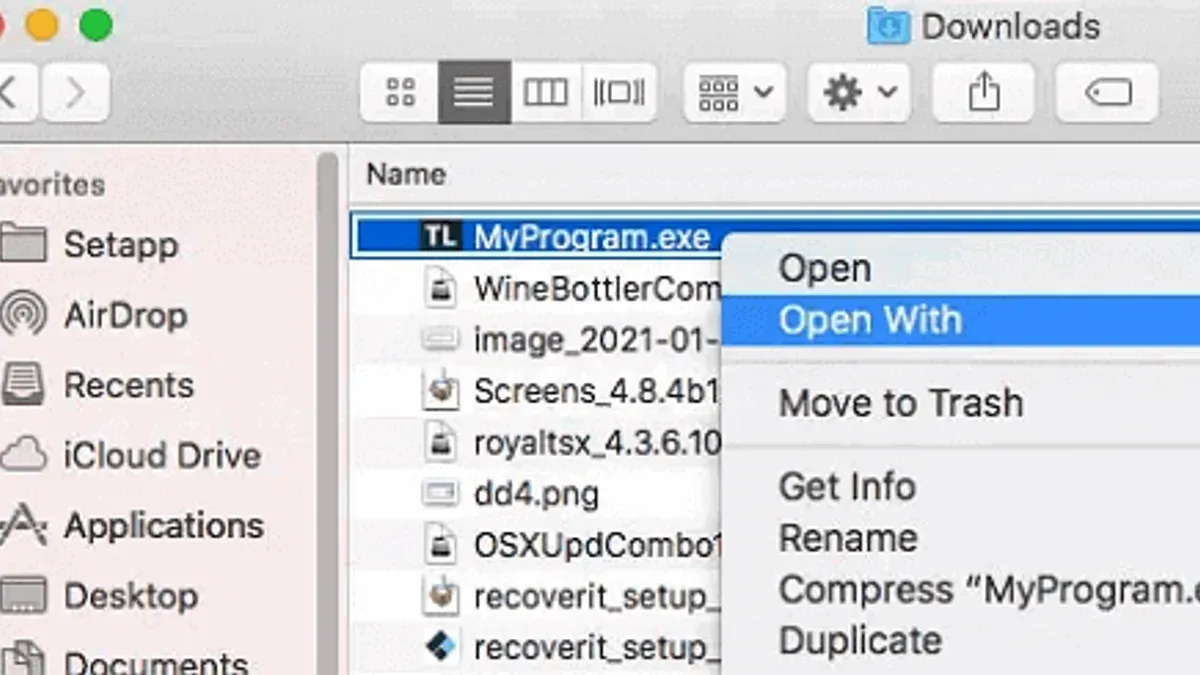
Note that Boot Camp is only supported on Intel-based Macs; Apple Silicon Macs do not support this feature.
- Open the Boot Camp Assistant from the Utilities folder in Applications. You should see a welcome screen with a prompt to continue.
- Follow the on-screen instructions to create a Windows partition. Specify the size based on your needs, typically at least 64GB for smooth Windows operation.
- Insert a Windows installation USB or select an ISO file when prompted. The Assistant will copy Windows installation files to the partition.
- Restart your Mac when prompted. It will boot into the Windows installer. Complete the Windows installation process by following the setup prompts, including entering your license key.
- Once Windows is installed, your Mac will boot into Windows by default. Install the Boot Camp drivers when the Boot Camp installer launches automatically, ensuring all hardware functions correctly.
- To switch back to macOS, restart your Mac and hold the Option (Alt) key during boot. Choose the macOS partition from the boot manager screen.
Running Windows through Boot Camp delivers better performance than virtual machines because it uses the Mac’s full hardware capabilities without sharing resources. This is especially noticeable in graphics-intensive applications and games.
However, this method requires rebooting to switch operating systems and is limited to Intel Macs, making it less flexible than virtualization solutions.
How to open.exe files on Mac for free
You can run.exe files on your Mac without spending money by using open-source or built-in software. Wine and WineBottler are popular free tools that translate Windows system calls to macOS, allowing many simple.exe programs to run directly. However, compatibility is limited, and complex applications or games may not work smoothly.
Another cost-free option is VirtualBox, an open-source virtual machine that lets you install Windows on a virtual PC inside your Mac. VirtualBox requires a Windows installation ISO, which may need a valid license, but the virtualization software itself is free. Performance is generally lower than paid VM solutions, and setup can be more technical.
| Method | Cost | Performance | Ease of Use |
|---|---|---|---|
| Wine / WineBottler | Free | Moderate for simple apps | Requires configuration |
| VirtualBox | Free (Windows license separate) | Lower than paid VMs | Technical setup |
| Paid VM software (for comparison) | Paid | High | More user-friendly |
For example, users running lightweight utilities or installers often succeed with Wine, but complex games or productivity software may need the virtual machine approach. With VirtualBox, after installing Windows, you run.exe files inside the virtual environment, which behaves like a real PC but may feel slower depending on your Mac’s specs.
How to install.exe files on MacBook and MacOS
Understanding the difference between running and installing.exe files is key. Some.exe files are standalone apps that launch directly, while others are installers that set up software by copying files, creating shortcuts, and modifying settings.
When installing via Wine, the.exe installer runs in a compatibility layer. Follow the installation prompts as you would on Windows. After completion, Wine creates a virtual Windows environment folder (usually in ~/.wine/drive_c/Program Files/) where the app resides. You can launch the installed app using Wine's file explorer or by running the executable through Wine.
- Open Terminal and type wine setupfile.exe replacing setupfile.exe with your installer file name. You should see the installer GUI launch.
- Proceed through the installation steps. On success, the installer finishes without error.
- Navigate to the installed program's folder inside ~/.wine/drive_c/Program Files/ and run the main.exe using wine program.exe. The application should open.
Inside a virtual machine (VM), the process mirrors a native Windows install. The VM boots Windows, so you run the installer exactly as on a real Windows PC. After installation, the app appears in the Windows Start menu or desktop inside the VM.
- Start your VM and open Windows.
- Double-click the.exe installer inside the VM's file explorer.
- Complete the installation wizard. On success, the app installs to the Windows VM’s Program Files.
- Launch the app from the VM’s Start menu.
With Boot Camp, installation is straightforward since you are running Windows natively on the Mac. Boot into Windows, run the installer directly, and use the installed app normally.
Managing installed Windows apps on Mac depends on your method: Wine keeps apps in a hidden folder and requires Wine commands to launch; VMs isolate apps inside the Windows environment; Boot Camp treats them as native Windows applications. Consider shortcuts or scripts to streamline launching.
Troubleshooting common issues when opening.exe files on Mac
When running.exe files on Mac, you may encounter errors depending on the method used. Here are typical problems and how to address them.
Fixing Wine errors
Wine may show messages like "Wine cannot find the specified file" or crash unexpectedly. To resolve this, ensure the.exe path is correct and try running Wine from Terminal to view detailed errors. Installing missing dependencies such as "winetricks" components (e.g., corefonts or vcrun6) often helps. Running Wine with the command winecfg allows you to adjust Windows version settings, which can fix compatibility issues. If an application fails to launch, try running it with wine start /unix <path-to-exe>.
Addressing virtual machine problems
Virtual machines (VMs) like Parallels or VirtualBox might suffer from sluggish performance or graphics glitches. Installing VM Guest Additions or Parallels Tools improves driver support and responsiveness. Allocating more RAM and CPU cores in VM settings often resolves slowdowns. If devices like USB drives aren’t recognized, check VM USB passthrough settings and ensure drivers are installed inside Windows.
Boot Camp installation pitfalls
Boot Camp errors often involve Windows installation failures or missing drivers. Use the Boot Camp Assistant to create a properly formatted partition and download the latest Windows support software. If the installer fails with messages like "Unable to create partition", reformat your disk using Disk Utility or free up space. After installation, run the Boot Camp installer in Windows to install necessary hardware drivers.
Security warnings and blocked apps
MacOS may block.exe files or associated software due to security settings. If you see messages like "App is damaged and can’t be opened", go to System Preferences > Security & Privacy > General and click "Open Anyway" for the blocked app. Gatekeeper may require you to right-click the.exe or its launcher and choose "Open" to bypass restrictions. Always confirm the source and scan files for malware before proceeding.
When you should not try to open.exe files on your Mac
If you rely on high-end gaming or specialized Windows-only software, using your Mac to run.exe files is often impractical. Native Windows PCs provide better compatibility and performance for demanding applications, as virtual machines or compatibility layers cannot fully replicate the necessary hardware acceleration and system features.
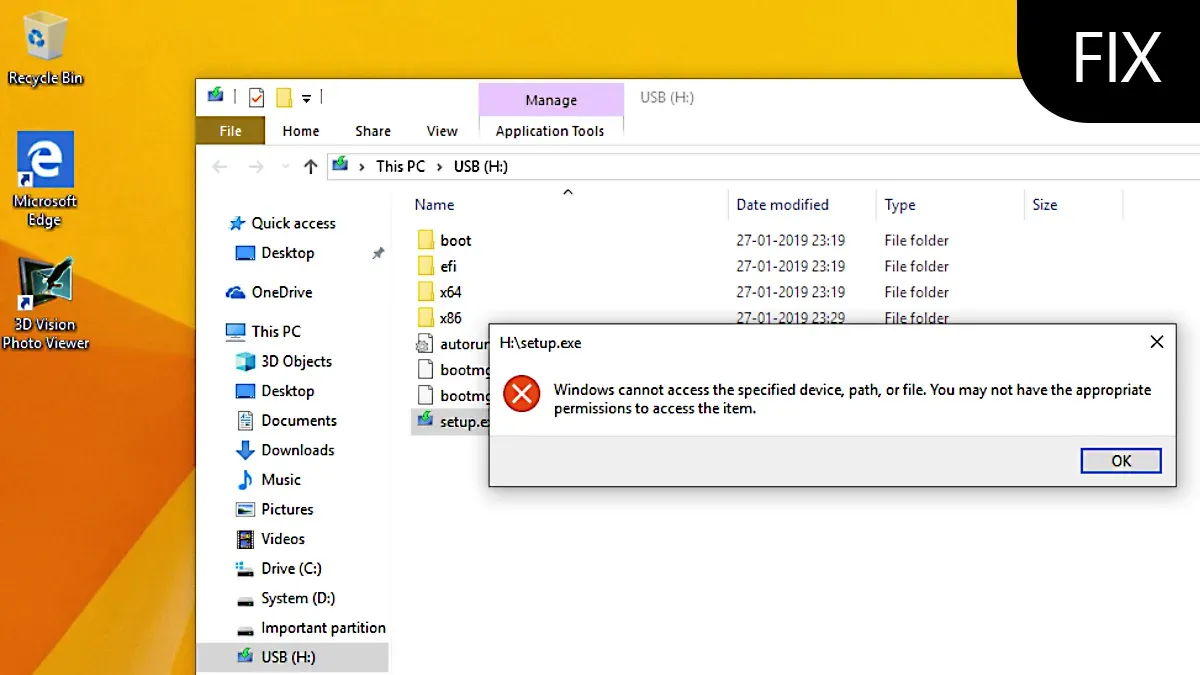
Security is another critical concern. Running unknown or untrusted.exe files exposes your Mac to malware and other threats. Always verify the source of any.exe file before attempting to open it, and consider using dedicated antivirus software to scan files beforehand.
Apple Silicon Macs, such as those with M1 or later chips, have limited support for Boot Camp, which is officially only available on Intel-based Macs according to Apple’s support documentation. Additionally, some virtual machine software either does not support Apple Silicon or offers reduced functionality, making it difficult to run certain Windows.exe files effectively.
Overall, if your workflow depends on resource-intensive Windows programs, or if you cannot ensure the.exe file’s safety, it is advisable to use a native Windows environment or a dedicated PC instead of attempting to run.exe files on your Mac.
Frequently asked questions
How to use.exe on mac?
To use a.exe file on Mac, you typically need a compatibility layer or virtualization software since macOS does not natively support Windows executables. Popular options include installing Wine, running a virtual machine like Parallels Desktop or VMware Fusion, or using Boot Camp to boot into Windows. Choose the method based on your need for performance or ease of setup.
Can mac open exe files?
Mac computers cannot open.exe files natively because these files are designed for Windows operating systems. To open.exe files, you must use additional software such as Wine, a virtual machine running Windows, or Boot Camp to run Windows on your Mac. Without these, the system will not recognize or execute.exe files.
How to play exe files on mac?
Playing.exe files, especially games, on Mac usually requires a virtual machine or Boot Camp, as these provide full Windows environments with better graphics support. Wine may work for simpler games but can struggle with performance and compatibility. For resource-intensive games, Boot Camp offers the best performance but requires restarting your Mac to switch OS.
How to install exe file in mac?
Installing a.exe file on Mac involves running the installer within a Windows-compatible environment. You can use Wine to launch the installer directly or run it inside a Windows virtual machine. Ensure you have the appropriate permissions and enough disk space before installation.
How to run exe files on macbook?
To run.exe files on a MacBook, you can use Wine for lightweight applications or set up a virtual machine like Parallels Desktop for a more seamless Windows experience. Alternatively, use Boot Camp to install Windows on a separate partition, allowing you to boot directly into Windows to run.exe files with full hardware access.
Limits of this guide and when to seek other solutions
This article does not cover running.exe files on Apple Silicon Macs via Boot Camp, as Boot Camp is only available on Intel-based Macs. If you use an Apple Silicon Mac and need full Windows compatibility, consider virtualization software optimized for ARM architecture or cloud-based Windows solutions. Additionally, this guide focuses on practical ways to run typical Windows applications and games; specialized enterprise software or heavily resource-intensive programs may require dedicated Windows hardware or professional support.
The most useful next step is to clearly identify your specific needs: decide whether you require simple app access, gaming performance, or full Windows functionality. From there, select a method balancing ease, cost, and performance—starting with Wine for lightweight apps or a virtual machine for broader compatibility—then follow through with detailed setup instructions tailored to your Mac model and macOS version.