
How to Restart Your Mac Using Keyboard Shortcuts
Discover how to restart your Mac using keyboard shortcuts to quickly reboot without needing a mouse or power button.
You’re working on your Mac when the screen suddenly freezes, and your mouse stops responding. You need to restart quickly but don’t want to reach for the power button or trackpad.
Knowing the Mac keyboard shortcut to restart Mac can save you time and frustration, especially when the device is unresponsive. This guide explains practical keyboard restart methods tailored to different Mac models, including MacBooks, Mac Pros, and Macs running Windows via Boot Camp. It also covers troubleshooting steps for when keyboard shortcuts fail and highlights common mistakes to avoid.
Key takeaways
- Use Control + Command + Power button to force restart most Macs without a mouse.
- MacBooks often require the Touch ID or physical power button combined with keys for restart shortcuts.
- Restarting a Mac Pro via keyboard may involve slightly different key combinations due to the absence of a Touch ID button.
- Windows on Mac (Boot Camp) requires Windows-specific shortcuts like Ctrl + Alt + Del to restart via keyboard.
- If shortcuts don’t work, check for stuck keys, external devices interfering, or try resetting the SMC.
What restarting your Mac with keyboard shortcuts means and why it matters
Restarting a Mac using keyboard shortcuts involves pressing specific key combinations to initiate a reboot without navigating through menus or using a mouse or trackpad. Unlike the standard method—clicking the Apple menu and selecting Restart—keyboard shortcuts offer a direct, often faster way to restart your device.
This method is particularly useful when your Mac becomes unresponsive, such as when the screen freezes and the cursor does not move. In these cases, relying on the mouse or trackpad to access the Apple menu can be impossible. Using a keyboard shortcut can bypass this issue, allowing you to reboot your Mac quickly and avoid prolonged troubleshooting.
For example, if your Mac’s screen freezes while you are working, holding down Control + Command + Power button forces an immediate restart. This can save you several seconds or even minutes compared to waiting for the system to respond or locating the physical power button.
Keyboard shortcuts also benefit users who prefer keyboard navigation for accessibility or efficiency, minimizing hand movement and streamlining the restart process. Overall, using keyboard shortcuts can reduce downtime and help maintain workflow continuity when the traditional mouse-driven restart is not practical.
How to restart Mac using keyboard
The primary keyboard shortcut to restart a Mac safely is Control + Command + Power button. Pressing these three keys simultaneously initiates a soft restart, closing apps and logging you out before rebooting.
On older Macs with an optical drive, the combination is Control + Command + Eject instead. The Control key signals a system-level command, Command confirms the action, and the Power or Eject button triggers the restart process.
For a force restart when your Mac is unresponsive, press and hold Control + Command + Power button for about 5 seconds until the screen goes black and the machine restarts. This bypasses the normal shutdown sequence, so unsaved work will be lost.
For example, to perform a soft restart, press Control and Command together, then quickly tap the Power button once, releasing all keys immediately. The Mac will begin shutting down and restart automatically. If this doesn’t work, hold the same keys and the Power button down for 5 seconds to force a restart.
Soft restarts have a higher success rate of preserving open documents and system state. Force restarts should be reserved for frozen or unresponsive Macs, as they risk data loss.
Always save your work before using these shortcuts if possible. Restarting with keyboard commands offers speed and can resolve issues when the mouse or trackpad is unresponsive.
How to restart MacBook with keyboard
Most MacBook models do not have an Eject key, which is common on some desktop Macs, so the standard shortcut for restarting your MacBook uses the Control + Command + Power button combination. On MacBooks, the power button is usually located at the top-right corner of the keyboard or integrated into the Touch ID sensor on recent MacBook Pro models.
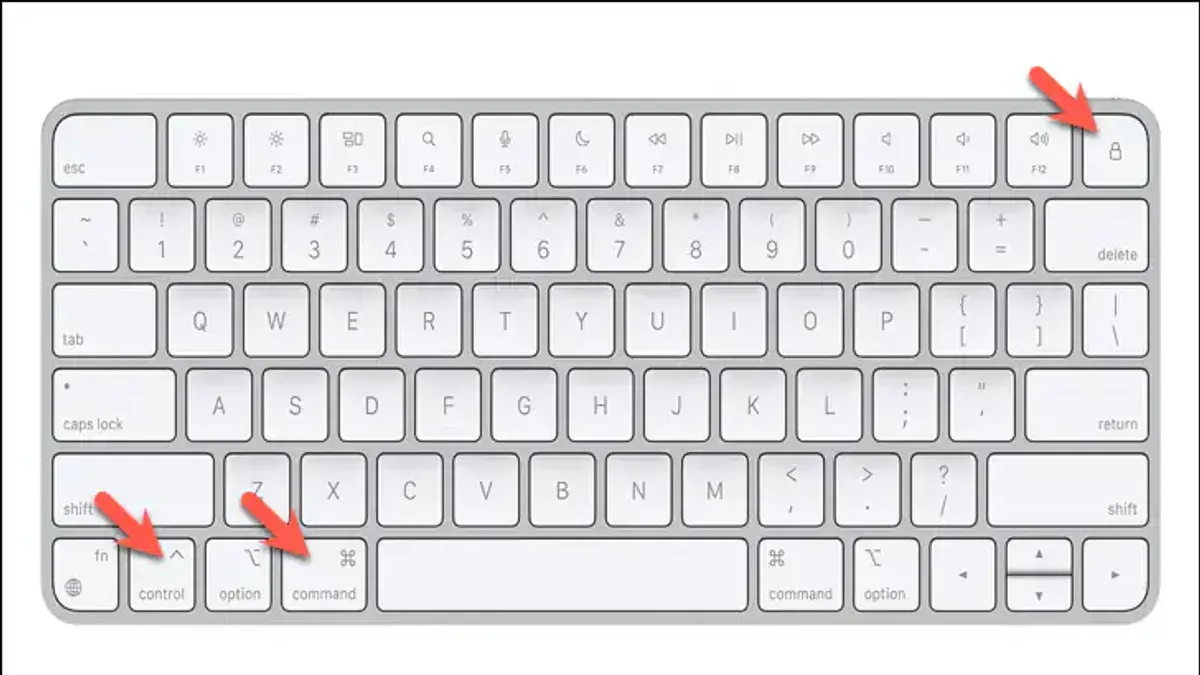
For example, on a 13-inch MacBook Air, the power button is a physical key at the upper-right edge of the keyboard. Pressing Control + Command + Power will initiate a safe restart. If the MacBook is unresponsive, hold these keys for about 10 seconds to perform a hard reset, forcing the machine to power off and then restart when the power button is pressed again.
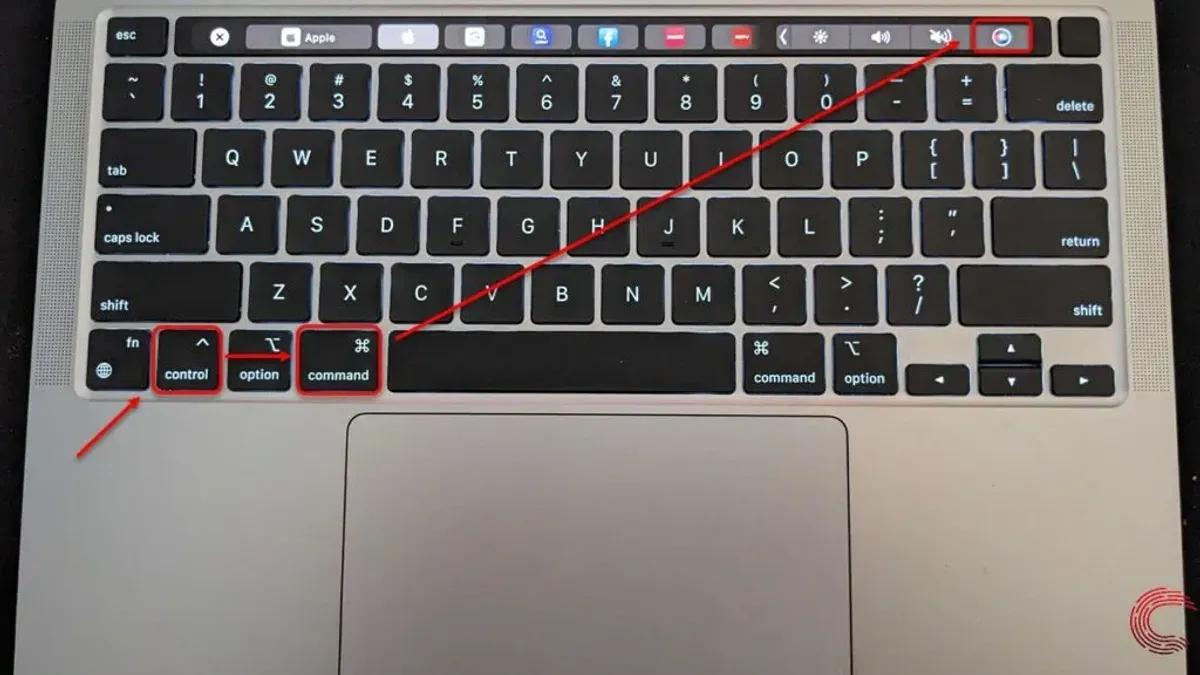
On Touch Bar MacBook Pro models, the power button doubles as the Touch ID sensor, located at the far right end of the Touch Bar. The same Control + Command + Power shortcut applies here, but you must press the Touch ID button instead of a traditional power key. This can be less tactile, so ensure you press the right spot firmly.
To visualize, picture pressing the Control and Command keys on the bottom left and bottom middle of your keyboard while simultaneously pressing the top-right corner key or Touch ID button. This ensures a keyboard-only restart without relying on the mouse or trackpad.
How to restart Mac Pro with keyboard
Mac Pro models generally use the same keyboard shortcuts for restarting as other Mac computers. You can safely restart your Mac Pro by pressing Control + Command + Power keys simultaneously. This shortcut initiates a standard restart sequence without requiring mouse interaction.
Unlike some MacBooks that might lack an Eject key or have Touch ID as a power button, Mac Pro keyboards typically include a physical power key or Eject key, but these do not alter the restart shortcut itself. The consistent use of Control + Command + Power applies across Mac Pro and most Mac desktops.
If your Mac Pro becomes unresponsive, holding down the Control + Command + Power keys for several seconds forces an immediate restart. This method bypasses shutdown procedures and can result in unsaved data loss, so use it only when necessary.
For example, if your Mac Pro screen freezes during a heavy rendering task, pressing and holding these keys triggers a hard reboot without needing to locate the physical power button. This is particularly useful if your workspace setup has the Mac Pro tower out of easy reach.
Official Apple documentation confirms no separate restart shortcuts exist for Mac Pro models, aligning with user reports that the keyboard commands remain consistent across Mac desktops and laptops.
How to restart Mac in Windows (Boot Camp) using keyboard
When running Windows via Boot Camp on a Mac, the usual Mac keyboard shortcuts for restarting don’t apply because you’re operating within a Windows environment. Instead, you use standard Windows keyboard commands to initiate a restart on your Mac hardware.
To restart Windows using the keyboard, press Alt + F4 when on the desktop or after closing all open applications. This opens the "Shut Down Windows" dialog. Use the arrow keys to select "Restart," then press Enter. This command safely restarts the Windows OS on your Mac.
If you need to reboot directly into macOS without using the mouse, first restart Windows using the above method. While the Mac boots, immediately press and hold the Option (⌥) key. This opens the Startup Manager, allowing you to select macOS using the arrow keys and then pressing Enter to boot into it.
For example, after pressing Alt + F4 and selecting restart, your Mac will reboot Windows. Holding Option during boot then lets you switch to macOS without mouse input.
Note that the Windows key on a Mac keyboard functions as the Command key in macOS, so Windows shortcuts correspond to typical PC commands. Using these Windows-native shortcuts ensures a smooth restart process on your Mac hardware when running Boot Camp.
Why are my Mac keyboard shortcuts not working when trying to restart
When keyboard shortcuts to restart your Mac fail, the cause often lies in hardware or software issues. A common hardware problem is a malfunctioning key or keyboard, especially if modifier keys like Control, Command, or Power do not register. For instance, a worn-out Control key can prevent the system from recognizing the shortcut, making it seem like the shortcut is not working.
Software conflicts also play a significant role. System freezes or unresponsive processes can block keyboard input from being processed correctly. In some cases, third-party applications or background utilities may intercept or disable certain shortcuts, causing them to fail. For example, a utility remapping keys or managing shortcuts might override the standard restart commands.
Keyboard layout differences or language settings can cause modifier keys to behave unexpectedly. If your keyboard layout is set to a non-standard option in System Preferences under Keyboard > Input Sources, the expected shortcut keys might not correspond to the physical keys you press.
To troubleshoot, start by testing each key involved in the shortcut using the Keyboard Viewer (found under System Preferences > Keyboard > Show Keyboard & Emoji Viewers in menu bar). This helps identify hardware issues. Next, try restarting in Safe Mode by holding Shift during boot to see if a software conflict is causing the problem. Also, verify the keyboard layout matches your physical keyboard. If these steps fail, connecting a different keyboard can isolate hardware from software causes.
For example, a user with a stuck Command key found their restart shortcut ignored. Cleaning the keyboard and testing keys with Keyboard Viewer revealed the issue. After fixing the hardware, the shortcut worked reliably again.
Mistakes to avoid when using keyboard shortcuts to restart your Mac
Restarting your Mac without saving open documents is a common error that can lead to significant data loss. Imagine finishing a lengthy report but using Control + Command + Power to restart before saving; the unsaved changes will be lost instantly. Always ensure you save your work to avoid this risk.
Confusing a force restart with a normal restart can have unintended consequences. Force restarts, triggered by holding the power button longer or using extended shortcuts, abruptly cut power to your Mac, which can corrupt files or disrupt system processes. For example, force restarting during a software update may cause the installation to fail, requiring complex troubleshooting.
Using restart shortcuts on incompatible Mac models or keyboards is another pitfall. Some Macs lack an Eject key or physical power button, and certain third-party keyboards may not register all command combinations properly, causing shortcuts to fail or trigger unexpected behavior.
Overusing force restarts can stress both hardware and software components. Experts warn that frequent force restarts may contribute to disk corruption or reduce the lifespan of system memory. Reserve force restarts strictly for situations when your Mac is completely unresponsive.
- How to Use a Mac Keyboard Shortcut to Put Your Mac to Sleep
- Mac Keyboard Shortcut to Open System Settings Quickly
Frequently asked questions
How to restart macbook only using keys?
To restart your MacBook using only the keyboard, press Control + Command + Power button simultaneously. This command forces an immediate restart without prompting to save open documents. On models without a physical power button, use Control + Command + Media Eject or Control + Command + Touch ID if available.
How do i restart my macbook with the keyboard?
Restart your MacBook by holding Control + Command keys and then pressing the Power button or Touch ID key. This shortcut bypasses any dialog boxes and restarts the system directly. Make sure to save your work beforehand, as unsaved data will be lost.
How to restart mac keyboard?
If you mean restarting your Mac using the keyboard, the standard shortcut is Control + Command + Power button. This works across most Mac models. If your keyboard is unresponsive, try plugging in an external keyboard or force a shutdown by holding the power button for several seconds.
How to restart mac with keyboard?
Use the shortcut Control + Command + Power button or Control + Command + Media Eject key to restart your Mac from the keyboard. This method skips confirmation dialogs, so ensure all important work is saved before use. On Macs with Touch ID, Control + Command + Touch ID functions the same way.
How to restart macbook pro with keyboard?
On a MacBook Pro, press Control + Command + Power button or Control + Command + Touch ID to restart using only the keyboard. This shortcut forces the MacBook Pro to reboot immediately. If these keys don’t work, check that your keyboard is functioning or consider using the Apple menu as an alternative.
What this advice does not cover and when to seek other help
This guide focuses on restarting your Mac using keyboard shortcuts under normal operating conditions. It does not cover situations where severe hardware failures prevent keyboard input, such as a completely unresponsive Mac or damaged keyboard. Additionally, if your Mac experiences persistent crashes or freezes that shortcuts cannot resolve, comprehensive troubleshooting or professional repair may be necessary.
If keyboard shortcuts fail repeatedly to restart your device, consider using the power button for a forced shutdown or seeking Apple Support for hardware diagnostics.
The most useful next step is to familiarize yourself with the specific keyboard commands for your Mac model and practice them while your system is responsive. This preparation ensures you can efficiently restart your Mac by keyboard if it becomes unresponsive or when you prefer keyboard navigation over mouse controls.



