
How to Use a Mac Keyboard Shortcut to Put Your Mac to Sleep
Discover how to quickly put your Mac to sleep using keyboard shortcuts for faster workflow and better battery life.
You finish your work and want to quickly put your Mac to sleep without reaching for the mouse or trackpad. Using a Mac keyboard shortcut to put Mac to sleep saves time and helps protect your data and battery life when stepping away.
This guide explains the main keyboard shortcut to put your Mac to sleep and explores alternative key combinations and commands. It also highlights common mistakes to avoid and when shortcuts might not be the most effective choice. You’ll learn how to choose the best method for your Mac model and workflow, making your daily use smoother and more efficient.
Key takeaways
- Press Control + Shift + Power (or Control + Shift + Eject on older Macs) to sleep your Mac quickly.
- Alternative shortcuts like Option + Command + Power offer different sleep modes.
- Common errors include confusing sleep with display sleep or not having the right permissions.
- Shortcuts may not work if external devices prevent sleep or certain apps are running.
- Integrate shortcuts by assigning hotkeys or using Automator for customized sleep commands.
Why putting your Mac to sleep with a keyboard shortcut matters
Using a keyboard shortcut to put your Mac to sleep offers a faster and more convenient alternative to navigating menus or pressing the physical power button. Sleep mode preserves your current session and reduces power consumption without the delay and wear associated with a full shutdown. This allows you to resume work instantly while saving energy.
Sleep mode can extend battery life significantly when activated quickly and frequently. For example, instead of leaving your Mac awake during short breaks, a quick shortcut can engage sleep instantly, reducing background power draw. Users who frequently use keyboard shortcuts report smoother workflows since they avoid interrupting their typing or mouse activity to reach system menus.
Consider a graphic designer switching between tasks: pressing the sleep shortcut before stepping away instantly puts the Mac to sleep, preserving open projects and reducing power use. This avoids the extra steps of closing applications or using the Apple menu, streamlining workflow and minimizing energy waste.
How to sleep a Mac using the primary keyboard shortcut
The most common keyboard shortcut to put a Mac to sleep is Control + Shift + Power on MacBooks without an Eject key, and Control + Shift + Eject on older Mac desktops or MacBooks that include an Eject key. This shortcut immediately turns off your Mac’s display and puts the system into sleep mode.
On MacBooks, the Power key is typically the Touch ID button or a dedicated power button, depending on the model. Desktop Macs like the iMac usually have an Eject key instead of a Power key on their keyboard, which is why the shortcut differs. Pressing these keys together ensures the system enters sleep mode without navigating menus.
For example, if you are working on a MacBook Pro without an Eject key, pressing Control + Shift + Power instantly turns off the screen and suspends activity. This happens faster than selecting Sleep from the Apple menu, which requires a click, a menu to appear, and a confirmation of action.
This shortcut puts your Mac into sleep mode while preserving your open apps and documents, allowing you to resume work quickly when you wake the machine. It bypasses the need for mouse interaction, making it a time-efficient choice.
Alternative keyboard shortcuts and commands to put your Mac to sleep
Besides the primary shortcut, you can use Command + Option + Power to put only the displays to sleep without fully suspending the Mac. This is useful when you want to quickly turn off the screen but keep processes running. On older Macs with an optical drive, pressing Control + Shift + Media Eject achieves a similar effect to the primary shortcut, putting the Mac to sleep.
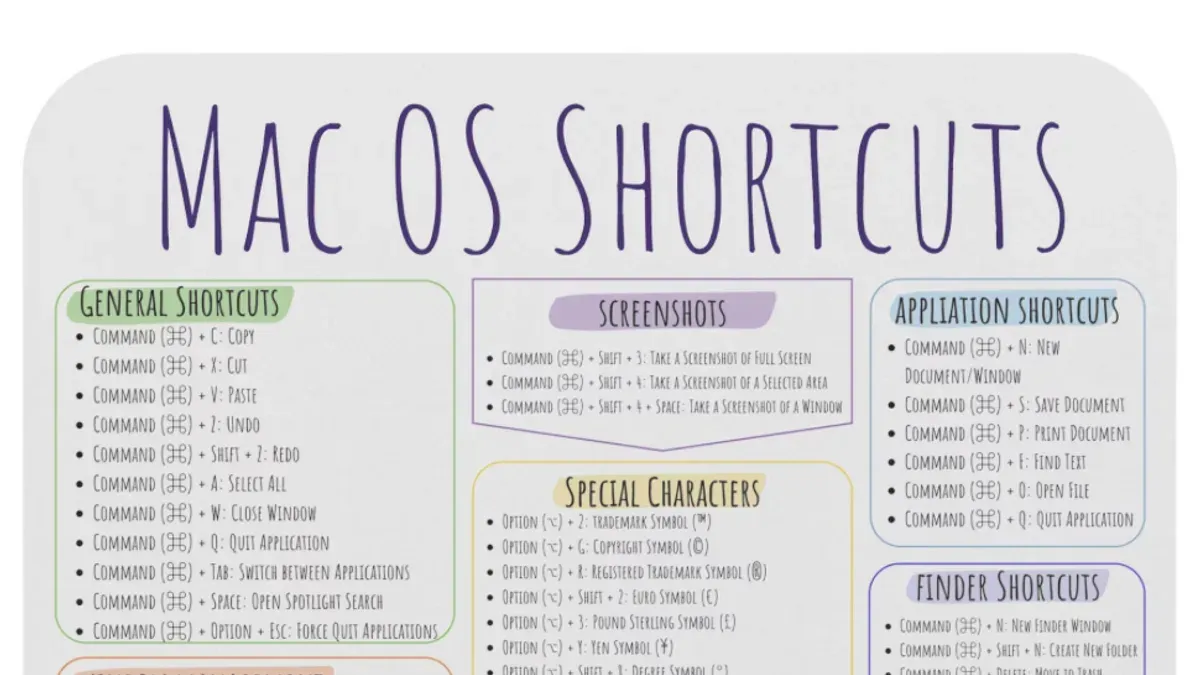
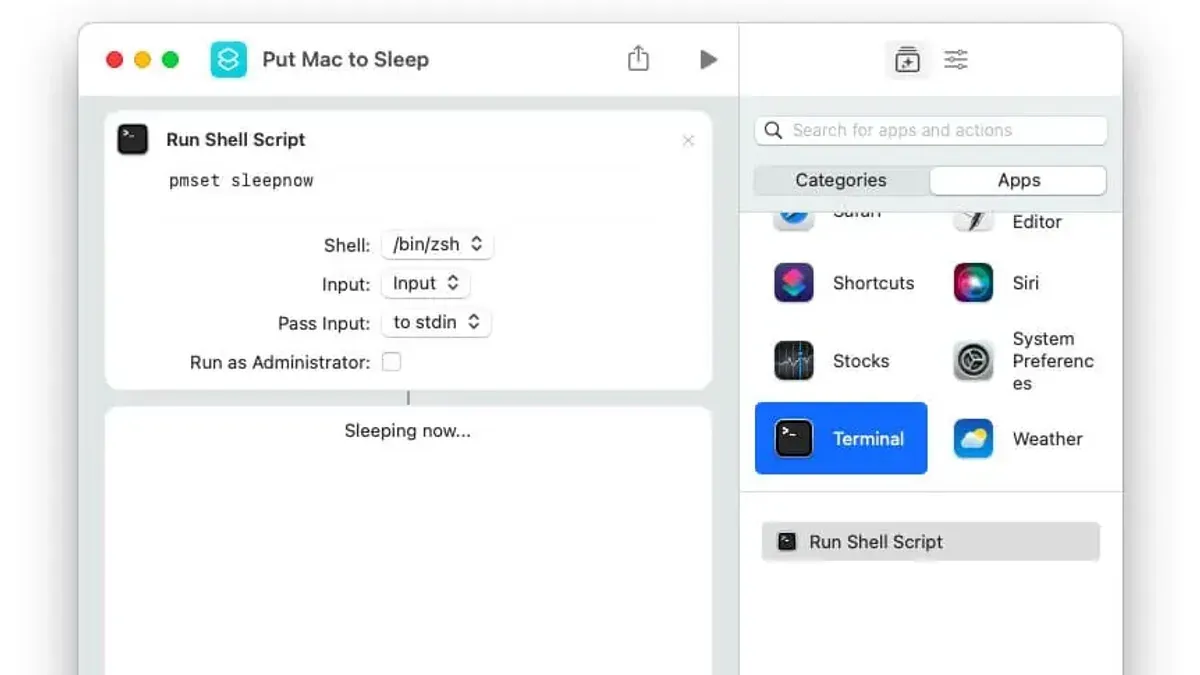
For more control, you can use Terminal commands triggered by keyboard shortcuts. For example, running pmset sleepnow via Terminal immediately puts the Mac to sleep. You can bind this command to a custom keyboard shortcut using Automator or third-party apps like BetterTouchTool. This method allows tailoring sleep behavior beyond built-in shortcuts.
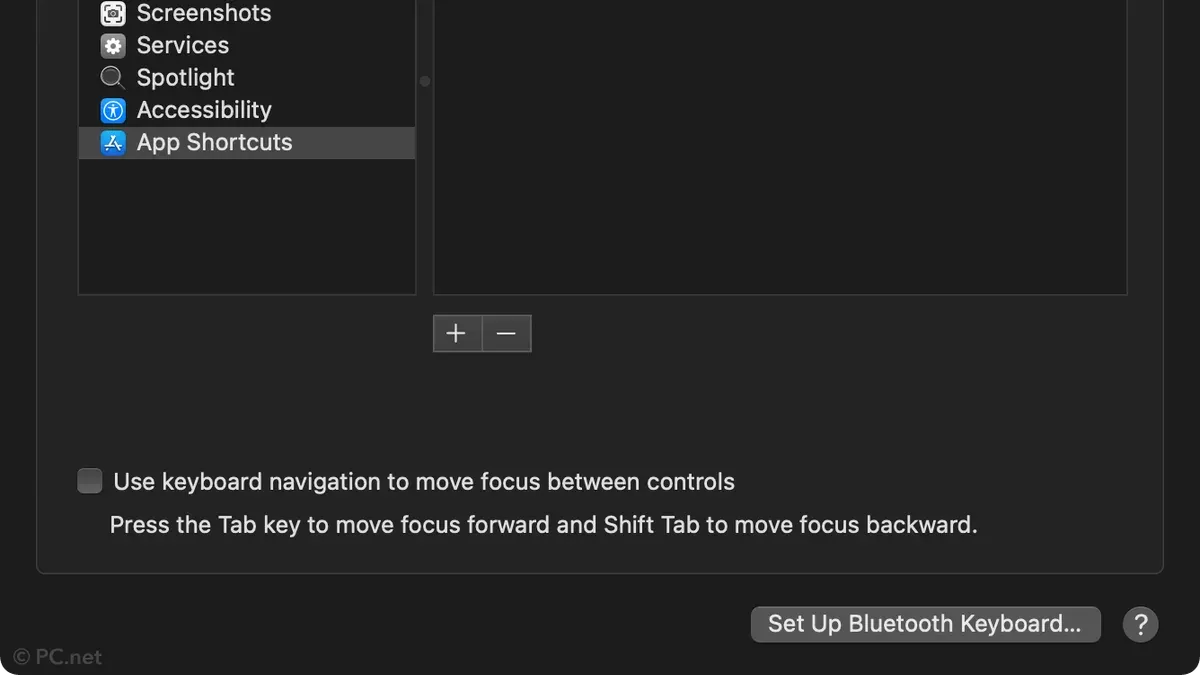
System Settings lets you customize hot corners to trigger sleep on screen corners, which can be combined with modifier keys to simulate keyboard shortcuts. Users often find customizing with apps offers flexibility, such as assigning pmset sleepnow to a function key for instant sleep.
| Shortcut or Command | Effect |
|---|---|
| Control + Shift + Power (or Eject) | Full Mac sleep |
| Command + Option + Power | Display sleep only |
| Control + Shift + Media Eject | Full sleep on older Macs |
| Terminal: pmset sleepnow (via shortcut) | Custom full sleep command |
"Assigning 'pmset sleepnow' to a function key streamlined putting my Mac to sleep during presentations without interrupting background tasks," reports a user customizing their Mac workflow.
Common mistakes when trying to put a Mac to sleep with keyboard shortcuts
A frequent mistake is confusing the shortcut that puts only the display to sleep with the one that puts the entire Mac into sleep mode. For instance, pressing Control + Shift + Power typically turns off just the display on newer MacBooks, while Control + Option + Command + Power puts the whole system to sleep. If you expect the Mac to sleep but only the screen goes dark, this distinction is likely the cause.
Another common issue arises from using shortcuts incompatible with certain Mac models or macOS versions. Older Macs with an Eject key support shortcuts involving that key, while newer models without it do not. Apple support documentation notes that shortcuts like Control + Shift + Eject are obsolete on Macs without an optical drive, which can confuse users accustomed to older shortcuts.
Some users accidentally trigger shutdown or restart commands when trying to put the Mac to sleep because shortcuts involving the Power key can behave differently depending on context. For example, holding the Power button for several seconds initiates a shutdown, not sleep.
External devices or background apps may also interfere with sleep shortcuts. USB peripherals or software that prevent sleep for updates or downloads can cause the Mac to stay awake despite correct shortcut input. Checking activity monitors or disconnecting peripherals can help diagnose such interference.
When keyboard shortcuts to sleep your Mac may not be the best option
Keyboard shortcuts provide a quick way to put your Mac to sleep, but they aren't always the ideal choice. For deeper power management, such as hibernation or complete shutdown, keyboard shortcuts fall short. Hibernation saves your session to disk and powers off the Mac, which is useful during extended periods of inactivity or when you want to preserve battery without running power. This mode requires settings beyond sleep and is accessible through Terminal commands or Energy Saver preferences, not simple shortcuts.
Additionally, if you manage your Mac remotely or want to automate power states, tools like Apple Remote Desktop or scripts offer more control than keyboard shortcuts. Macs with Touch Bar or without physical power or eject keys may also limit shortcut options, leading to inconsistent behavior. For example, newer MacBook Pro models with only Touch Bar lack the traditional power key, making some sleep shortcuts unavailable.
Finally, using sleep shortcuts might interrupt ongoing downloads, network connections, or active apps that require graceful shutdown. For instance, putting your Mac to sleep mid-download could pause or corrupt the data. In these cases, manually managing sleep or shutdown through system menus or automation ensures better handling of open tasks.
Practical tips to integrate sleep shortcuts into your daily Mac use
To make sleep shortcuts even more efficient, combine them with Hot Corners via System Preferences > Desktop & Screen Saver > Hot Corners. For example, assign the bottom-right corner to "Put Display to Sleep" and then use the keyboard shortcut Control + Shift + Power simultaneously, allowing you to initiate sleep with a simple key press or quick mouse move.
Setting up notifications can confirm sleep activation. Use the Automator app to create a Quick Action that triggers a notification before executing the sleep command. This ensures you won’t accidentally put your Mac to sleep mid-task. For instance, a notification like "Sleeping Mac in 5 seconds" gives you a moment to save work.
To avoid data loss, always save open documents and close sensitive apps before sleeping your Mac. Running processes like downloads or backups might be interrupted, so pause or complete them beforehand.
When waking your Mac, press a key or tap the trackpad gently to resume without forcing a restart. Macs with Touch ID require a fingerprint scan, which is a secure and quick method to wake and unlock.
- Mac Keyboard Shortcut to Close All Windows: A Practical Guide
- Mac Keyboard Shortcut to Hide an App: How to Use It Efficiently
Frequently asked questions
How to sleep macbook shortcut?
To put your MacBook to sleep using a shortcut, press Control + Command + Q to lock the screen, or use Option + Command + Power button to put it to sleep directly. On models with a Touch Bar, Control + Shift + Power button also works. The exact shortcut may vary slightly based on your MacBook model and keyboard layout.
How to put mac to sleep?
You can put your Mac to sleep by selecting Apple menu > Sleep or by closing the lid on a MacBook. Alternatively, use a keyboard shortcut such as Option + Command + Power button. Sleep mode saves your session while reducing power use, allowing quick wake-up.
How do i sleep a mac?
Press Option + Command + Power button or Control + Shift + Power button to put your Mac to sleep instantly. You can also choose Sleep from the Apple menu. Some Macs respond differently based on hardware, so verify your model’s specific shortcut.
How to put mac to sleep with keyboard?
Use the keyboard shortcut Option + Command + Power button to put your Mac to sleep. On some Macs, Control + Shift + Power button or Control + Command + Q can also be used depending on your goal (sleep vs. lock screen). Make sure you press the correct combination for your Mac’s model.
How to sleep mac?
To sleep your Mac, press Option + Command + Power button or go through the Apple menu and select Sleep. Closing your MacBook lid also triggers sleep automatically. These methods conserve battery and allow quick resumption of work.
What keyboard shortcuts for sleep don’t cover and who should look elsewhere
Keyboard shortcuts to put your Mac to sleep do not cover deeper power states like hibernation or safe sleep modes. These shortcuts may also behave differently depending on your macOS version and the specific hardware model of your Mac. Users who need advanced energy-saving features or want to customize sleep behavior beyond the standard options should consider adjusting settings in System Preferences under Energy Saver or Battery, or use Terminal commands for more control.
For most users, the best next step is to practice using the primary sleep shortcut—pressing Control + Command + Q to lock your screen quickly, followed by closing the lid or putting the Mac to sleep—to integrate it smoothly into your workflow. This approach balances security and convenience, helping you protect your data while saving power without disrupting your routine.



