
Mac Keyboard Shortcut to Close All Windows: A Practical Guide
Discover how to use the Mac keyboard shortcut to close all windows efficiently without quitting apps or losing your place.
You’re working with multiple apps and dozens of windows open, and you want to clear your desktop quickly without quitting any apps. Maybe you want to start fresh or reduce clutter without losing your place.
This article explains how to use the Mac keyboard shortcut to close all windows effectively, clarifying the differences between closing, minimizing, and hiding windows. You’ll learn which shortcuts truly close windows across various apps, why some shortcuts might not work as expected, and how to avoid common mistakes that cause confusion or data loss.
Key takeaways
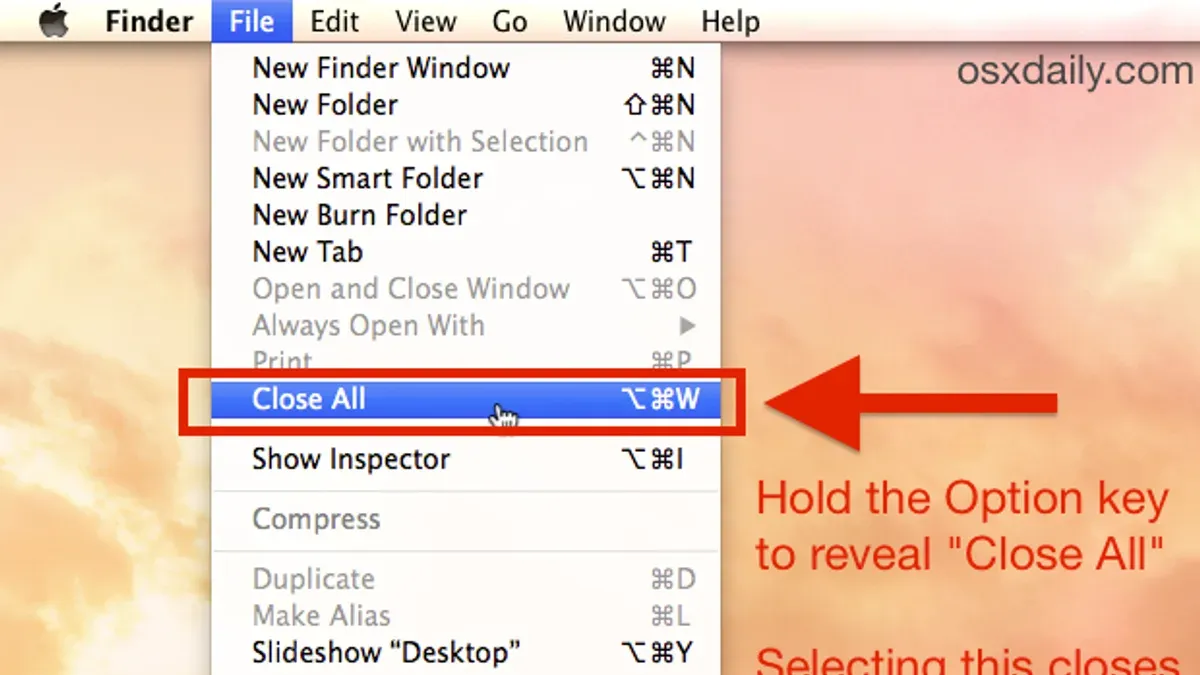
- Press Command + Option + W to close all windows of the active app without quitting it.
- Command + W closes only the frontmost window, not all open ones.
- Minimizing windows (Command + M) hides them without closing, which differs from closing.
- Some apps override default shortcuts, requiring app-specific methods to close all windows.
- Closing windows does not always quit the app, so unsaved work may still need saving before closing.
What it means to close all windows on a Mac
Closing all windows on a Mac means shutting down each open window of an application so it no longer appears on your screen. This differs from minimizing windows, which sends them to the Dock but keeps them active, and hiding windows, which makes them temporarily invisible without closing them. The key distinction is that closing windows often frees system resources and signals that you are done working with that content, whereas minimizing or hiding preserves the window state for quick access.
When you close all windows, the app may remain open without any active windows, depending on the app’s design. For example, closing all Finder windows leaves Finder running, ready to open new windows instantly. In contrast, closing all Safari windows effectively ends your browsing session's visible tabs but does not quit Safari itself. Closing windows can impact unsaved data—apps usually prompt you to save changes before closing to prevent work loss.
Users often want to close all windows to declutter their workspace, reduce memory usage, or prepare for shutting down. For instance, if you have multiple documents and browser tabs open, closing all windows clears the screen and can help the system run more smoothly. Understanding these differences helps you choose the right action for your workflow without accidentally quitting apps or losing unsaved work.
How to close all windows in Mac using keyboard shortcuts
To close all open windows of the active app on a Mac, use the keyboard shortcut Option + Command + W. This shortcut differs from Command + W, which closes only the currently active window, allowing you to close multiple windows more efficiently.
For example, in Safari, pressing Option + Command + W will close every browser window you have open, rather than just the frontmost tab or window. Similarly, in Finder, this shortcut closes all Finder windows, clearing your desktop of open folders without quitting the app itself. TextEdit behaves the same way, closing all document windows without exiting the application.
When you use Option + Command + W, you might see all windows disappear simultaneously, which confirms the command worked. This method is especially useful when managing many open windows but be cautious if you have unsaved work, as closing windows can prompt save dialogs or data loss if ignored.
How to close all windows on Mac when shortcuts don’t work as expected
Some apps, like Preview or Microsoft Word, do not fully respond to the Option + Command + W shortcut because they handle windows individually or preserve unsaved work differently. In these cases, closing all windows requires alternative methods.

One straightforward approach is using the app’s menu bar: go to File > Close All if available. If the menu lacks this option, quitting the app (Command + Q) closes all windows but also exits the app, which might interrupt your workflow or cause loss of unsaved data if not careful.
For advanced users, Automator or Terminal scripts can automate closing all windows across apps. For example, an Automator workflow can run an AppleScript that commands Finder or Safari to close all open windows automatically. A simple AppleScript might look like:
tell application "Safari" to close every window
This method offers precision but requires granting appropriate permissions and some scripting familiarity.
When shortcuts fail, these alternatives give you control while emphasizing caution to avoid losing work.
How to minimize all windows on Mac and why it’s different from closing
To minimize all open windows of the active app on a Mac, use the keyboard shortcut Command + Option + M. This action sends windows to the Dock without closing them, allowing you to quickly clear your desktop while keeping the app running.
Minimizing differs fundamentally from closing and hiding windows. Closing a window frees up system resources because the window and its contents are shut down, whereas minimizing keeps the window active in the background but out of sight. Hiding an app (Command + H) makes all its windows invisible but still open on the desktop and in memory.
For example, if you’re working on multiple documents in a word processor, minimizing all windows lets you temporarily clear space without losing your place or unsaved changes. This is useful when switching between tasks but planning to return soon.
In terms of resource impact, minimized windows still consume RAM and some CPU cycles, but generally less than fully open windows. Closed windows release most of these resources, which can improve system performance if you no longer need the windows open.
Common mistakes to avoid when closing or minimizing windows on Mac
One frequent error is accidentally quitting the app instead of closing its windows. For instance, pressing Command + Q will quit the entire application, potentially causing loss of unsaved work, while Option + Command + W closes all windows but keeps the app running. Imagine you’re editing multiple documents in Pages and unintentionally use Command + Q; this will close the app and prompt to save each document, but if you dismiss saves hastily, you risk losing changes.
Another common pitfall is closing all windows too quickly without verifying that all documents are saved. Since closing windows doesn’t always quit the app, you might think your work is safe when in fact some unsaved files remain open in the background.
Finally, misunderstanding that closing windows doesn’t quit the app can lead to confusion. You might see no windows but find the app still active in the Dock or menu bar, which can affect system performance or cause duplicate windows to appear when reopening.
Practical tips to manage multiple windows efficiently on Mac
Managing many open windows can become overwhelming without the right tools. Mission Control, accessible via the F3 key or a three-finger swipe up on the trackpad, provides an overview of all open windows, making it easier to locate and switch between apps before closing them. Using Spaces, found in System Preferences under Mission Control, lets you create multiple desktops to organize windows by project or task, reducing clutter on any single screen.
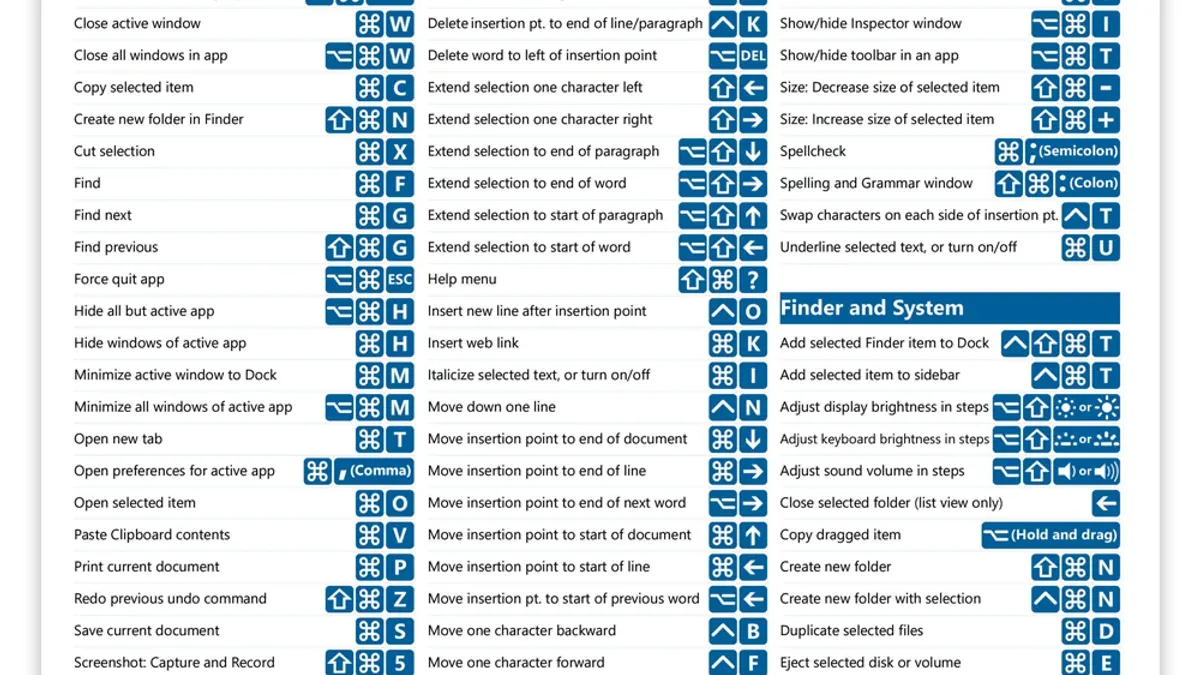
Keyboard shortcuts like Command + Tab allow quick switching between apps, while Command + ` (backtick) cycles through windows within the same app. Combining these shortcuts with trackpad gestures, such as swiping between full-screen apps or desktops, speeds up navigation.
For power users, AppleScript can automate closing or arranging windows. For example, running a script that closes all Safari windows after saving bookmarks saves time compared to manual steps. Using these tools together can significantly reduce the time spent managing windows, helping you maintain focus and efficiency.
- Mac Keyboard Shortcut to Hide an App: How to Use It Efficiently
- Mac Keyboard Shortcut to Show Desktop: How to Quickly Access Your Desktop
- Mac Keyboard Shortcut to Force Quit an App: How to Quickly Close Unresponsive Programs
Frequently asked questions
How to close all windows in Mac
To close all windows of an app on Mac, you can use the keyboard shortcut Command + Option + W. This closes every open window for the active application without quitting the app itself. Note that some apps may not support this shortcut fully, requiring manual window closure.
How to close all windows on Mac
Closing all windows across multiple apps at once is not supported by a single shortcut on Mac. You need to switch to each app and close its windows individually using Command + Option + W or close windows one by one with Command + W. Alternatively, quitting the app with Command + Q closes all its windows but exits the app.
Mac keyboard shortcut to minimize all windows
The shortcut to minimize all windows on Mac is Command + Option + M, which minimizes all open windows of the current app to the Dock. To minimize windows across all apps, you can use Mission Control gestures or hot corners but there’s no universal single-key shortcut for that.
Mac close program keyboard command
To close (quit) a program on Mac, use Command + Q. This command closes the app and all its windows, freeing system resources. Be cautious as unsaved work may be lost unless the app supports autosave or prompts you to save before quitting.
Limits of this advice
This advice does not cover closing windows in every third-party app, as some do not support standard macOS shortcuts or have custom behaviors. Apps like Adobe Photoshop or certain specialized development tools often require unique commands or menu options to close all windows effectively. Additionally, this guide does not address quitting applications entirely, which is a different action from closing windows and can lead to loss of unsaved work if not done carefully.
The most useful next step is to familiarize yourself with the specific shortcuts and menu commands of the key apps you use most. Check the app’s Help menu or official documentation for window management options beyond the macOS defaults. Combining this with the system-wide shortcuts covered here will give you the best control over your workspace without accidentally quitting apps or losing important data.



