
Mac Keyboard Shortcut to Force Quit an App: How to Quickly Close Unresponsive Programs
Discover how to use the Mac keyboard shortcut to force quit an app and quickly close unresponsive programs to keep your workflow smooth.
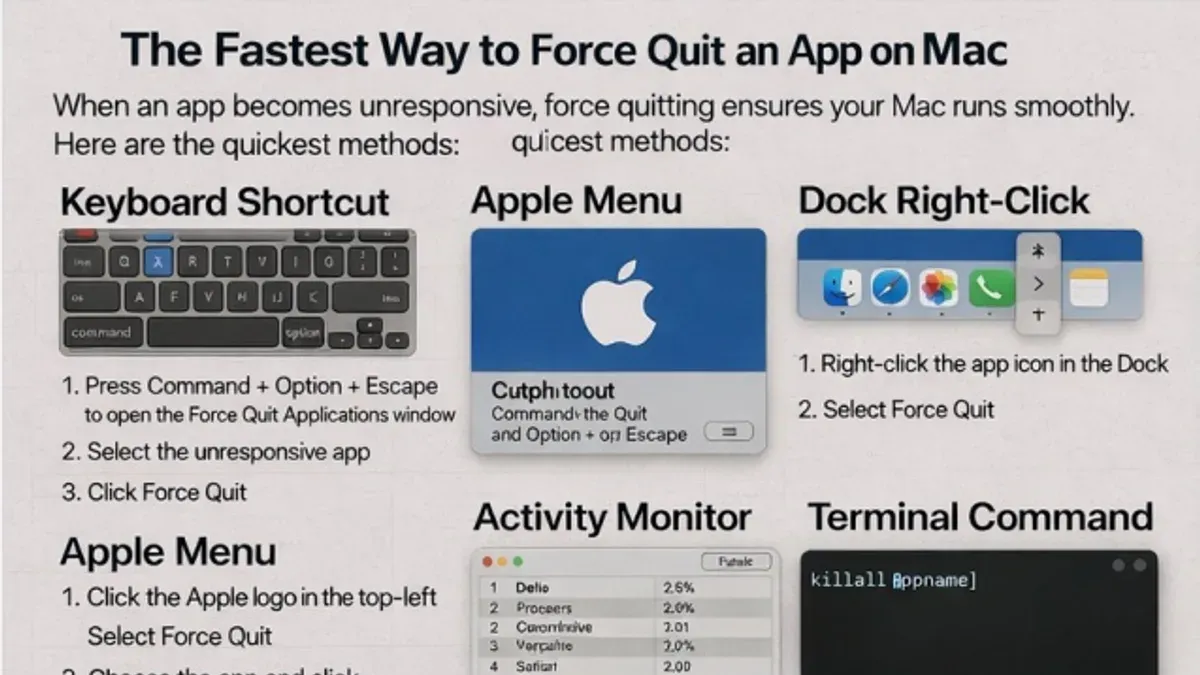
When an app on your Mac suddenly stops responding, it can disrupt your workflow and cause frustration. You might find yourself staring at a frozen screen, unsure how to close the program without risking data loss or further system issues. Knowing the Mac keyboard shortcut to force quit an app can save you time and prevent unnecessary restarts.
This article explains what force quitting means on a Mac, how to use keyboard shortcuts to close unresponsive apps quickly, and explores alternative methods. You'll also learn when force quitting is appropriate, common mistakes to avoid, and best practices to follow afterward to keep your Mac running smoothly.
Key takeaways
- Use Command + Option + Escape to open the Force Quit Applications window and select the unresponsive app.
- Alternative shortcuts like Command + Shift + Option + Escape can force quit the frontmost app immediately.
- Avoid force quitting during active file operations to prevent data corruption.
- Restarting your Mac or checking for app updates can resolve recurring freezes.
- After force quitting, save your work and consider backing up important data.
What force quit means and why it matters on Mac
Force quitting an app on a Mac means immediately terminating the application without allowing it to complete its current processes. This differs from a regular quit, which lets the app close gracefully, saving any open work and freeing resources properly. Force quit is typically used when an app becomes unresponsive—meaning it no longer responds to clicks, keyboard input, or system commands.
Apps may freeze due to software bugs, conflicts with other programs, insufficient system resources, or corrupted files. For example, if you are editing a large video project in a video editing app and it suddenly stops responding, force quitting may be your only option to regain control of the system.
While force quitting can resolve the immediate issue, it carries risks such as potential data loss or file corruption since the app does not get a chance to save your work. Therefore, it should be used only when regular quitting fails or the app is completely frozen. Understanding when to use force quit helps you avoid unnecessary data loss while maintaining system stability.
How to force quit an app shortcut on Mac keyboard
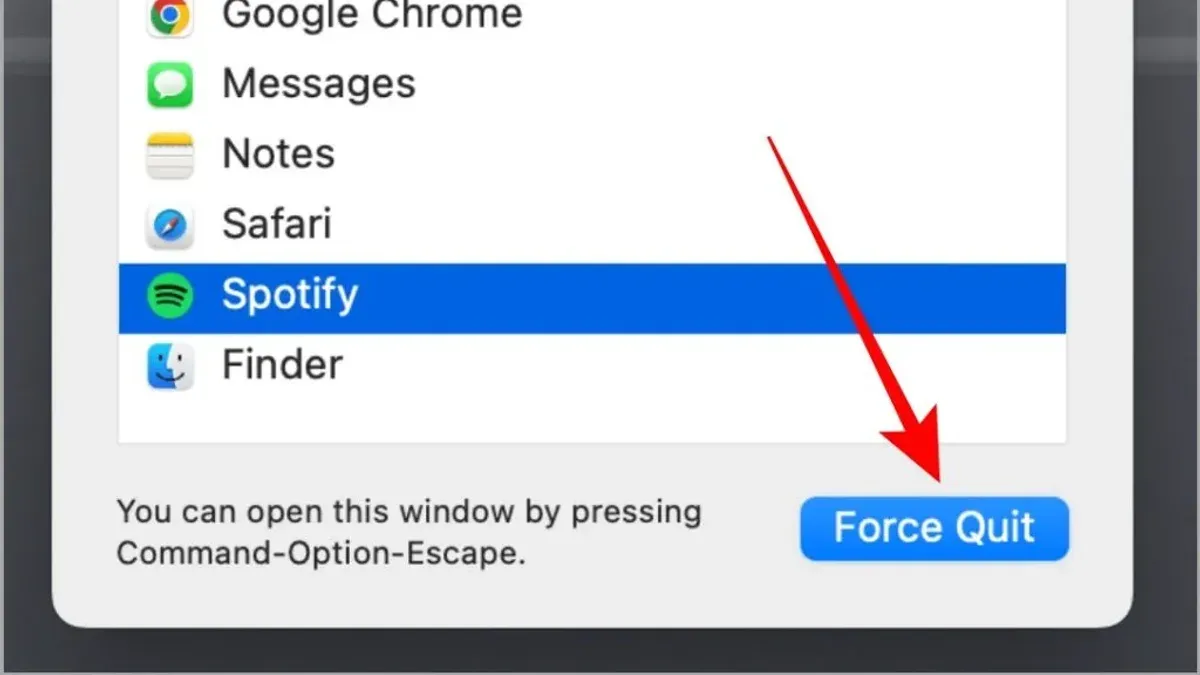
To quickly access the Force Quit Applications window on your Mac, press the keyboard shortcut Command (⌘) + Option (⌥) + Escape (⎋) simultaneously. Press and hold the Command and Option keys, then press Escape once, and release all keys together.
This action opens a window listing all currently running apps, showing their names and icons. For example, if Safari becomes unresponsive, it will appear in this list.
Use your mouse or arrow keys to highlight the unresponsive app. Then click the Force Quit button at the bottom right of the window or press Return to close the selected app immediately. A confirmation dialog may appear to confirm your choice.
This method is the fastest and safest keyboard shortcut to force quit on Mac because it lets you choose the specific app causing issues instead of closing everything or risking a system restart.
How to force quit app in Mac using alternative shortcuts and methods
Besides the standard Command + Option + Escape, you can use other shortcuts and tools to close unresponsive apps. For instance, Control + Command + Q locks your screen but does not force quit apps, so it is not suitable for terminating programs.
To force quit directly from the Dock, you can right-click (or Control-click) the app icon, hold the Option key, and select "Force Quit". This method is quick for users who prefer using the mouse and can be faster than navigating menus.
Activity Monitor offers a more detailed approach. Open it from Applications > Utilities, find the unresponsive app in the list, select it, and click the "X" button in the toolbar to quit or force quit the process. This lets you see CPU and memory usage before deciding, adding a layer of safety.
For users comfortable with Terminal, the commands kill and killall provide precise control. For example, running killall Safari will send a termination signal to all Safari processes. If a gentle quit doesn’t work, kill -9 [PID] forces termination by process ID. Terminal can be the fastest method but requires exact app names or process IDs, and misuse may cause unwanted closures.
Each method varies in speed and safety: Dock and Activity Monitor are user-friendly and reduce errors, while Terminal is powerful but demands caution. Choosing the right method depends on your comfort level and urgency.
How to force quit an app on MacBook specifically
MacBook users may notice slight differences in keyboard layout that can affect using the standard force quit shortcut. For example, the placement of the Option key can vary between models, but the Command + Option + Escape combination remains consistent. If you use an external keyboard, ensure it matches the Mac layout to avoid confusion when pressing these keys.
The Touch Bar on many MacBook Pro models offers a convenient way to access the Force Quit function. By default, the Touch Bar displays an app switcher and system controls, but you can customize it to include a Force Quit button for quick access. To do this, go to System Preferences > Keyboard > Customize Touch Bar, then drag the Force Quit icon onto the Touch Bar. This lets you close unresponsive apps with a single tap without using the keyboard shortcut.
For example, if Safari freezes, you can tap the Force Quit button on the Touch Bar, select Safari from the list, and force quit immediately. This method is often faster and more intuitive, particularly if you prefer not to memorize shortcuts. Users with external keyboards should rely on the physical keys for force quitting, while Touch Bar-equipped MacBook users benefit from this customizable shortcut.
Common mistakes and risks when using force quit shortcuts
One frequent mistake is accidentally quitting the wrong app, especially when multiple windows or similar names are open. For example, you might intend to close a frozen browser but end up force quitting your email client, losing unsaved drafts. Apple advises carefully selecting the unresponsive app in the Force Quit Applications window to avoid this.
Another risk is relying on force quit shortcuts repeatedly without investigating the underlying problem. Constantly force quitting an app can mask deeper software conflicts or hardware issues, potentially leading to more severe system instability over time.
Force quitting abruptly closes the app and can cause data loss. If you were working on a document without saving, that progress will be lost. Apple’s guidelines warn that force quitting should be a last resort when normal quitting methods fail.
Avoid using force quit on system processes or utilities critical to macOS operation, as terminating these can cause unexpected behavior or require a restart.
Best practices after force quitting an app
After force quitting an app, the first step is to restart it safely. Avoid immediately reopening multiple apps or files to reduce system strain and allow the app to initialize properly. For example, if Safari crashed and you force quit, reopen it and check whether your tabs restore automatically or if you need to recover session data manually through the History menu.

Next, check for app updates by opening the App Store and navigating to the Updates tab or using the app’s built-in update feature. Installing the latest updates often resolves bugs that cause crashes. Similarly, verify your macOS version via System Settings > General > Software Update, as system updates can improve stability and compatibility.
Regularly backing up important data with Time Machine or another backup service minimizes data loss risk from future force quits. If you notice repeated crashes, use the built-in Console app to review crash reports or run Apple Diagnostics (restart your Mac and hold the D key) to detect hardware issues.
- How to List Installed Apps in Mac Terminal: A Step-by-Step Guide
- How to Kill a Process by Name in Mac Terminal: Step-by-Step Guide
- How to Generate an SSH Key in Mac Terminal: A Step-by-Step Guide
- How to Use SSH in Mac Terminal: A Clear Step-by-Step Guide
Frequently asked questions
How to force quit on mac keyboard?
To force quit on a Mac using the keyboard, press Command (⌘) + Option (⌥) + Escape (Esc) simultaneously. This opens the Force Quit Applications window where you can select the unresponsive app and click "Force Quit" to close it immediately.
How to force quit on Mac keyboard?
The keyboard shortcut to force quit on a Mac is Command + Option + Escape. This shortcut brings up a dialog listing all running applications, allowing you to select the problematic app and force it to quit.
What is the keyboard shortcut to force quit on Mac?
The keyboard shortcut to force quit on Mac is Command (⌘) + Option (⌥) + Escape (Esc). After pressing these keys together, the Force Quit window appears for you to choose the app you want to close.
How do I force quit an app on MacBook?
On a MacBook, you force quit an app by pressing Command + Option + Escape. This opens the Force Quit Applications window where you select the unresponsive app and click "Force Quit". Alternatively, you can press Control + Click the app icon in the Dock and select "Force Quit" from the menu.
Is there a force quit shortcut for macOS?
Yes, macOS includes a built-in keyboard shortcut for force quitting apps: Command + Option + Escape. This combination opens the Force Quit Applications window, making it easy to close apps that are frozen or not responding.
When not to force quit and who should avoid it
Force quitting an app can cause loss of unsaved data and may lead to temporary system instability. If you are working on critical documents or projects, always attempt to save your progress before using force quit. Users experiencing frequent app freezes should consider checking for software updates, restarting their Mac, or seeking technical support rather than relying solely on force quit shortcuts.
For persistent issues, running Disk Utility’s First Aid or resetting the Mac’s SMC and NVRAM may be safer long-term solutions. Additionally, apps that sync data to cloud services may require careful handling to avoid sync conflicts after force quitting.
To minimize potential data loss and maintain system health, use force quit only as a last resort when an app is completely unresponsive and other troubleshooting steps have failed.
The most practical next step is to familiarize yourself with the standard force quit shortcut: press Command + Option + Escape to open the Force Quit Applications window. This allows you to select the problematic app and quit it safely while preserving your workflow as much as possible.



