
How to List Installed Apps in Mac Terminal: A Step-by-Step Guide
Discover how to list installed apps in Mac Terminal with easy commands to manage and verify your applications without opening the Applications folder.
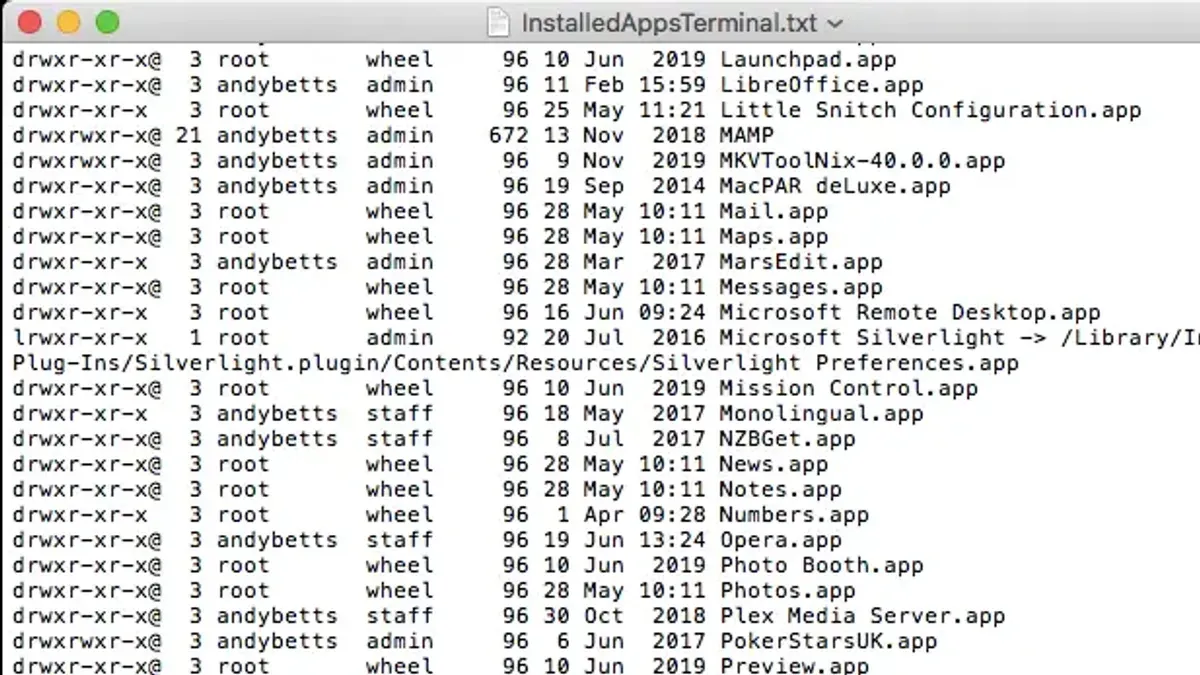
You need to check which applications are installed on your Mac without opening the Applications folder manually. Whether you want a quick overview or need to verify if a specific app is present, using Terminal can be a faster and more flexible option. This article explains how to list installed apps in Mac Terminal, guiding you through commands that help you navigate, verify, run, and manage apps all from the command line.
You'll learn how to open Terminal, navigate to relevant folders like Applications and Users, and use precise commands to list installed apps. Additionally, this guide covers how to check if a particular app is installed, run apps directly from Terminal, and even install or uninstall programs using command-line tools. Troubleshooting tips for common issues when handling apps via Terminal are also included.
Key takeaways
- Open Terminal using Spotlight Search or from the Utilities folder within Applications.
- Navigate to the /Applications directory with
cd /Applicationsto access installed apps. - Use the
lscommand to list all installed applications in Terminal. - Check if a specific app is installed by searching within the Applications folder or using
mdfind. - Run apps from Terminal with the
open -a "AppName"command.
Before you start: What you need
To effectively list and manage installed applications using the Mac Terminal, you should have a basic understanding of the command line interface and how to operate Terminal on macOS. Familiarity with navigating the file system hierarchy is essential because many commands involve directory traversal and file inspection.
You need access to the Terminal app, which is located in the Utilities folder within Applications. Some commands covered here require elevated permissions; for those, you will use sudo and enter your administrator password when prompted. This guide focuses on the default macOS environment and common package managers like Homebrew, not third-party or highly customized setups.
Commands you will use include ls for listing files, cd to change directories, open to launch apps, and brew for package management. Knowing how to interpret command output and error messages will help you troubleshoot effectively.
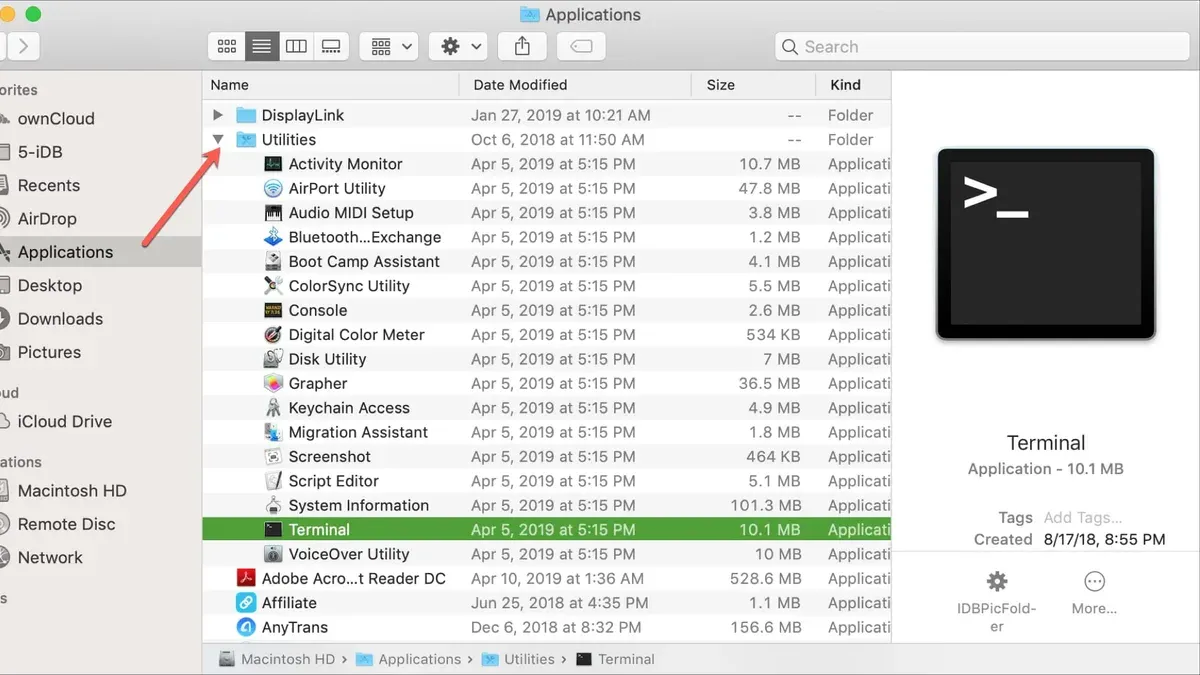
- Open Finder and navigate to Applications > Utilities.
- Double-click Terminal to launch it. You should see a window with a command prompt that typically ends with your username and a dollar sign.
- Type
sw_versand press Enter to verify your macOS version; this confirms the Terminal is working and shows system details. - Type
ls /Applicationsand press Enter; you should see a list of installed applications, confirming your permissions and directory access. - If requested, enter your administrator password after using
sudocommands to ensure you have the necessary rights for management tasks.
How to open Terminal app on Mac
To start managing your installed applications from the Terminal, you first need to open the Terminal app. There are several ways to quickly access it depending on your preference.
- Using Spotlight Search: Press Command (⌘) + Spacebar to open Spotlight Search. Type Terminal and select the Terminal app from the results. You should see a new Terminal window open, ready for commands.
- Accessing Terminal via Finder: Open Finder, then go to the menu bar and select Go > Utilities. In the Utilities folder, locate and double-click the Terminal app. A Terminal window will appear.
- Using Launchpad: Click the Launchpad icon in the Dock or pinch with three fingers and your thumb on the trackpad to open Launchpad. Type Terminal in the search bar at the top. Click the Terminal icon to open it.
- Keyboard Shortcut for Power Users: While macOS does not have a default global shortcut to open Terminal, you can create a custom shortcut through System Preferences > Keyboard > Shortcuts > App Shortcuts if you frequently use Terminal.
Each method quickly brings up the Terminal window where you can start entering commands to list, verify, or run your applications without using the graphical interface.
How to navigate to Applications folder in Terminal Mac
To manage or inspect installed apps, you first need to navigate to the Applications folder in Terminal, where most apps are stored. The cd (change directory) command is essential for this task.
- Open Terminal and type
cd /Applications, then press Enter. This command switches your current directory to the system-wide Applications folder. - Confirm your location by typing
pwdand pressing Enter. You should see/Applicationsas the output, indicating you are in the right directory. - List all items in this directory using
ls. You will see a list of installed applications, such asSafari.apporMail.app. - Remember, some applications might be installed only for your user account. To access these, use
cd ~/Applicationsto navigate to your user-specific Applications folder. - Again, verify with
pwd(output should be something like/Users/yourusername/Applications) and list contents withls.
Understanding the distinction between system-wide and user-specific Applications folders helps you locate apps installed for all users or just yourself.
Example Terminal output after navigating to the system-wide Applications folder:
Last login: Wed Oct 15 10:00:00 on ttys000 $ cd /Applications $ pwd /Applications $ ls Calculator.app Safari.app Mail.app Notes.appHow to list all applications installed on Mac Terminal
There are several ways to list installed applications using the Terminal, each with different scopes and detail levels. You can start by listing the.app bundles in the main Applications directories using the ls command. This shows the visible apps but may miss apps installed elsewhere.
- Type
ls /Applications/*.appto list system-wide apps. You should see a list of application bundles ending with.app. - Type
ls ~/Applications/*.appto list apps installed only for your user account. This list may be shorter or empty.
For a more detailed and comprehensive overview, use system_profiler SPApplicationsDataType. This command outputs extensive information about all installed apps, including version, last opened date, and source. It takes longer to run and produces much more text.
Another approach is mdfind "kMDItemKind == 'Application'", which queries Spotlight's index for all applications. This method can find apps outside the usual directories but relies on Spotlight indexing being up to date.
Each method has its trade-offs:
| Method | Typical Number of Apps Found | Detail Level | Limitations |
|---|---|---|---|
ls /Applications/*.app & ~/Applications/*.app | 20–50 (depending on your setup) | App names and locations | Only lists.app bundles in these folders; misses apps elsewhere |
system_profiler SPApplicationsDataType | 50–100+ | Detailed info: version, path, last opened | Slow; verbose output; hard to parse manually |
mdfind "kMDItemKind == 'Application'" | 50–100+ | App paths, includes non-standard locations | Depends on Spotlight index; may include duplicates or aliases |
Use ls for quick checks, system_profiler for detailed audits, and mdfind when you suspect apps outside normal directories.
How to check if something is installed on Mac Terminal
To verify whether a specific application or package is installed on your Mac using Terminal, you can use several commands tailored to different types of software.
- Check command-line tools: Type
which <command>orcommand -v <command>. For example,which safarimay not return a path since Safari is a GUI app, butwhich python3would show the executable's location if installed. Seeing a path means the tool is available; no output suggests it is not. - Search for.app bundles: Use
ls /Applications | grep <AppName>orls ~/Applications | grep <AppName>to find apps by name. For instance,ls /Applications | grep Safarishould list Safari.app if present. - Use system_profiler with grep filters: Run
system_profiler SPApplicationsDataType | grep -i <AppName>to search detailed app lists. This is effective for both system and user-installed apps. - Check Homebrew packages: If you use Homebrew, type
brew list | grep <package-name>to see if a package is installed via this manager.
Examples:
which terminalusually shows no output because Terminal is a GUI app, butls /Applications | grep Terminalconfirms its presence.system_profiler SPApplicationsDataType | grep Safarioutputs detailed Safari app info if installed.brew list | grep wgetreturnswgetif the utility is installed via Homebrew.
Be aware that some commands may not detect GUI apps if they are not exposed as command-line executables, leading to false negatives. Combining methods improves accuracy.
How to run or launch apps from Terminal on macOS
You can open graphical applications directly from the Terminal using the open command. This works with app names, full paths, and even URLs or documents.
- Type
open -a Safariand press Enter. Safari should launch immediately. - To open TextEdit, use
open -a TextEdit. A new TextEdit window will appear. - If you want to run an app located in your Applications folder, specify its path, for example,
open /Applications/Calculator.app. The Calculator app should open. - Launch an app in the background by adding
--backgroundto the command, likeopen -a Safari --background. Safari will open without bringing its window to the foreground. - Open a document or URL with the default app by typing
open filename.pdforopen https://www.apple.com. The associated app or browser will launch with the file or page.
Running the app bundle directly as an executable (e.g. /Applications/TextEdit.app/Contents/MacOS/TextEdit) is possible but typically unnecessary and may bypass some macOS services.
Common errors include misspelling app names or incorrect paths. Use ls /Applications to check exact app names and paths. If permission errors occur, verify you have access rights or run the Terminal as an administrator.
How to go to users folder in Mac Terminal
To manage or configure applications at the user level, you need to navigate to the appropriate user directory in Terminal. Each user on macOS has a home folder typically located at /Users/username, where "username" is your specific account name. This folder contains personalized files, settings, and often a user-specific Applications folder.
- Type
cd ~to go directly to your home directory. When successful, the prompt will reflect your user path, for example:username@MacBook ~ % - To navigate to another user's home folder, use
cd /Users/otherusername. Replaceotherusernamewith the actual account name. If you lack permission, Terminal will show aPermission deniederror. - Once inside the home directory, list its contents by typing
ls -l. You should see folders likeDesktop,Documents, andApplicationsif present. For example:drwxr-xr-x 10 username staff 320 Oct 15 12:00 Applications - To enter the user-specific Applications folder, type
cd Applicationsand confirm withpwd, showing a path like/Users/username/Applications.
Note that some user-level Applications folders might not exist by default. Permissions can restrict access to other users' home directories, so you may need administrative rights for certain actions.
How to install and uninstall applications on Mac using Terminal
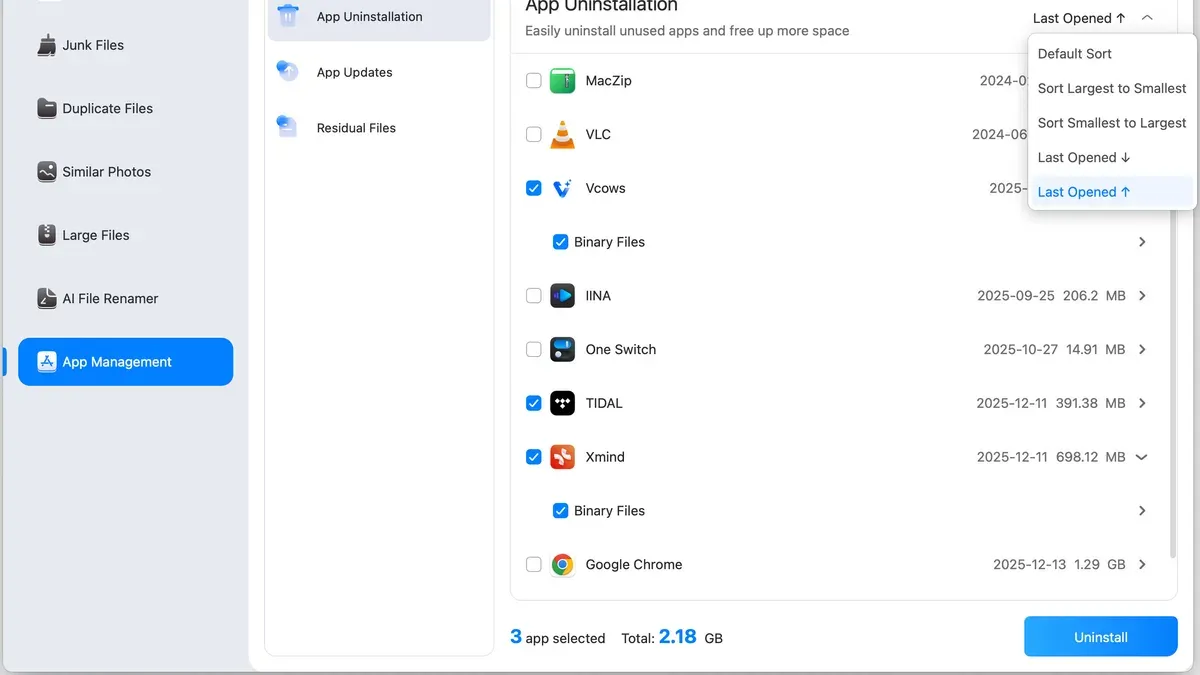
You can install and remove applications on your Mac through Terminal using package managers like Homebrew or by manually handling app bundles.
- To install an app with Homebrew, first update Homebrew by running brew update. Then install the app with brew install <package-name> or for GUI apps, use brew install --cask <app-name>. After installation, check the app is available by listing it with brew list or searching with brew info <app-name>.
- For manual installation, copy the.app bundle to your Applications folder. For example, cp -R /path/to/AppName.app /Applications/. Verify the app appears in /Applications by running ls /Applications/ | grep AppName.
- To uninstall apps installed via Homebrew, use brew uninstall <package-name> or brew uninstall --cask <app-name>. Confirm removal by running brew list again and ensuring the app no longer appears.
- Manual uninstallation involves deleting the app bundle with rm -rf /Applications/AppName.app. Check removal by listing the folder contents; the app should not be present.
- Note that uninstalling apps by removing.app bundles may leave behind configuration files or support data. Homebrew uninstall is cleaner but limited to apps installed via it. For thorough removal, consider additional cleanup of related files.
Troubleshooting common issues when listing or running apps in Terminal
When using Terminal commands to list or run apps, you may encounter permission errors such as "Permission denied". This occurs when your user lacks rights to access certain directories or execute files. Precede commands with sudo to run them as an administrator, but only when necessary, as this grants elevated privileges.
Sometimes, apps don’t appear in listings due to path or Spotlight indexing issues. If mdfind misses apps, try rebuilding the Spotlight index with sudo mdutil -E /. Also, check that you’re targeting the correct directory, since apps can be in both system-wide and user-specific locations.
Hidden or system apps might not show up with standard listing commands. Use ls -la to reveal hidden files, and remember that some system apps are protected by macOS and won’t be accessible or modifiable without disabling System Integrity Protection, which is generally discouraged.
Terminal commands may not reflect apps installed via the App Store or managed by system processes if those apps use sandboxing or reside in protected containers.
If a command fails to run an app or shows integrity errors, verify the app’s file path and check for corruption by opening it via Finder or running codesign -v /path/to/app. A failure here indicates a signature issue that can prevent launching.
- Run a command that gives a permission error, e.g.,
ls /System/Applications. You should see "Permission denied." If so, proceed. - Rerun the command using
sudo, likesudo ls /System/Applications. You will be prompted for your password. After entering it, the directory listing should appear. - If an app is missing from your list, run
sudo mdutil -E /to rebuild the Spotlight index. After completion, retry the search command. - To see hidden apps, run
ls -la /Applications. Hidden files will now be visible. - Check app integrity by running
codesign -v /Applications/AppName.app. If you see no output, the signature is valid; if there is an error, the app may be corrupted.
- How to Keep Your Mac Awake Using the Terminal’s Caffeinate Command
- How to Find Large Files in Mac Terminal: Step-by-Step Guide
- How to Shutdown Your Mac with a Timer Using Terminal
Frequently asked questions
How to check installed packages in mac terminal?
To check installed packages, especially those managed by package managers like Homebrew, you can use the command brew list. This shows all packages installed via Homebrew. For system-wide packages, you might also use pkgutil --pkgs which lists all packages registered with the macOS Installer.
How to install mac os from terminal?
Installing macOS from Terminal requires booting into macOS Recovery or using a bootable installer. Within Terminal, you can use the startosinstall command from the macOS installer app to initiate installation. This method is typically used for advanced users or system administrators managing multiple installations.
How to check installed apps in mac os?
You can check installed applications by navigating to the Applications folder and listing its contents with ls /Applications. Alternatively, using system_profiler SPApplicationsDataType provides a detailed list of installed apps with additional metadata.
How to install application in mac?
Applications can be installed via Terminal using package managers like Homebrew with brew install [package-name]. For apps distributed as.dmg or.pkg files, installation often requires mounting the image and running the installer, which may be scripted but usually involves manual steps outside Terminal.
How to install applications on mac?
Besides using Homebrew, you can install applications by downloading installers and running them manually or through Terminal commands if supported. The installer command-line utility can be used to install.pkg files by specifying the file path.
What this guide does not cover and who should look elsewhere
This guide focuses on listing, verifying, running, and managing applications installed using standard macOS methods and basic Terminal commands. It does not cover advanced package management tools like Homebrew, MacPorts, or third-party software installed through non-standard methods. Users with heavily customized shell environments or those managing software in specialized development contexts may require more specific commands or tools tailored to their setup.
For the most straightforward next step, try running open -a "Application Name" in Terminal to launch an app directly. This command not only confirms the app’s presence but also familiarizes you with controlling apps without the graphical interface, providing a practical foundation for deeper Terminal-based app management.



