
How to Kill a Process by Name in Mac Terminal: Step-by-Step Guide
Quickly kill a process by name in Mac Terminal using simple commands to manage unresponsive apps and optimize your Mac's performance.
You notice your Mac slowing down, or an app freezing without any obvious way to quit it. Instead of navigating multiple menus, you want a quick solution to close the troublesome process by name using Terminal commands.
This article covers how to kill a process by name in Mac Terminal through clear, step-by-step instructions. You'll learn different command options like kill, pkill, and killall, how to identify the exact process to avoid unintended terminations, and practical tips for troubleshooting common errors. Whether you need to free up system resources or force quit an unresponsive app, this guide helps you act efficiently and safely.
Key takeaways
- Use
psortopto identify the exact process name or ID before killing it. killallandpkilllet you terminate processes by name but require precision to avoid closing unintended apps.- Sending
SIGTERMsignals first allows graceful shutdown; useSIGKILLonly if necessary. - Clear the Terminal screen with
clearorCmd+Kfor a cleaner workspace after managing processes. - Force quit unresponsive Terminal or other apps using
kill -9cautiously to prevent data loss.
Before you start: What you need to know and prepare
To kill processes by name in the Mac Terminal, you need appropriate permissions. Some processes require administrator rights, so you may need to prefix commands with sudo and enter your password. Without these rights, attempts to terminate certain processes will fail.
The Terminal app is found in /Applications/Utilities/Terminal.app. You can launch it via Spotlight Search (Command + Space, then type "Terminal") or navigate through Finder. Once open, you interact with the command line interface to manage processes.
Killing processes by name requires precision. If the name is too broad or common, multiple unrelated processes may be terminated unintentionally. It’s safer to identify the exact process ID (PID) before acting. This article uses common command syntax where flags follow the command, and arguments like process names or PIDs come afterward.
- Open Terminal. You should see a prompt ending with a dollar sign ($) where you can type commands.
- Type ps aux | grep [process_name] replacing [process_name] with the actual name you're targeting, then press Enter.
- The output lists running processes matching the name, showing the PID (usually the second column), user, CPU usage, and command details.
For example, searching for "Safari" might show:
501 1234 0.0 1.2 345678 45678?? S 10:00AM 0:02.50 /Applications/Safari.app/Contents/MacOS/Safari
Here, 1234 is the PID for the Safari process. Using this PID is more precise than killing by name alone.
How to kill a process in Mac Terminal using the kill command
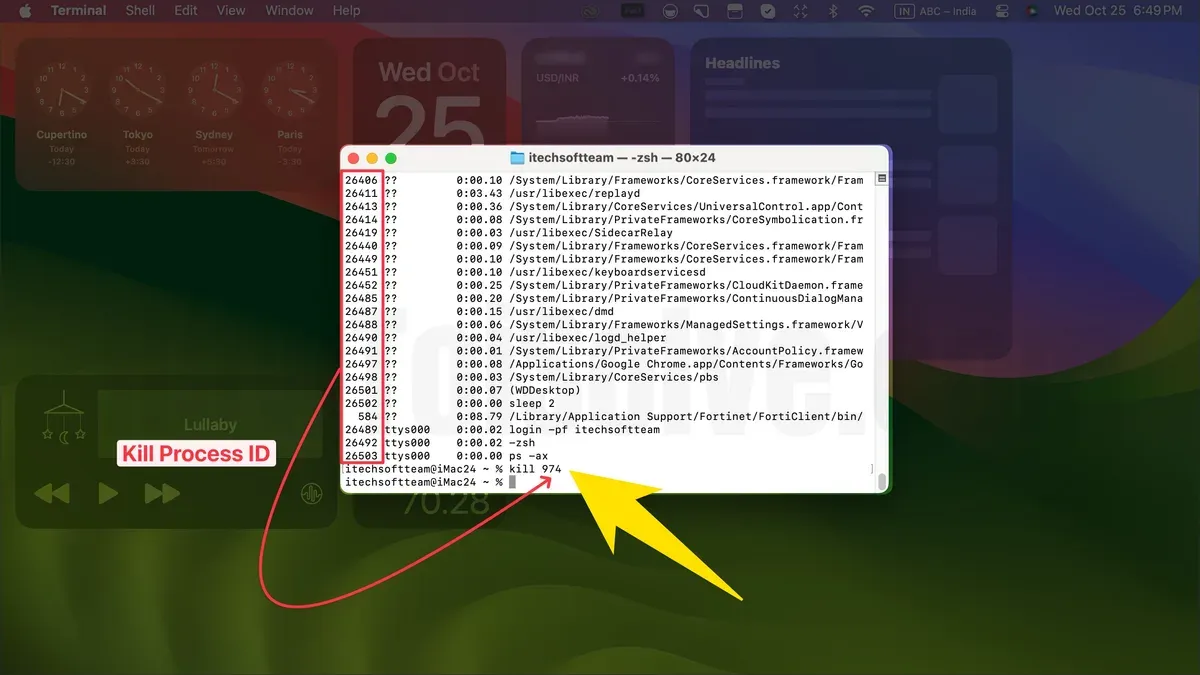
To stop a process by its Process ID (PID), you first need to identify the PID using commands like ps combined with grep. This helps you locate the exact process you want to terminate.
- Open Terminal and type
ps aux | grep name, replacing name with part of the process name. You should see a list of processes matching that name along with their PIDs in the first column. - Note the PID (a number) of the process you want to kill. For example, if the PID is 12345, you will use this number in the kill command.
- Type
kill PID(e.g.,kill 12345) to send the default TERM signal, which politely asks the process to quit. If successful, the process should stop without any message returned. - If the process does not stop, use
kill -9 PIDto send the KILL signal, which forces termination immediately. This is stronger but does not allow the process to clean up. - Some processes require elevated permissions. If you see a “permission denied” error, prepend
sudoto the kill command (e.g.,sudo kill -9 12345), then enter your password when prompted.
Using the kill command gives you precise control over which process ends but requires careful PID selection to avoid terminating the wrong application.
How to kill a process by name directly with pkill and killall
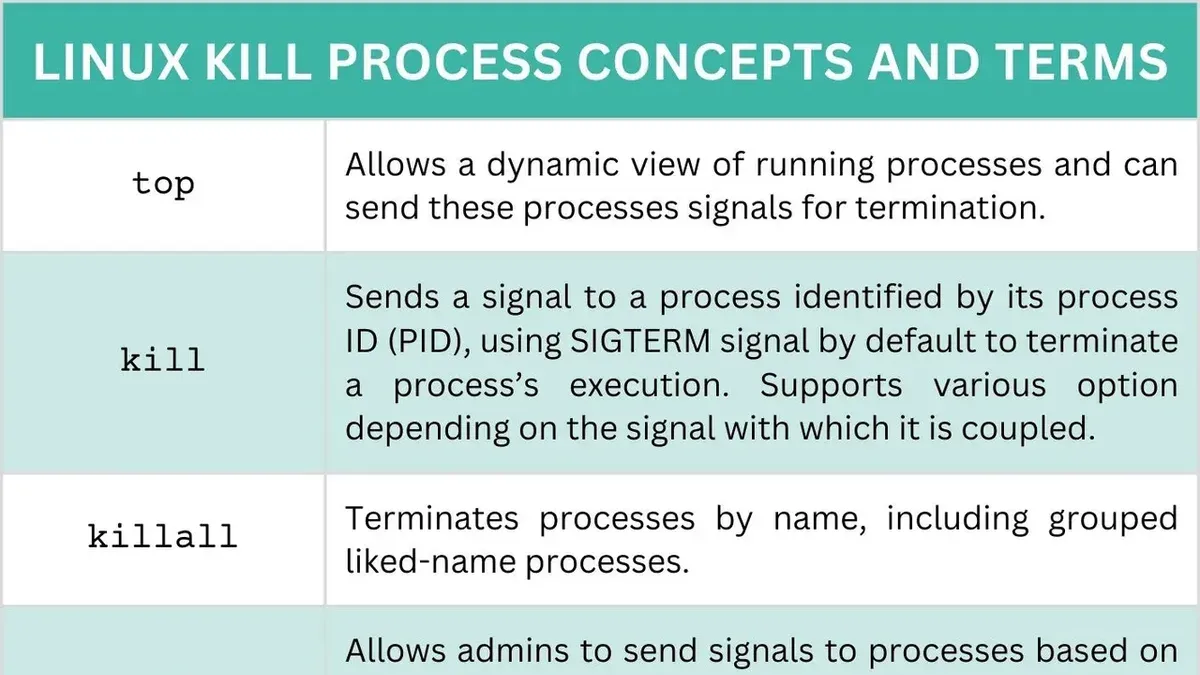
Killing processes by name can be done without manually locating process IDs by using pkill or killall. Both commands target processes based on their names but differ in behavior and matching rules.

- Use
pkill processnameto send the default TERM signal to all processes matching processname. This command performs partial matching, so it will affect any process whose name contains the given string. Successful use results in the targeted processes terminating quietly. - Use
killall processnameto send the TERM signal to all processes with the exact name processname. This command is case sensitive and requires an exact match. If successful, the specified processes will close. - To force kill a process with
pkill, add the signal option, for examplepkill -9 processnameto send SIGKILL. This immediately stops the process without cleanup. - Similarly, use
killall -9 processnameto force kill with SIGKILL using killall. - Be cautious:
pkill's partial matching can unintentionally terminate multiple unrelated processes whose names include the search string.killallavoids this by requiring an exact name but is sensitive to case and spelling.
| Command | Matching Type | Case Sensitivity | Signal Default | Force Kill Signal | Example |
|---|---|---|---|---|---|
| pkill | Partial match | Case insensitive on Mac | TERM | SIGKILL (-9) | pkill Safari |
| killall | Exact match | Case sensitive | TERM | SIGKILL (-9) | killall Safari |
How to kill a running process in Mac Terminal safely and effectively
Before terminating a process, confirm it is the correct one to avoid unintended system issues. Use ps or top to review running processes and their resource usage. For more precise matching, pgrep -fl processname lists process IDs (PIDs) with full command lines, helping you identify the exact process.
For example, running pgrep -fl Safari might return:
1234 /Applications/Safari.app/Contents/MacOS/Safari
5678 /Applications/Safari.app/Contents/MacOS/Safari --private
Here, you see two Safari processes with different PIDs. Choose the PID related to the process you want to terminate.
- Run
pgrep -fl [processname]to list matching processes with PIDs. You should see a list showing PIDs and command details. - Verify the target process by checking the command path and arguments carefully. Confirm it is not a critical system process.
- If unsure, avoid killing the process directly. Instead, try quitting the app gracefully via its interface or the Dock.
- Once confirmed, use
kill [PID]to terminate the process gently. The process should stop without affecting system stability. - If the process remains, you may escalate with
kill -9 [PID], but use this as a last resort.
Avoid terminating processes related to system services or background tasks, as this can cause instability or data loss. Always double-check before issuing kill commands, especially when using wildcards or generic names.
How to clear Terminal on Mac for a cleaner workspace
Clearing your Terminal screen helps improve readability by removing clutter from previous commands and output. There are two primary ways to clear the Terminal on Mac: using a command or a keyboard shortcut.
- Type clear and press Enter. This command clears the visible screen, giving you a clean prompt. However, the scrollback history remains accessible if you scroll up.
- Press Command (⌘) + K within the Terminal app. This shortcut not only clears the visible screen but also erases the scrollback buffer, removing all previous output permanently from view.
The key difference is that clear resets the display but preserves the scrollback, allowing you to review past commands by scrolling up. In contrast, Command + K clears both the screen and scrollback, providing a completely fresh workspace but without the ability to scroll back to prior output.
Choosing which method to use depends on whether you want to retain the command history for reference or prefer a fully clean slate. Both techniques are quick and effective for managing your Terminal workspace.
How to force quit Terminal or other unresponsive processes on Mac
When Terminal or other applications become unresponsive, you can force quit them using either Activity Monitor or Terminal commands. Activity Monitor offers a graphical interface where you can locate the process and force quit it, which is safer if you prefer visual control.
To force quit Terminal itself or other stubborn processes from the command line, use killall Terminal or pkill Terminal. This immediately terminates all Terminal windows but may cause unsaved command history or data loss, so use it cautiously.
If a command currently running in Terminal is hanging, try interrupting it first with Ctrl+C to stop the process or Ctrl+Z to suspend it. These key combinations prevent the need to force quit the entire Terminal app.
Example: If Terminal freezes while running a script, pressing Ctrl+C usually stops the script safely. If the Terminal window itself is unresponsive, running killall Terminal will quit all Terminal sessions immediately, which may cause loss of unsaved work or command output.
- Open Activity Monitor from Applications > Utilities or launch Terminal.
- In Activity Monitor, find the unresponsive process by name or PID, select it, and click the stop button (an octagon with an 'X'). Choose "Force Quit" and confirm. The app should close.
- If using Terminal, type
killall Terminalorpkill Terminaland press Enter. The Terminal app closes immediately. - Before force quitting, try pressing Ctrl+C in the Terminal window to interrupt a running command. If that fails, press Ctrl+Z to suspend it.
Troubleshooting common issues when killing processes in Mac Terminal
When killing processes by name in Terminal, you may encounter permission-related errors such as "Operation not permitted". This typically means your user lacks the necessary privileges. Prepend sudo to your command to run it with administrative rights, which should resolve permission denials.
If you see "No matching processes belonging to you were found" or "Process not found", verify the exact process name. Remember, killall requires the precise, case-sensitive name, while pkill allows partial matches but is case-insensitive. Typing an incorrect name or using command arguments instead of the actual process name will cause these errors.
Processes sometimes respawn automatically after termination, especially system or background services. To handle this, first identify if a launch agent or daemon is restarting it using launchctl list. Disabling or unloading the responsible launch daemon temporarily can prevent the process from restarting.
- Run your kill command with
sudoif permission is denied. You should see the command execute without errors. - Double-check the process name with
ps aux | grep [name]to ensure accuracy. The targeted process should appear in the list. - If the process restarts, use
launchctl listto find related services and unload them withsudo launchctl unload [path]. The process should stop and not reappear.
Additional useful Mac Terminal commands related to process and app management
Beyond killing processes, several Terminal commands can help you monitor system activity, manage applications, and diagnose issues.
- Check open ports and network-related processes: Use
lsof -i -Pto list all open Internet sockets with port numbers and process associations. This helps identify which apps are using network resources. - Monitor processes in real-time with
top: Entertopto see a live, updating list of processes sorted by CPU usage. Pressqto exit. - Use
htopfor an enhanced interactive process viewer: If installed,htopoffers color-coded displays, easy navigation, and filtering options. Install via Homebrew withbrew install htop. - Remove applications safely via Terminal: Use
rm -rf /Applications/YourApp.appto delete an app bundle. Be cautious—this permanently deletes the app and requires proper permissions. - Copy commands and output efficiently: Highlight text in Terminal and press
Command + Cto copy. To paste, useCommand + V. For saving output to a file, append> filename.txtto your command.
- How to Disable Gatekeeper in Mac Terminal: Step-by-Step Guide
- How to Show Hidden Files Using Mac Terminal: A Clear Step-by-Step Guide
- How to Show Full Path in Finder Using Mac Terminal: A Step-by-Step Guide
Frequently asked questions
How to force quit terminal in mac?
To force quit Terminal on Mac, you can press Command + Option + Escape to open the Force Quit Applications window. Then select Terminal from the list and click Force Quit. Alternatively, you can use the Activity Monitor app to find Terminal and force quit it from there if it becomes unresponsive.
How to clear terminal mac?
To clear the Terminal screen on a Mac, type clear and press Enter. This removes all previous commands and output from view but does not delete the session history. You can also press Control + L as a shortcut to clear the screen.
How to kill a process in macos terminal?
You can kill a process in macOS Terminal by first identifying its process ID (PID) using commands like ps aux or pgrep. Then use the kill command followed by the PID to terminate it. For example, kill 1234 sends a termination signal to the process with PID 1234.
How to terminate a process in mac terminal?
Terminating a process in Mac Terminal can be done with commands such as kill, pkill, or killall. kill requires the PID, while pkill and killall allow you to specify the process name directly. Use caution with killall, as it may affect multiple processes with similar names.
How to stop a process in mac terminal?
To stop a process in Mac Terminal, you can send it a signal like SIGTERM with the kill command, which requests the process to terminate gracefully. If it doesn’t respond, use kill -9 to force the process to stop immediately. Always identify the correct process to avoid unintended consequences.
Limits of killing processes by name and when to seek other solutions
Killing processes by name can unintentionally terminate multiple processes or critical system tasks if process names are shared or generic. You should always verify the exact process details using commands like ps or pgrep before proceeding. This method does not replace proper app quitting methods such as using the Dock or Force Quit menu, nor does it substitute comprehensive system management tools designed for safe process control.
If you are managing system-critical tasks or unfamiliar with Terminal commands, it is safer to use macOS’s built-in Activity Monitor or consult professional support to avoid accidental data loss or system instability.
For most users comfortable with the Terminal, the single most useful next step is to practice identifying processes accurately using pgrep -fl [process_name] before using killall or pkill. This helps confirm you target the intended processes and prevents unintended terminations.



