
How to Show Full Path in Finder Using Mac Terminal: A Step-by-Step Guide
Discover how to show the full path in Finder using Mac Terminal commands and settings for clearer navigation and better file management.
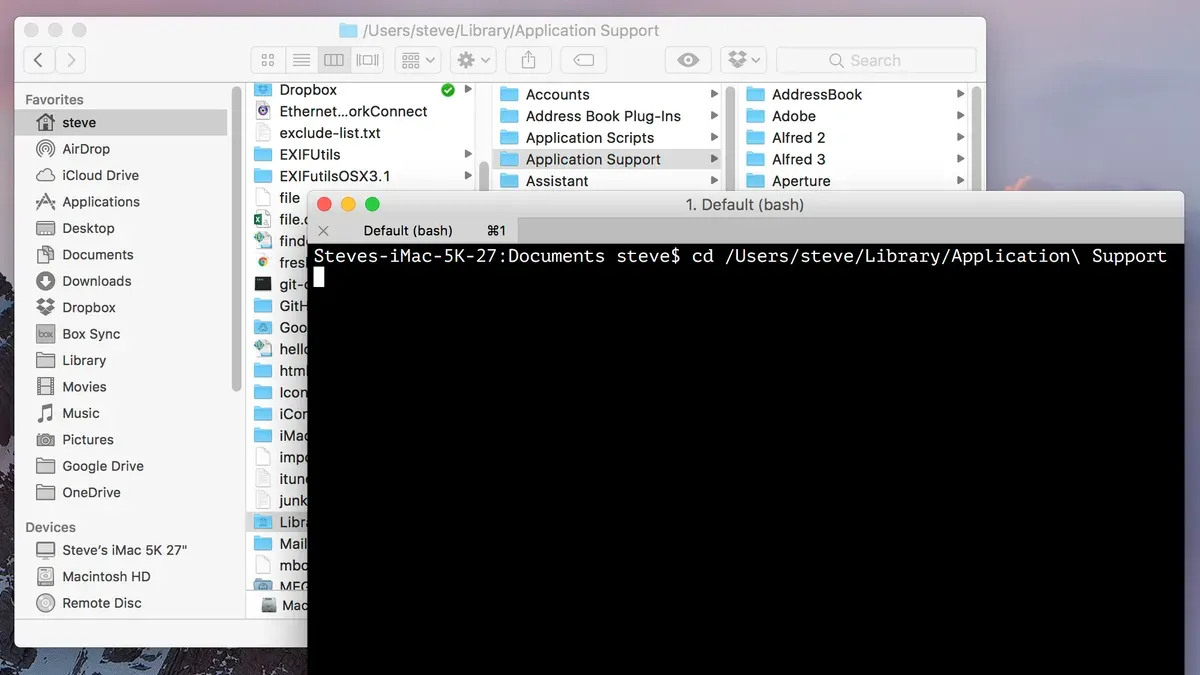
When navigating your Mac's file system, you might find it frustrating when Finder windows only show the folder name instead of the full file path. This can slow you down when moving between deeply nested folders or managing files across multiple directories. If you've ever wondered how to show full path in Finder in Mac Terminal, this guide will walk you through the options.
You'll learn how to use Terminal commands to display the full path directly in the Finder window title, as well as how to enable the Finder path bar for a persistent visual reference. The article also covers how to dynamically toggle these settings, the impact on your Finder experience, and some common troubleshooting tips—all without needing third-party software.
Key takeaways
- Use the Terminal command
defaults writecom.apple.finder _FXShowPosixPathInTitle -bool trueto show the full path in Finder window titles. - Enable the Finder path bar via Finder's View menu to see the full path at the bottom of windows.
- Use the Terminal command
pwdto display the current directory path when working in Terminal. - Toggling full path visibility can affect window titles and navigation clarity, so consider your workflow needs.
- Restart Finder after making changes to see updates immediately and troubleshoot if paths do not display as expected.
Before you start: What you need to know
To show the full file path in Finder and Terminal, you should have basic familiarity with both tools. Finder displays file locations graphically, while Terminal uses text commands to navigate directories. Understanding how each shows paths helps you decide which method suits your workflow.
Finder offers two main ways to view a file’s full path: the window title bar and the path bar at the bottom of Finder windows. The window title typically shows only the current folder’s name unless you enable full path display via Terminal commands. The path bar explicitly lists the entire folder hierarchy, offering a clickable navigation aid.
Some Terminal commands require administrator privileges, so ensure you have access to a Mac running macOS with such rights. For example, toggling full path display in the Finder window title uses a command with defaults write, which may prompt for an admin password.
Example screenshots typically show the Finder window title displaying just “Documents” by default, versus a full path like “Macintosh HD ▸ Users ▸ username ▸ Documents” after enabling the full path. Terminal outputs often include commands like defaults read com.apple.finder _FXShowPosixPathInTitle returning 0 (off) or 1 (on) to indicate the current setting.
Show full path in Finder window title using Terminal
You can enable the full file path in the title bar of Finder windows by using a Terminal command. This changes the default behavior where only the folder name appears, giving you a clearer context of your file's location.
- Open Terminal from Applications > Utilities.
- Enter the following command exactly: defaults write com.apple.finder _FXShowPosixPathInTitle -bool true. You should see no output, indicating the command was accepted.
- Restart Finder to apply the change by typing killall Finder and pressing Enter. Finder will close and reopen automatically.
- Open any Finder window. The title bar will now display the full POSIX path (e.g., /Users/yourname/Documents/Projects), rather than just the folder name.
If you want to revert this setting, run the same command replacing true with false followed by restarting Finder.
Before applying the command, Finder window titles show only the current folder name. Afterward, the full path provides a precise location, which can improve navigation but may clutter the title bar if paths are long.
Enable and use the Finder path bar for full path display
The Finder path bar is a horizontal strip at the bottom of Finder windows that shows the complete hierarchical path of the current folder. Unlike the window title path, which appears at the top and can be limited in length, the path bar provides clickable folders allowing quick navigation back through parent directories.
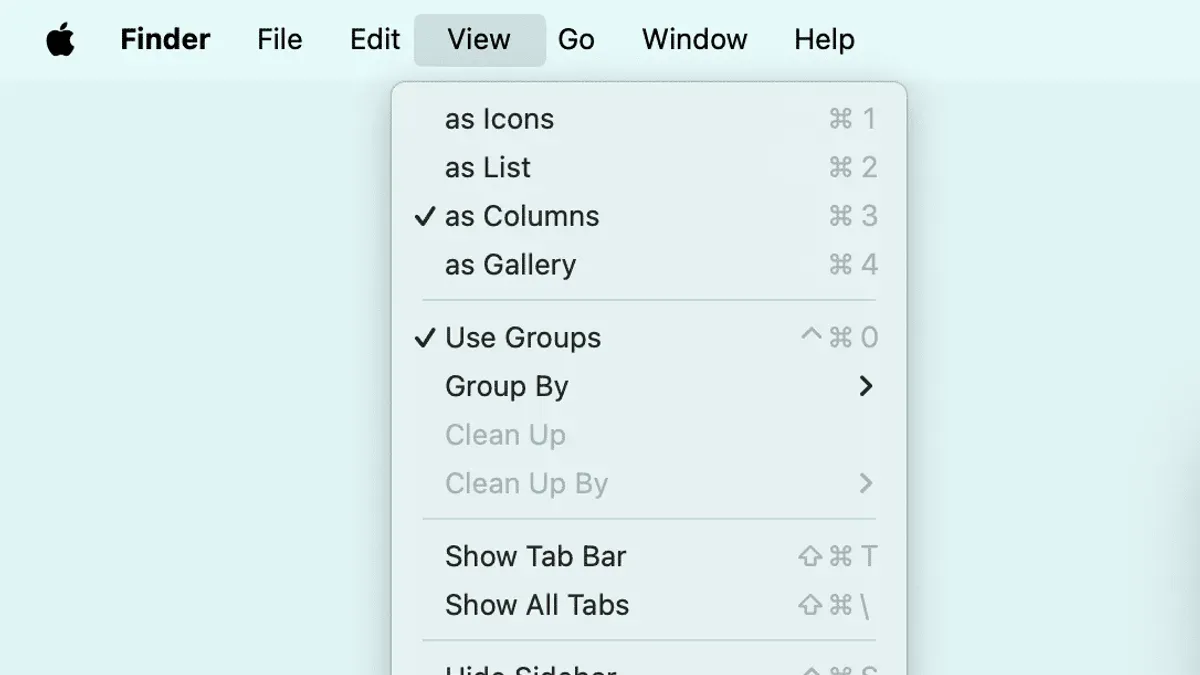
You can toggle the path bar on or off either through the Finder menu or by using Terminal commands. To enable it via the Finder menu, open a Finder window, then go to the View menu and select Show Path Bar. You should immediately see the path bar appear at the bottom of the window.
If you prefer the Terminal, enter the following command to show the path bar:
defaults write com.apple.finder ShowPathbar -bool true; killall Finder
Running this command restarts Finder, after which the path bar will be visible. To hide it, replace true with false.
- Open a Finder window and check if the path bar is visible at the bottom — if not, proceed.
- Use the Finder menu: click View then Show Path Bar. The path bar appears immediately.
- Alternatively, open Terminal and run
defaults write com.apple.finder ShowPathbar -bool true; killall Finder. Finder restarts and shows the path bar. - Click any folder in the path bar to navigate instantly to that location.
The path bar’s benefits include easy navigation and a clear display of the full folder hierarchy. However, it occupies screen space and may be less visible on smaller displays. Also, it does not affect the window title, so if you rely on the title bar for path info, this is a complementary option rather than a replacement.
Use Terminal to display the full current directory path
To see the full path of your current directory directly in Terminal, use the pwd command. It outputs the complete absolute path, helping you confirm your location without referring to Finder.
For example, typing pwd might return /Users/yourname/Documents/Projects, showing the exact directory you’re in.
If you want the full path to appear constantly in your Terminal prompt, you can customize your shell prompt. This involves editing shell configuration files like ~/.bash_profile or ~/.zshrc, depending on your shell.
- Open Terminal and type
pwd, then press Enter. You should see the full directory path displayed. - To customize the prompt, open your shell configuration file with a text editor, for example:
nano ~/.zshrc. - Find the line defining your prompt (often named
PS1) or add one. For the full path, setPS1='%~ % 'for zsh orPS1='\w $ 'for bash. - Save the file and reload the configuration by typing
source ~/.zshrcorsource ~/.bash_profile. - Your Terminal prompt now shows the full current directory path before each command, updating as you navigate directories.
This method complements Finder’s path visibility by keeping you aware of your exact location within Terminal sessions, improving navigation and script management.
Troubleshooting common issues when showing full paths
If the Finder window title does not update after entering the Terminal command and restarting Finder, first ensure you have entered the command correctly. Syntax errors, such as missing quotes or incorrect capitalization, can cause the command to fail silently. For example, the correct command uses exact casing: defaults write com.apple.finder _FXShowPosixPathInTitle -bool true. An incorrect version might omit underscores or use 'true' without the proper boolean type, leading to no change.
Permission issues typically appear if you lack admin rights or if System Integrity Protection restricts changes. Running Terminal commands with sudo is generally not required for this setting, but ensure your user account has the necessary privileges. Common error messages include "Operation not permitted" or "Permission denied." In such cases, check your user permissions or consider temporarily disabling SIP only if you understand the implications.
macOS updates occasionally reset Finder preferences, reverting the full path display setting to default. If this happens, reapply the Terminal command and restart Finder. To confirm the setting is active, use defaults read com.apple.finder _FXShowPosixPathInTitle; it should return 1 when enabled. A returned value of 0 or an error indicates the setting is off or not set.
- Open Terminal and type the exact command to enable full path: defaults write com.apple.finder _FXShowPosixPathInTitle -bool true.
- Restart Finder by typing killall Finder. The Finder windows should close and reopen.
- Check if the window title now displays the full path. If not, verify the command syntax and repeat.
- Run defaults read com.apple.finder _FXShowPosixPathInTitle to confirm the setting returns 1.
- If you see permission errors, confirm your user account has admin rights and avoid using sudo with this command.
- After macOS updates, if the setting resets, repeat the command and restart Finder again.
When showing the full path may not be ideal
Displaying the full file path in Finder can sometimes cause interface clutter, especially when dealing with deeply nested directories. For example, a Finder window title might become truncated if the path exceeds the available space, showing only the last few folders instead of the entire path. This can reduce readability rather than improve it.
Performance is another consideration. On older Macs or systems with limited resources, enabling additional UI elements like the full path in the title bar or path bar can slightly affect responsiveness. Community forums and Apple documentation note that while the impact is usually minor, users with slower machines may notice delays when opening or refreshing Finder windows.
If you prefer a minimal interface, consider disabling full path displays and using alternative navigation methods such as keyboard shortcuts (e.g., Command-Click on folder names in the title bar) or the Finder’s sidebar. These options keep your UI clean while still providing efficient access to directory locations.
- How to Show Hidden Files Using Mac Terminal: A Clear Step-by-Step Guide
- How to Speed Up Dock Animation Using Mac Terminal Commands
- How to Disable Gatekeeper in Mac Terminal: Step-by-Step Guide
Frequently asked questions
Can I make the full path always visible in Finder without using Terminal?
Yes, you can make the full path visible without Terminal by enabling the Path Bar in Finder. To do this, open a Finder window, then go to the View menu and select "Show Path Bar." This displays the full path at the bottom of the Finder window, allowing you to navigate folders easily without any command line input.
Does showing the full path in Finder affect system performance?
Displaying the full path in Finder has a negligible impact on system performance. This feature involves simple UI adjustments and does not increase resource usage significantly. You can safely enable it without worrying about slowing down your Mac.
How do I revert the changes if I no longer want the full path displayed?
To revert changes made via Terminal that show the full path in the Finder window title, run the command defaults write com.apple.finder _FXShowPosixPathInTitle -bool false followed by killall Finder. For enabling or disabling the Path Bar, simply uncheck "Show Path Bar" from the Finder's View menu.
Is it possible to customize the path format shown in Finder window titles?
Finder's default behavior does not offer extensive customization for path formats in window titles. The Terminal command to show the full POSIX path is a simple toggle and does not support formatting options. For more tailored path displays, third-party tools would be necessary.
What this advice does not cover and who should look elsewhere
This guide does not cover third-party Finder replacements or utilities that offer advanced path display options beyond what macOS provides natively. If you require persistent, highly customizable path displays or integration with other tools, exploring dedicated Finder alternatives or third-party file managers may be more suitable. Additionally, this article assumes familiarity with basic Terminal commands and Finder navigation but does not delve into scripting or automation workflows.
To get the most out of showing full paths in Finder, the single most useful next step is to experiment with toggling the path bar via View > Show Path Bar in Finder and using the Terminal command defaults write com.apple.finder _FXShowPosixPathInTitle -bool true; killall Finder. This combination allows you to quickly see the full path both in the window title and at the bottom of Finder windows, helping you confirm file locations without third-party apps or complex setups.



