
How to Speed Up Dock Animation Using Mac Terminal Commands
Discover how to speed up Dock animation on your Mac using Terminal commands to make your interface more responsive and snappy.
When you open or close apps from the Dock on your Mac, the animation can sometimes feel slower than you'd like, especially if you prefer a more responsive interface. Adjusting these animations can make your workflow feel snappier, but the settings aren’t available through the usual System Preferences menus.
This article explains how to speed up Dock animation in Mac Terminal with precise command-line instructions. You will learn how to check your current Dock animation speed, apply changes to accelerate animations, test them immediately, and safely revert to defaults if needed. This guide also highlights common pitfalls and the practical limits of speeding up Dock animations.
Key takeaways
- You can check Dock animation speed using Terminal with the command
defaults read com.apple.dock autohide-time-modifier. - Speed up Dock animations by setting a lower time modifier value, such as 0.1 seconds, using Terminal commands.
- Apply changes immediately by restarting the Dock process with
killall Dock. - Restore default animation speed by deleting the custom setting from Dock preferences.
- Excessively low animation times may cause visual glitches or system instability.
Before you start: What you need to know and prepare
Adjusting the Dock animation speed on your Mac requires administrator access because you will use defaults write commands that modify system settings. Ensure you have this access before proceeding. You also need a basic understanding of Terminal usage, including how to enter commands and restart the Dock to apply changes.
Dock animation speed controls the duration of visual effects like minimizing windows or opening apps from the Dock. Speeding it up can make your Mac feel more responsive, but setting it too low might cause animations to look abrupt or glitchy.
Before making changes, back up your current Dock animation setting by checking its value. You can do this by running in Terminal:
defaults read com.apple.dock autohide-time-modifier
This command returns the current animation duration. The default value is typically 0.5 seconds, though it may be unset or vary slightly. Saving this value lets you safely revert if needed.
How to check the current Dock animation speed
To understand how fast your Dock animations currently run, you can use Terminal to query the existing animation duration setting. This value controls how quickly windows minimize or maximize to the Dock and is measured in seconds.
- Open Terminal on your Mac.
- Type the following command and press Return:
defaults read com.apple.dock autohide-time-modifier - If a number appears, this is your custom animation duration in seconds. For example, 0.5 means the animation takes half a second.
- If you see a message like “The domain/default pair of (com.apple.dock, autohide-time-modifier) does not exist,” no custom value is set, and your Dock uses the system default animation speed, generally around 0.5 to 1 second.
- To confirm, you can also check the minimize animation speed with:
defaults read com.apple.dock mineffect (though this usually shows the effect type rather than speed).
The default animation duration varies slightly between macOS versions but typically ranges from 0.3 to 1 second. This means your Dock’s minimize and maximize animations smoothly transition within that timeframe unless customized.
Step-by-step: Speeding up Dock animation with Terminal commands
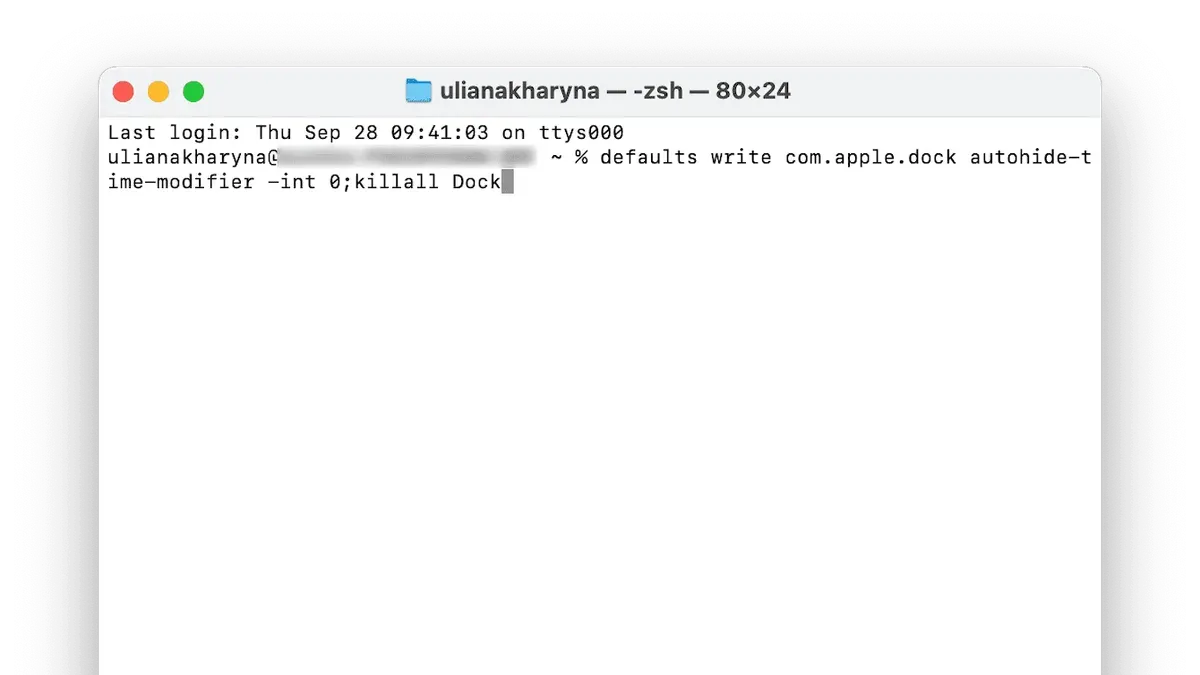
- Open Terminal and enter defaults write com.apple.dock autohide-time-modifier -float 0.1. This command sets the Dock animation duration to 0.1 seconds, significantly faster than the typical default (usually around 0.5 seconds). If you want a less abrupt change, try values like 0.3 or 0.2 first.
- Apply the change immediately by restarting the Dock process with killall Dock. The Dock will disappear briefly and then reappear with the new animation speed.
- Test the Dock hide/show animation by moving your cursor away from and back to the Dock area. The animation should now be noticeably quicker.
- If you experience UI glitches such as flickering or incomplete animations, increase the time modifier incrementally (e.g., 0.15 or 0.2) until the behavior stabilizes.
- Remember, setting the value too low (below 0.1) can cause visual issues or make the animation feel unnatural, so adjust carefully.
How to revert changes and restore default Dock animation speed
- Open Terminal and enter the command
defaults delete com.apple.dock autohide-time-modifier. This removes the custom animation speed setting, reverting to the system default. You should see no error message if the command succeeds. - Restart the Dock to apply the change by running
killall Dock. The Dock will disappear briefly and then reappear, indicating the restart is complete. - Verify the reversion by checking the current animation speed with
defaults read com.apple.dock autohide-time-modifier. If the output states does not exist or returns an error, the default animation speed is restored.
Deleting the custom key ensures your Dock uses the built-in animation speed without any modifications. Restarting the Dock is necessary to implement the change immediately. If you continue to see unusual animation behavior, confirm no other related settings are active.
Troubleshooting common issues when speeding up Dock animation
If your Dock animation speed changes don’t appear immediately, first try restarting the Dock with killall Dock in Terminal. This should apply your new setting promptly. If the Dock still behaves as before, reboot your Mac to ensure all changes take effect.
Setting extremely low values, such as below 0.1 seconds, can cause the Dock to freeze or behave erratically. To fix this, revert to a safer value or delete the custom setting using defaults delete com.apple.dock autohide-time-modifier followed by restarting the Dock.
Permission errors often occur when commands are mistyped or run without sufficient privileges. Ensure you have administrator rights and enter commands exactly, for example, using the correct domain com.apple.dock and key autohide-time-modifier. Common error messages include “Operation not permitted” or “Domain does not exist.” Correct these by verifying command syntax and running Terminal as an authorized user.
- Restart the Dock with
killall Dock. You should see the Dock disappear briefly and reappear, indicating the changes applied. - If no change, reboot your Mac. After restart, test the Dock animation for speed differences.
- If the Dock freezes, open Terminal and run
defaults delete com.apple.dock autohide-time-modifier, thenkillall Dock. The Dock should return to normal behavior. - Double-check command spelling if you get permission or domain errors. Correct errors and rerun the commands with admin rights.
Understanding the limits and impact of speeding up Dock animation
Speeding up the Dock animation primarily enhances the perceived responsiveness of your Mac’s interface by reducing wait times during Dock show and hide actions. However, this adjustment does not increase the actual processing speed or overall system performance.
Setting the animation speed too low, such as values close to zero, may cause visual glitches like flickering or incomplete animations, which can reduce usability and cause distraction. Apple’s documentation on animation preferences suggests using moderate values to balance smoothness and speed.
This Terminal tweak affects only the Dock’s autohide animation speed and does not influence other animations or system-wide responsiveness. It is a cosmetic change that is safe to apply but should be used judiciously to avoid unintended side effects.
Users typically notice a snappier feel immediately after adjusting the speed, but extreme reductions can make the interface feel abrupt rather than fluid. Experts recommend incremental adjustments followed by testing to find a personalized optimal setting.
- How to Disable Gatekeeper in Mac Terminal: Step-by-Step Guide
- How to Reduce Motion on Mac: A Clear Step-by-Step Guide
Frequently asked questions
Will speeding up the Dock animation improve my Mac’s overall performance?
Speeding up the Dock animation affects only the visual responsiveness of the Dock itself and does not impact your Mac’s overall CPU, memory, or system performance. It can make interactions with the Dock feel quicker but won’t speed up applications or the operating system beyond the Dock interface.
Can I speed up other animations on my Mac using similar Terminal commands?
Some macOS animations, like Mission Control or Launchpad, have adjustable speeds via Terminal, but they require different commands and settings. The Dock animation speed is controlled by the autohide-time-modifier and mineffect settings, whereas other animations may not have accessible or documented tweaks.
Is it safe to set the Dock animation speed to zero or very low values?
Setting the Dock animation speed to zero or extremely low values can cause inconsistent animation behavior or glitches, such as flickering or incomplete animations. It is generally safer to use small positive values like 0.1 to maintain smooth visual effects while still speeding up the animation.
How do I know if my changes to Dock animation speed have been applied successfully?
After running the Terminal command to adjust the Dock animation speed, you must restart the Dock by using killall Dock. The Dock will briefly disappear and reappear; if it does so quickly, your change has taken effect. You can also test by minimizing or opening apps to observe the altered animation speed.
Limits of speeding up Dock animation with Terminal commands
This article focuses specifically on adjusting the Dock's animation speed using Terminal commands. It does not cover system-wide animation speed changes or broader Mac performance optimizations, which require different approaches such as modifying other system settings or hardware upgrades. Users seeking to improve overall system responsiveness or reduce animation delays across macOS should explore other methods beyond Dock animation tweaks.
Adjusting Dock animation speed can make the interface feel snappier, but it has practical limits. Setting the speed too fast may cause visual glitches or reduce the smoothness of interactions, and some animations are controlled at a deeper system level which these commands do not affect.
To make the most of these adjustments, the single most useful next step is to experiment carefully with the defaults write com.apple.dock autohide-time-modifier command, testing incremental values and applying changes immediately with killall Dock. This lets you find a balance between speed and visual comfort tailored to your preferences.



